JANETS_INM.pdf - 第324页
JaNets In structio n Manual 7. Program Editor 7- 117 7.6 Supplem entar y I nform ation of Eac h Menu Item 7.6.1 “ File ” menu Figure 7.6 -1 “ File ” menu “ Save ” Saves a prod uction progr am that i s being edit ed. When…
JaNets Instruction Manual 7. Program Editor
7-116
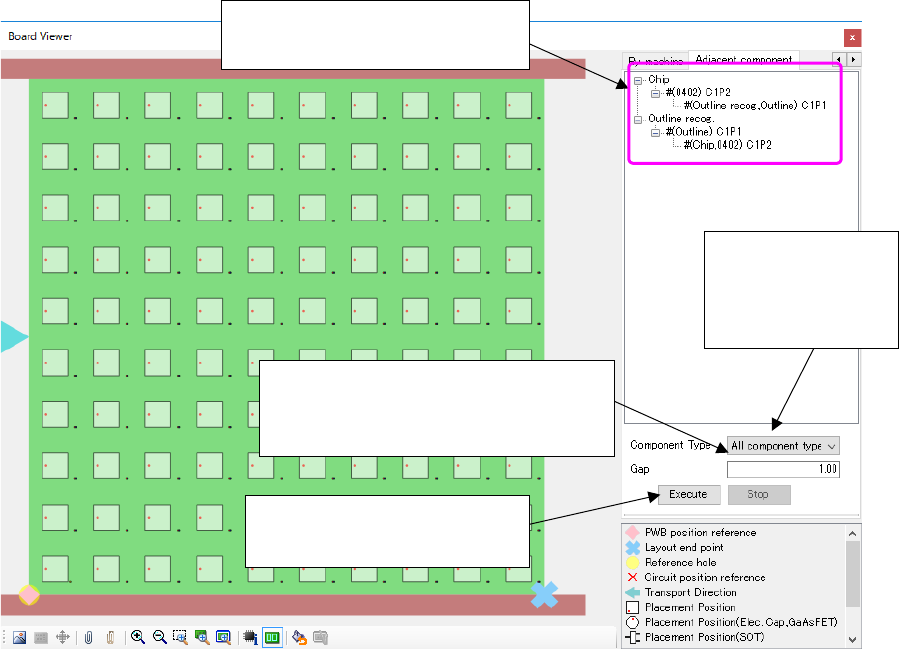
Two adjacent placed components are displayed in the tree view in the following order: Compo-
nent type – Base component – Adjacent component. When you click the base component or the
adjacent component, the component corresponding to the selected component is being selected
in the placement list or component list of the Program Editor.
Figure 7.5-8 “Board Viewer” screen (for displaying an adjacent component)
When the number of pairs of adjacent components exceeds one million, the system aborts the
operation.
In such a case, enter a smaller number in the “Gap” field.
The adjacent component search
result is displayed here.
Enter the gap between two components
to be used for searching for an adjacent
component.
Select a component
type of an adjacent
component to be
searched for.
This button starts searching for
an adjacent component.
JaNets Instruction Manual 7. Program Editor
7-117
7.6 Supplementary Information of Each Menu Item
7.6.1 “File” menu
Figure 7.6-1 “File” menu
“Save”
Saves a production program that is being edited.
When the program is “UNTITILED”, the “Save as…” dialog box appears automatically even if you
click "Save".
When a file created with another machine model is opened, it is saved in the “JaNets” format by
default. Therefore, the "Save as…” dialog box appears.
“Read CAD Data”
Reads CAD data and converts it into a production program in the “JaNets” format.
The system compares the component names of the production program with those of the com-
ponent database; if the name of a component is the same as the program, the component data is
imported from the database into the program.
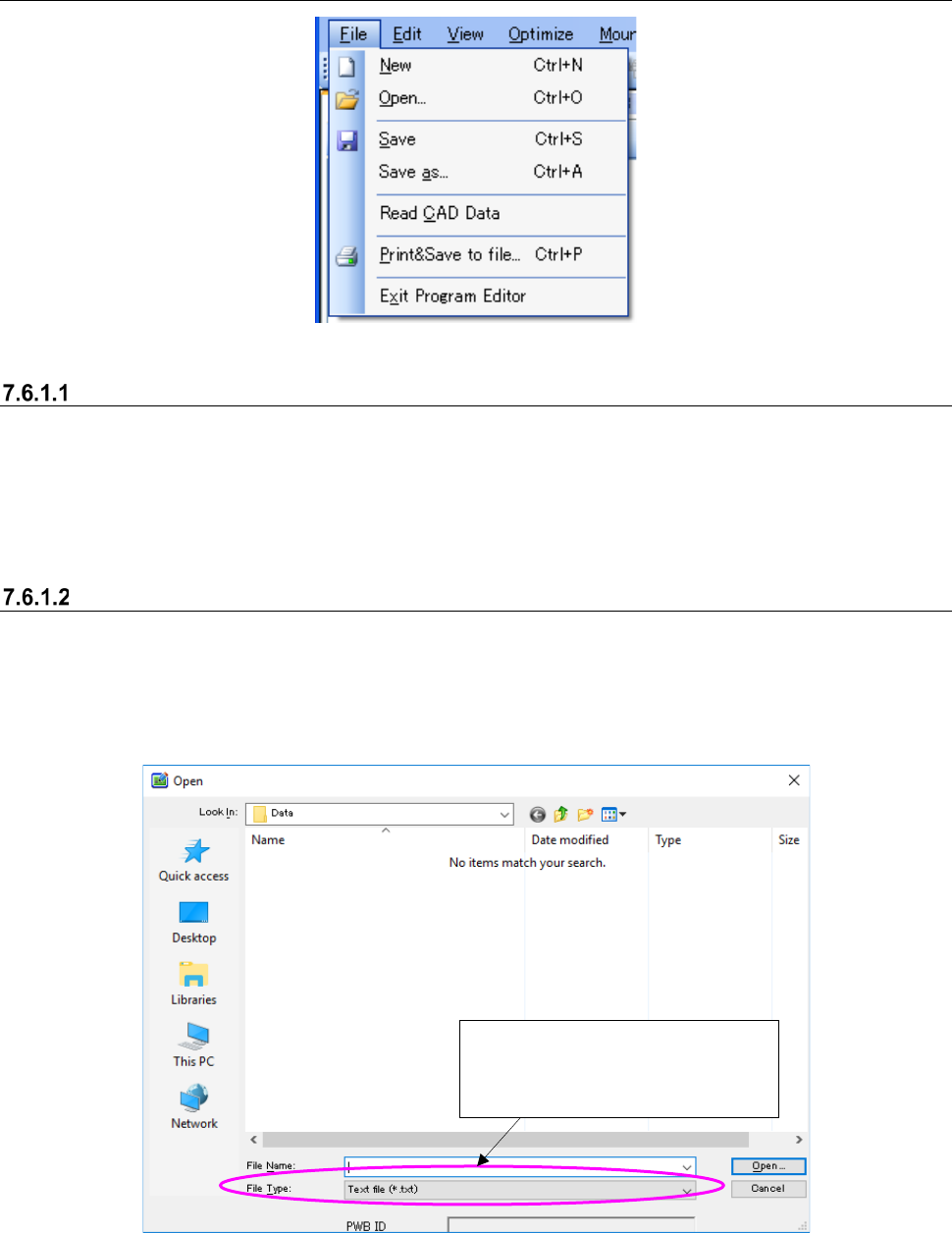
Figure 7.6-2 “Read CAD Data” dialog box
You can choose a file type among
those specified as “Input Format” for
“CAD Conversion Setup,”which is a
menu of “Too ls . ”
JaNets Instruction Manual 7. Program Editor
7-118
[Print & Save to file] command
This command prints data and outputs it in a file.
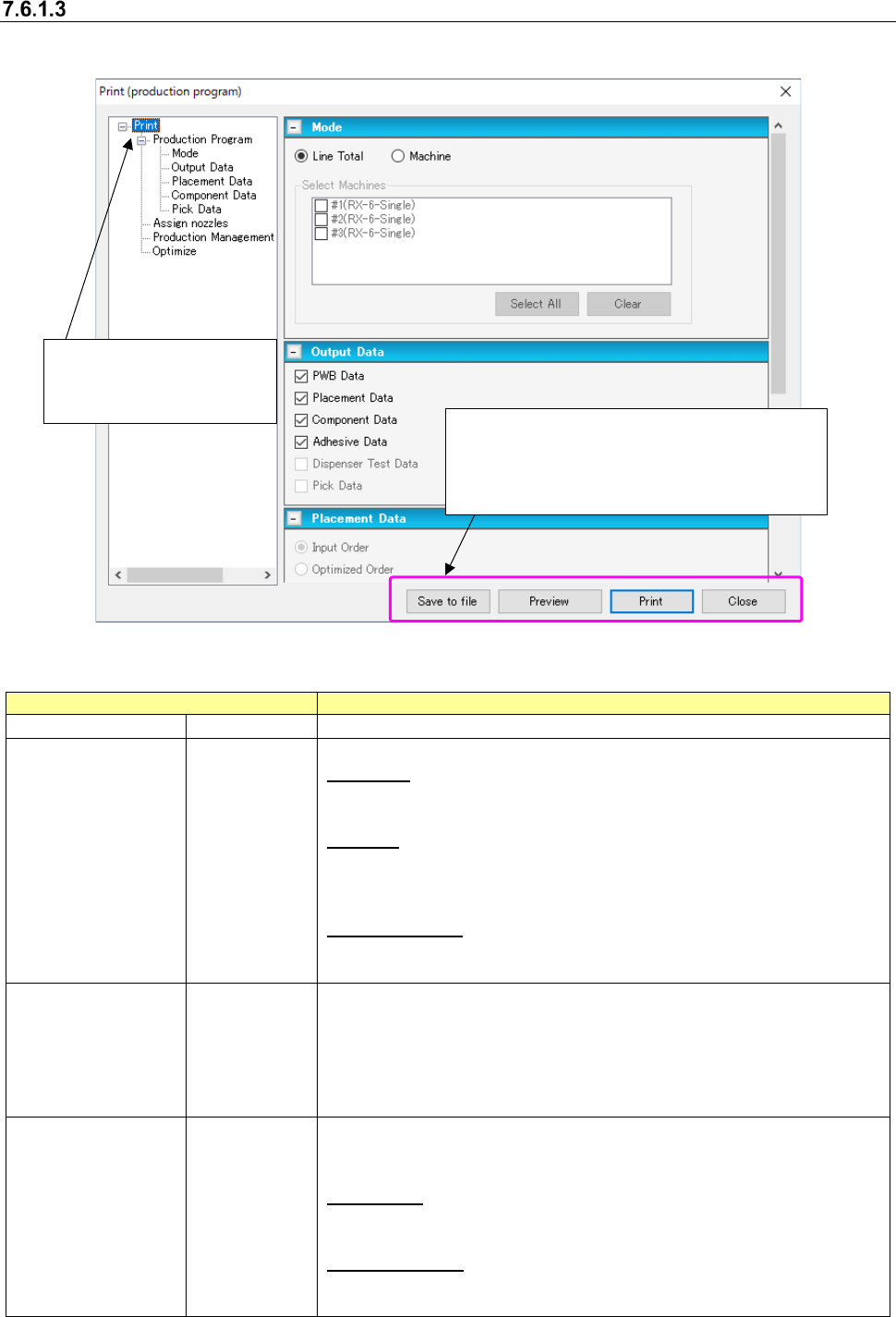
Figure 7.6-3 Print setting screen
Table 7.6-1 Outputs
Data type
Description
Production Program
Print type
Outputs the production program data.
Mode
Specify a print mode of the production program data.
Line Total:
Outputs the information on the production program assigned to the whole
line.
Machine:
Outputs the information on the production program assigned to the ma-
chine. You cannot select this data type when the production program is
not optimized.
Select Machines:
You can select the machine which outputs the data only when the “Ma-
chine” is selected.
Output data
Select the data type to output from among the "PWB data," "Placement
data," "Component data," and "Pick data."
When you select the "Line Total" from the mode, you can select the "PWB
data," "Placement data", and "Component data."
When you select the "Machine" from the mode, you can select the
"Placement data" and "Pick data," and output the data for every machine.
Placement
data
Only when you select the "Machine" from the mode and the "Placement
data" from the output data, you can select between the "Input order" and
"Optimized Order."
Input Order:
Outputs the placement data in the input order.
* RX-7 series is unable to be output in entry sequence.
Optimized Order:
Outputs the placement data in the order which optimization has assigned
to.
Save to file: Outputs data to the file in a specified
mode.
Preview: Checks the printed contents to preview.
Print: Prints data.
Close: Closes the print setting screen to end the print.
Select an item to print from the
tree view.
Output the item that is being
displayed on the screen.