JANETS_INM.pdf - 第328页
JaNets In structio n Manual 7. Program Editor 7- 121 Replacing component data Y ou can replace co mpone nt data t hat satisfies the s pecif ied condit ion(s) w ith the data spec ified on the “ Repl acem ent ” screen. Sel…
JaNets Instruction Manual 7. Program Editor
7-120
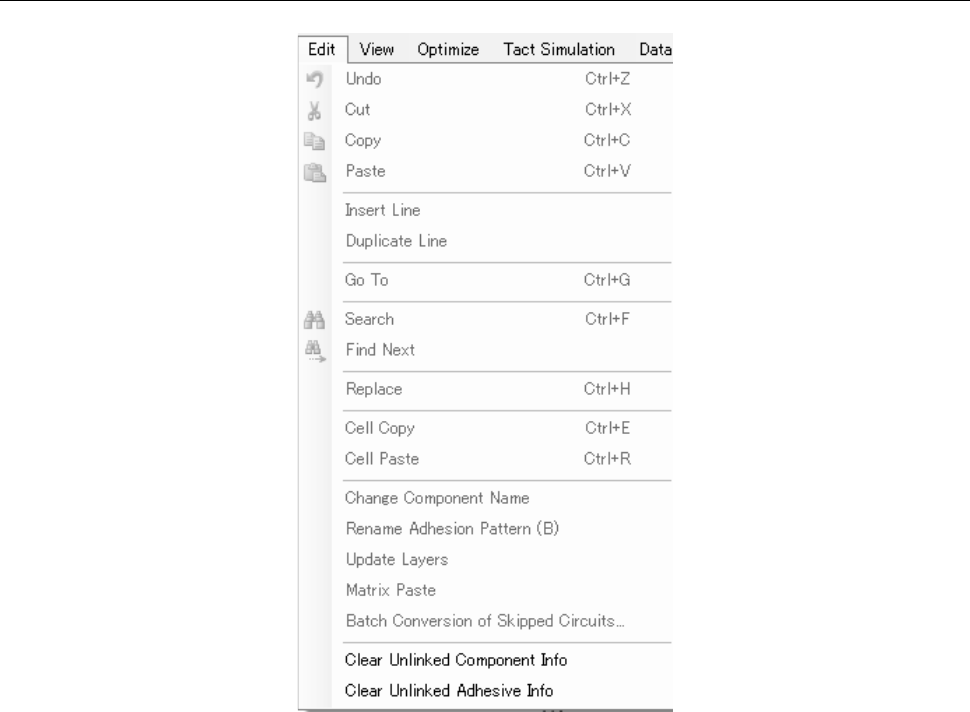
7.6.2 Descriptions of the “Edit” menu commands
Figure 7.6-4 “Edit” menu
JaNets Instruction Manual 7. Program Editor
7-121
Replacing component data
You can replace component data that satisfies the specified condition(s) with the data specified on
the “Replacement” screen. Select the [Edit] command from the menu bar, and then the [Replace]
command.
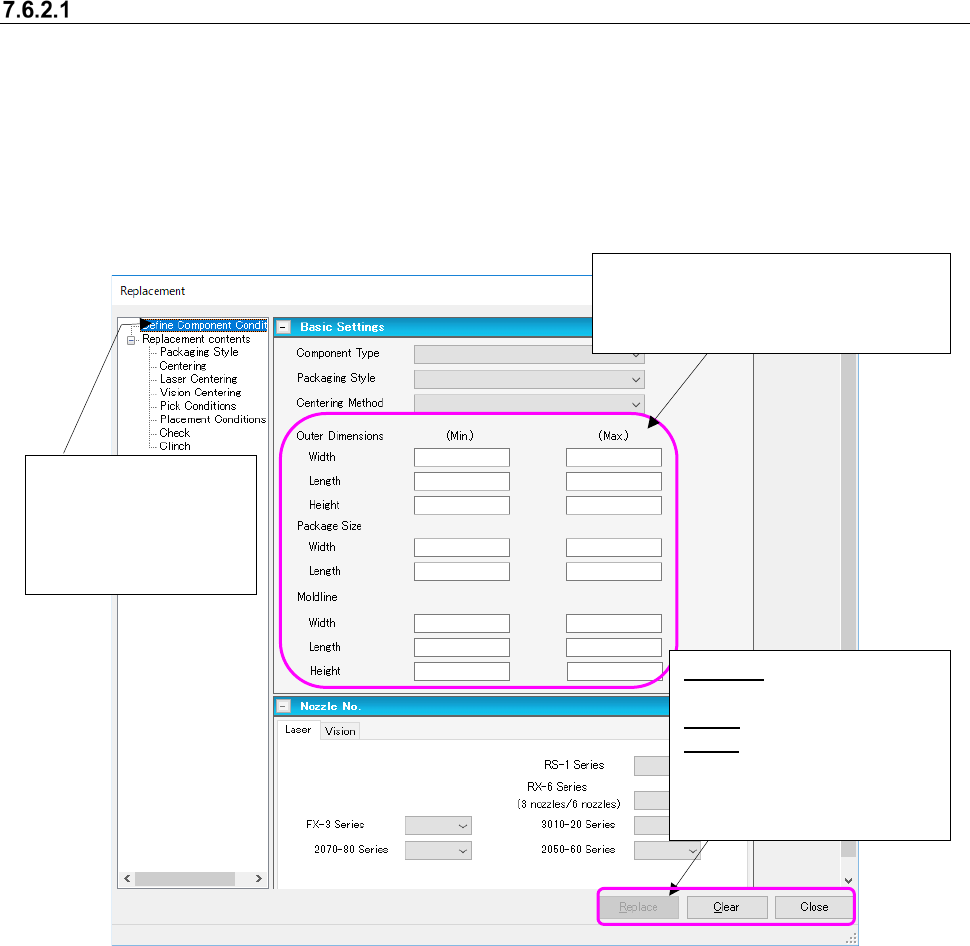
(1) Setting the replacement conditions
Set the conditions for extracting components to be replaced on the following “Replacement”
screen.
Figure 7.6-5 Screen for setting the replacement conditions
Select the “Define Com-
ponent Conditions” from
the tree view to display
the screen shown on the
left side.
Enter each of the minimum and maxi-
mum values to be replaced in the “Outer
Dimensions” fields, the “Package Size”
fields and the “Mold line” fields.
Replace: Starts replacing
component data.
Clear: Clears your settings.
Close: Stops replacement.
* These buttons function in
the same way on the
screens shown below too.
JaNets Instruction Manual 7. Program Editor
7-122
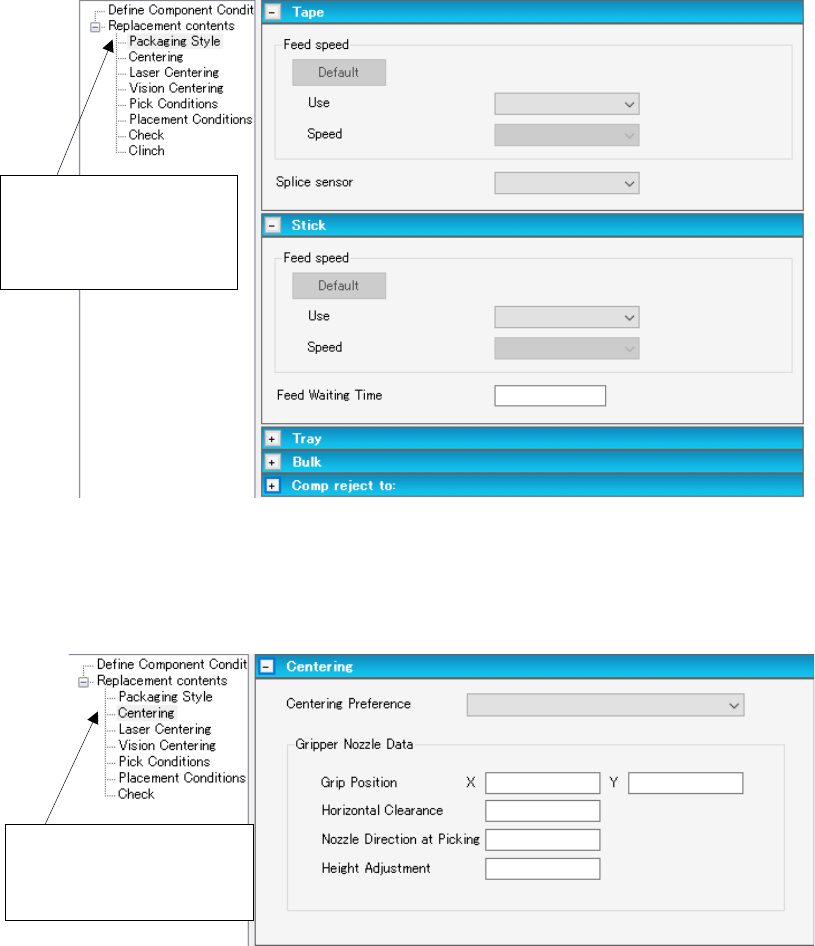
(2) Replacement contents (Packaging Style)
Set the data on the packaging style to be updated on the following screen.
Figure 7.6-6 “Replacement contents (Packaging Style)” screen
(3) Replacement contents (Centering)
Set the data on the centering method to be replaced on the following screen.
Figure 7.6-7 “Replacement contents (Centering)” screen
Select “Centering” from the
tree view to display the
“Centering” screen.
Select “Packaging Style”
from the tree view to dis-
play the “MTC/MTS/DTS”
screen.