JANETS_INM.pdf - 第332页
JaNets In structio n Manual 7. Program Editor 7- 125 (7) Replacement contents (V ision Centerin g) for an RX-6 ser ies This section de scribes data t o be replaced that is set on the “ V i sion Centeri ng ( RX -6 series …
JaNets Instruction Manual 7. Program Editor
7-124
Table 7.6-2 Menu items on the “Replacement contents
(Laser Centering (RX-6 Series))” screen
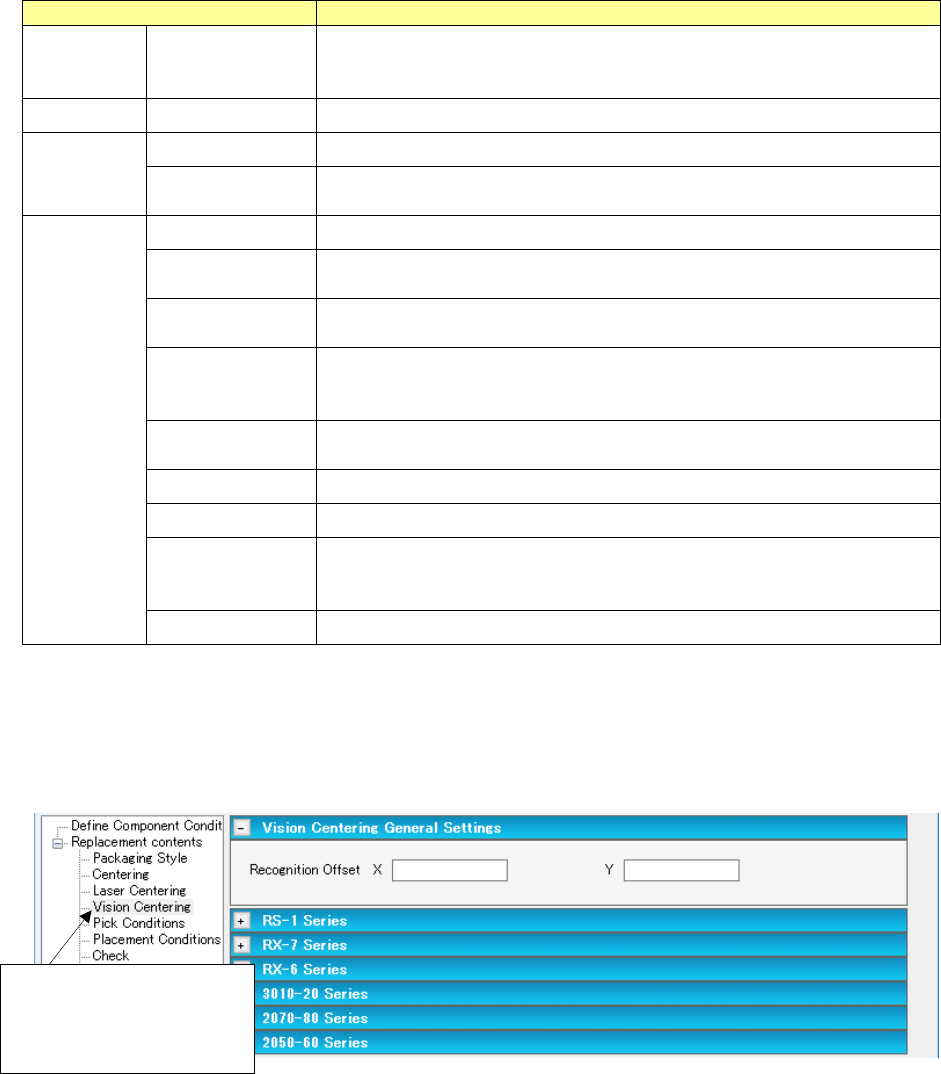
(6) Replacement contents (Vision Centering (Vision Centering General Settings))
Set the data on the vision centering method to be replaced on the following “Vision Centering
General Settings” screen.
Figure 7.6-10 “Replacement contents
(Vision Centering (Vision Centering General Settings))” screen
Menu item
Description
Use/Not use Use/Not use Specify whether to use the laser centering method or not in the combo box.
Select one of the following: “Use (applicable to “Use” data only),” “Use (ap-
plicable to “Not use” data only),” “Use (applicable to all data)” and “Not use.”
Nozzle No.
Nozzle number
Set a nozzle number in the combo box.
Vacuum
Pressure
Ejector
Set the ejector whose pressure reaches a value for picking up a component.
Vacuum Pump
Set the vacuum pump whose pressure reaches a value for picking up a
component.
Speed XY Set the XY-axes speed in the combo box.
Pick Z down
Set the speed for moving down the Z-axis to pick up a component in the
combo box.
Pick Z up
Set the speed for moving up the Z-axis to pick up a component in the combo
box.
Place Z down Set the speed for moving down the Z-axis to place a component on a board
in the combo box.
Set this menu item for an RX-6 and that for an RX-6R separately.
Place Z up
Set the speed for moving up the Z-axis to place a component on a board in
the combo box.
Theta (Measure) Set the theta-axis speed (during measurement) in the combo box .
Theta (Other) Set the theta-axis speed (unless it measures) in the combo box .
Component
Shape
Set the component shape in the combo box.
Select the shape among “Restore Default,” “No Definition,” “Config0,” “Con-
fig1,” “Config2,” “Config3” and “Config5.”
<Default> button
Restores each speed to the default value.
Select “Vision Centering”
from the tree view to display
the “Vision Centering
General Settings” screen.
JaNets Instruction Manual 7. Program Editor
7-125
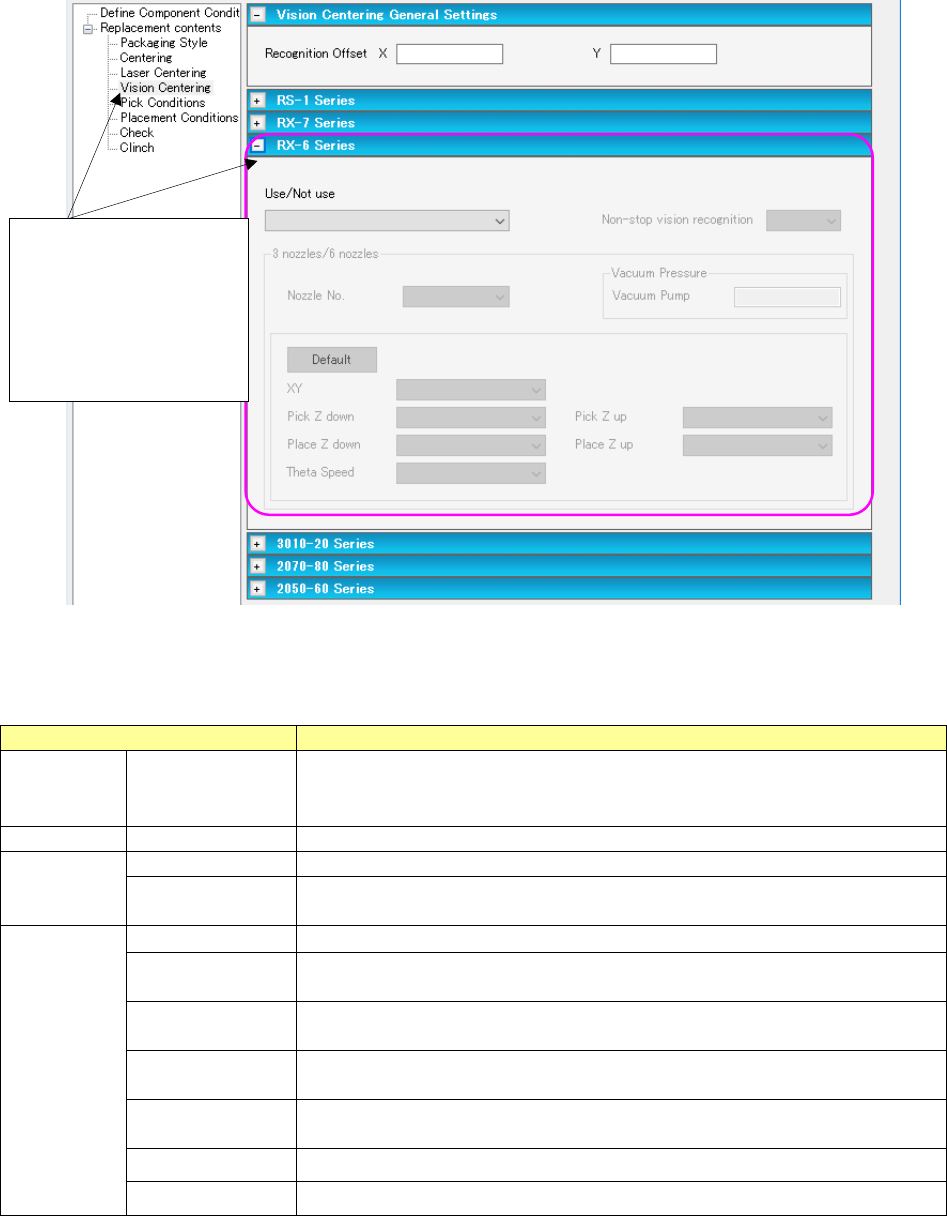
(7) Replacement contents (Vision Centering) for an RX-6 series
This section describes data to be replaced that is set on the “Vision Centering (RX-6 series”
screen as a typical example.
Figure 7.6-11 “Replacement contents (Vision Centering (RX-6 Series))” screen
Table 7.6-3 Menu items on the “Replacement contents
(Vision Centering (RX-6 Series))” screen
Menu item
Description
Use/Not use
Use/Not use
Specify whether to use the vision centering method or not in the combo box.
Select one of the following: “Use (applicable to “Use” data only),” “Use
(applicable to “Not use” data only),” “Use (applicable to all data)” and “Not use.”
Nozzle No.
Nozzle number
Set a nozzle number in the combo box.
Vacuum
Pressure
Ejector
Set the ejector whose pressure reaches a value for picking up a component.
Vacuum Pump
Set the vacuum pump whose pressure reaches a value for picking up a
component.
Speed
XY
Set the XY-axes speed in the combo box.
Pick Z down
Set the speed for moving down the Z-axis to pick up a component in the combo
box.
Pick Z up Set the speed for moving up the Z-axis to pick up a component in the combo
box.
Place Z down
Set the speed for moving down the Z-axis to place a component on a board in
the combo box.
Place Z up Set the speed for moving up the Z-axis to place a component on a board in the
combo box.
Theta
Set the theta-axis speed in the combo box.
<Default> button
Restores each speed to the default value.
Select “Vision Centering”
from the tree view to dis-
play the “Vision Centering
General Settings” screen.
Then, open the “RX-6/
RX-6R” screen on the
right side.
JaNets Instruction Manual 7. Program Editor
7-126
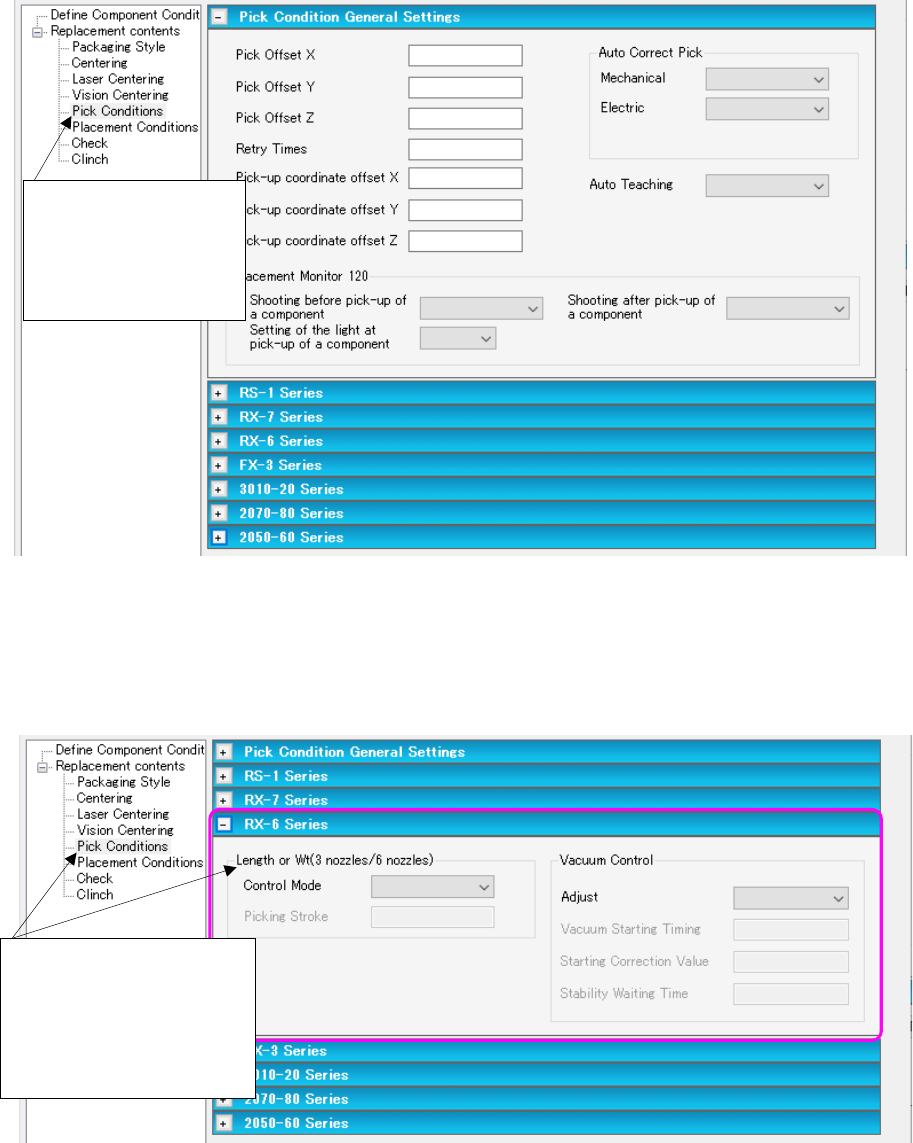
(8) Replacement contents (Pick Conditions (Pick Conditions General Settings))
Set data on the component pick-up conditions to be replaced on the “Pick Conditions (Pick
Conditions General Settings)” screen.
Figure 7.6-12 “Replacement contents
(Pick Conditions (Pick Conditions General Settings))” screen
(9) Replacement contents (Pick Conditions) for an RX-6 series
This section describes data to be replaced that is set on the “Pick Conditions (RX-6 series)”
screen as a typical example.
Figure 7.6-13 “Replacement contents
(Pick Conditions (RX-6 Series))” screen
Select “Pick Conditions”
from the tree view to
display the “Pick Condi-
tions General Settings”
screen.
Select “Pick Conditions”
from the tree view to display
the “Pick Conditions Gen-
eral Settings” screen. Then,
open the “RX-6/RX-6R”
screen on the right side.