JANETS_INM.pdf - 第334页
JaNets In structio n Manual 7. Program Editor 7- 127 (10) Replacement cont ents (P laceme nt Condit ions (Plac ement C onditio ns Gener al Settings)) Set data on the c ompone nt place ment condit ions t o be replaced o n…
JaNets Instruction Manual 7. Program Editor
7-126
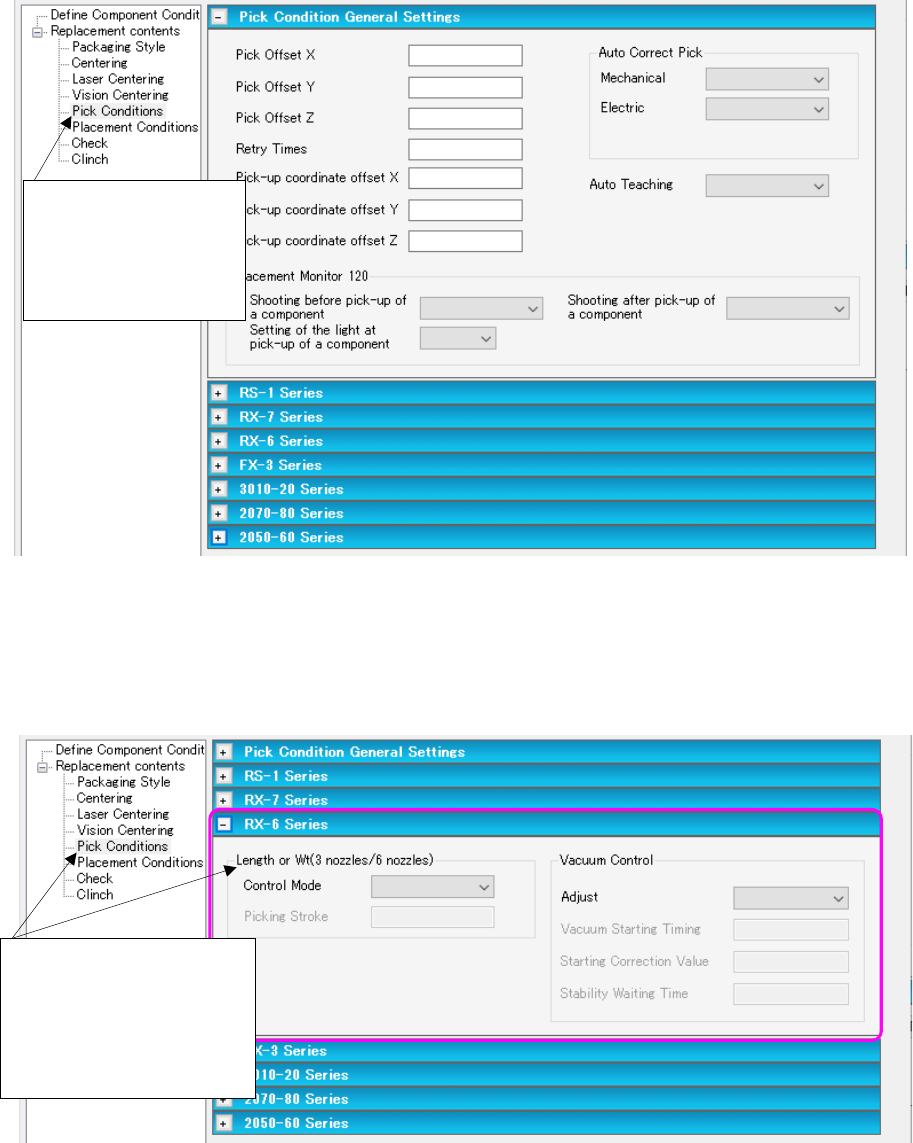
(8) Replacement contents (Pick Conditions (Pick Conditions General Settings))
Set data on the component pick-up conditions to be replaced on the “Pick Conditions (Pick
Conditions General Settings)” screen.
Figure 7.6-12 “Replacement contents
(Pick Conditions (Pick Conditions General Settings))” screen
(9) Replacement contents (Pick Conditions) for an RX-6 series
This section describes data to be replaced that is set on the “Pick Conditions (RX-6 series)”
screen as a typical example.
Figure 7.6-13 “Replacement contents
(Pick Conditions (RX-6 Series))” screen
Select “Pick Conditions”
from the tree view to
display the “Pick Condi-
tions General Settings”
screen.
Select “Pick Conditions”
from the tree view to display
the “Pick Conditions Gen-
eral Settings” screen. Then,
open the “RX-6/RX-6R”
screen on the right side.
JaNets Instruction Manual 7. Program Editor
7-127
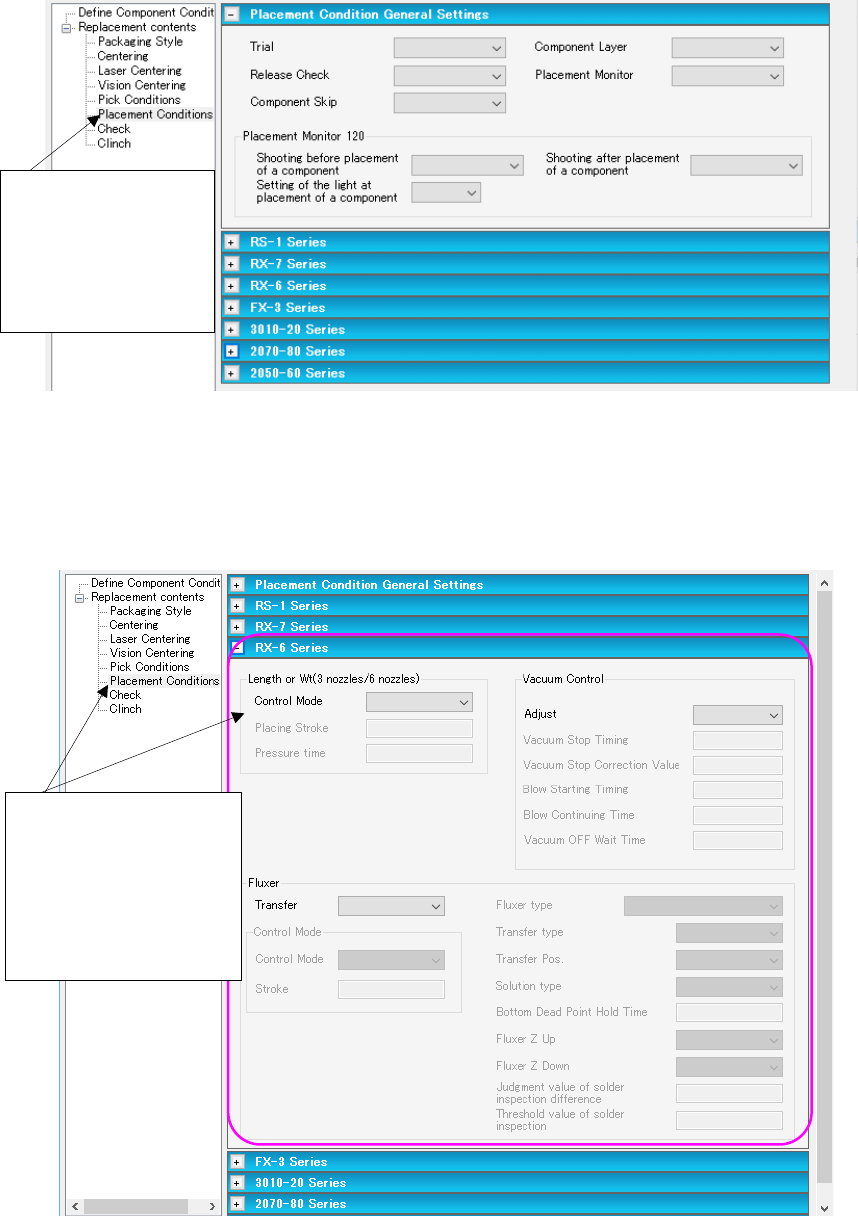
(10) Replacement contents (Placement Conditions (Placement Conditions General Settings))
Set data on the component placement conditions to be replaced on the “Placement Condi-
tions (Placement Conditions General Settings)” screen.
Figure 7.6-14 “Replacement contents (Placement Conditions
(Placement Conditions General Settings))” screen
(11) Replacement contents (Placement Conditions) for an RX-6 series
This section describes data to be replaced that is set on the “Placement Conditions (RX-6
series)” screen as a typical example.
Figure 7.6-15 “Replacement contents
(Placement Conditions (RX-6 Series))” screen
Select “Placement
Conditions” from the
tree view to display the
“Placement Conditions
General Settings”
screen.
Select “Placement Condi-
tions” from the tree view
to display the “Placement
Conditions General Set-
tings” screen. Then, open
the RX-6 series screen on
the right side.
JaNets Instruction Manual 7. Program Editor
7-128
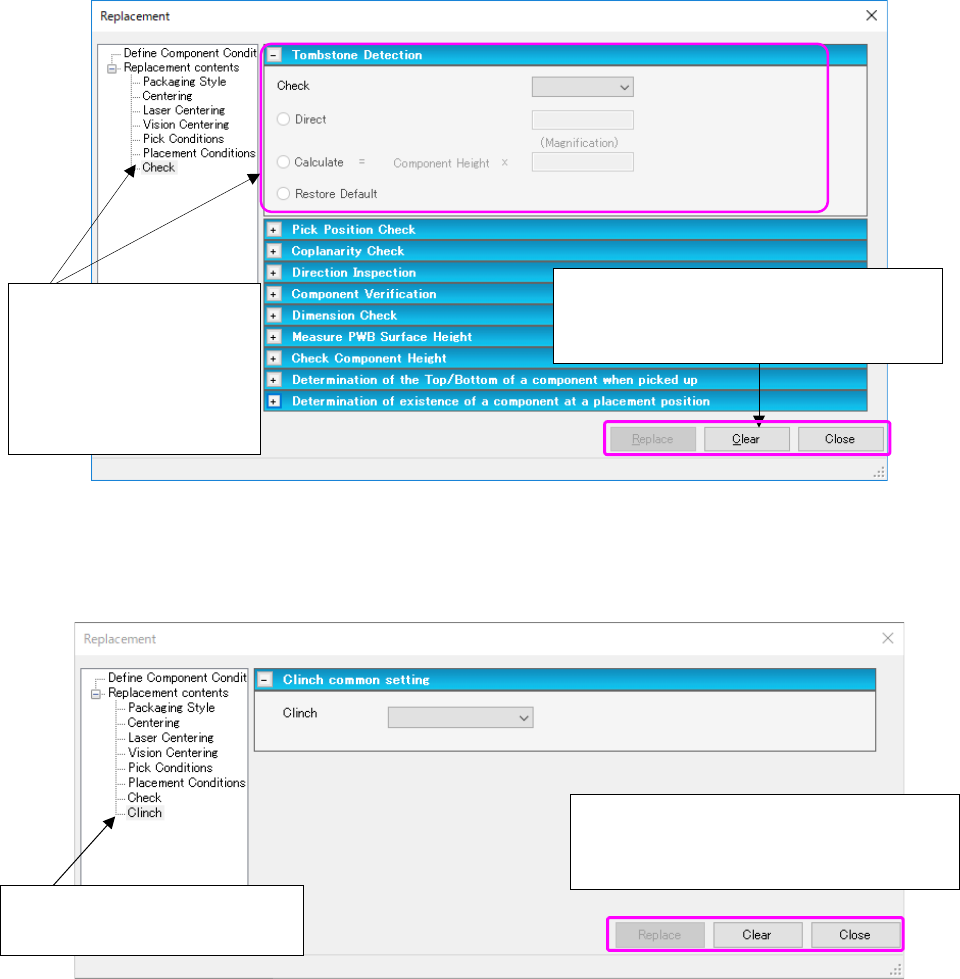
(12) Replacement contents (Check (Tombstone Detection))
This section describes data to be replaced that is set on the “Check (Tombstone Detection)”
screen as a typical example.
Figure 7.6-16 “Replacement contents (Check (Tombstone Detection))” screen
(13) Replacement contents (Clinch)
The data substituted by Clinch Item will be described.
Figure 7.6-17 “Replacement contents (Clinch)” screen
When you select the <Replace> button, the
system starts replacing data and displays the
“Replace Component List” screen.
Select “Check” from the
tree view to display the
screen for checking.
Then, open the “Tombstone
Detection” screen on the
right side.
When you select the <Replace> button, the
system starts replacing data and displays the
“Replace Component List” screen.
Select “Clinch” from the tree view
to display the screen for checking.