JANETS_INM.pdf - 第336页
JaNets In structio n Manual 7. Program Editor 7- 129 ( 14 ) Replacement cont ents ( Dispense) Specify data of the adhes iv e dispensing con dition s to be repl aced on the f ollow ing screen. Figure 7.6 - 18 “ Replac eme…
JaNets Instruction Manual 7. Program Editor
7-128
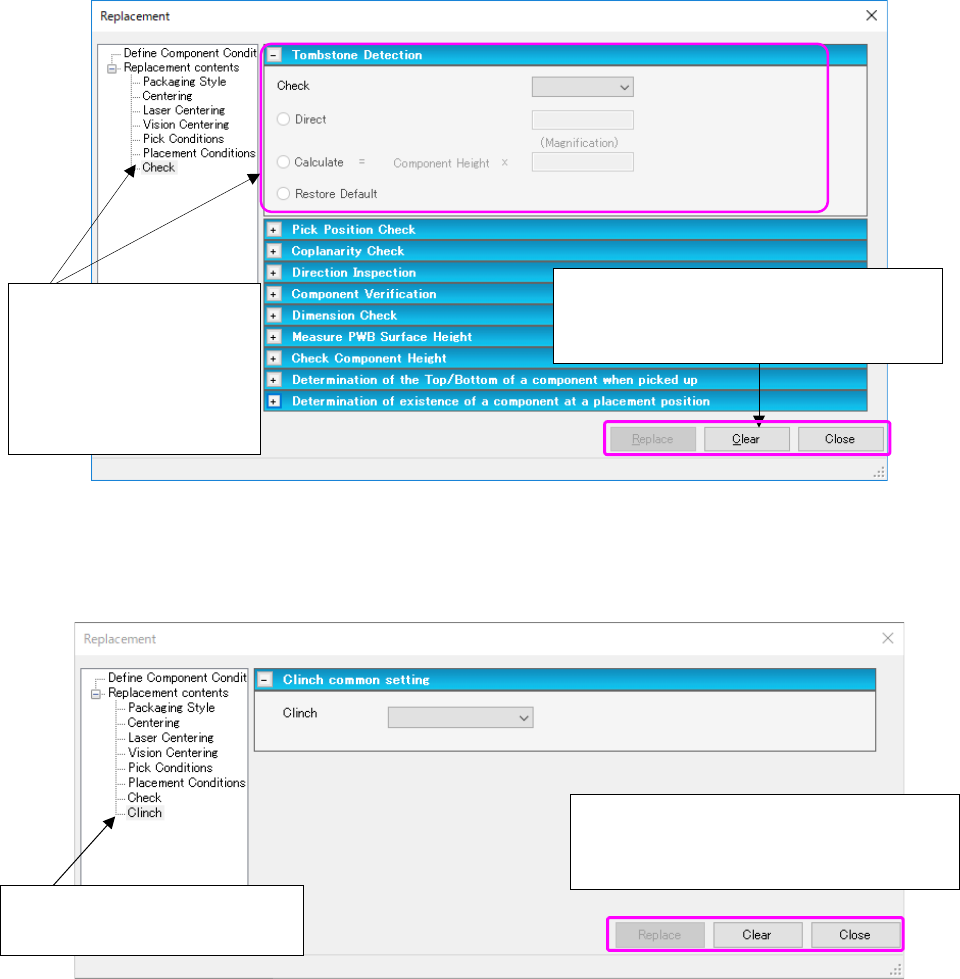
(12) Replacement contents (Check (Tombstone Detection))
This section describes data to be replaced that is set on the “Check (Tombstone Detection)”
screen as a typical example.
Figure 7.6-16 “Replacement contents (Check (Tombstone Detection))” screen
(13) Replacement contents (Clinch)
The data substituted by Clinch Item will be described.
Figure 7.6-17 “Replacement contents (Clinch)” screen
When you select the <Replace> button, the
system starts replacing data and displays the
“Replace Component List” screen.
Select “Check” from the
tree view to display the
screen for checking.
Then, open the “Tombstone
Detection” screen on the
right side.
When you select the <Replace> button, the
system starts replacing data and displays the
“Replace Component List” screen.
Select “Clinch” from the tree view
to display the screen for checking.
JaNets Instruction Manual 7. Program Editor
7-129
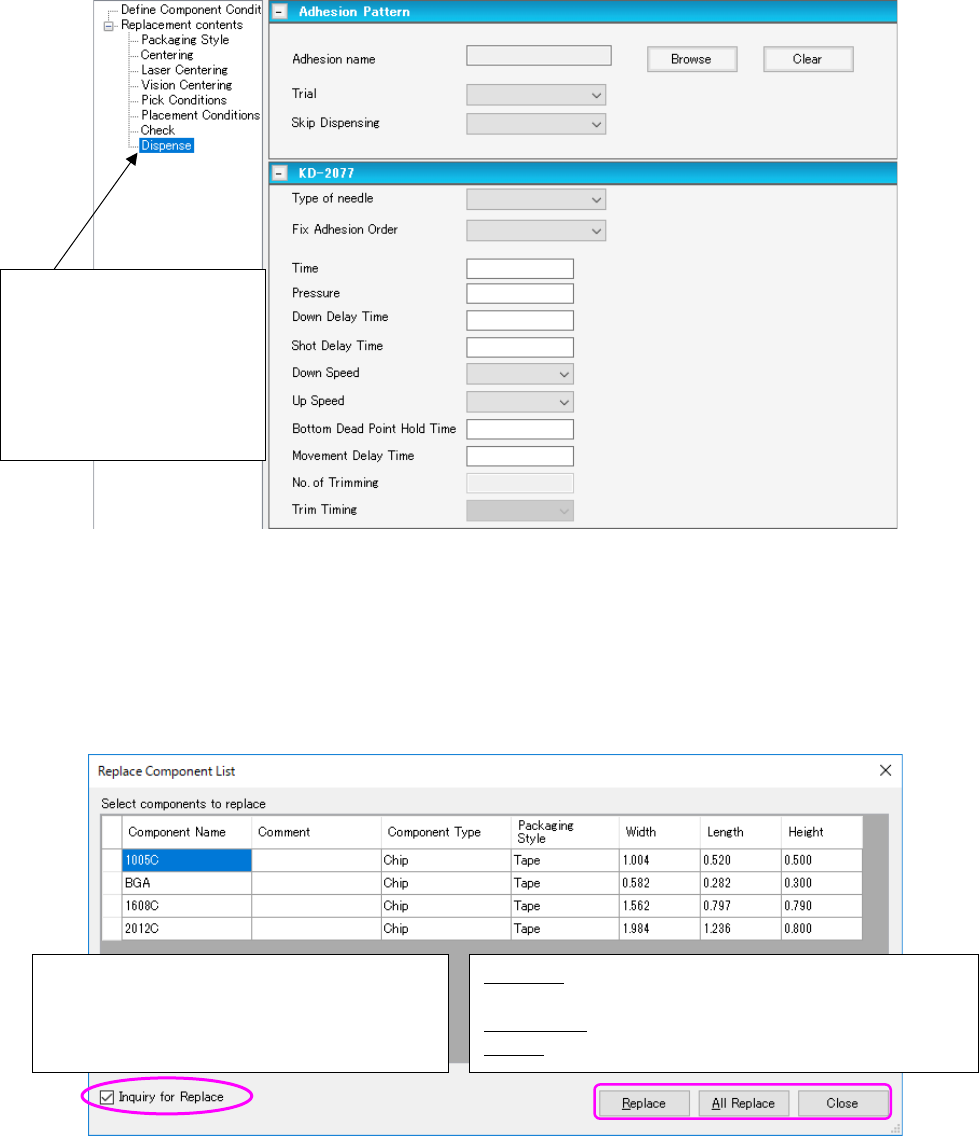
(14) Replacement contents (Dispense)
Specify data of the adhesive dispensing conditions to be replaced on the following screen.
Figure 7.6-18 “Replacement contents (Dispense)” screen
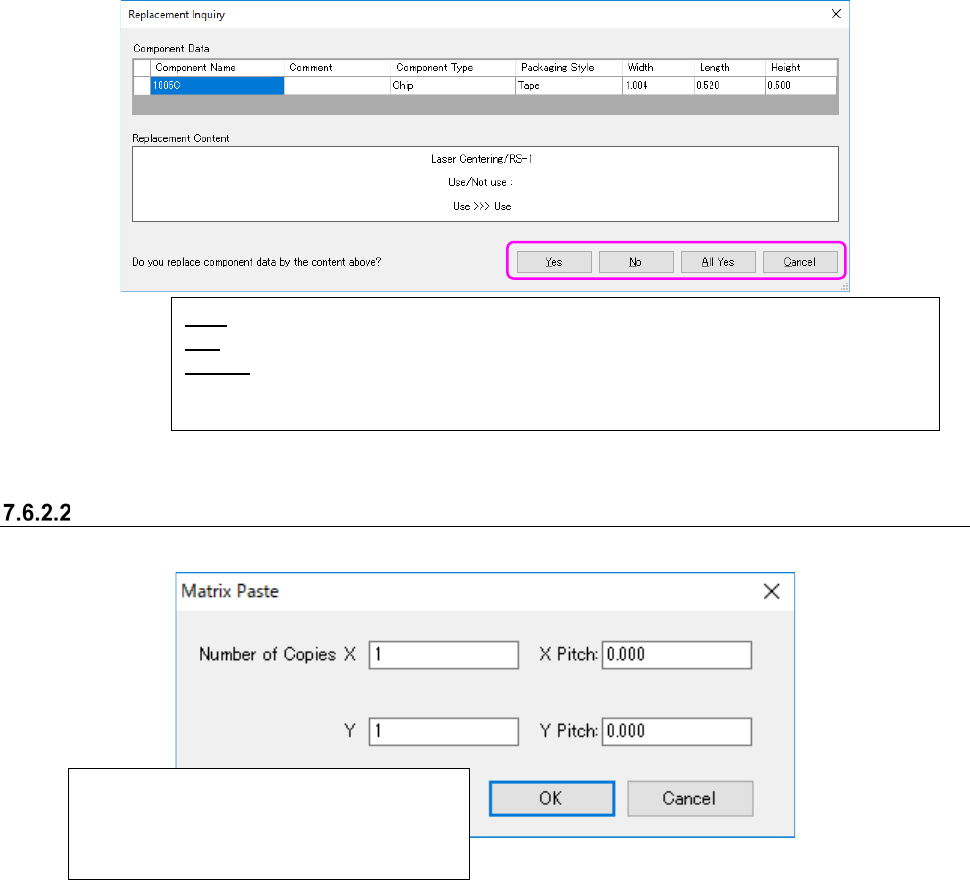
(15) “Replace Component List” screen
When you select the <Replace> button on the screen for setting the replacement conditions
or on the “Replacement contents” screen, the system displays the list of component data to
be replaced that is extracted under the conditions set on the screen for setting the replace-
ment conditions.
Figure 7.6-19 “Replace Component List” screen
Replace: Starts replacing component data on the line se-
lected at the present.
All Replace: Starts replacing all displayed component data.
Close: Stops replacement of component data.
This check box specifies whether to ask you if
you want to replace data by displaying the “Re-
placement Inquiry” screen after you click the
<Replace> button or the <All Replace> button.
Select “Dispense” from the
tree view to display the
screen on the right side.
If there is no adhesive data,
the menu item “Dispense” is
not displayed on the tree
view.
JaNets Instruction Manual 7. Program Editor
7-130
(16) “Replacement Inquiry” screen
When you check the check box “Inquiry for Replace” on the screen (13) above, the system
asks you whether to replace component data or not.
Figure 7.6-20 “Replacement Inquiry” screen
Matrix Paste < circuit arrangement screen and placement data>
This command inserts data loaded in the buffer into the cursor position.
Figure 7.6-21 “Matrix Paste” screen
* In the following cases, you cannot execute the [Matrix Paste] command.
① When the number of the Placement data records exceeds 30,000, the system displays the
message and stops executing the [Matrix Paste] command.
② The coordinates specified in the Placement data are not within a circuit.
In this case, the corresponding message appears on the screen. When you select the <OK>
button on this message, the system executes the [Matrix Paste] command.
Copies data in a matrix by the number of times
specified in the “Number of Cop X” and “Y”
fields while adding each pitch specified in the
“X Pitch” and “Y Pitch” fields.
Yes: Replaces the component data displayed at the present.
No: Displays the next replacement operation after skipping the displayed component data.
All Yes: Selects the <Yes> button for the inquiries for replacement of component data dis-
played on the list and the following data, and replaces them (that is, replaces all displayed
component data).