JANETS_INM.pdf - 第342页
JaNets In structio n Manual 7. Program Editor 7- 135 Data Coherence Check This comma nd performs the coh erence che ck for a cr eated pro duction program . If an error oc curs, the corresp onding err or messag e is disp …

JaNets Instruction Manual 7. Program Editor
7-134
Notes of the quantity of component supply in case an RX-7 series is on a line:
Optimization of an RX-7 series cannot control the number of feeder to correspond to the
quantity of component supply.
For this reason, only one unit of feeder is supposed to be assigned to an RX-7 series.
(Except that pick data is set up for an RX-7 series beforehand)
Optimization of an RX-7 series usually assigns one unit of feeder in order to employ the
characteristic of a head efficiently. However, when "Assign duplicate feeders to left and right
stations." of "Machine Type Specific – RX-7 series " is selected, the components with many
placement points may be assigned to right and left stations. In this case, optimization is per-
formed without protecting a setup of the quantity of component supply for the said compo-
nents.
JaNets Instruction Manual 7. Program Editor
7-135
Data Coherence Check
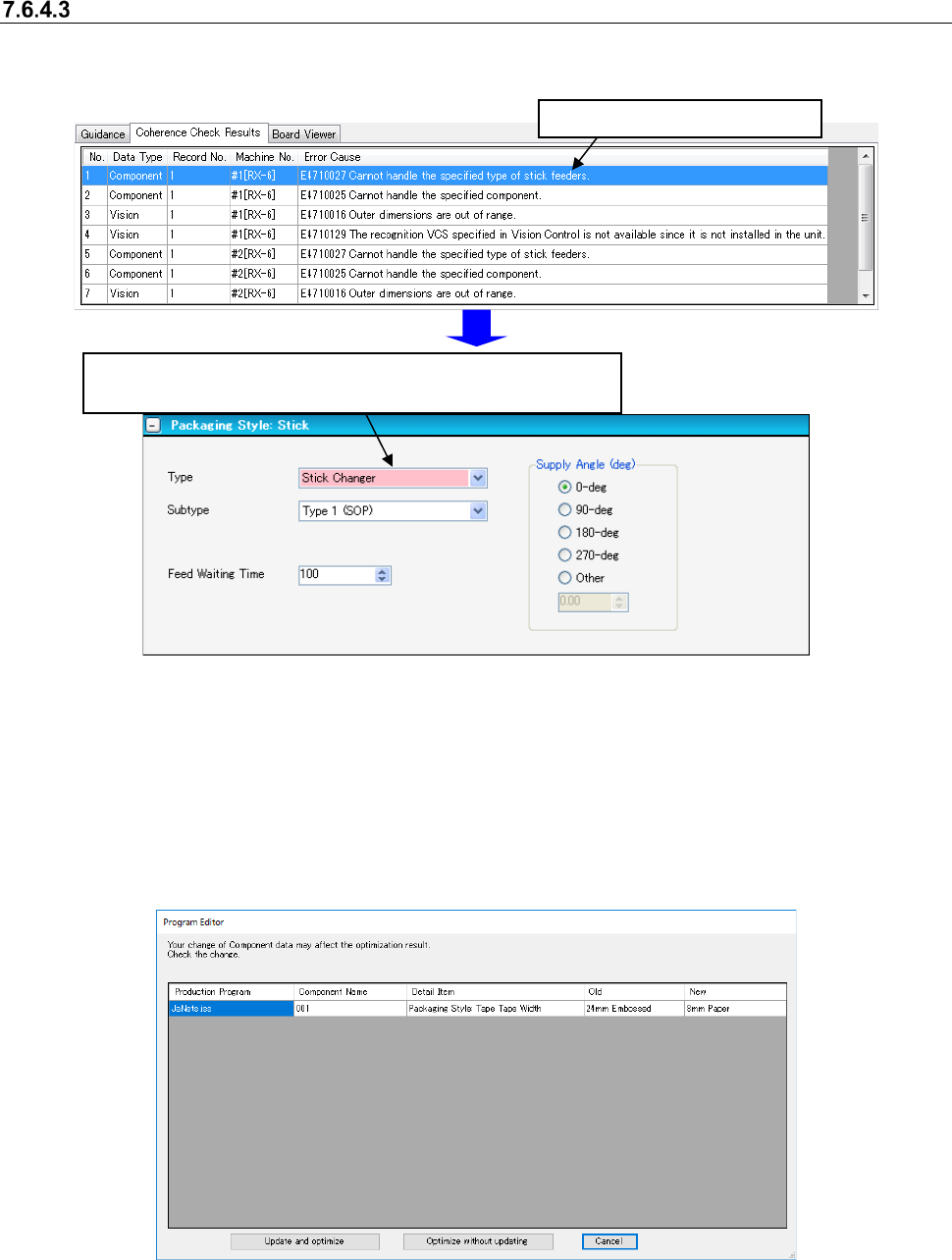
This command performs the coherence check for a created production program. If an error occurs,
the corresponding error message is displayed in the message display area.
Figure 7.6-27 Data coherence check screen
When you select the <Yes>button for the menu item “Automatic batch loading of Mark data” and
for the menu item “Automatic batch loading of Component data” on the “Operation Preferences”
screen invoked from the “Set Environments” screen respectively, data of the same name is ob-
tained from the database before the data coherence check starts.
If any difference such as auto selection of pick data is generated as a result of this data obtaining
operation (for example, the packaging style is different), the dialog box like one shown below ap-
pears on the screen.
Figure 7.6-28 Confirmation screen for changing due to data automatically obtained
Select one of three buttons: <Update and optimize>, which updates data to continue optimization,
<Optimize without updating>, which performs optimization without updating data and <Cancel>.
* See Section 7.8 “Automatically Loading Component Data/Mark Data at a Time” also.
Double-click the error message.
The screen for a component that caused the error appears, and
the corresponding feeder is displayed in red.
JaNets Instruction Manual 7. Program Editor
7-136
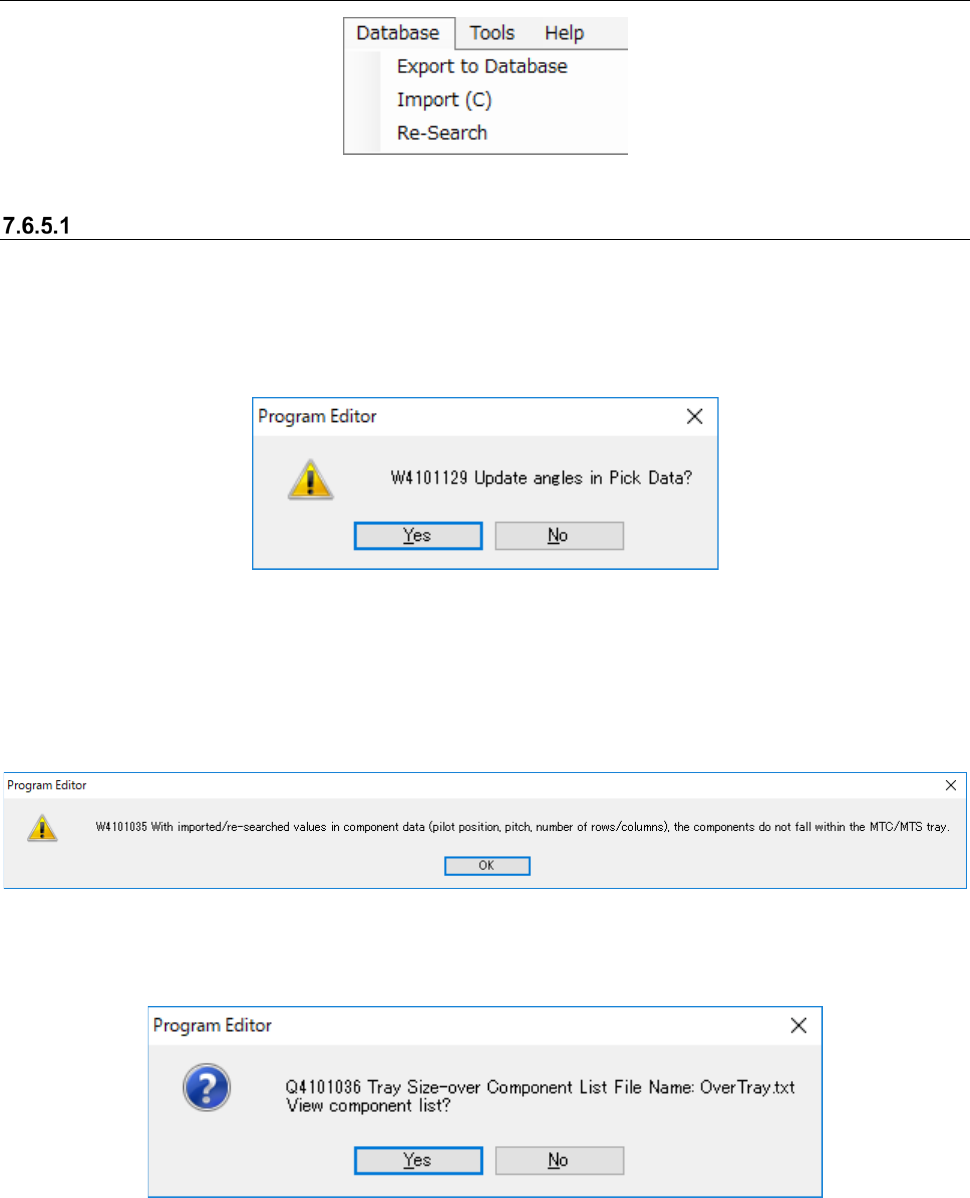
7.6.5 Descriptions of the “Database” menu commands
Figure 7.6-29 “Database” menu
[Re-search] command on the “Database” menu
This command searches the database or the permanent information for Component data or Pick
data to update a production program. When you select the [Database] command from the menu
bar, and then the [Re-search] command on the “Database” menu, the following message appears
on the screen.
Figure 7.6-30 Message displayed after you select the [Re-search] command
When the packaging style of the obtained Component data is “Tray,” and its supply unit is an
MTC/MTS, the system calculates the tray size based on the values set in the “Pilot Position,”
“Pitch between Components” and “No. of Columns/Rows” displayed on the “Component Data”
screen. If this size exceeds the actual tray size, the following message appears on the screen.
Figure 7.6-31 “W4101035” message
When you select the <OK> button, the following message appears on the screen.
Figure 7.6-32 “Q4101036” message