JANETS_INM.pdf - 第344页
JaNets In structio n Manual 7. Program Editor 7- 137 The messag e abov e asks y ou whether to display the list of tray size over component s or not. When you se lect the <Y es > button on t his messag e, the list o…
JaNets Instruction Manual 7. Program Editor
7-136
7.6.5 Descriptions of the “Database” menu commands
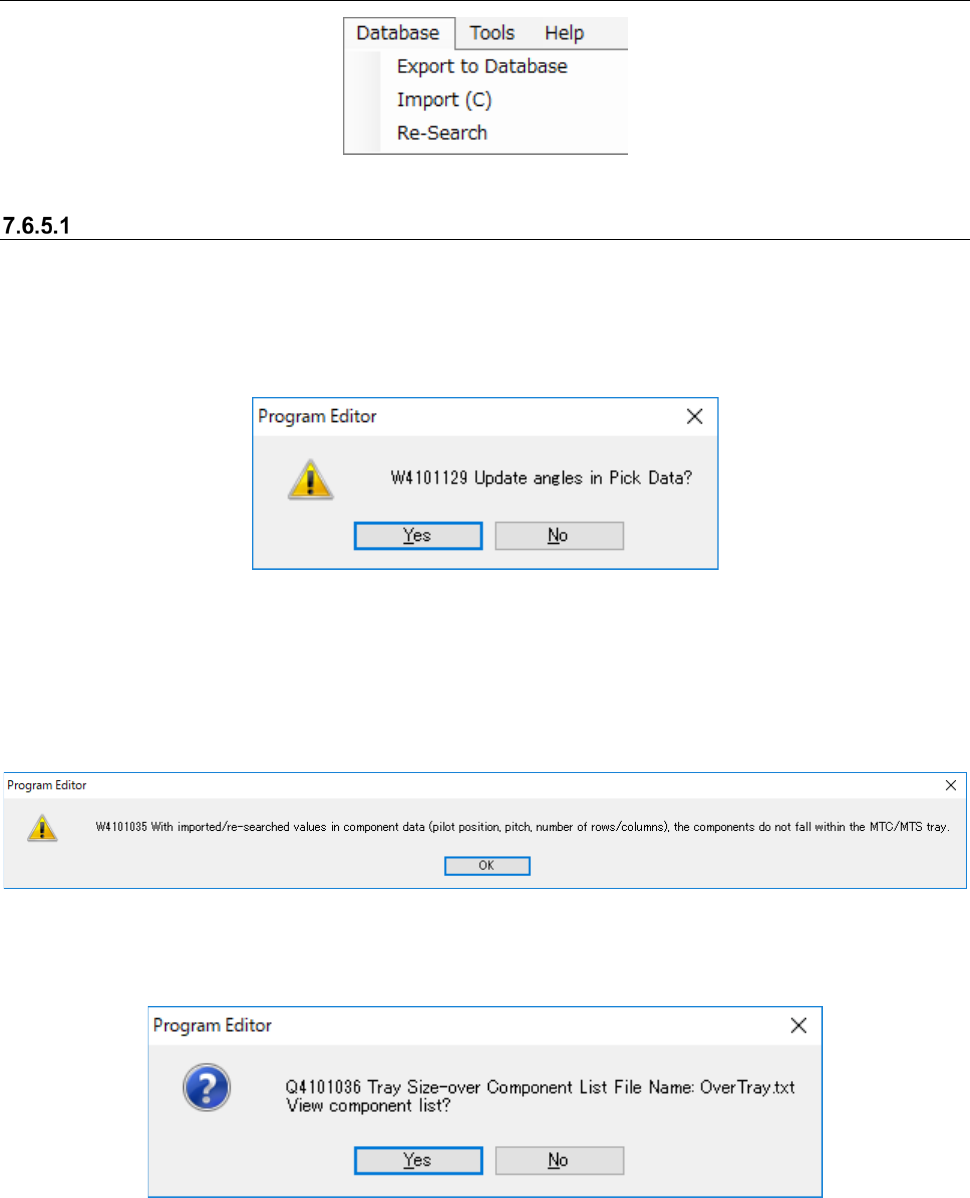
Figure 7.6-29 “Database” menu
[Re-search] command on the “Database” menu
This command searches the database or the permanent information for Component data or Pick
data to update a production program. When you select the [Database] command from the menu
bar, and then the [Re-search] command on the “Database” menu, the following message appears
on the screen.
Figure 7.6-30 Message displayed after you select the [Re-search] command
When the packaging style of the obtained Component data is “Tray,” and its supply unit is an
MTC/MTS, the system calculates the tray size based on the values set in the “Pilot Position,”
“Pitch between Components” and “No. of Columns/Rows” displayed on the “Component Data”
screen. If this size exceeds the actual tray size, the following message appears on the screen.
Figure 7.6-31 “W4101035” message
When you select the <OK> button, the following message appears on the screen.
Figure 7.6-32 “Q4101036” message
JaNets Instruction Manual 7. Program Editor
7-137
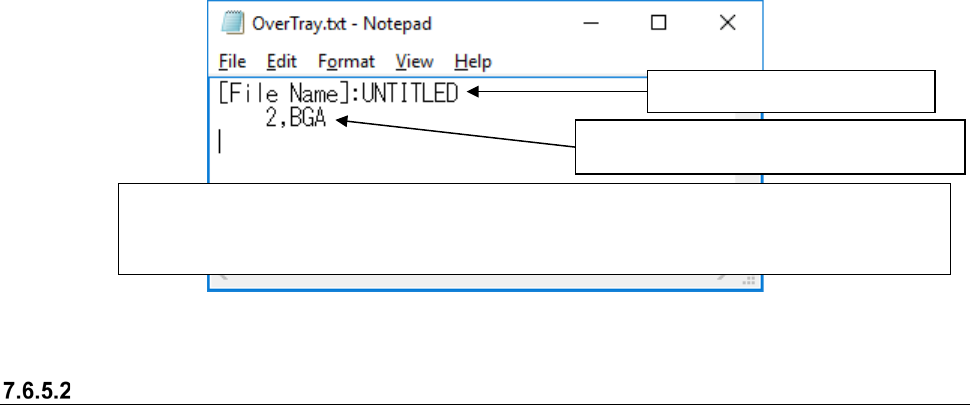
The message above asks you whether to display the list of tray size over components or not.
When you select the <Yes> button on this message, the list of the tray size over components ap-
pears on the screen.
Figure 7.6-33 List of the tray size over components
Registering data into the database
The [Export to Database] command registers Component data into the database. To register
Component data into the database, execute this command on the edit screen of the respective
data type.
* You can register neither Pick data nor mark data into the database.
* When you select the “Yes ” radio button for the menu item “Notification of Database Entry Com-
pletion” on the “Set Environments” screen, the corresponding message appears on the screen.
* For a tray component, if any of values set in the “Pilot Position,” “Pitch between Components” and
“No. of Columns/Rows” of the “Packaging Style” data of the obtained Component data is different
from that of the existing data, the error message appears on the screen.
Production program name
Component data record number and com-
ponent name
JaNets Instruction Manual 7. Program Editor
7-138
Importing data from the database
The [Import] command displays the list of the registered data from the database, and then imports
data. You can import the following data: Component data, Pick data and Mark data. How to import
each type of data is described below.
(1) Component data
From the “Placement Data” screen: this command assigns a name to a component not set
yet, and imports its Component data.
* You cannot import Component data to Placement
data to which Component data is assigned already.
From the “Component Data” screen: this command replaces the selected Component data
with that registered in the database.
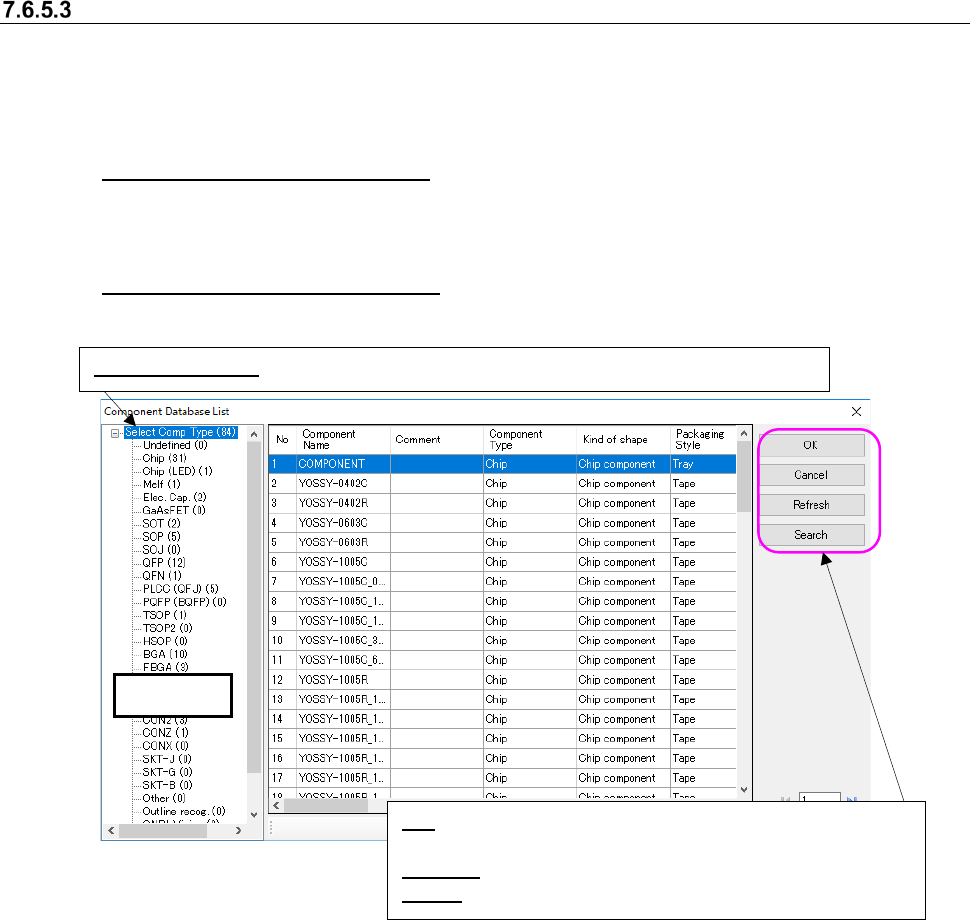
Figure 7.6-34 “Component Database List” screen
* When the system imports information from the component database, it does not replace setting
of the “Component Skip” made on the “Placement Conditions General Setting.”
* When the system imports information from the component database, the “Search through
Component Database” screen appears. It displays the data matched with the search require-
ments on the list. (This operation is applicable only when the Data Manager is available.)
Tree view
Select Comp Type: Displays the data on all component types registered in the database.
OK: Replaces the component data information with that regis-
tered in the database.
Refresh: Updates the displayed information to the latest one.
Search: Displays the screen for searching a component.