JANETS_INM.pdf - 第347页
JaNets In structio n Manual 7. Program Editor 7- 140 ⑤ About each c heckin g funct ion <Chec k before merging producti on progr ams> The syste m chec ks data befor e execut ing the proce ss for merg ing produ ction…
JaNets Instruction Manual 7. Program Editor
7-139
7.6.6 Descriptions of the “Tools” menu commands
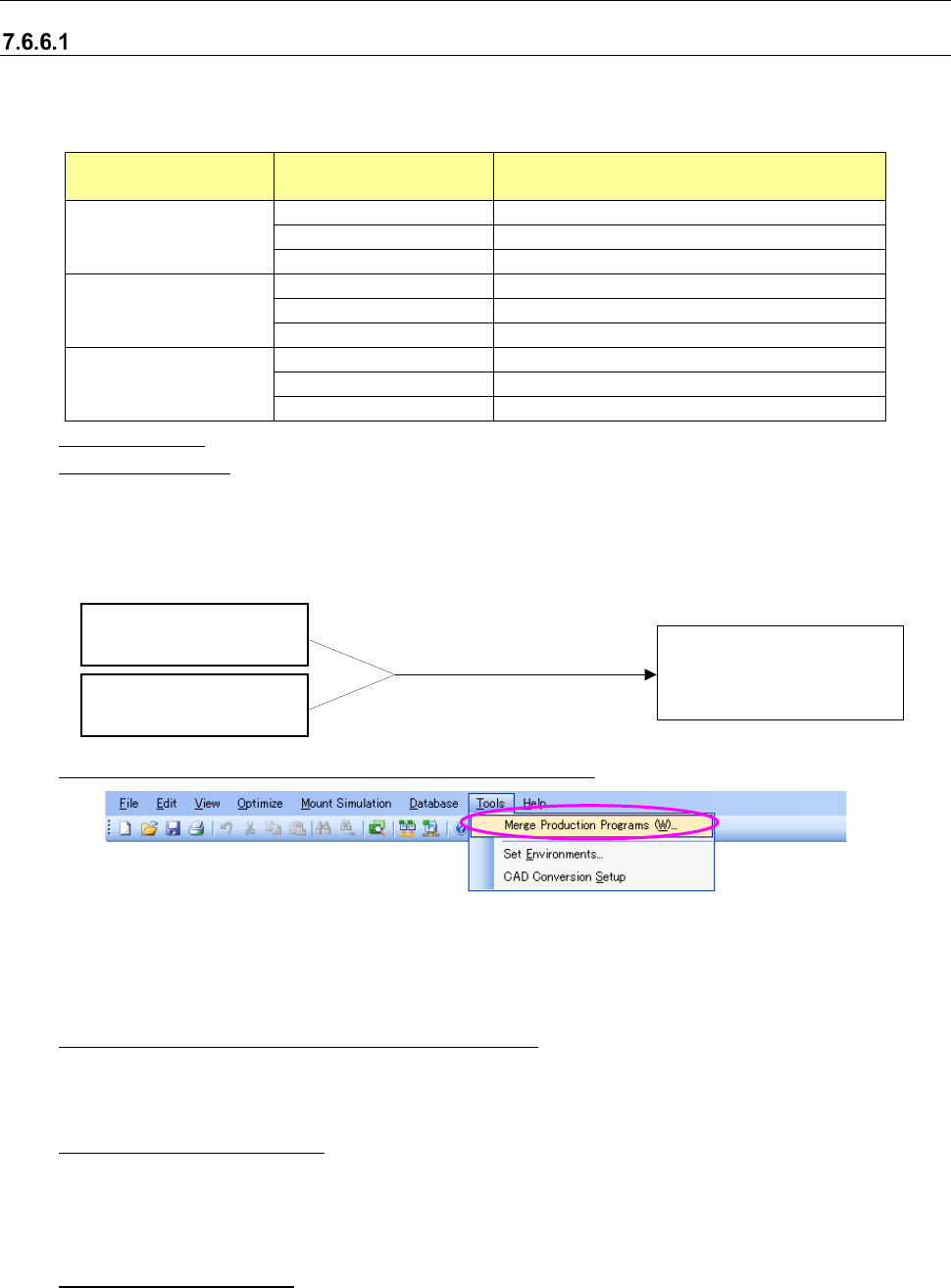
Merge Production Program
This command loads the specified production program into the system to paste it.
Table 7.6.4 PWB configuration after the [Merge Production Program] command is executed
Reference data Paste source data
PWB configuration after the [Merge
Production Program] command is executed
Single-plane
Single-plane
Single-plane
Matrix circuit
Single-plane
Non-matrix circuit
Single-plane
Matrix circuit
Single-plane
Single-plane
Matrix circuit
Single-plane
Non-matrix circuit
Single-plane
Non-matrix circuit
Single-plane
Single-plane
Matrix circuit
Single-plane
Non-matrix circuit
Single-plane
Reference data: a production program loaded with the Program Editor
Paste source data: a production program loaded with the [Merge Production Program] com-
mand
Example: When two or more different circuits are to be placed on a board, a production program is
created as one for a single-place PWB.
①
Starting up the [Merge Production Program] command
Figure 7.6-35 Menu for selecting the [Merge Production Program] command
* Unless PWB data of the reference production program is created completely, this menu is
disabled.
② Selecting the paste source production program
Select a production program on the “Open” dialog box that is displayed with the operation at
Step 1.
③ Checking the execution
The dialog box for confirming the merge operation appears on the screen. When you select
the <Yes> button on this dialog box, the system starts merging these two production pro-
grams.
④ Completion message
After the two production programs are merged successfully, the message for notifying you of
completion of the [Merge Production Program] command appears on the screen. When you
select the <OK> button, the system closes this message.
Reference production
program A
Paste source production
program B
Single-plane PWB (A + B)
Execution of the [Merge
Production Program]
command
JaNets Instruction Manual 7. Program Editor
7-140
⑤ About each checking function
<Check before merging production programs>
The system checks data before executing the process for merging production programs.
* In the following cases, you cannot execute the [Merge Production Program] command.
- PWB data of a paste source production program has not been created completely (check
of completion of PWB data).
- The settings of the “Multi Circuit References” of both a reference production program and a
paste source production program are “Use” (check of the reference circuit configuration).
- The maximum number of component placement positions exceeds 30,000 (check of the
maximum number of component placement positions).
- The maximum number of circuits exceeds 500 (check of the maximum number of area fi-
ducial marks).
<Check of duplication of a component name>
If a component name is duplicated, the system displays the inquiry message on the screen.
Yes: The system uses the component name specified in the source Component data without
using that specified in the destination Component data.
No: The system aborts merging operation of production programs, and outputs the dupli-
cated component name as text.
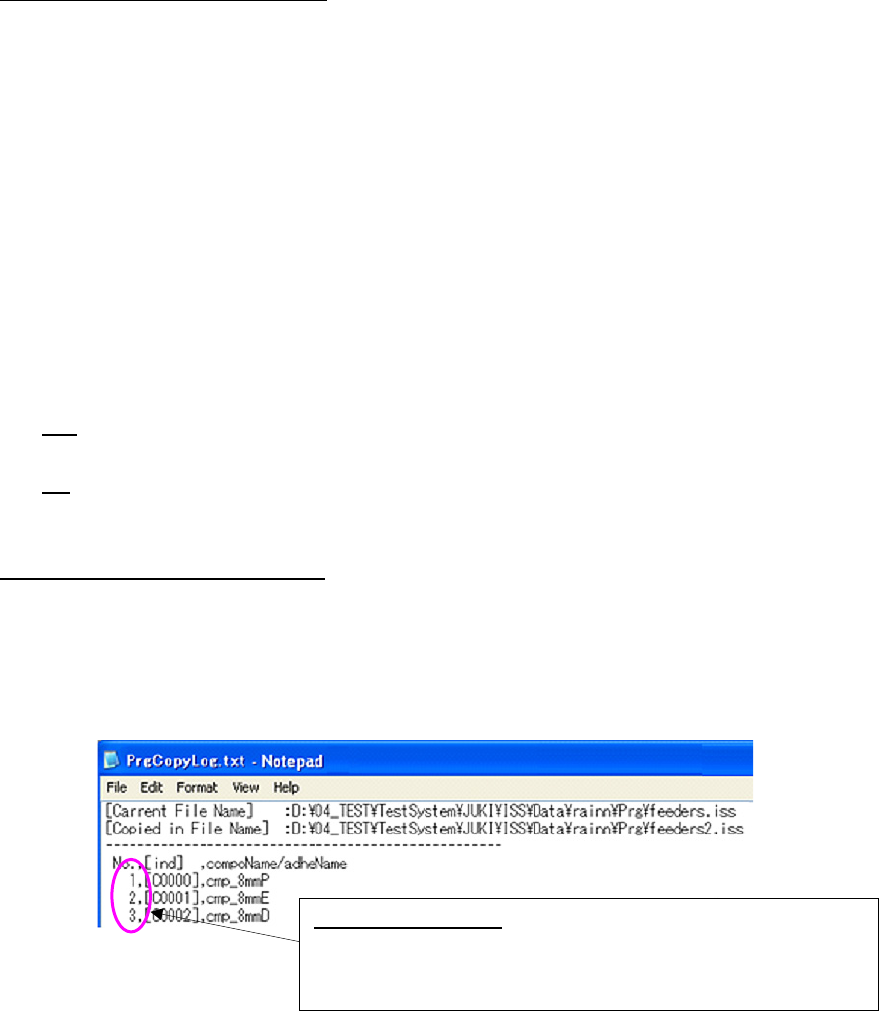
⑥
Checking the displayed log list
The system displays the inquiry message: whether the log list is to be displayed or not.
- Log list file
The system outputs the log list file to the destination folder in which the paste source file is
loaded.
File name: PrgCopyLog.txt
Figure 7.6-36 Log file
<Check the board reference side and the board transport direction>
If the board reference side or the board transport direction of a reference production program
is different from that of a paste source production program, the system displays the message
indicating that the board reference side or the board transport direction is not the same as
each other.
<User template check>
If a user template is used as a BOC mark, but it is not to be used after two production pro-
grams are merged, the system displays the message indicating that the user template will be
deleted.
Log file output items:
Assigned numbers, index numbers of the
destination component list and the duplicated component names
of the destination program are displayed here.
“C” of [Idx] indicates Component data.
JaNets Instruction Manual 7. Program Editor
7-141
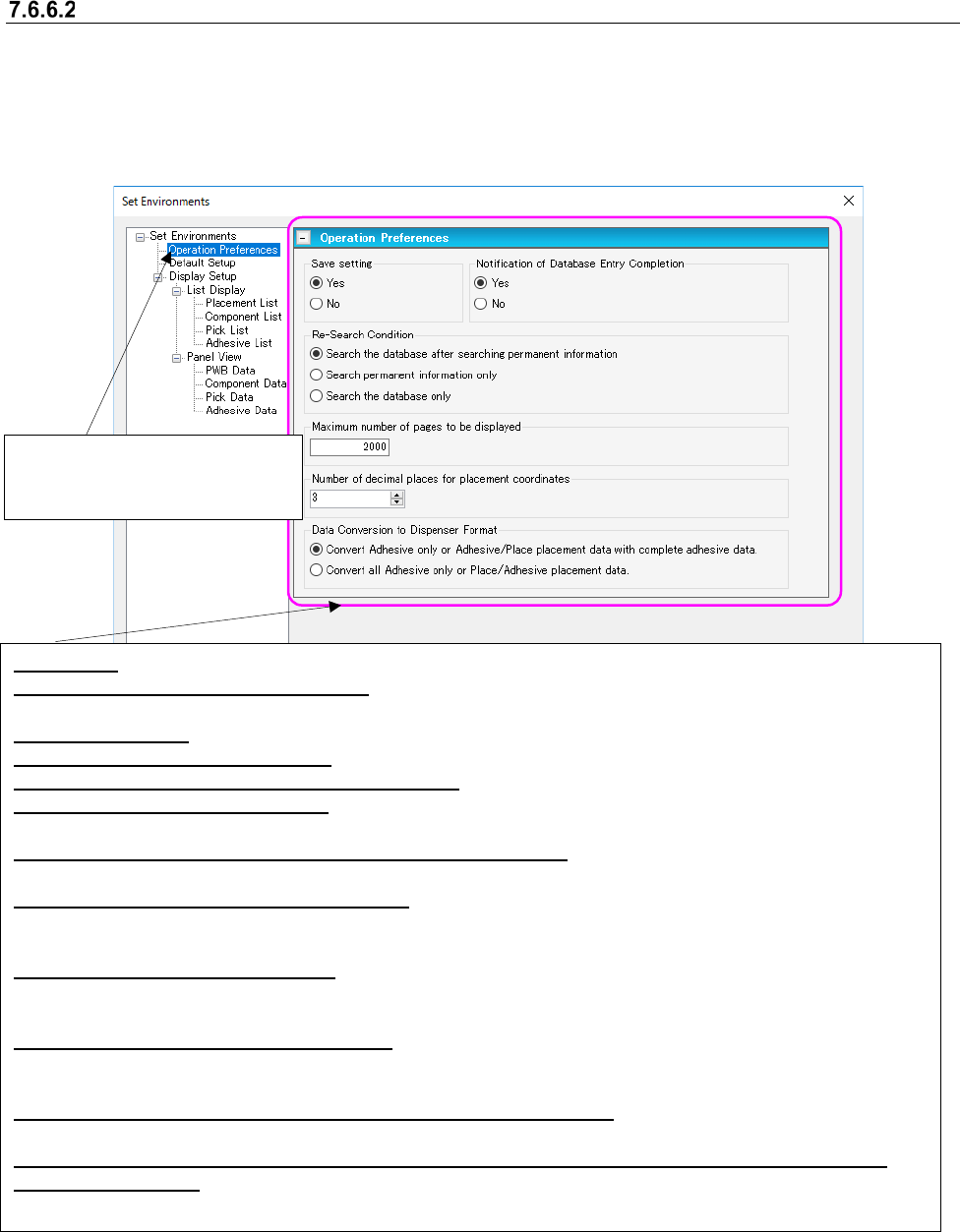
Setting the environment
Select the [Set Environments] command from the “Tools” menu to set the operation of the Program
Editor, the items displayed on the list screen, and whether to display the panel or hide it.
(1) Operation Preferences
Determines the settings for the operation of Program Editor.
Figure 7.6-37 “Set Environments (Operation Preferences)” screen
Save setting: Select whether to save the condition under which you quit the Program Editor.
Notification of Database Entry Completion: Select whether to be notified of completion of entry into the database
when the system exports data into the database.
Re-Search Condition: Select the condition for searching the database with the [Re-search] command.
Data Conversion to Dispenser Format: Select a method to convert the placement data into the dispenser format.
Number of decimal places for placement coordinates: Specify the number of digits after decimal point.
Reverse video of an SOT component: Select whether to reverse an SOT component image on the “Board Viewer”
right to left.
Default value of the gap for searching for an adjacent component: Specify the initial value of the “Gap” field to
be used for searching for an adjacent component.
Automatic acquisition from the mark database: Select whether to automatically obtain data whose name is the
same as the entered mark name if there is any on the database when you enter a mark name.
(This item is enabled with the Line Manager, the Data Manager or Equipment Manager only.)
Automatic batch loading of Mark data: Select whether to obtain mark data from the database before the data
coherence check starts. (This item is enabled with the Line Manager, the Data Manager or Equipment Manager
only.)
Automatic batch loading of Component data: Select whether to obtain Component data from the database
before the data coherence check starts. (This item is enabled with the Line Manager, the Data Manager or
Equipment Manager only.)
Message displayed when a component that can be inserted is selected: Select whether to display the
message indicating that you have to make the setting for deciding that a component can be inserted.
Data is fixed when the outer dimensions are changed after component data on an insertion component
is created completely: Select whether to set the default data when the outer dimensions of an insertion
component whose data is created completely are changed.
Select “Operation Preferences”
from the tree view to display the
“Operation Preferences” screen.