JANETS_INM.pdf - 第378页
JaNets In structio n Manual 7. Program Editor 7- 171 7.7.5 Executing the Opt imizatio n Proce ss * Y ou can execute the o ptim ization pro cess only if you create a pro duct ion progra m complete ly . Otherw ise, you can…
JaNets Instruction Manual 7. Program Editor
7-170
Note of optimization to be performed for a production line including an RX-7
series
Layer
The layer in the optimization on the JaNets is treated based on the value of the layer which can be
set up on the JaNets.
The quantity of component supply
Optimization of an RX-7 series usually assigns one unit of feeder in order to employ the charac-
teristic of a head efficiently. However, when "Assign duplicate feeders to left and right stations." of
"Machine Type Specific – RX-7 series" is selected, the components with many placement points
may be assigned to right and left stations. In this case, optimization is performed without protect-
ing a setup of the quantity of component supply for the said components.
If the balance between the left side and the right side is bad
Since optimization performed under the default conditions of an RX-7 series uses only one feeder
for one component, the balance between the left side and the right side may become worse if the
machine has to place components at many positions of a board. If you have to balance the left
side and the right side even by increasing the number of feeders, put a checkmark in the “Assign
duplicate feeders to left and right stations” check box on the “RX-7 series” tab invoked from the
“Machine Type Specific” screen, and then perform the Optimization function again.
When a long board is handled with an RX-7
When you use the long board option with an RX-7 series, you have to optimize a production pro-
gram so that it can be optimized for a long board regardless of the board size. Therefore, put a
checkmark in the “Assign duplicate feeders to left and right stations” check box on the “Machine
Type Specific” tab invoked from the “Machine Options” option to optimize the production program.
Unless you put a checkmark in this check box, the machine fails to optimize a production program.
Note that an RX-7 series with which the long board option is enabled cannot use data (production
program) created and optimized with the long board option disabled to produce any PWBs.
About the substrate exceeding RX-7 Substrate size, X = 350mm
When you optimize the substrate exceeding X = 350mm at RX-7 series, put a check mark on “Al-
locate the same components to left-right stations and perform optimization. The optimization fails if
you do not put the check mark.
Notes on optimization of a production line including a JM series machine
About optimization of a bowl feeder
When you are to allocate a bowl feeder to the system with the optimization function, you have to
register a target component to be supplied by a bowl feeder in Component Database in advance.
After registering the component, import the INI file with [Equipment Setup] – “INS Bulk Feeder” of
Shopfloor Setup.
When you are to optimize a BWL-6 bowl feeder with JM-10 series
To optimize a BWL-6 bowl feeder, you have to enable the bowl bank with Shopfloor Setup to
specify the serial number for the INS bulk feeder in advance in addition to perform the operation
described in “About optimization of a bowl feeder” above.
JaNets Instruction Manual 7. Program Editor
7-171
7.7.5 Executing the Optimization Process
* You can execute the optimization process only if you create a production program completely.
Otherwise, you cannot do it.
* The system performs a data coherence check when you execute the optimization process. If a
production program cannot produce any PWB with the active line, an error is displayed on the
execution status view of the Program Editor or the Job Optimizer.
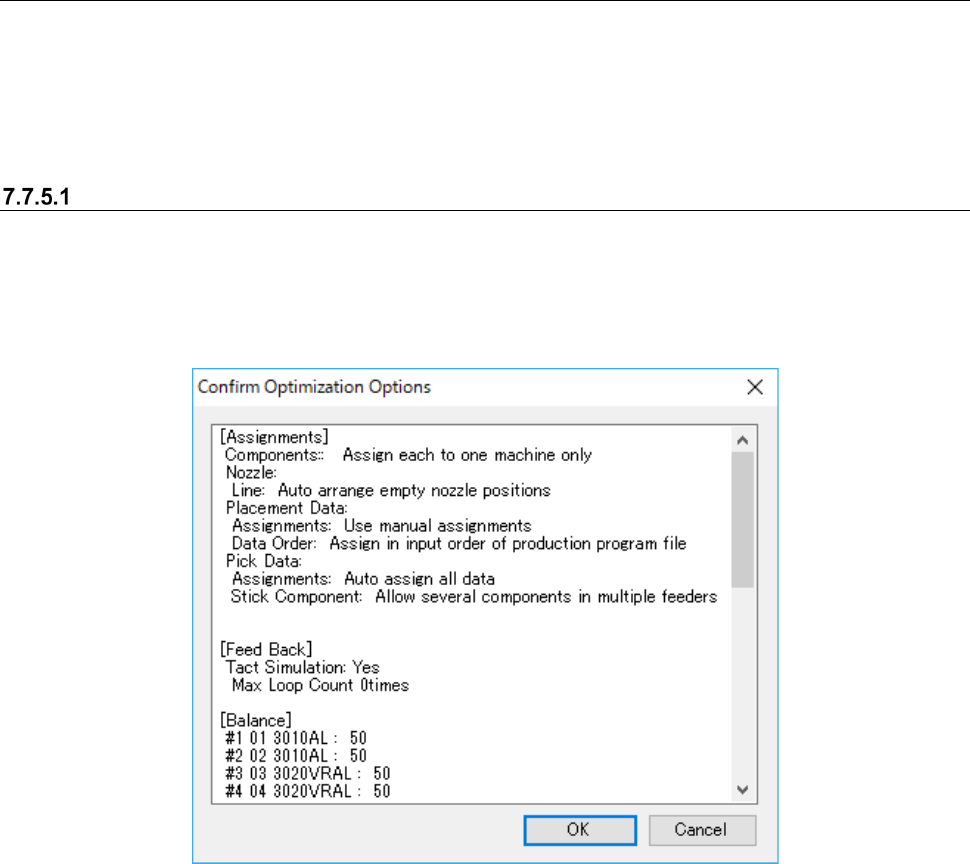
“Confirm Optimization Options” dialog box
When you select the <Go> button after checking the check box “Show the Confirm Optimization
Options dialog box” on the “Optimize” dialog box, the dialog box indicating that each option setting
of the Optimize application appears on the screen before the system starts the optimization pro-
cess.
Figure 7.7-25 “Confirm Optimization Options” dialog box
When you set the option “Show the Confirm Optimization Options" dialog box, the system saves
the settings of each application when you quit it regardless of selection of the <Save as Default>
button or the <Default> button.
JaNets Instruction Manual 7. Program Editor
7-172
“Optimizing” dialog box
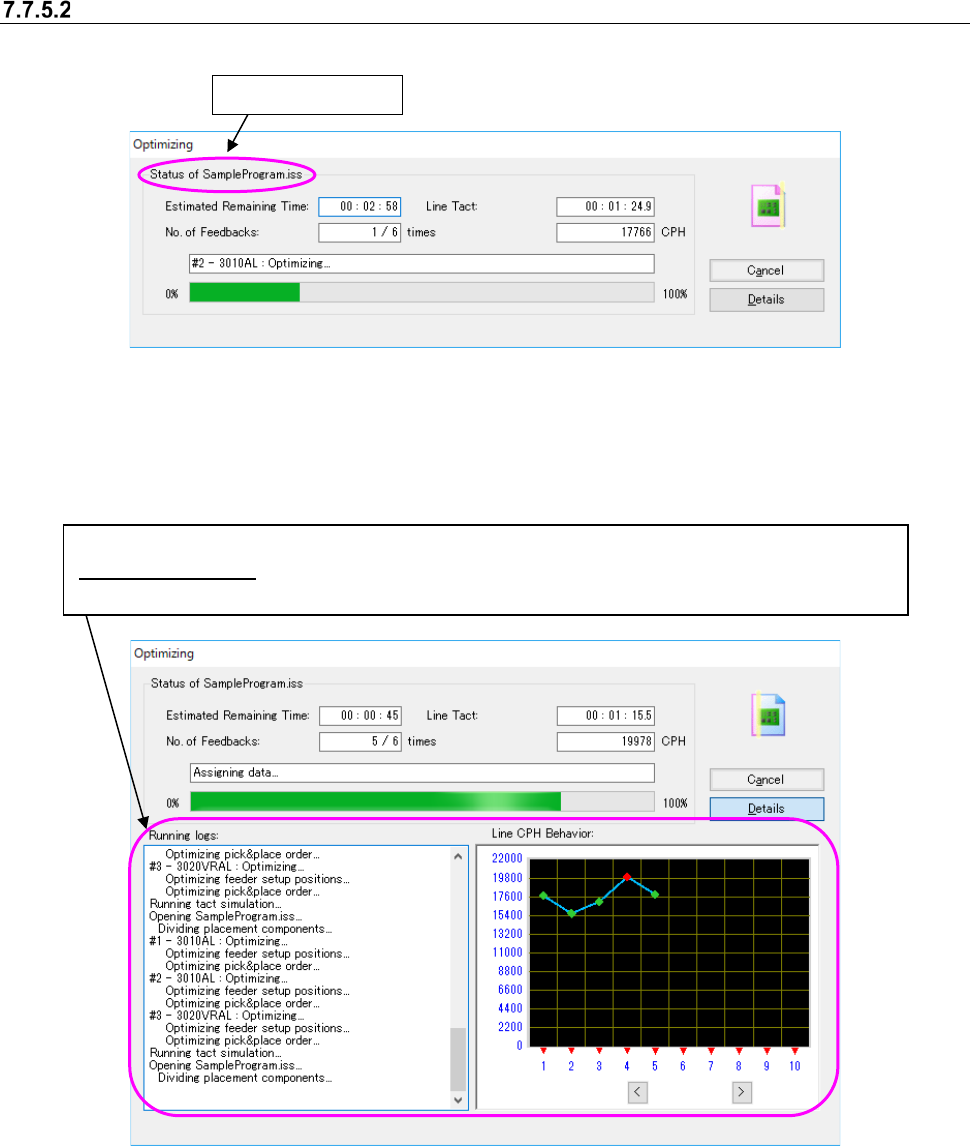
When the Optimization starts, the following “Optimizing” dialog box l appears on the screen.
Figure 7.7-26 “Optimizing” dialog box (without the running logs) displayed
with the Program Editor
When you select the <Details> button from either of the dialog boxes above, both the “Running
logs” and the “Line CPH Behavior” are also displayed.
Figure 7.7-27 “Optimizing” dialog box (with Running logs) displayed
with the Job Optimizer /Program Editor
When optimization is done normally, the “Optimizing” dialog box is closed, and the system is re-
turned to the application invoking the Optimize application (Program Editor). When you invoke the
Optimize application from the Program Editor, the optimized production program is displayed on
the screen.
Production program
Both the “Running logs” and the “Line CPH Behavior” are displayed on the screen.
Line CPH Behavior : When you enable the Feed Back option and then start the Optimization function,
the transition of the line cycle time per feed-back is displayed on the graph (unit: CPH).