JANETS_INM.pdf - 第380页
JaNets In structio n Manual 7. Program Editor 7- 173 Manually closing the “ Op tim izing ” dial og box after t he optimization If you put a chec k mark i n " After co mpletion of optim izat ion, the log s cree n is …
JaNets Instruction Manual 7. Program Editor
7-172
“Optimizing” dialog box
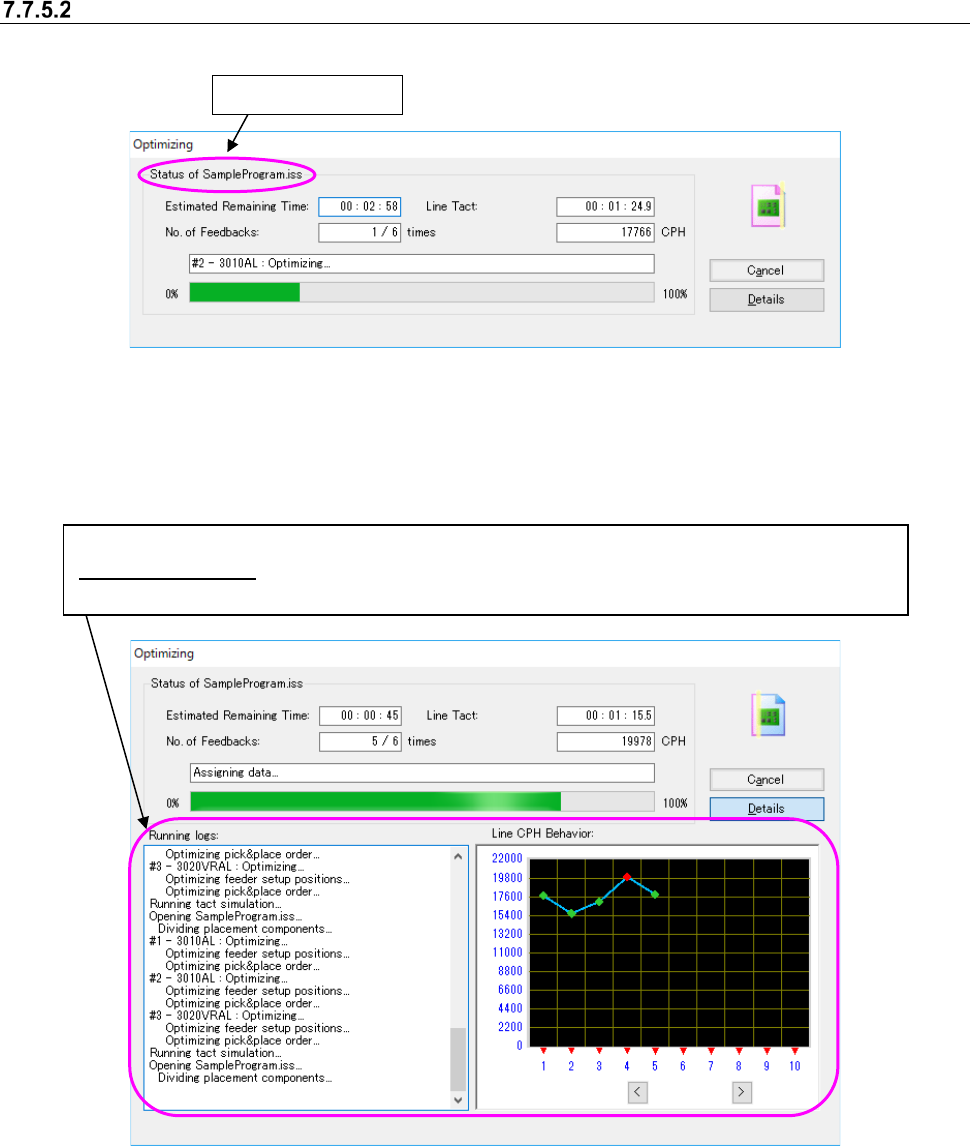
When the Optimization starts, the following “Optimizing” dialog box l appears on the screen.
Figure 7.7-26 “Optimizing” dialog box (without the running logs) displayed
with the Program Editor
When you select the <Details> button from either of the dialog boxes above, both the “Running
logs” and the “Line CPH Behavior” are also displayed.
Figure 7.7-27 “Optimizing” dialog box (with Running logs) displayed
with the Job Optimizer /Program Editor
When optimization is done normally, the “Optimizing” dialog box is closed, and the system is re-
turned to the application invoking the Optimize application (Program Editor). When you invoke the
Optimize application from the Program Editor, the optimized production program is displayed on
the screen.
Production program
Both the “Running logs” and the “Line CPH Behavior” are displayed on the screen.
Line CPH Behavior : When you enable the Feed Back option and then start the Optimization function,
the transition of the line cycle time per feed-back is displayed on the graph (unit: CPH).
JaNets Instruction Manual 7. Program Editor
7-173
Manually closing the “Optimizing” dialog box after the optimization
If you put a check mark in "After completion of optimization, the log screen is manually closed." on
the “Optimizing” dialog box and run the optimization, the system keeps displaying the "Optimizing"
dialog box after completing the optimization.
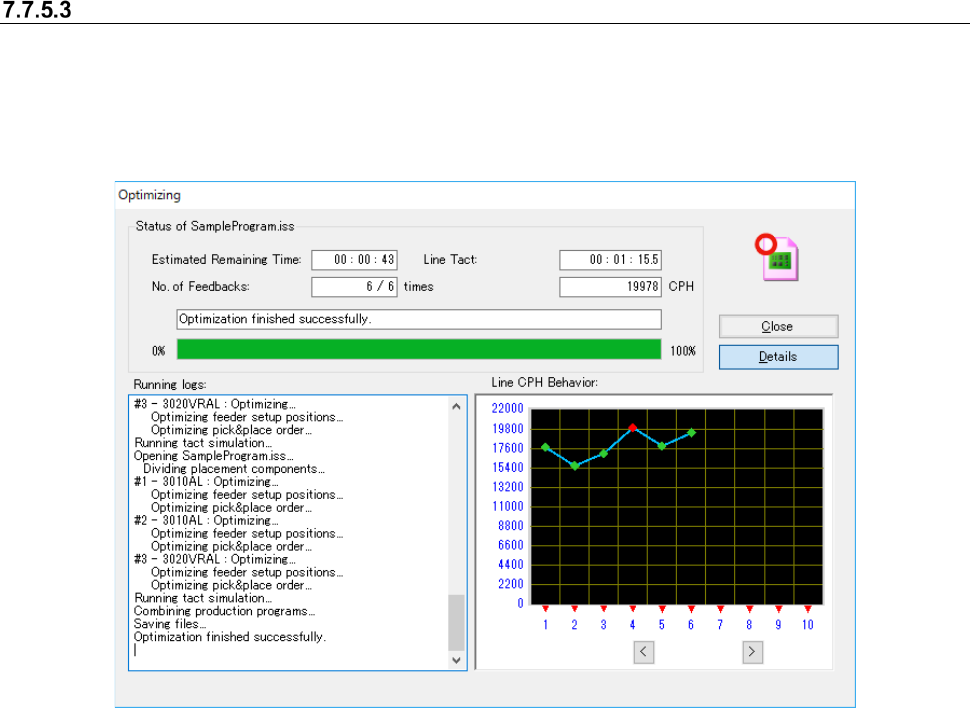
Click the <End> button to close the dialog box. It goes back to the Program Editor screen.
Figure 7.7-28 Dialog box after the optimization on Program Editor
The option setting of "After completion of optimization, the log screen is manually closed." is saved
without relation to the functions of "Save as default" and "Default."
JaNets Instruction Manual 7. Program Editor
7-174
Skipping in optimization is performed automatically
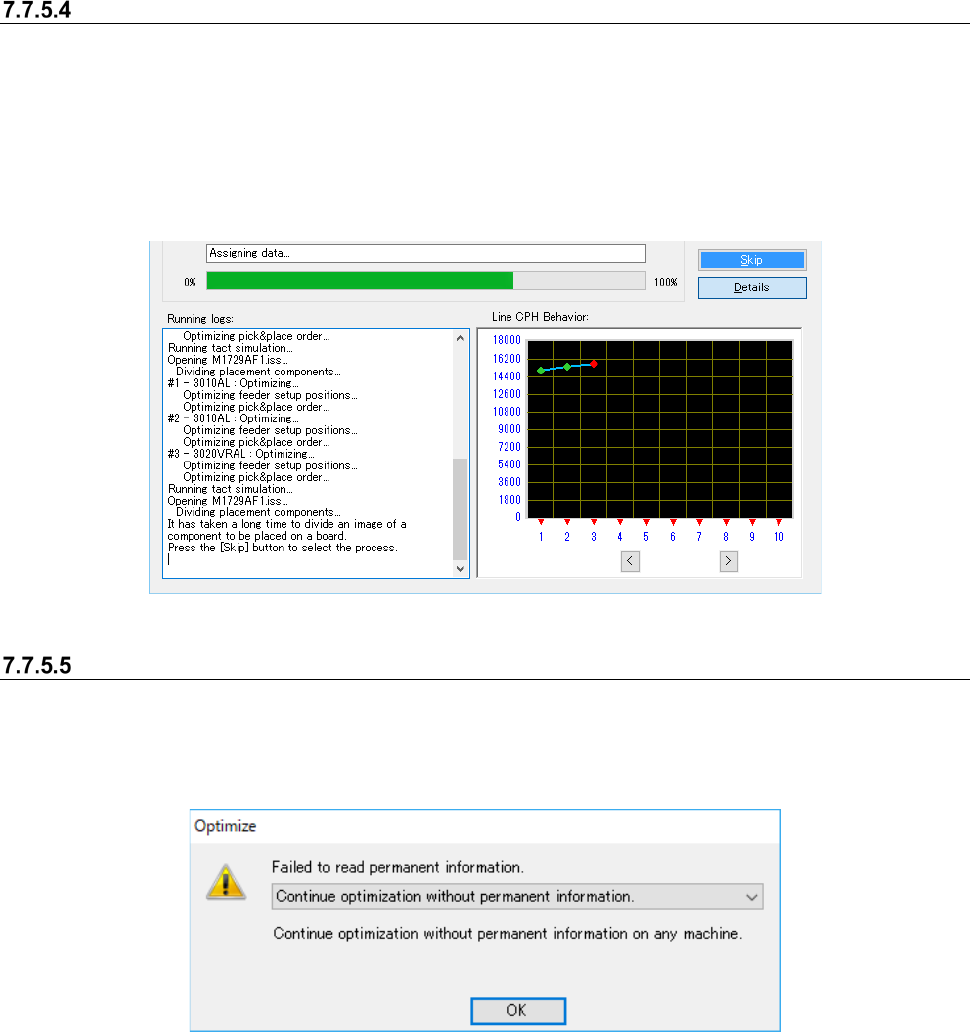
When “Skip” in optimization is performed automatically.” is not checked, the “Stop button” may be
changed to “Skip button” during optimization.
This is displayed when the optimization time is anticipated to be very long.
When the Skip button is not clicked, retrieval is continued until an answer can be found out. This
retrieval may take a lot of time. If Skip is authorized by clicking “Skip”, the later retrieval of an
answer will be cancelled at a fixed number.
Figure 7.7-29 Skipping state during optimization
If the system fails to load the permanent information
If the system fails to load the permanent information during optimization that uses a permanent
feeder, the following error appears on the screen. You can select one of two options: whether to
continue the current optimization without using any permanent information or cancel the current
optimization.
Figure 7.7-30 If the system fails to load the permanent information
The possible causes of this failure are described below:
- Component data of a permanent feeder does not match that of the Component database (*1).
*1 If any of the component type (such as “Chip” and “SOT)), the packaging style (such as “Tape ”
and “Stick”) and the feeder type (such as “8 mm paper” and “8 mm emboss”) of a permanent
feeder does not match that of the Component database, the system decides that Component
data of a permanent feeder is not consistent with that of the Component database, and then
stops loading the permanent information. Note that if any of the component type, the pack-
aging style, the feeder type and the feeding pitch of a production program does not match that
of the Component database even though the information described above of the permanent
feeder matches that of the Component database, the optimization fails.