JANETS_INM.pdf - 第383页
JaNets In structio n Manual 7. Program Editor 7- 176 7.8 Automati call y Loading Com ponent Data/M ark Data at a Tim e This is a funct ion for upda ting Co mpone nt data and Mark data o f a productio n progra m accord in…
JaNets Instruction Manual 7. Program Editor
7-175
Optimize previous results
In the program editor, when you select the "Optimize previous results" and select "Auto assign all
data" for the pick distribution option of pick data and optimize with feedback and there are speci-
fied pick data of the pick position, optimized specified pick position at the first and measure the tact
time, then optimize with " Auto assign all data ".
In this way, you can leave the result of manually adjusting the pick position and the better result of
optimizing with "Auto assign all data".
However, when you change the layer, or if it can not be optimized at the specified position by
changing the unit such as VCS, an error will occur, please uncheck and optimize.
When you set the feedback count to 0, it will not be optimized if you select "Optimize previous
results".
The selection is saved in the computer, not the production program.
Multi Algorithm Optimization
When you check off the check box “Multi Algorithm Optimization” and then the check box “Execute
tact simulation and feedback division” with the Program Editor to perform optimization, the system
performs optimization according to another algorithm in addition to normal optimization.
By optimizing with multiple algorithms, you can expect better results than normal optimization.
However, the execution time will be about twice as much as normal optimization.
When you specify “0” for the menu item “Max. Loop Count” and check off the check box “Order
placements from smalls to largest nozzle size,” the system does not perform “Multi Algorithm Op-
timization.”
The checking state of each check box is saved not in a production program but in the PC.
JaNets Instruction Manual 7. Program Editor
7-176
7.8 Automatically Loading Component Data/Mark Data at a Time
This is a function for updating Component data and Mark data of a production program according
to the information of the database before performing optimization.
7.8.1 Settings for automatic batch loading
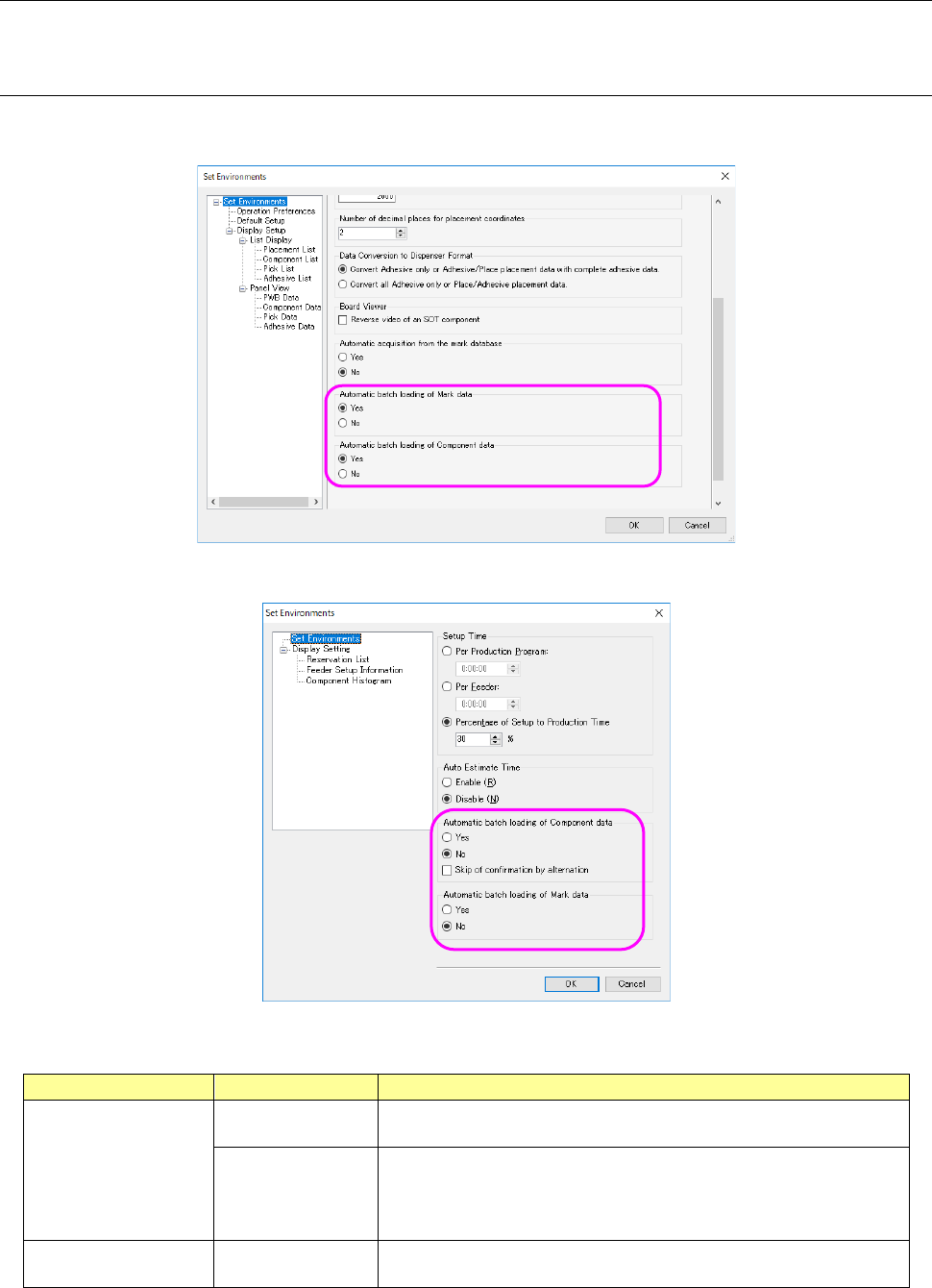
To use this automatic batch loading function, you have to specify whether to use it or not on the
“Set Environments” screen of the Program Editor and that of the Job Optimizer.
Figure 7.8-1 “Set Environments” screen (of the Program Editor)
Figure 7.8-2 “Set Environments” screen (of the Job Optimizer)
Table 7.8-1
Menu item
Setting
Description
Automatic batch
loading of
Component data
Yes/No
Specifies whether to access to the Component Database before
optimization starts to update the Component data.
Skip confirmation
by alternation
When this check box is enabled, the system skips display of the
confirmation dialog box to be displayed when Component data is to
be changed, and then automatically applies the change to perform
optimization.
Automatic batch
loading of Mark data
Yes/No
Specifies whether to access to the mark database before optimi-
zation starts to update the mark data.
* Even though this automatic batch loading function is enabled on the “Set Environments”
screen, the function cannot be used for a file created in “EPU mode.”
JaNets Instruction Manual 7. Program Editor
7-177
7.8.2 Executing the automatic batch loading function
If the menu item “Automatic batch loading of Component data” or “Automatic batch loading of
Mark data” is set to “Yes” on the “Set Environments” screen when you press the <Go> button on
the “Optimize” dialog box, the system accesses to each database to update data of a production
program. After updating data, the system performs optimization.
* A production program is automatically saved before automatic batch loading starts.
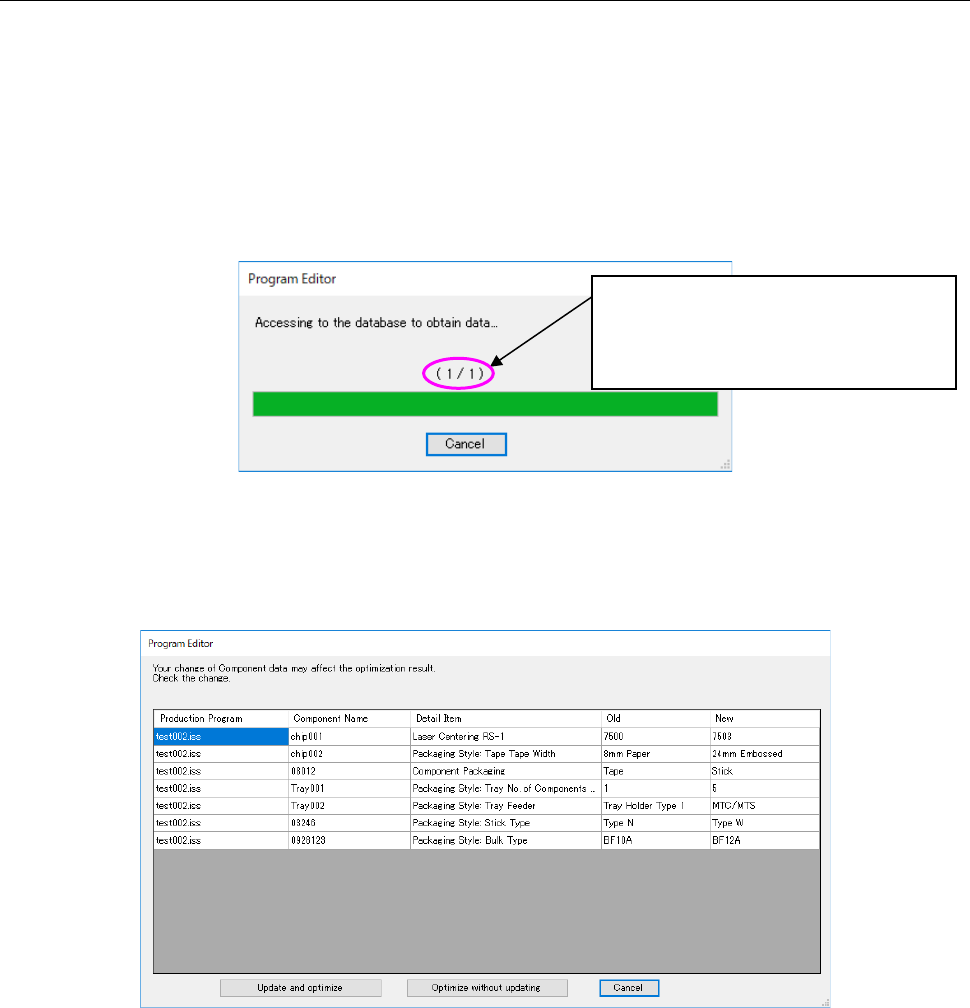
When automatic batch loading starts, the system accesses to the database. While the system is
accessing to the database, the following dialog box appears on the screen.
Figure 7.8-3 Dialog box displayed during accessing to the database
Only if updating of Component data that affects the optimization result occurs after updating fin-
ishes, the following dialog box appears on the screen.
Figure 7.8-4 Confirmation dialog box for change of Component data
When you press the <Update and optimize> button, the system performs optimization with apply-
ing the updating.
When you press the <Optimize without updating> button, the system restores the production pro-
gram to the original state before the automatic batch loading function is executed, and then per-
forms optimization. When you press the <Cancel> button, the system restores the production
program to the original state before the automatic batch loading function is executed without per-
forming optimization.
* When the “Skip confirmation by alternation” check box is enabled on the “Set Environments”
screen, the system automatically updates the data and performs optimization without displaying
the confirmation dialog box above.
The number of production programs that
finish being updated and that of produc-
tion programs that will be updated are
displayed here.