JANETS_INM.pdf - 第389页
JaNets Instr ucti on Man ual 8. Job Optim izer 8-4 How to Opera te the Job Optimiz er Explanat ion o f th e m ain scr een Figure 8.3 -1 Main s creen Line explo rer Reservatio n list: up to 100 production programs can be …
JaNets Instruction Manual 8. Job Optimizer
8-3
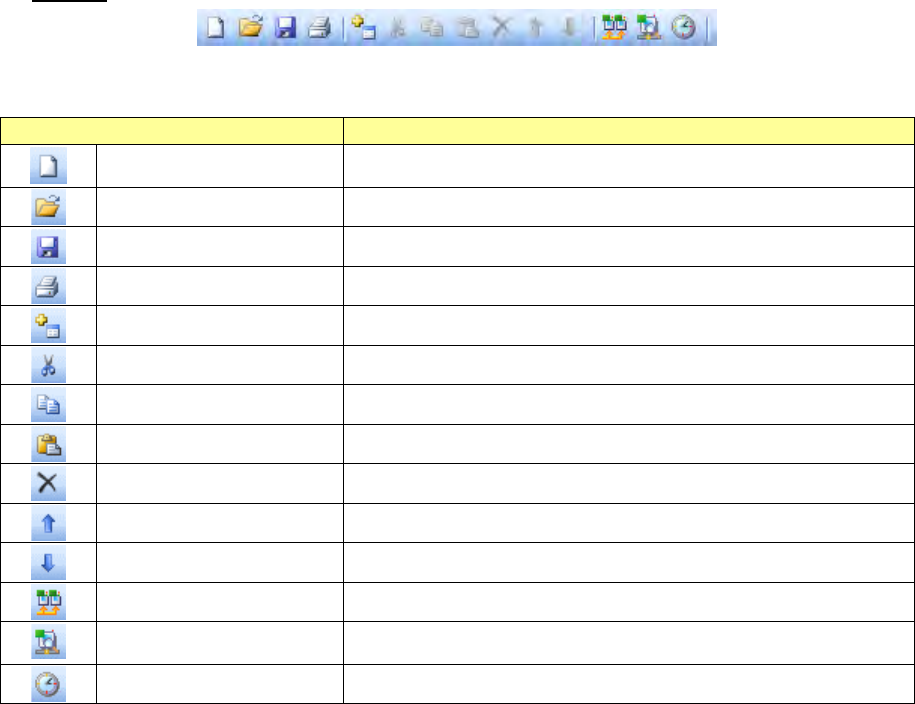
Toolbar
Table8.2-2 Toolbar items
Toolbar item
Description
New Ctrl + N
Creates a new Reservation list “production program reservation
area.”
Open Ctrl + O
Displays the “Open” dialog box.
Save Ctrl + S
Overwrites a reservation file, and then saves it.
Print (P) Ctrl + P
Displays the “Print” dialog box.
Add Reservation Ctrl + R
Adds a production program on the last line of the Reservation list.
Cut Ctrl + X
Deletes the selected data and copies it onto the clipboard.
Copy Ctrl + C
Copies the selected data onto the clipboard.
Paste Ctrl + V
Pastes the data stored on the clipboard.
Delete Del
Deletes the selected line from the Reservation list.
Up Ctrl + Up
Moves the selected line of the Reservation list upward by one line.
Down Ctrl + Down
Moves the selected line of the Reservation list downward by one line.
Optimize
Displays the “Optimize” dialog box.
Data Coherence Check
Performs the coherence check between the reserved production
program and the line.
Time Estimate
Displays the “Time Estimate” dialog box.
JaNets Instruction Manual 8. Job Optimizer
8-4
How to Operate the Job Optimizer
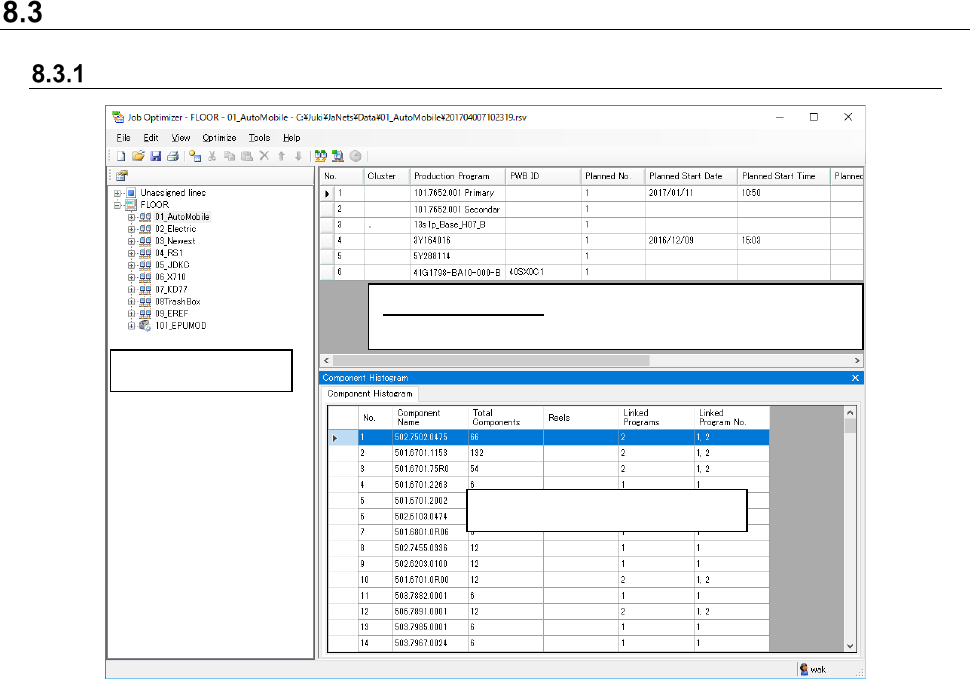
Explanation of the main screen
Figure 8.3-1 Main screen
Line explorer
Reservation list: up to 100 production programs
can be reserved.
Detailed data display area
JaNets Instruction Manual 8. Job Optimizer
8-5
Main screen – Line explorer
You can select the display or non-display of the line explorer by selecting “Display” – “Line
explorer.”
When you click “Line explorer” with the right button of the mouse, a pop-up menu will be displayed.
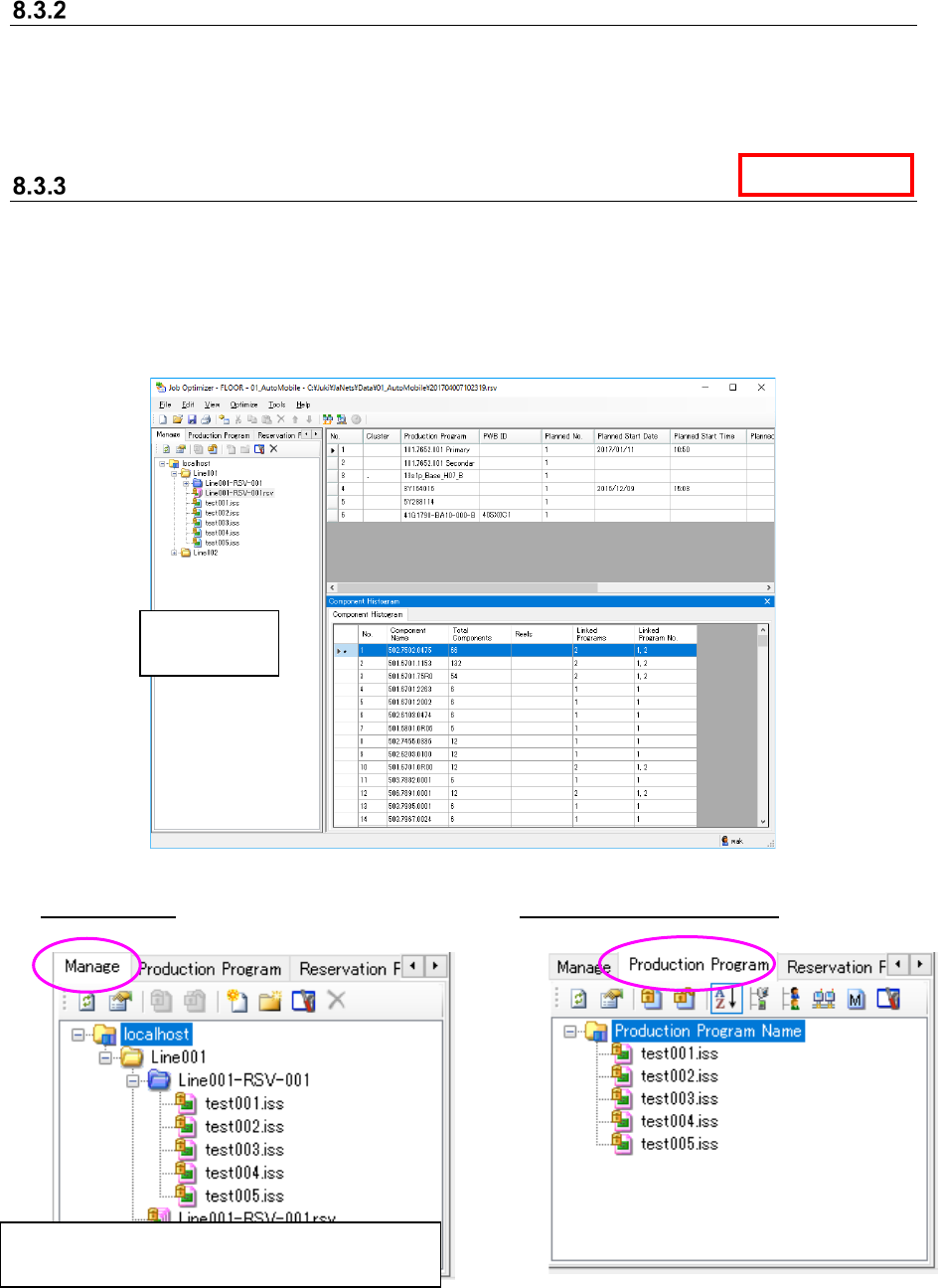
Main screen – Program Explorer
The Program explorer displays the following tabs: “Manage,” “Production Program,”
“Reservation File” and “Floor Configuration.”
When you click the “Program Explorer” menu command with the right button, the pop-up menu
appears on the screen.
When you select the menu commands [View] – [Program Explorer], you can display or hide the
Program Explorer.
Figure 8.3-2 Main screen (Program Explorer)
“Manage” tab “Production Program” tab
Figure 8.3-3 Program Explorer (Manage)
Figure 8.3-4 Program Explorer
(Production Program)
Data Manager
Program
Explorer
All files (production programs and reservation files)
managed by the database are displayed here.