JANETS_INM.pdf - 第39页
JaNets Instr ucti on Man ual 2. Install ation 2- 11 (4) When you click the <I nstall> b utton, the screen shown in Figur e 2.7.6 - 6 appear s and instal lation starts . (5) The JaN ets is being install ed on the PC…
JaNets Instruction Manual 2. Installation
2-10
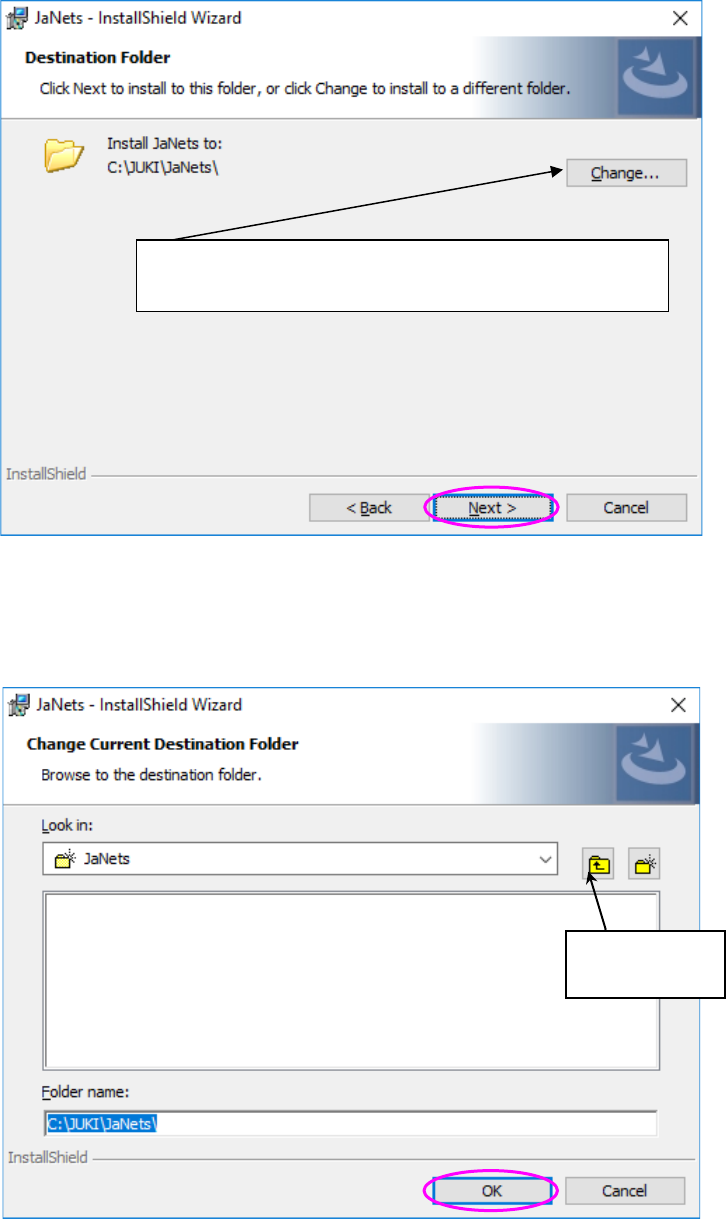
(3) Specify the destination folder, and then click the <Next> button. Since you do not have to
change the destination folder, click the <Next> button without performing any operation.
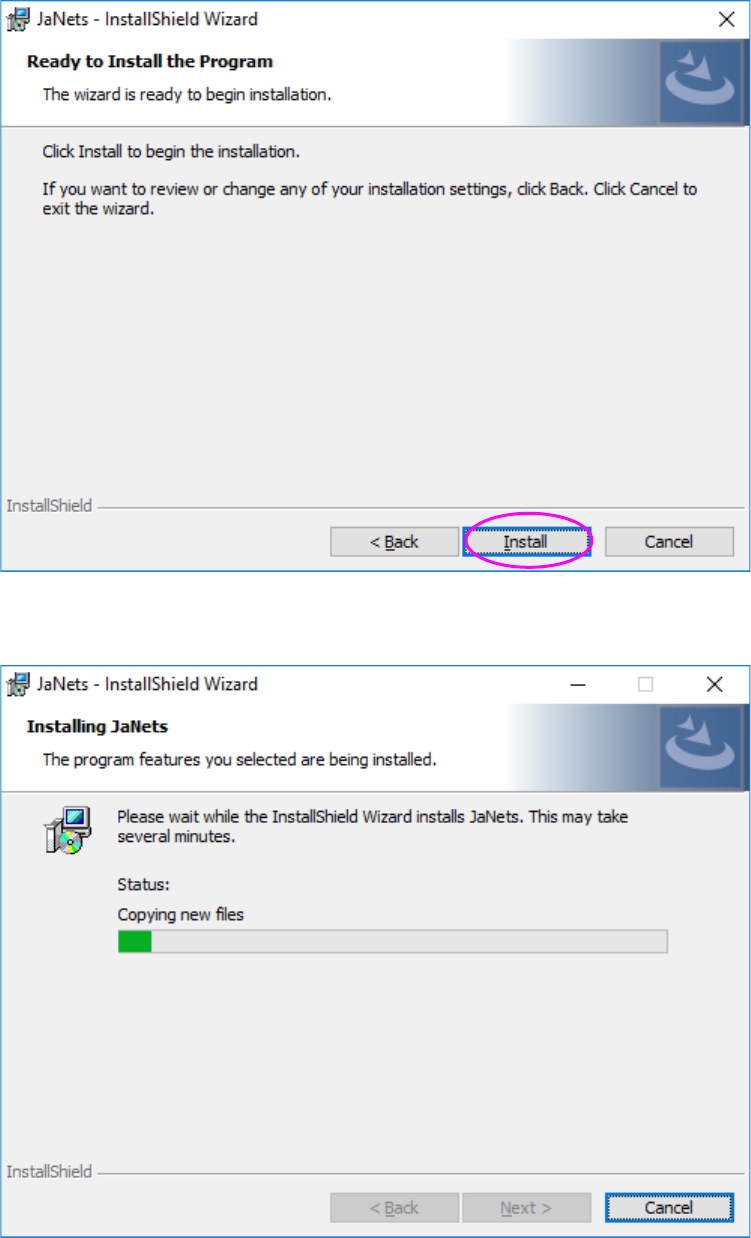
Select a folder in which the JaNets is to be installed or enter the destination folder name
directly, and then click the <OK> button. To create a new folder, click the button for creating a
new folder, or enter the name of a new folder directly, and then click the <OK> button.
* The default destination folder is “C:\Juki\ JaNets” To
change this default destination, click the <Change> button.
Button for
creating a new
JaNets Instruction Manual 2. Installation
2-11
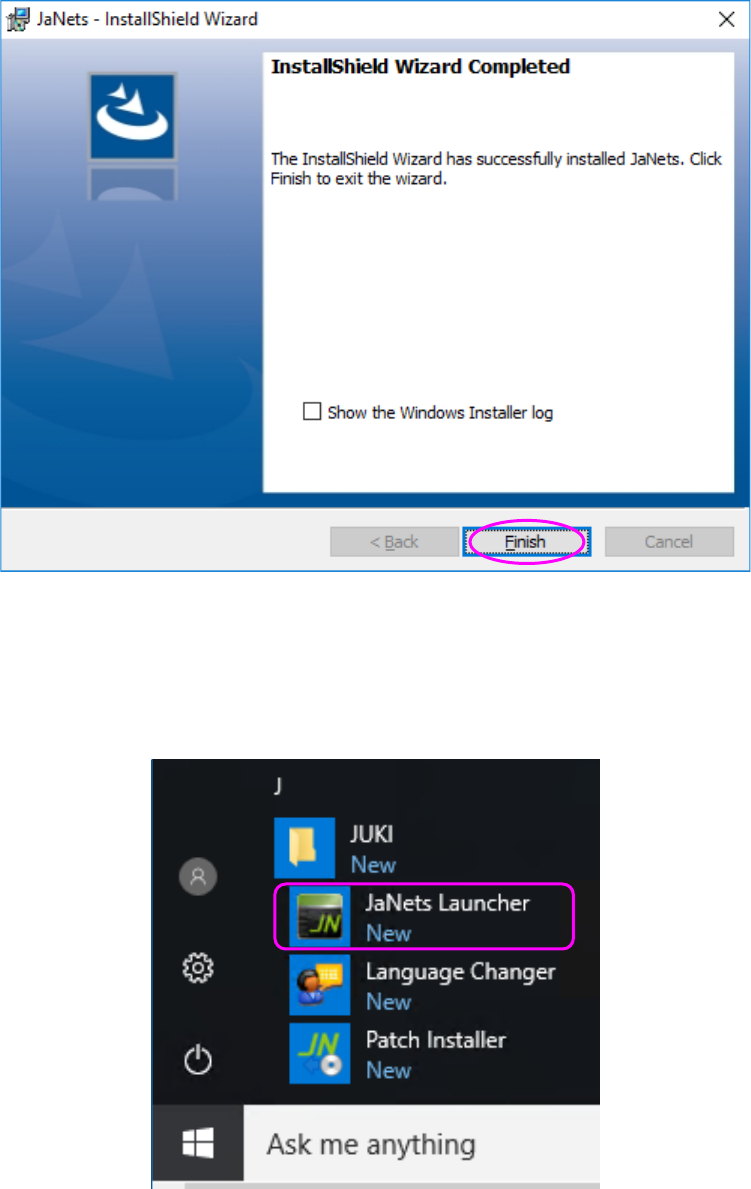
(4) When you click the <Install> button, the screen shown in Figure 2.7.6-6 appears and
installation starts.
(5) The JaNets is being installed on the PC.
JaNets Instruction Manual 2. Installation
2-12
(6) When the JaNets finishes being installed on the PC, the following screen appears. Click the
<Finish> button.
Finish installing the JaNets on the PC.
You have finished installing the JaNets on the PC at this point.
[Start] – [JUKI] – [JaNets Launcher] is created.