JANETS_INM.pdf - 第405页
JaNets Instr ucti on Man ual 8. Job Optim izer 8- 20 8.3.9 .5 No. of Components Specify wheth er a reserv ed product i on pr ogram will use the num ber of comp onent s in t he previous pr oduct ion pro gram or not. Press…
JaNets Instruction Manual 8. Job Optimizer
8-19
8.3.9.4 Planned Start Date, Planned Start Time, Planned End Date and Planned End
Time
When you add a production program to the beginning of the Reservation list, the added data and
time are automatically displayed on the screen. When you add one to the second or later line of
the Reservation list, such data is not displayed.
When you also enter the “Planned Start Date” and the “Planned Start Time” to the second or later
line, you can display the planning and its result with the “Result Summarizer” utility by comparing
them after PWB production. When you also enter the “Planned End data” and the “Planned End
Time,” you can compare the planning and its result with the “Result Summarizer.”
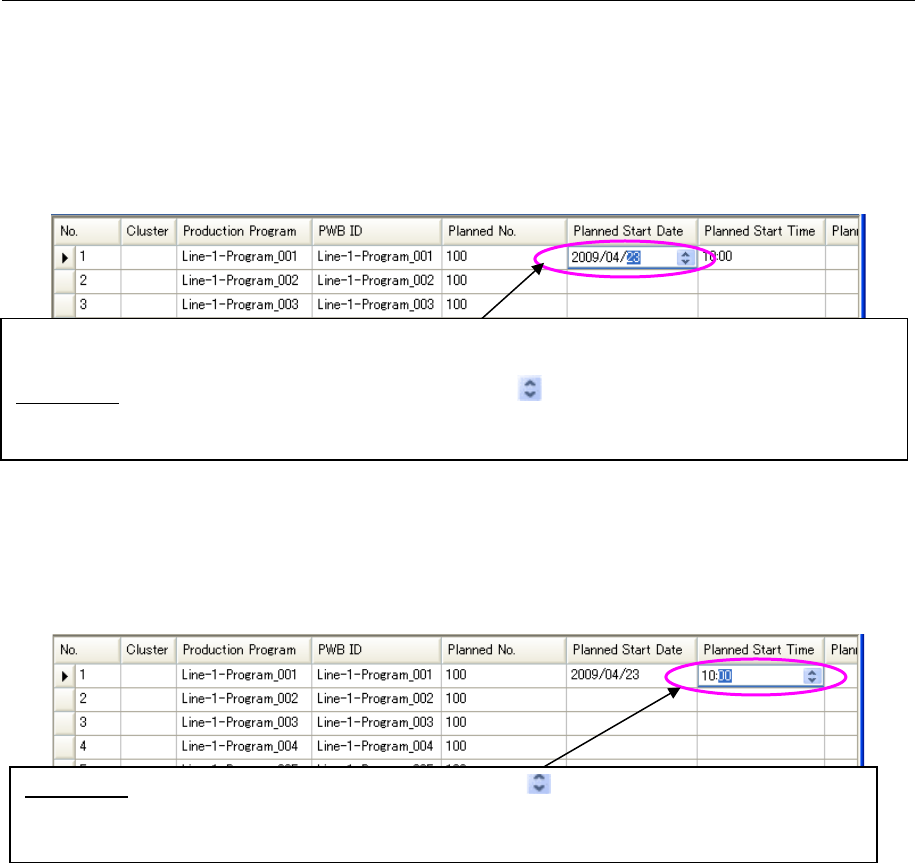
Figure 8.3-29 Main screen – Reservation list (Planned Start Date)
* When you double-click a cell whose “Planned Start Date,” “Planned End Date,” “Planned
Start Time” or “Planned End Time” is to be changed or when you press the [Enter] key after
selecting the cell, you can edit the cell.
Figure 8.3-30 Main screen – Reservation list (Planned Start Time)
How to edit: After selecting the cell to be changed, press the < > button or press the [↑] key or the [↓]
key. Or you can also enter a value directly in the selected cell. To delete a value from a cell, select the
cell and press the [Del] key.
You have to enter the “Planned Start Date” and the “Planned Start Time” of a production program in the first
line only. You can change these values (see the descriptions below), but cannot delete either of them.
How to edit: After selecting the cell to be changed, press the < > button or press the [↑] key or the [↓] key.
Or you can also enter a value directly in the selected cell. To delete a value from a cell, select the cell and
press the [Del] key.
JaNets Instruction Manual 8. Job Optimizer
8-20
8.3.9.5 No. of Components
Specify whether a reserved production program will use the number of components in the
previous production program or not.
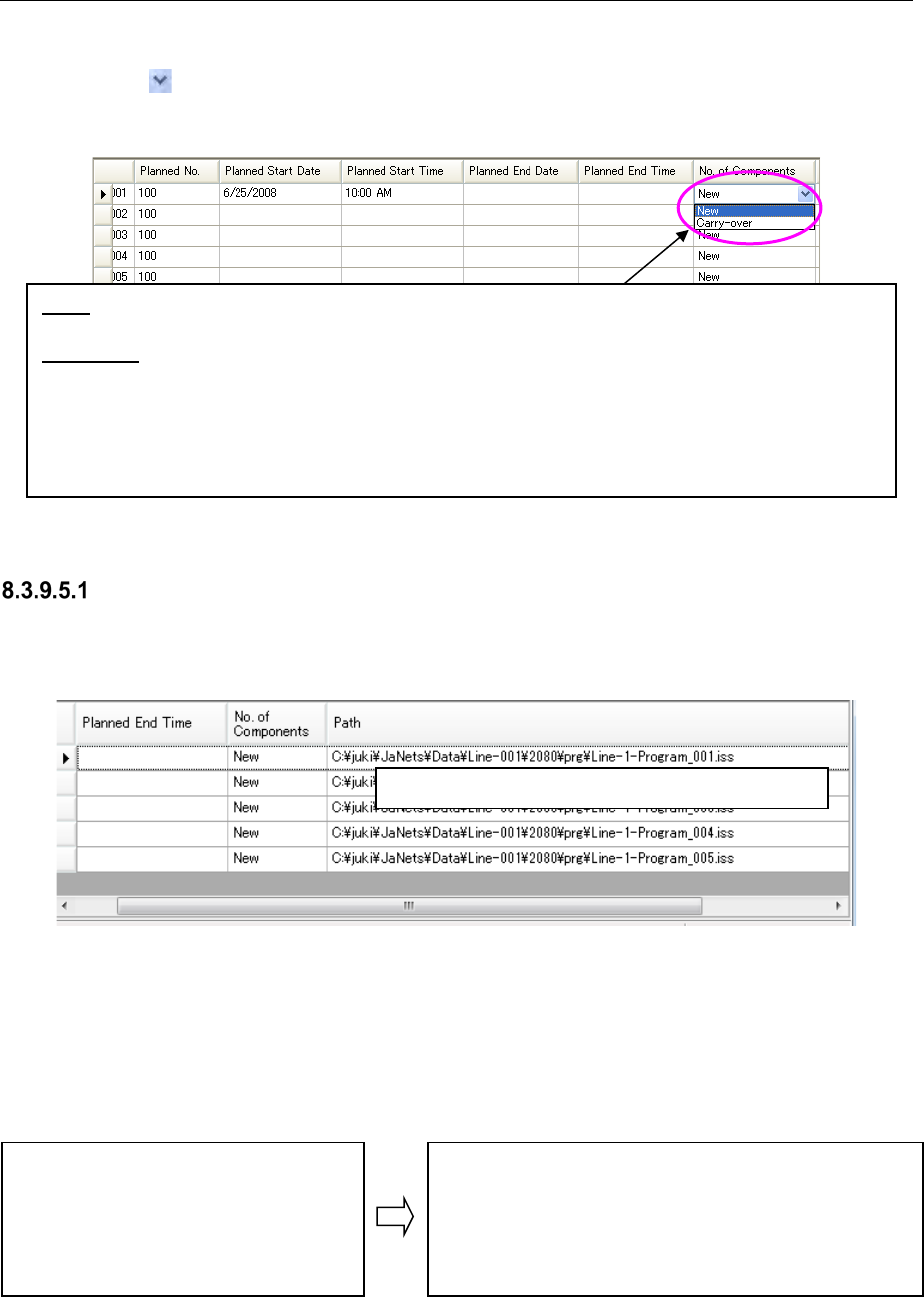
Press the < > button in the “No. of Components” cell, and select the [New] command or the
[Carry-over] command from the displayed pull-down menu.
Figure 8.3-31 Main screen – Reservation list (No. of Components)
Displaying the absolute path of a production program
When you add a production program to the Reservation list, the absolute path of the added
production program is automatically displayed on the screen.
Figure 8.3-32 Main screen – Reservation list (Path)
When you add a new production program, the folder whose name is the same as that of the
reservation file is created on the same path as that of the reservation file, and all production
programs are copied in this folder. If two or more production programs whose names are all the
same are added to the Reservation list, the second and later production programs are saved in the
sub-folders “a production program name” + “-“ + “serial number” respectively. The serial numbers
from “2” are added to sub-folders.
Figure 8.3-33 Changes in the paths of production programs when they are saved
The “Path” is displayed only, and you cannot edit it.
New:
Applies the number of components set with the [No. of Components] command to each production
program.
Carry-over: Copies the number of the remaining components of the previous production program to that
of the next production program when the same type of components are set at the same feeder position
for the consecutive production programs
* When the same component is set in different feeder positions, the number of components will not be
succeeded.
* In RX-7 series, the number of components is not succeeded regardless of the setting.
C:\Juki\JaNets\Line001\Prg\a.iss
C:\Juki\JaNets\Line001\Prg\b.iss
C:\Juki\JaNets\Line001\Prg\c.iss
C:\Juki\JaNets\Line001\Prg2\a.iss
C:\Juki\JaNets\Line001\Prg2\b.iss
C:\ISS\Line001\Prg3\a.iss
C:\Juki\JaNets\Line001\2014\01\reserveA\a.iss
C:\Juki\JaNets\Line001\2014\01\reserveA\b.iss
C:\Juki\JaNets\Line001\2014\01\reserveA\c.iss
C:\Juki\JaNets\Line001\2014\01\reserveA\a_2\a.iss
C:\Juki\JaNets\Line001\2014\01\reserveA\b_2\b.iss
C:\Juki\JaNets\Line001\2014\01\reserveA\a_3\a.iss
JaNets Instruction Manual 8. Job Optimizer
8-21
Reservation list – Cut/Copy/Paste/Delete of a reservation
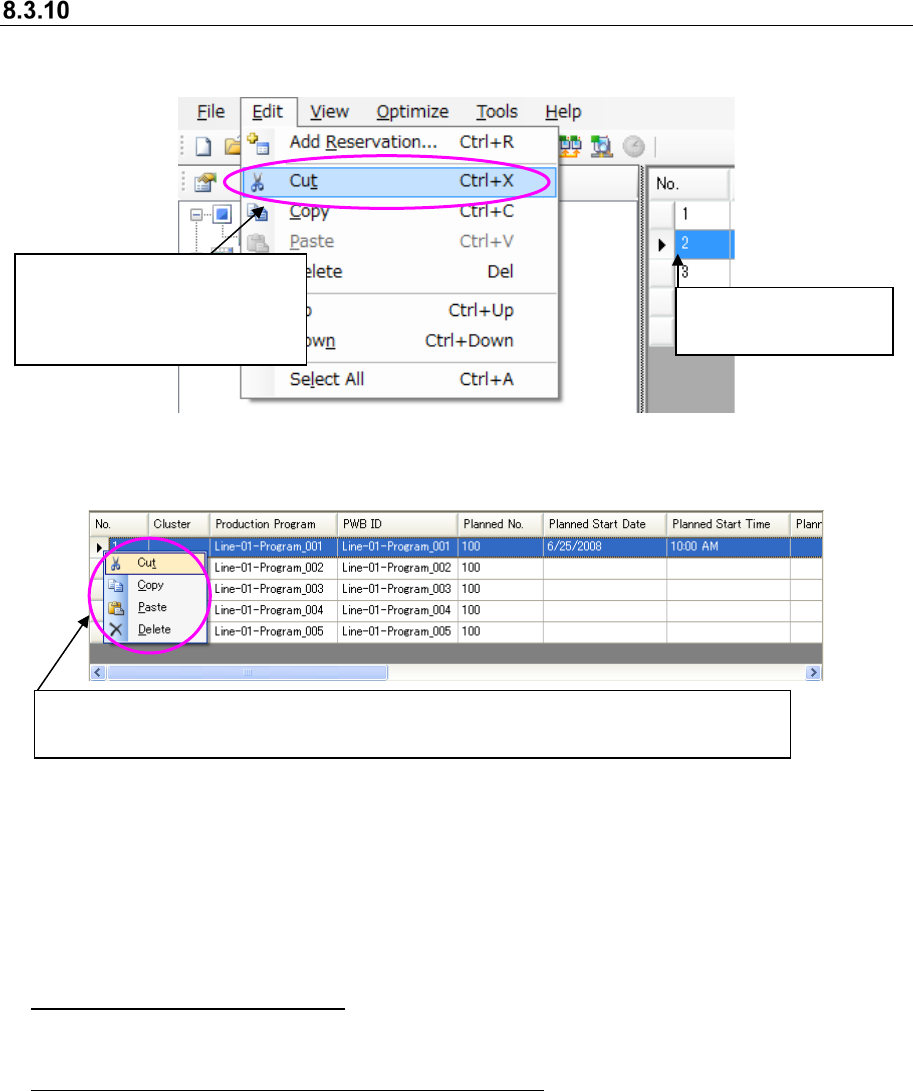
To cut/copy/paste/delete a reservation, follow the operations indicated with ① and ② or ③.
Figure 8.3-34 Mains screen – [Edit] – [Cut]
Figure 8.3-35 Main screen – Reservation list (Cutting a reservation)
When you select the [Cut] command, the reservation data in the selected line is copied to the
clipboard, and the selected line is deleted. When you select the [Copy] command, the reservation
data in the selected line is copied to the clipboard. When you select the [Paste] command, the
reservation data copied to the clipboard is inserted above the selected line. When you select the
[Delete] command, the selected line is deleted.
About pasting of reservation data: If no reservation data is copied to the clipboard, or if two or
more lines are selected in the Reservation list, you cannot execute the [Paste] command.
About cutting, copying and deleting of reservation data: You can cut, copy or delete two or more
lines. To select two or more lines, select these lines with the mouse while holding down the
[Ctrl] key, or after selecting the start line, select the end line while selecting the [Shift] key.
② Select the [Edit] command,
and then one of the
[Cut]/[Copy]/[Paste]/[Delete]
commands.
③
Select a line in the Reservation list, and click the right button of a mouse to select one of
the [Cut]/[Copy]/[Paste]/[Delete] commands from the displayed menu.
①
Select a line in the
Reservation list.