JANETS_INM.pdf - 第407页
JaNets Instr ucti on Man ual 8. Job Optim izer 8- 22 Reserv ation l ist – Mo ving reservation data Follow the inst ructi ons ① and ② below . Figure 8.3 - 36 Main scr een – [ Edit] – [Up] Reserv ation l ist – S aving a re…
JaNets Instruction Manual 8. Job Optimizer
8-21
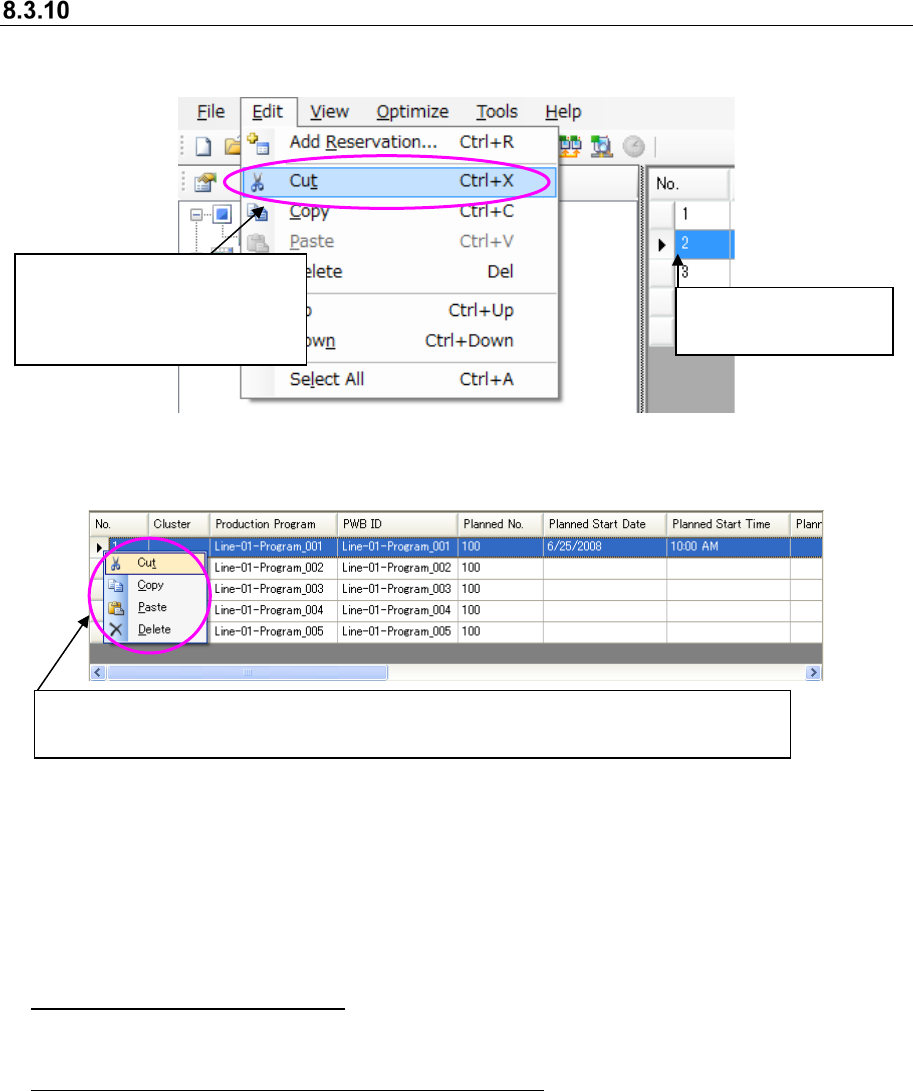
Reservation list – Cut/Copy/Paste/Delete of a reservation
To cut/copy/paste/delete a reservation, follow the operations indicated with ① and ② or ③.
Figure 8.3-34 Mains screen – [Edit] – [Cut]
Figure 8.3-35 Main screen – Reservation list (Cutting a reservation)
When you select the [Cut] command, the reservation data in the selected line is copied to the
clipboard, and the selected line is deleted. When you select the [Copy] command, the reservation
data in the selected line is copied to the clipboard. When you select the [Paste] command, the
reservation data copied to the clipboard is inserted above the selected line. When you select the
[Delete] command, the selected line is deleted.
About pasting of reservation data: If no reservation data is copied to the clipboard, or if two or
more lines are selected in the Reservation list, you cannot execute the [Paste] command.
About cutting, copying and deleting of reservation data: You can cut, copy or delete two or more
lines. To select two or more lines, select these lines with the mouse while holding down the
[Ctrl] key, or after selecting the start line, select the end line while selecting the [Shift] key.
② Select the [Edit] command,
and then one of the
[Cut]/[Copy]/[Paste]/[Delete]
commands.
③
Select a line in the Reservation list, and click the right button of a mouse to select one of
the [Cut]/[Copy]/[Paste]/[Delete] commands from the displayed menu.
①
Select a line in the
Reservation list.
JaNets Instruction Manual 8. Job Optimizer
8-22
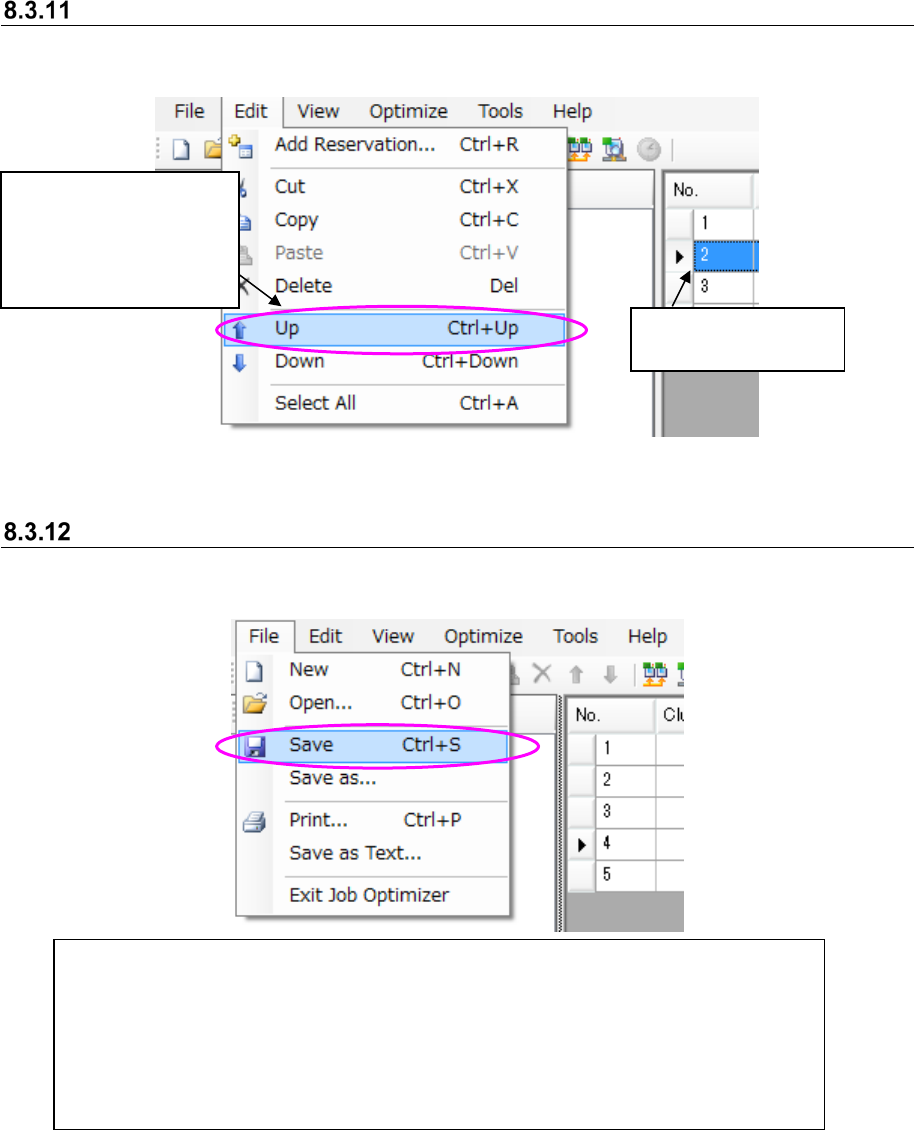
Reservation list – Moving reservation data
Follow the instructions ① and ② below.
Figure 8.3-36 Main screen – [Edit] – [Up]
Reservation list – Saving a reservation file
Follow the instruction ① or ② below.
Figure 8.3-37 Main screen – [File] – [Save]
①
Select the [File] command, and then the [Save] command.
②Select the [File] command, and then the [Save as] command.
* As the initial folder of the dialog box opened with following the instruction ②,
the folder “reservation file folder of the selected line (to be set with “ Shop Floor Setup”)
+ year (4 digits) folder + Month (2-digit) folder” is opened.
The default reservation file name is displayed as “year (4 digits) month (2 digits) day
(2 digits) hour (2 digits) minute (2 digits) second (2 digits)”.
② Select the [Edit]
command, and then
the [Up] command or
the [Down] command
on the “Edit” menu.
①Select a line on the
Reservation list.
JaNets Instruction Manual 8. Job Optimizer
8-23
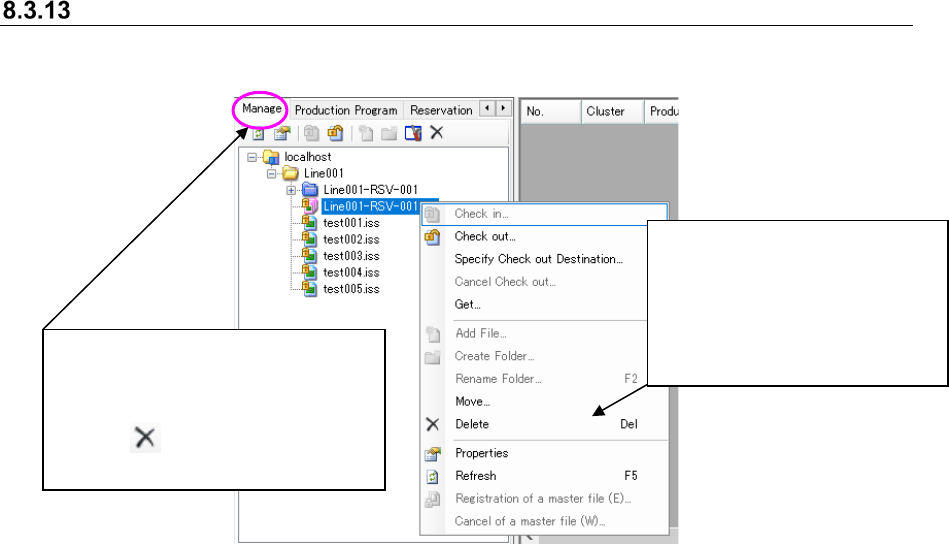
Deleting a reservation file from a database
Perform the operation ① or ② below.
Figure 8.3-38 Main screen – [Program Explorer (“Manage”)] – [Delete]
②
Select the [Delete] command.
* The confirmation message for
deleting the file appears on
the screen. When you click
the <Yes> button, the selected
file is deleted, and the
message is closed.
①
Select a reservation file (or two or
more reservation files) displayed on
the “Manage” tab of the Program
Explorer, and then click the “Delete”
icon ( ) of the tool bar for the
Program Explorer.