JANETS_INM.pdf - 第412页
JaNets Instr ucti on Man ual 8. Job Optim izer 8- 27 Save as Text Figure 8.3 - 47 Main scr een – [File] – [Save as T ext] Figure 8.3 - 48 “ Save as T ext ” dial og box * Set the m enu i tems “ What t o S ave ” and “ Co n…
JaNets Instruction Manual 8. Job Optimizer
8-26
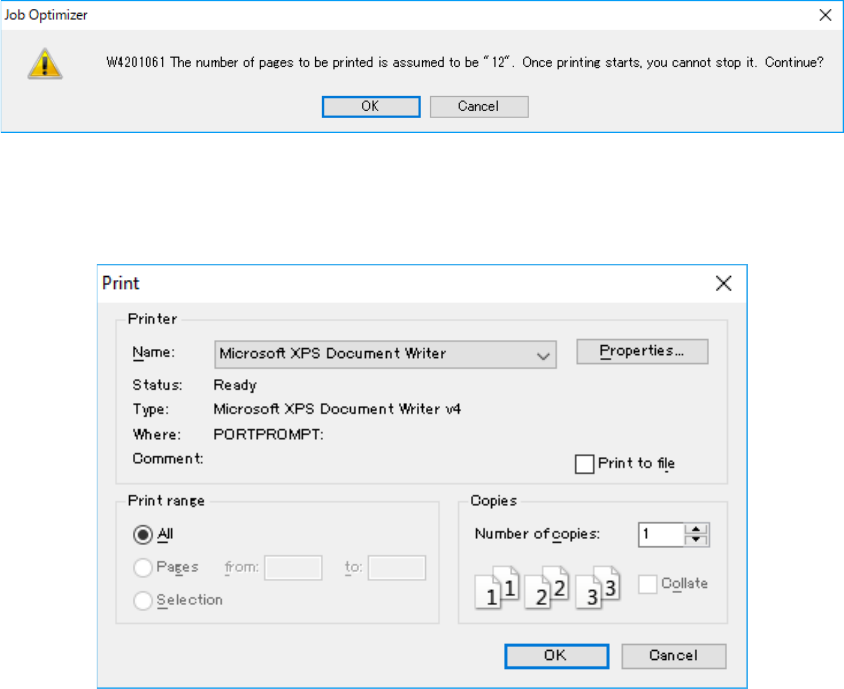
If the Job Optimizer finishes calculating the number of pages to be printed to find that the number
of pages is more than 10, it issues a warning.
Figure 8.3-45 Warning on the pages to be printed
When you click the <OK> button, the following dialog box appears on the screen.
Figure 8.3-46 “Print” dialog box ②
When you print a document, pay attention to the following items:
- Since the Job Optimizer prints a document continuously, get confirmation before starting
printing if you try to print many pages.
- Only the printing direction regulated with the Job Optimizer is supported.
- The check box “Print to file” is not supported. When necessary, use the text output function
described in the next section.
- To save a document in a file such as an XPS file and a PDF file, the Job Optimizer requires the
file save destination for each document. Therefore, it displays the confirmation dialog box every
time you save a document in a file. Note that you cannot combine two or more documents in
the same file.
JaNets Instruction Manual 8. Job Optimizer
8-27
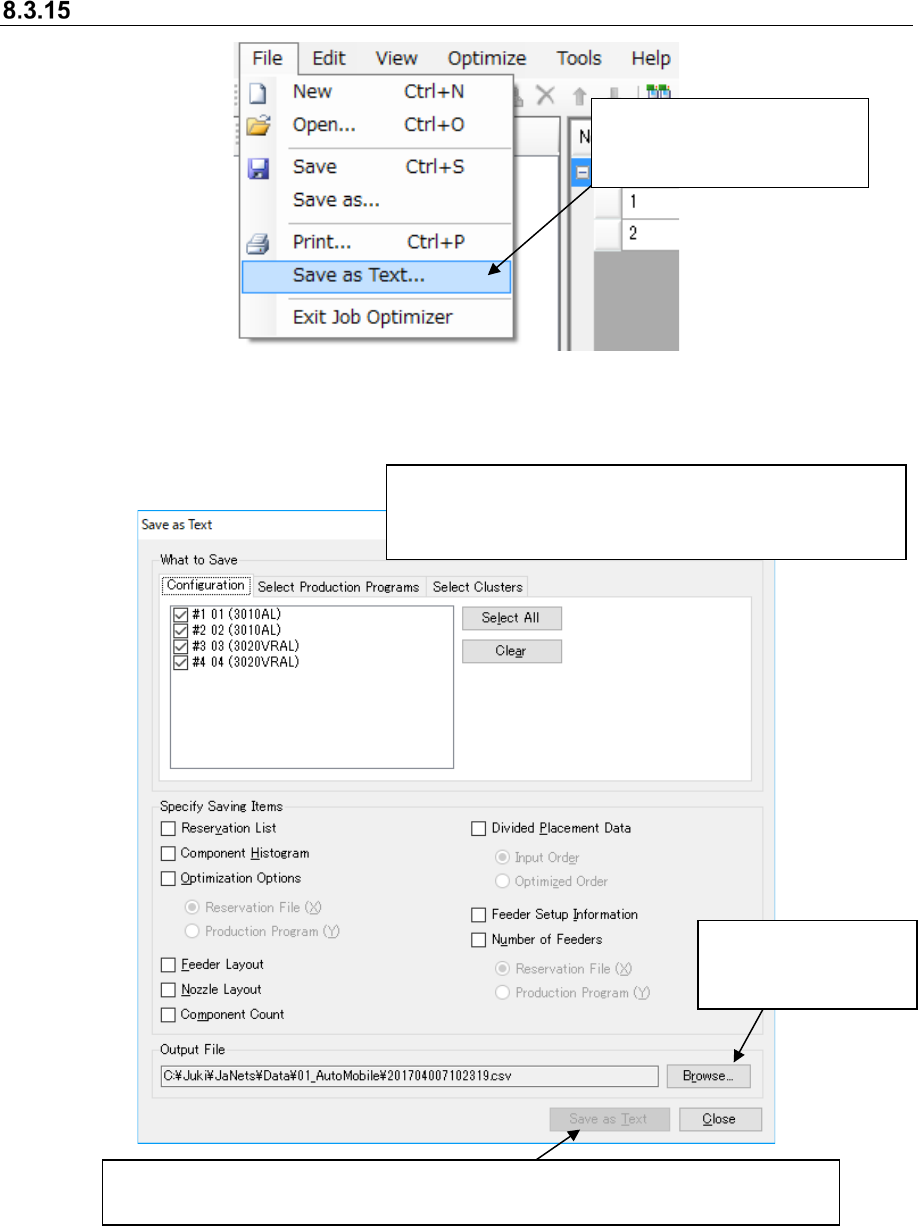
Save as Text
Figure 8.3-47 Main screen – [File] – [Save as Text]
Figure 8.3-48 “Save as Text” dialog box
* Set the menu items “What to Save” and “Configuration” in
the same way as you set those on the “Print” dialog box ①
of Figure 8.3-40.
Select the [File] command,
and then the [Save as Text]
command.
When you select one of the "Specify Saving Items" group, the <Save as Text> button
becomes available.
This button allows you to
change the file name or
the output folder.
JaNets Instruction Manual 8. Job Optimizer
8-28
The contents to be output by reservation list, component histogram or feeder setup information are
items set in the display item of the dialog display item setting of “8.3.27 Set Environments.”
Each item can be selected in the above dialog box under the condition described in the table
below.
Table 8.3-3 Conditions under which each of the items of
the “Specify Saving Items” group can be selected
Item
Condition under which each item can be selected
Reservation List/Component Histogram
After a production program is added
Optimization Options
After a production program is added
Feeder/Nozzle Layout
After optimization is completed
Component Count/Divided Placement
Data
After optimization is completed
Feeder Setup Information
After optimization is completed, and either of the feeder
arrangement options “Common feeder is fixed” or “No
feeders are replaced on the cluster” is selected.
Number of Feeders
After optimization is completed
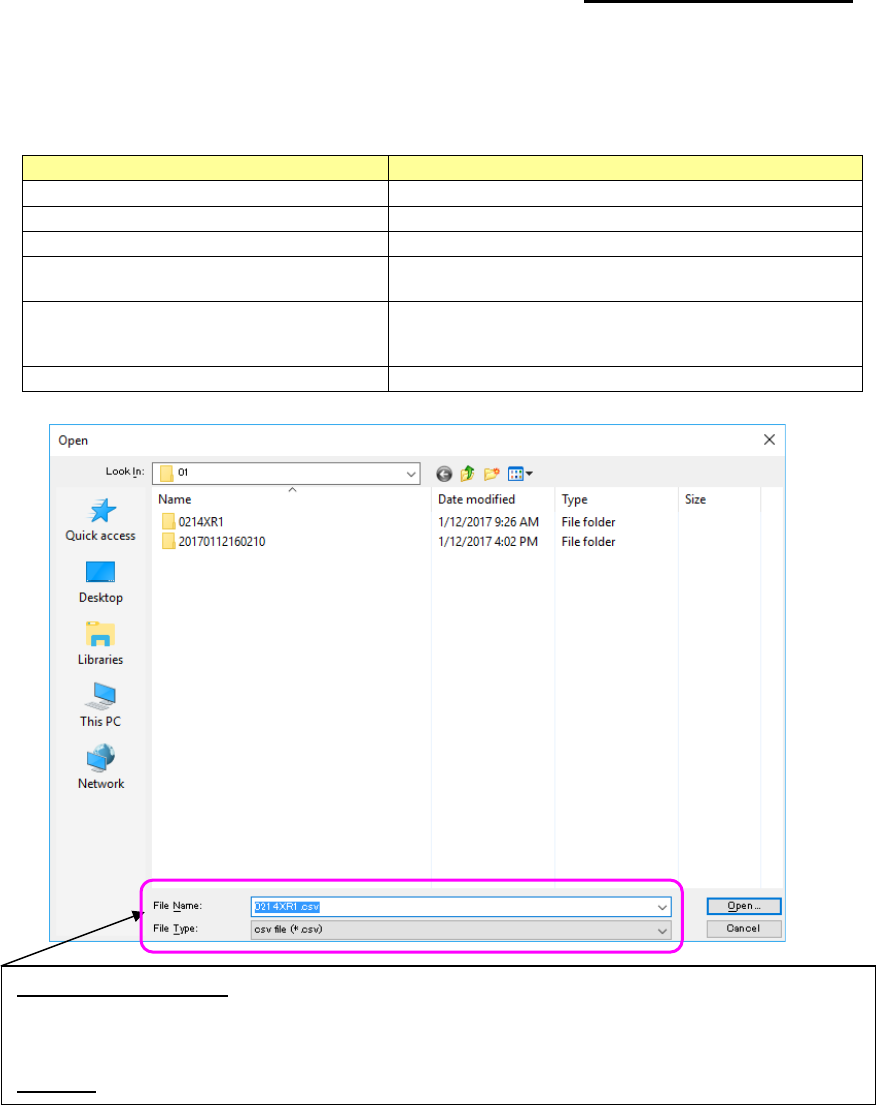
Figure 8.3-49 “Save as Text” dialog box (Browse) – “Selecting a file”
Default output file name:
set as the “Reservation file folder of the selected line (to be set with the Shop
Floor Setup) + Year (4 digits) folder + Month (2 digits) folder + Reservation file name.csv.” The path of a
reservation file and the reservation file name format are to be set with the Shop Floor Setup.
Example: C:\Juki\JaNets\Data\Line001\2014\05\20140505170930.csv
File type: The text file (*.csv) format it selected.