JANETS_INM.pdf - 第436页
JaNets Instr ucti on Man ual 8. Job Optim izer 8- 51 Change Line Figure 8.3 - 87 Main scr een – [ Optimize ] – [Change Line] Figure 8.3 - 88 “ Change Line ” dialog box When you select the [Optim ize ] command, a nd then …
JaNets Instruction Manual 8. Job Optimizer
8-50
Notes on creation of data for teaching
To create data for teaching, the following requirements have to be satisfied.
About the name of a production program to be optimized
Data for teaching (production program and division file) is output into a reservation folder
according to the following naming rule.
“Dummy+Reservation file name+Cluster+Cluster number”
(Example: When a reservation file name is TEST.rsv, and data for teaching is for the first
program of the cluster, the file whose name is “DummyTESTCluster1.iss” is output.)
Do not use a production program whose name is the same as a file whose name is created
according to the rule above.
Enabling the “Automatic batch loading of Component data”
Enable the “Automatic batch loading of Component data” on the “Set Environments” screen of the
Job Optimizer.
Setting of the requirements for the optimization options
Select the “Fix all feeder positions within a cluster” radio button on the “Multi-optimize Options”
screen.
Do not enable the “Exclude MTC/MTS from cluster optimization” check box on the “Cluster
Options” tab and the “Exclude feeders with low reference frequency from cluster optimization”
check box on the “Non-Cluster Area” tab.
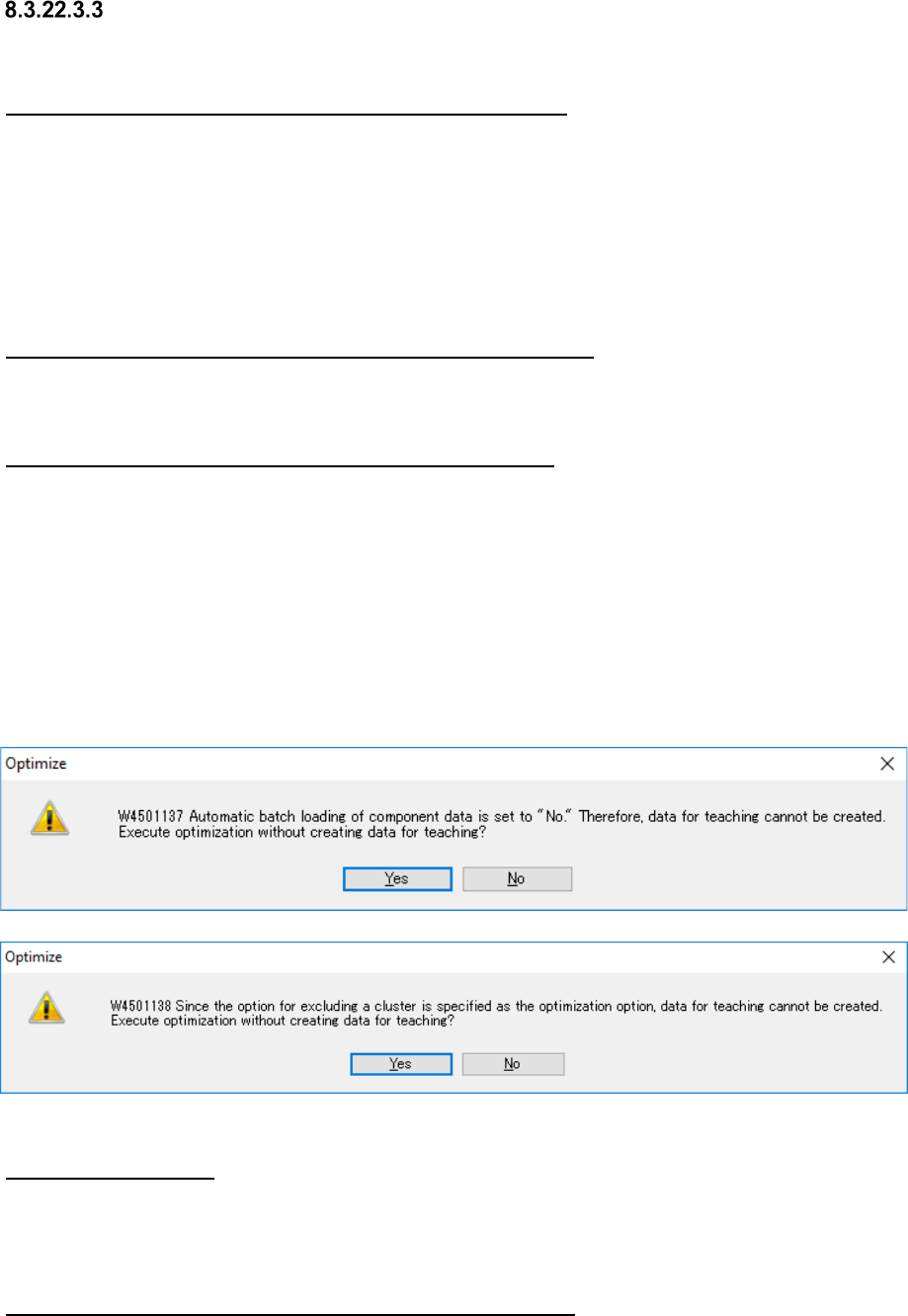
* If you do not satisfy the requirements above, the confirmation message appears on the screen
when you press the <GO> button on the “Optimize” screen.
When you select the <Yes> button for this message, the system executes optimization without
creating any data for teaching.
Figure 8.3-86 Confirmation messages
About an RX-7 series
Since an RX-7 series is equipped with the automatic component pick-up position correcting
function, the component pick-up coordinates are not taken over.
Therefore, a production program for Idle mode is output as a division file for the RX-7.
About an adhesive dispenser/printer/inspection machine
Since the system does not teach any Pick data for an adhesive dispenser/printer/inspection
machine, the component pick-up coordinates are not taken over.
Therefore, a production program for Idle mode is output as a division file for these machines.
JaNets Instruction Manual 8. Job Optimizer
8-51
Change Line
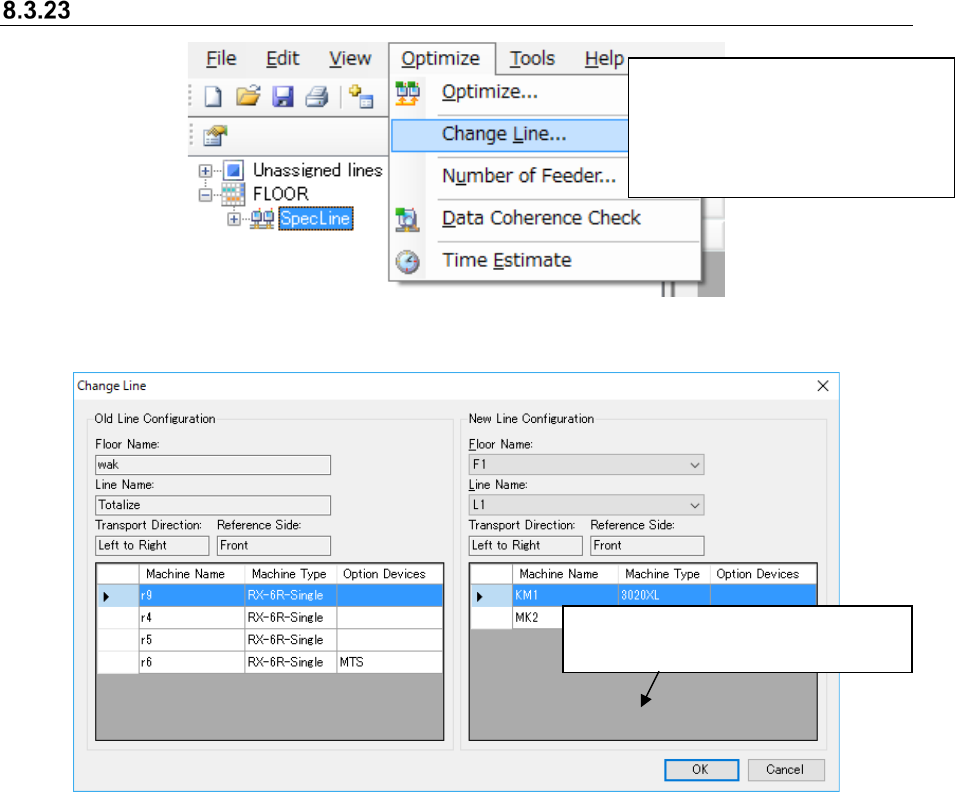
Figure 8.3-87 Main screen – [Optimize] – [Change Line]
Figure 8.3-88 “Change Line” dialog box
When you select the [Optimize]
command, and then the [Change
Line] command from the “Optimize”
menu, the “Change Line” dialog box
appears on the screen.
This button changes the line whose
reservation file is to be optimized.
JaNets Instruction Manual 8. Job Optimizer
8-52
Displaying the “Number of Feeders” dialog box
To display the “Number of Feeders” dialog box for a reservation file, follow the instruction ①
below without selecting any line on the Reservation list.
To display the “Number of Feeders” dialog box for a production program, follow the instruction ①
below after selecting a line on the Reservation list.
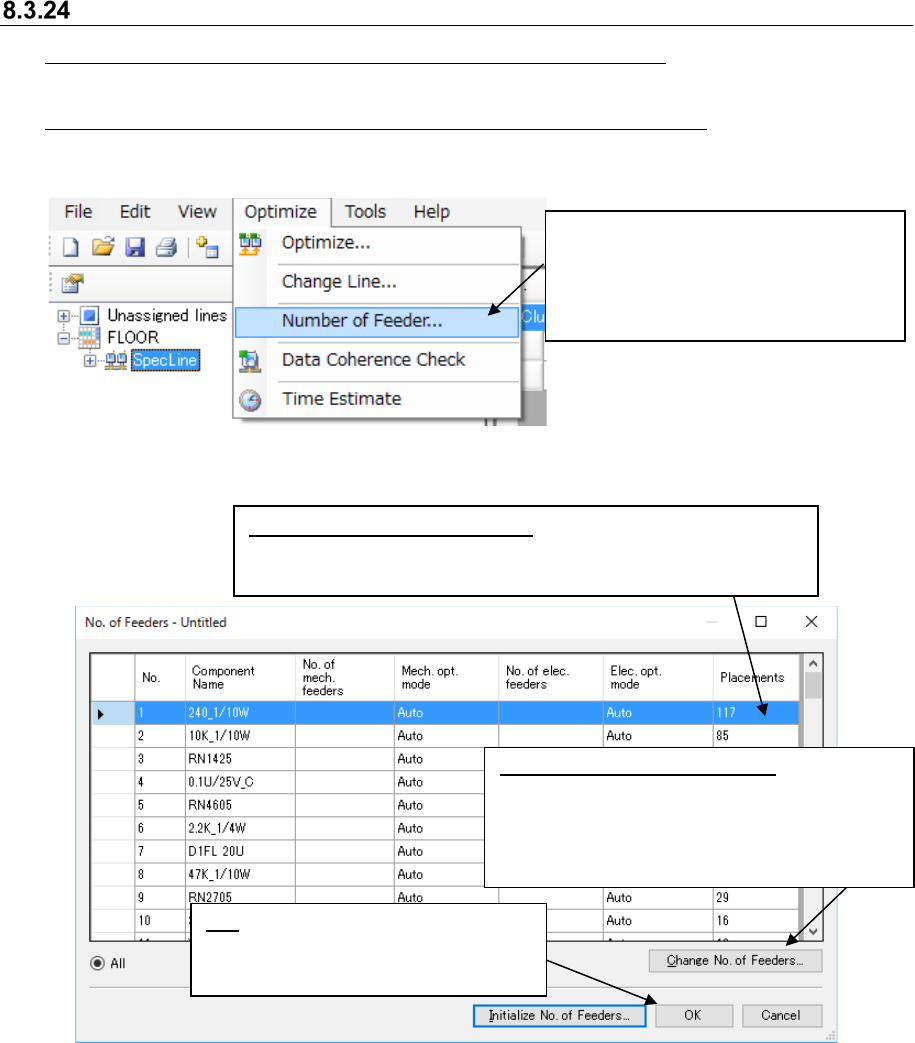
Figure 8.3-89 Main screen – [Optimize] – [Number of Feeders]
Figure 8.3-90 “No. of Feeders” dialog box
①
Select the [Optimize] command, and
then the [Number of Feeders]
command from the “Optimize” menu.
The “ No. of Feeders” dialog box
appears on the screen.
OK: Reflects the number of components
you set in a reservation file/production
program, and closes this dialog box.
Change the number of Feeders: Select a line
and click the <Change No. of Feeders>, or
double-click a line. The “Change of No. of
Feeders” dialog box for the selected component
appears on the screen (see the description
below).
Number of placement positions:
The number of component
placement positions specified in the registered program multiplied by
the number of circuits is displayed here in case of a reservation file.