JANETS_INM.pdf - 第441页
JaNets Instr ucti on Man ual 8. Job Optim izer 8- 56 Time Esti mat e Figure 8.3 - 96 [Optimize] – [Time Estimate] Figure 8.3 - 97 “ Time Estim ate ” dialog box When the user operatio n time zo ne is not set yet, the m es…
JaNets Instruction Manual 8. Job Optimizer
8-55
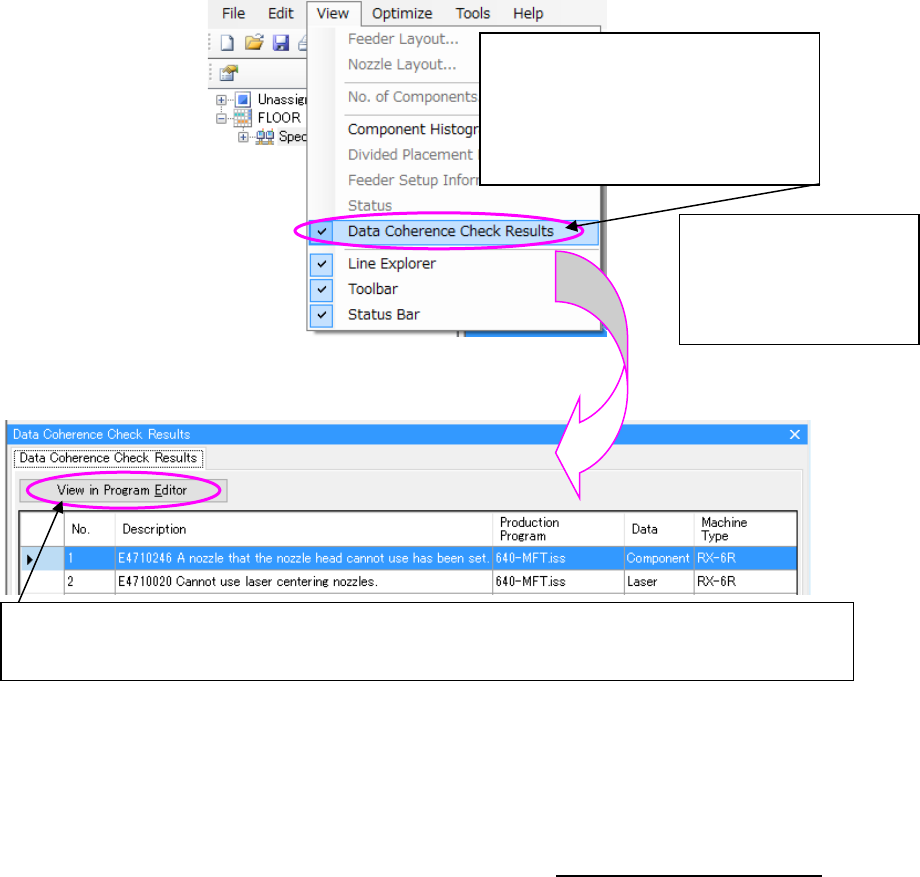
When any error is found while checking data coherence, the “Data Coherence Check Results”
tab is displayed. Also, you can select the “Data Coherence Check Results” command from the
“View” commend.
Figure 8.3-94 [View] – [Data Coherence Check Results]
Figure 8.3-95 Main screen – Detailed data display area: Data Coherence Check Results
* When the "Saving the state at the time of an exit" is set to the "No” in the environment setting of
the Program Editor, you start the Program Editor in the state of new creation. When you start
the Program Editor from the Job Optimizer, make sure that the "Saving the state at the time of
an exit" is set to the “Yes” in the environment setting of the Program Editor.
For the environment setting of the program editor, refer to “7-6-6-2 Environment setting.”
If the Data Coherence Check detects
an error, the “Data Coherence Check
Error” message appears on the
screen. In this case, you can select the
[Data Coherence Check Results]
command from the “View” menu.
The “Data Coherence
Check Results” tab
appears on the Detailed
data display area of the
Main screen.
Select one line, and click the <View in Program Editor> button, or double-click one line. The Program
Editor starts up. A production program selected with the Program Editor opens, and the error list
appears on the screen.
JaNets Instruction Manual 8. Job Optimizer
8-56
Time Estimate
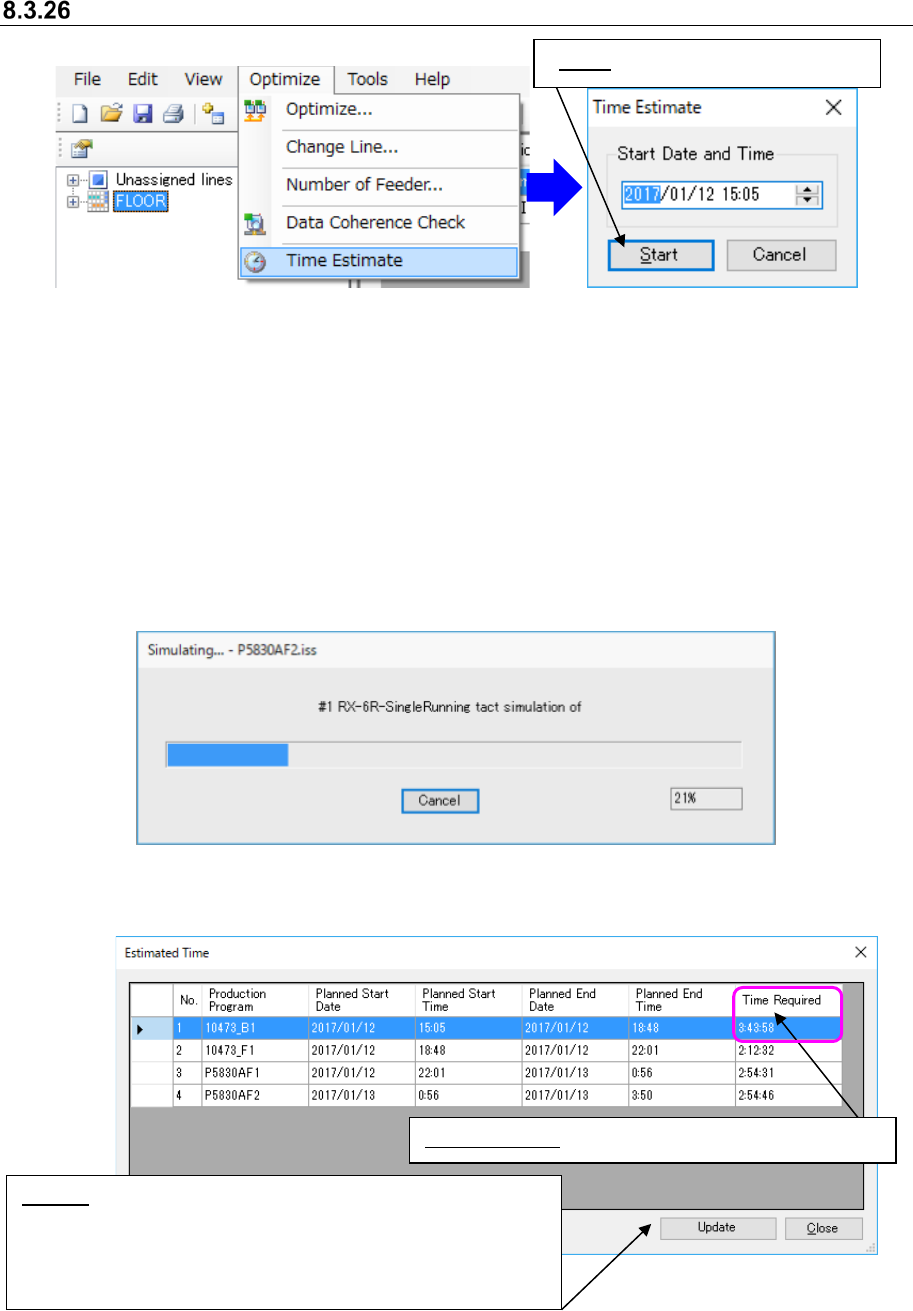
Figure 8.3-96 [Optimize] – [Time Estimate] Figure 8.3-97 “Time Estimate” dialog box
When the user operation time zone is not set yet, the message indicating the operation time zone
is not set yet appears on the screen, and you cannot execute the Time Estimate function. In such
a case, set the user operation time zone on the “Calendar” tab of the “Set Environments” dialog
box invoked from the Shop Floor Setup.
When the optimization is not executed or the production program is changed after the optimization,
the time estimate cannot be selected.
When the “Planned Start Date” and “Planned Start Time” are set for a reservation file to which you
are to execute the Time Estimate function, the system displays the date and time as the “Start
Date and Time” on the “Time Estimate” dialog box.
Figure 8.3-98 “Simulating” dialog box
After simulation, the “Estimated Time” dialog box appears on the screen.
Figure 8.3-99 “Estimated Time” dialog box
Time Required: Simulation results + Changeover time
Update: This button displays the message that asks you whether
to change the data of the reservation list. When you click the
<Update> button, the items “Planned Start Date,” “Planned Start
Time,” “Planed End Date” and “Planned End Time” of all
production programs are updated.
Start: Starts the tact simulation.
JaNets Instruction Manual 8. Job Optimizer
8-57
Set Environments
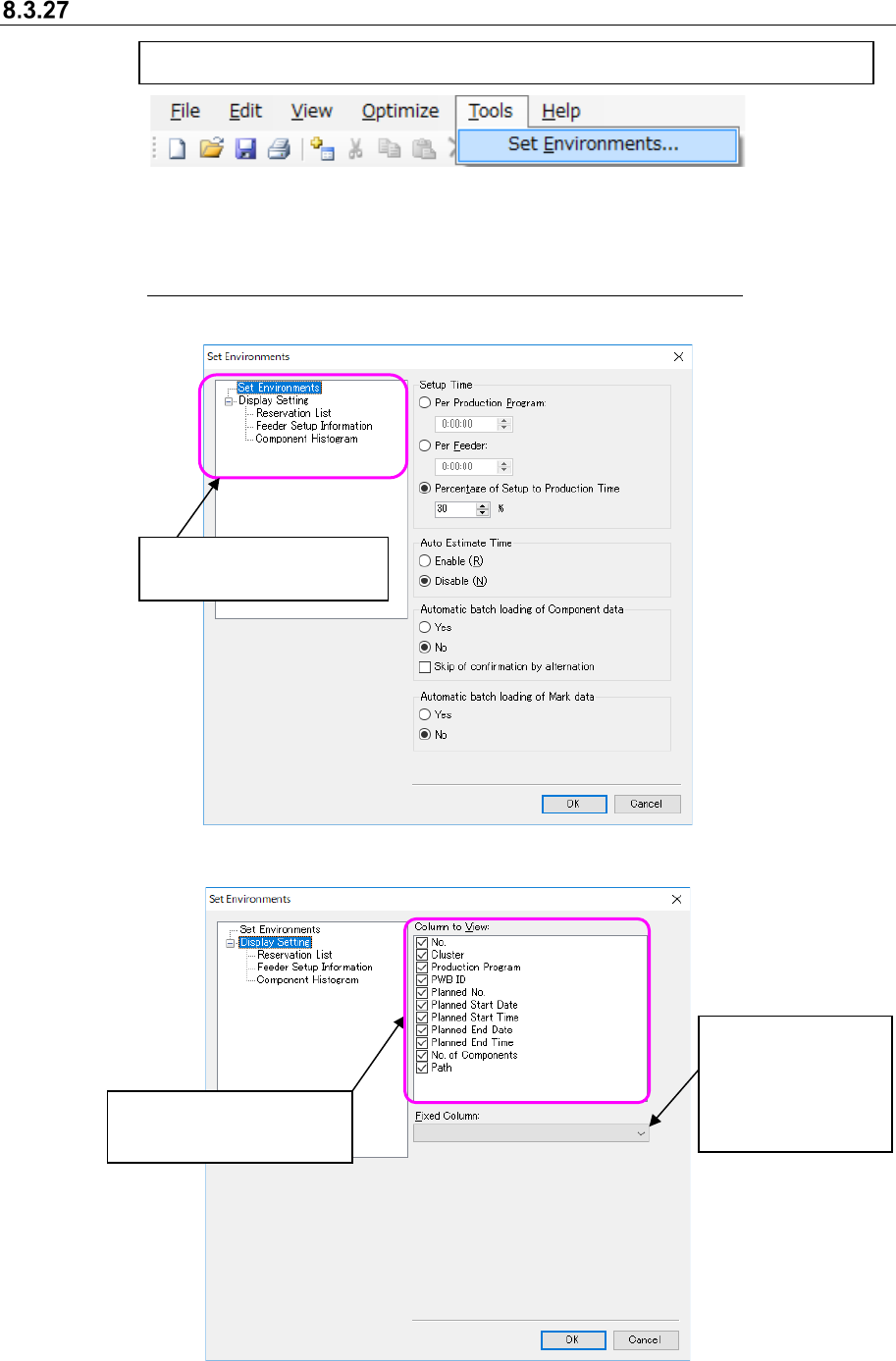
Figure 8.3-100 Main screen – [Tool] – [Set Environments]
This “Set Environments” dialog box allows you to make settings of the following items: “Setup
Time,” “Auto Estimate Time” and “Automatic batch loading of Component data/Mark data.”
See Section 7.8 “Automatically Loading Component Data/Mark Data at a Time” for automatic
batch loading.
Figure 8.3-101 “Set Environments” dialog box (“Set Environments”)
Figure 8.3-102 “Set Environments” dialog box (“Display Setting”)
[Tool] -[Set Environments] → The “Set Environments” dialog box appears on the screen.
Setting the column
to be displayed even
though you scroll the
screen horizontally
Settings for displaying or
hiding each column
Settings for displaying or
hiding each column