JANETS_INM.pdf - 第443页
J aN et s Instr ucti on M anua l 9. Tact S imul at ion 9-1 Tact Si m ulation 9. Wh at is the T act Sim ulation? This ap p li cati on sim ulat es m ounting of com ponents to m easur e the ap p roxim at e pr oducti on tim …
JaNets Instruction Manual 8. Job Optimizer
8-57
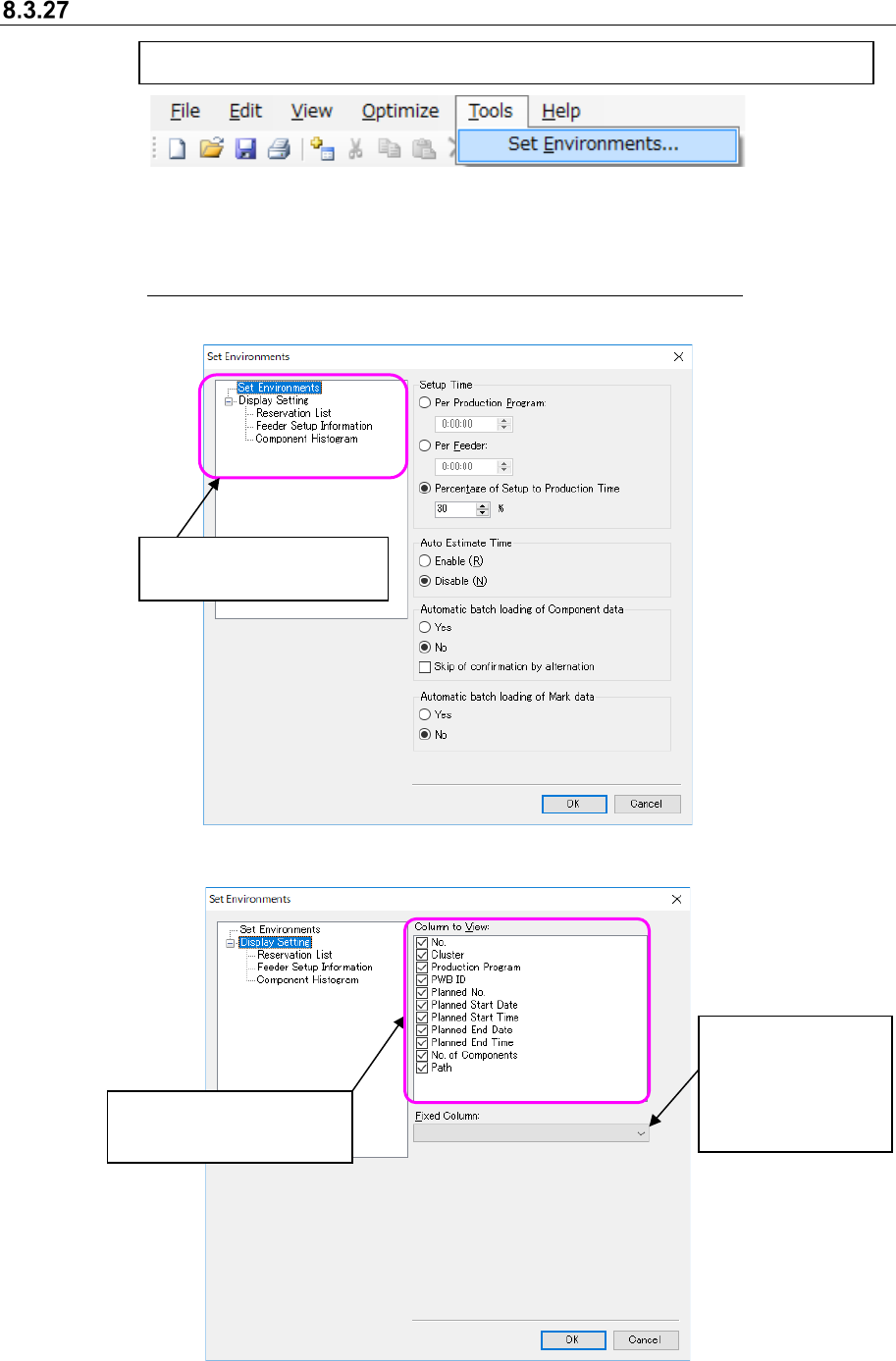
Set Environments
Figure 8.3-100 Main screen – [Tool] – [Set Environments]
This “Set Environments” dialog box allows you to make settings of the following items: “Setup
Time,” “Auto Estimate Time” and “Automatic batch loading of Component data/Mark data.”
See Section 7.8 “Automatically Loading Component Data/Mark Data at a Time” for automatic
batch loading.
Figure 8.3-101 “Set Environments” dialog box (“Set Environments”)
Figure 8.3-102 “Set Environments” dialog box (“Display Setting”)
[Tool] -[Set Environments] → The “Set Environments” dialog box appears on the screen.
Setting the column
to be displayed even
though you scroll the
screen horizontally
Settings for displaying or
hiding each column
Settings for displaying or
hiding each column
JaNets Instruction Manual 9. Tact Simulation
9-1
Tact Simulation 9.
What is the Tact Simulation?
This application simulates mounting of components to measure the approximate production
time of an optimized production program before the system starts producing PWBs.
Starting Up or Quitting the Tact Simulation 9.1
Follow the procedure ① or ② below.
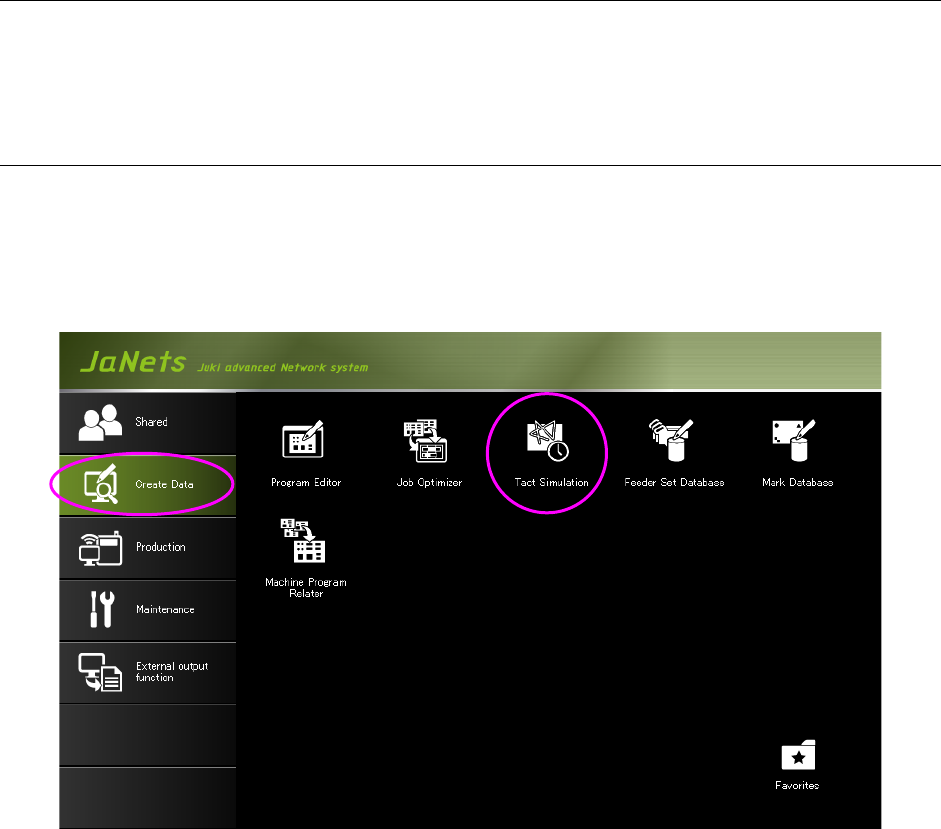
① Click the “Create Data” tab, and then the “Ta c t Simulation” icon on the JaNets Launcher
screen. After the Tac t Simulation starts up, you have to specify a production program to be
used.
Figure 9.1-1 Starting up the Tact Simulation from the JaNets Launcher
JaNets Instruction Manual 9. Tact Simulation
9-2
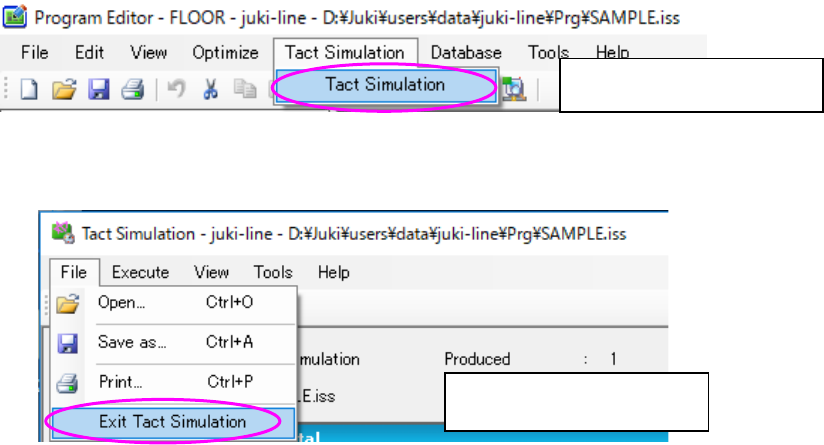
② Select the [Ta c t Simulation] command from the menu bar of the Program Editor, and then
the [Ta c t Simulation] command from the displayed menu to start up the Ta c t Simulation. In
this case, you have to create a production program completely, and optimize it in advance.
The production program loaded at this point is to be measured. After the Ta c t Simulation
starts up, you can select another production program. The displayed screen varies de-
pending on whether any production program is loaded or not (see Sections 9.3.1.1 and
9.3.1.2).
Figure 9.1-2 Starting up the Tact Simulation from the Program Editor
Figure 9.1-3 Quitting the Tact Simulation
Select this command to start
up the Tac t Simulation.
Select this command to quit
the Tact Simulation