JANETS_INM.pdf - 第444页
J aN et s Instr ucti on M anua l 9. Tact S imul at ion 9-2 ② Selec t th e [ Ta c t Sim ul ati on] com m and f rom the m enu bar of the Prog r a m Edit or , and the n the [ Ta c t Sim ul ati on] com mand f r o m the di sp…
JaNets Instruction Manual 9. Tact Simulation
9-1
Tact Simulation 9.
What is the Tact Simulation?
This application simulates mounting of components to measure the approximate production
time of an optimized production program before the system starts producing PWBs.
Starting Up or Quitting the Tact Simulation 9.1
Follow the procedure ① or ② below.
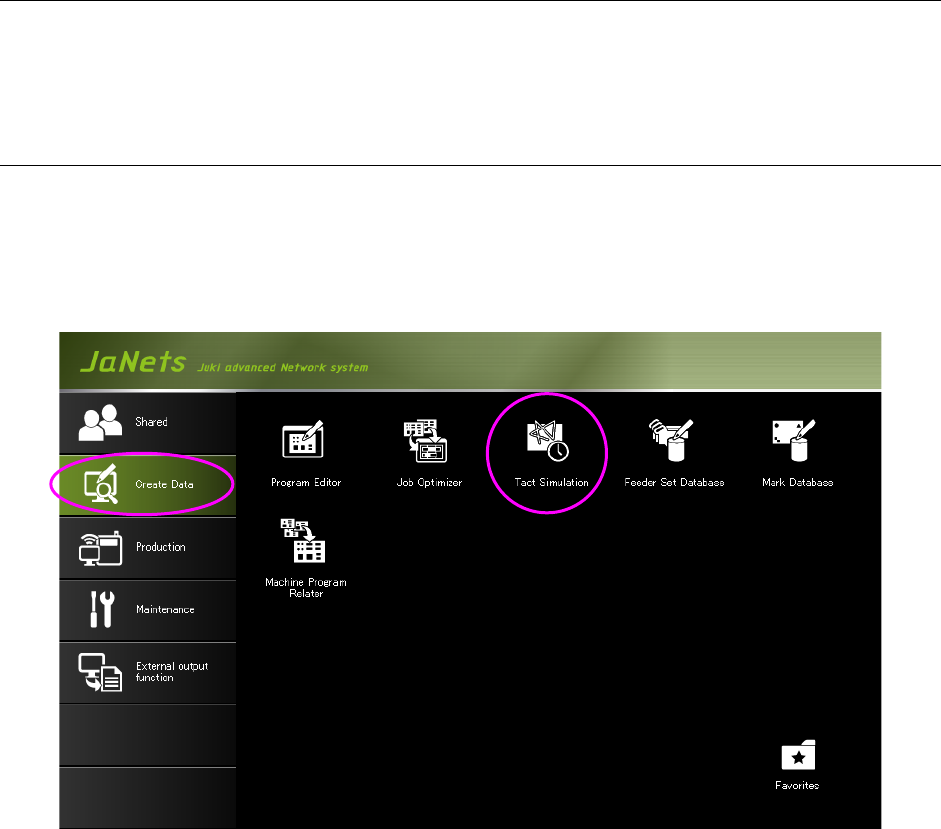
① Click the “Create Data” tab, and then the “Ta c t Simulation” icon on the JaNets Launcher
screen. After the Tac t Simulation starts up, you have to specify a production program to be
used.
Figure 9.1-1 Starting up the Tact Simulation from the JaNets Launcher
JaNets Instruction Manual 9. Tact Simulation
9-2
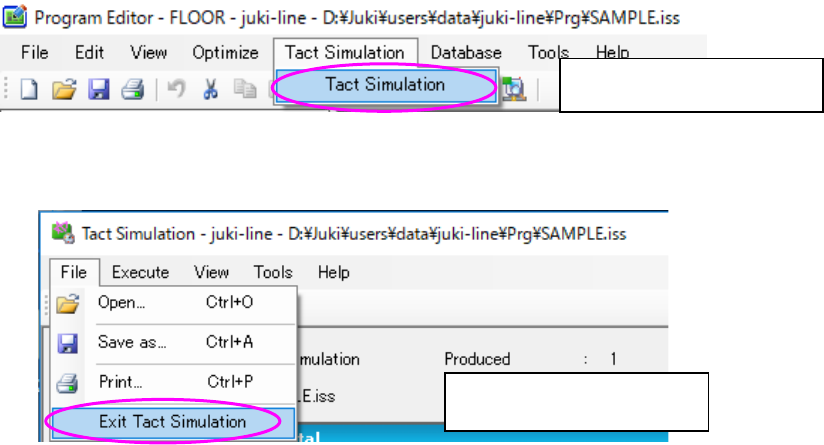
② Select the [Ta c t Simulation] command from the menu bar of the Program Editor, and then
the [Ta c t Simulation] command from the displayed menu to start up the Ta c t Simulation. In
this case, you have to create a production program completely, and optimize it in advance.
The production program loaded at this point is to be measured. After the Ta c t Simulation
starts up, you can select another production program. The displayed screen varies de-
pending on whether any production program is loaded or not (see Sections 9.3.1.1 and
9.3.1.2).
Figure 9.1-2 Starting up the Tact Simulation from the Program Editor
Figure 9.1-3 Quitting the Tact Simulation
Select this command to start
up the Tac t Simulation.
Select this command to quit
the Tact Simulation
JaNets Instruction Manual 9. Tact Simulation
9-3
Menu Configuration 9.2
Table 9.2-1 Description of each menu item
Menu item
Description
File
Open
Displays the “Open” dialog box.
Save as
Displays the “Save as” dialog box for a result file.
Print
Displays the “Print Options” dialog box.
Exit Tact Simulation
Returns to the Program Editor after quitting the Tact Sim-
ulation.
Execute
Measure
Displays the “Simulation Conditions” screen.
View
Line Explorer (E)
Displays/hides the Line Explorer
Toolbar
Displays/hides the toolbar.
Status Bar
Displays/hides the status bar.
Tools
Set Environments
Displays the “Set Environments” dialog box.
Window
Result and Log
Displays the “Result and Log” screen.
Help
About
Displays the version information of the Tact Simulation.
Toolbar
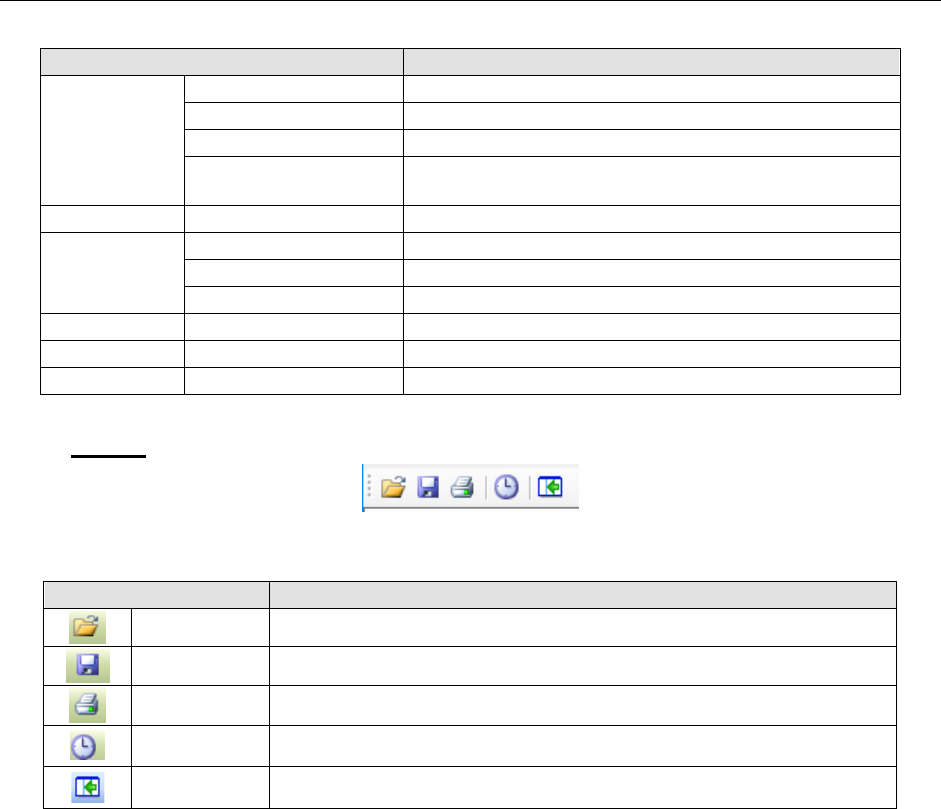
Table 9.2-2 List of tools of the toolbar
Toolbar items
Description
Open Displays the “Open” dialog box (production program/result and log file).
Save as Displays the “Save as” dialog box (saves a result and log file).
Print Prints production program data.
Measure Displays the “Simulation Conditions” screen.
Line Explorer Hides or shows the Line Explorer.