JANETS_INM.pdf - 第446页
J aN et s Instr ucti on M anua l 9. Tact S imul at ion 9-4 Ope r ati ng P roc ed ur e 9.3 “ Sim ulation C onditions ” settin g screen 9.3.1 9.3.1. 1 When there is a production program The “ Sim ulat ion C onditi ons” scr…
JaNets Instruction Manual 9. Tact Simulation
9-3
Menu Configuration 9.2
Table 9.2-1 Description of each menu item
Menu item
Description
File
Open
Displays the “Open” dialog box.
Save as
Displays the “Save as” dialog box for a result file.
Print
Displays the “Print Options” dialog box.
Exit Tact Simulation
Returns to the Program Editor after quitting the Tact Sim-
ulation.
Execute
Measure
Displays the “Simulation Conditions” screen.
View
Line Explorer (E)
Displays/hides the Line Explorer
Toolbar
Displays/hides the toolbar.
Status Bar
Displays/hides the status bar.
Tools
Set Environments
Displays the “Set Environments” dialog box.
Window
Result and Log
Displays the “Result and Log” screen.
Help
About
Displays the version information of the Tact Simulation.
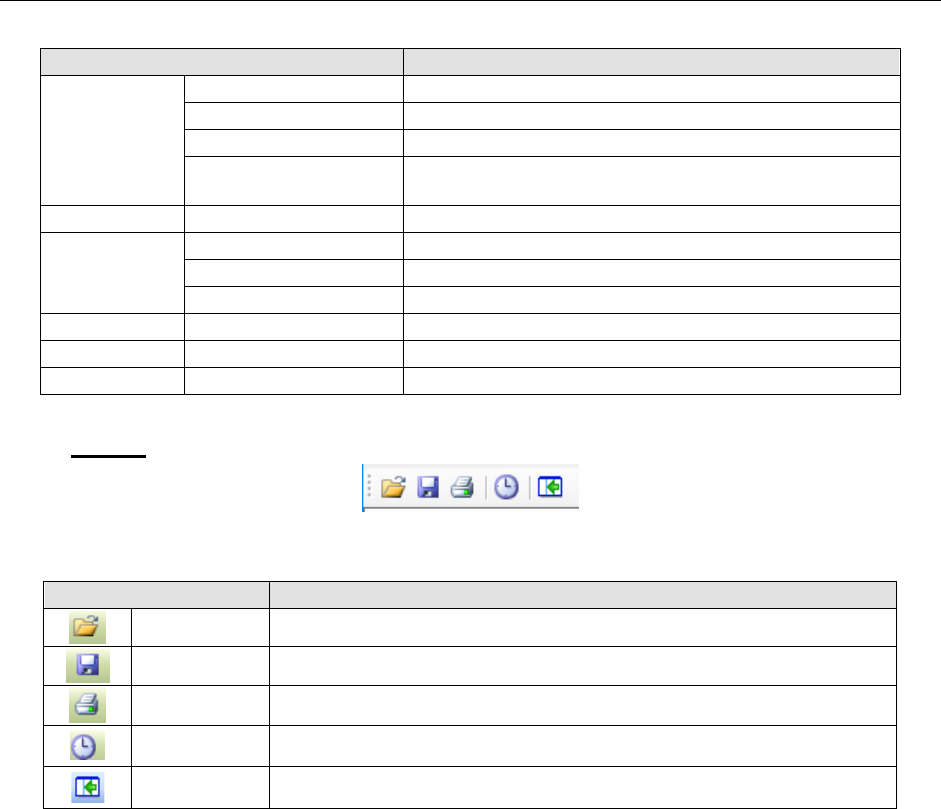
Toolbar
Table 9.2-2 List of tools of the toolbar
Toolbar items
Description
Open Displays the “Open” dialog box (production program/result and log file).
Save as Displays the “Save as” dialog box (saves a result and log file).
Print Prints production program data.
Measure Displays the “Simulation Conditions” screen.
Line Explorer Hides or shows the Line Explorer.
JaNets Instruction Manual 9. Tact Simulation
9-4
Operating Procedure 9.3
“Simulation Conditions” setting screen 9.3.1
9.3.1.1 When there is a production program
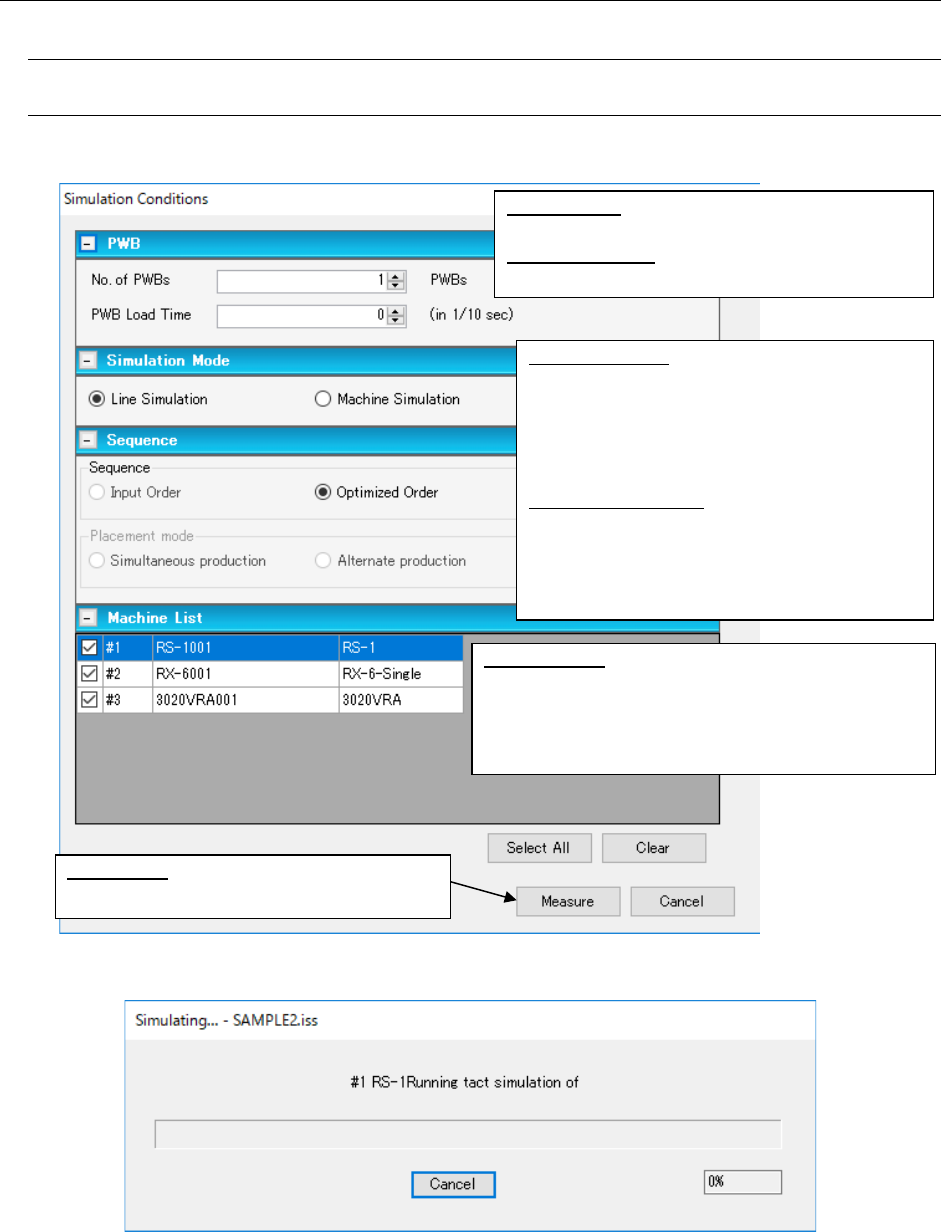
The “Simulation Conditions” screen appears.
Figure 9.3-1 “Simulation Conditions” setting screen.
Figure 9.3-2 “Simulating” screen
When the system finishes measuring, the “Result and Log” screen appears.
No. of PWBs: Enter the number of PWBs whose
component placement to be simulated.
PWB Load Time: Enter the interval for loading a
PWB.
Line Simulation: Measures the entire line. The
“Optimized Order” radio button is selected as
the “Sequence” and you cannot change this
setting. The system simulates transporting a
PWB and measures the required time only for
a machine not selected.
Machine Simulation: Measures machines only.
You can select either the “Input Order” radio
button or the “Optimized Order” radio button
as the “Sequence.” When you select two or
more machines, the <Measure> is disabled.
Machine List: Select a machine(s) to be measured.
When you click the <Select All> button, the system
selects all machines. Note that this <Select All>
button is enabled only you select the “Line Simula-
tion” radio button.
<Measure>: Starts measuring and displays
the “Simulating” dialog box on the screen.
JaNets Instruction Manual 9. Tact Simulation
9-5
9.3.1.2 When there is not any production program
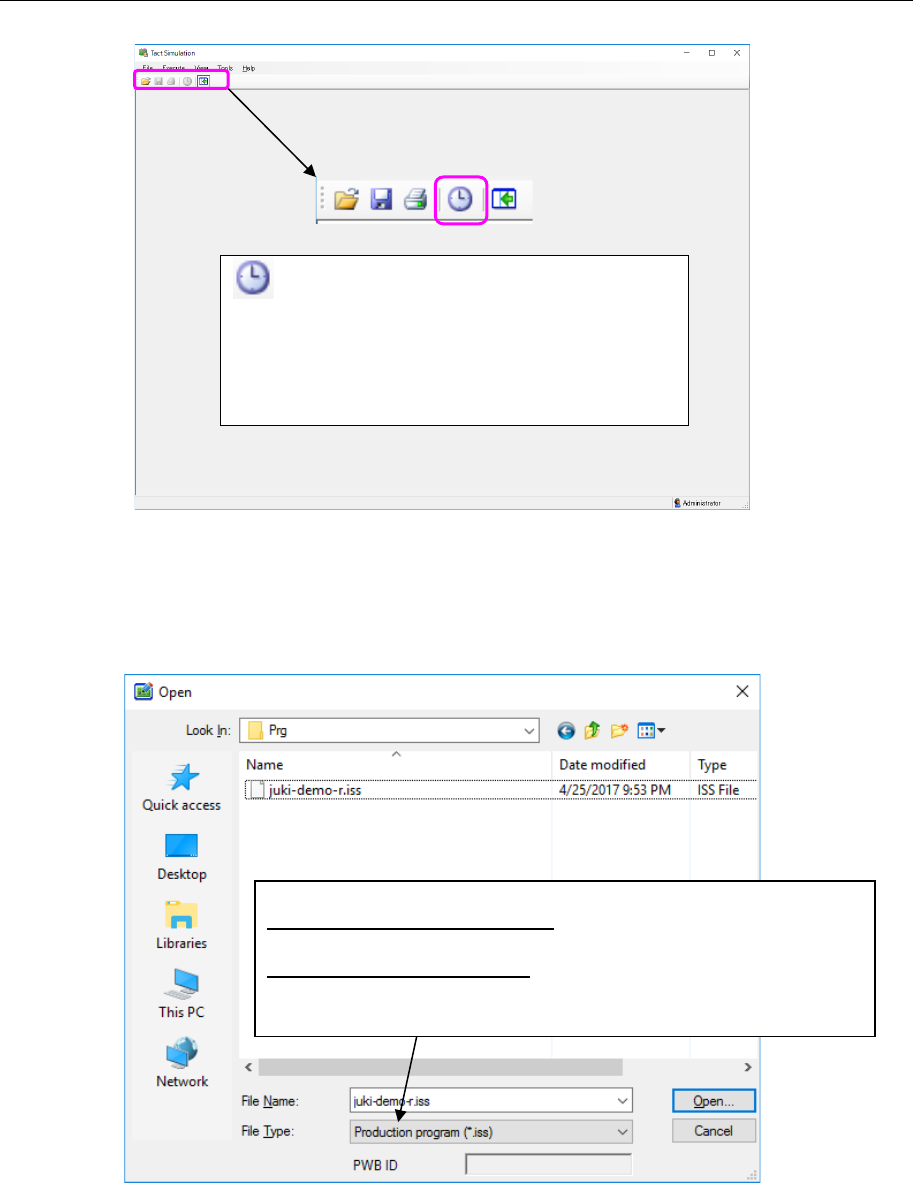
The blank progress window appears on the screen.
Figure 9.3-3 Progress window (blank) and toolbar
Opening a production program/result and log file 9.3.1.2.1
Select the [File] command from the menu bar of the progress window, and then the [Open]
command from the “File” menu. Specify a file to be loaded on the displayed “Open” dialog box.
Figure 9.3-4 “Open” dialog box for a production program
* If the specified file is damaged, you cannot open any file.
Measure button: displays the “Simulation Con-
ditions” screen.
* When the Measure button above is displayed in
gray, you cannot display any simulation screen.
You have to load a production program into the
system (see Section 4.3.1.2.1).
Specify a file to be loaded.
To specify a production program: Select the [Execute] command on the
progress window. The “Measure” menu command is enabled.
To specify a result and log file: Display the loaded log on the “Result and
Log” screen, and select the [Execute] command on the progress win-
dow. The [Start] menu command is enabled.