JANETS_INM.pdf - 第459页
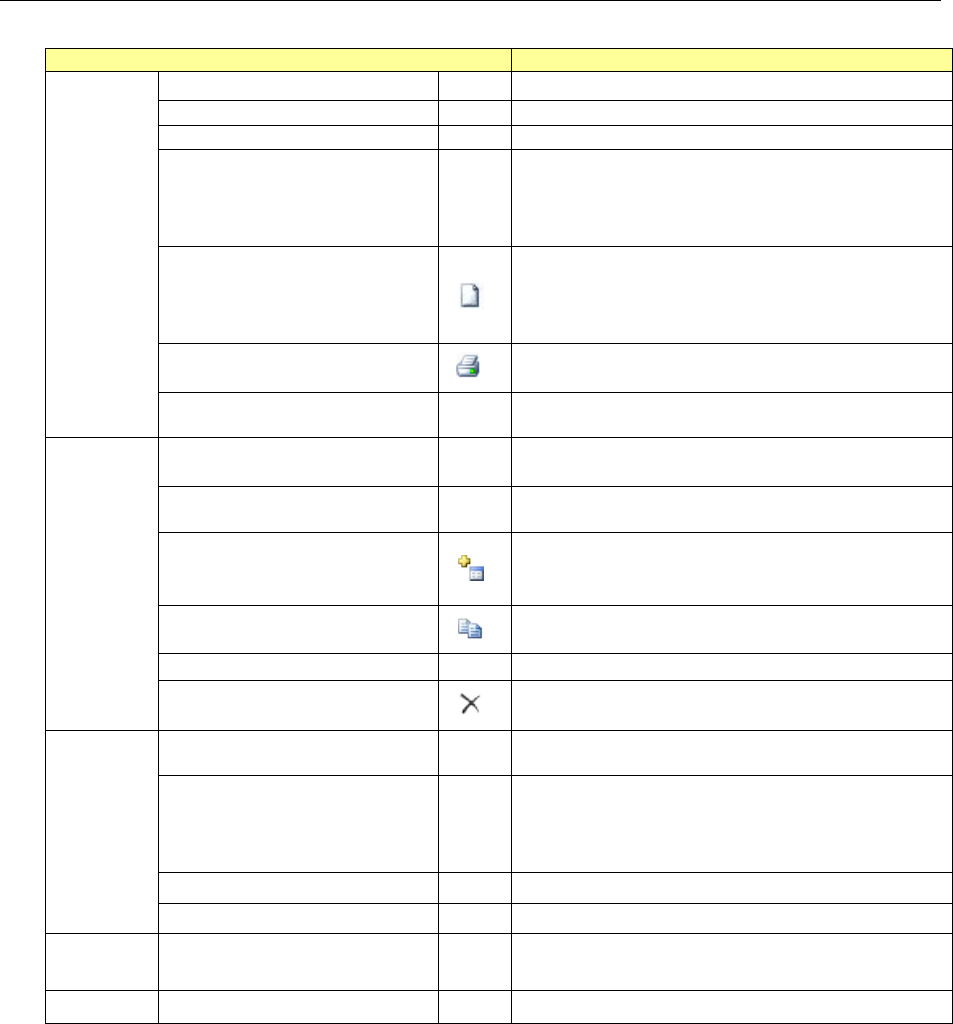
J aN et s Instr ucti on M anua l 10 . Feed er S et D at a ba se 10 -3 M enu Item s 10. 2 Tab l e 10.2 -1 M e nu it ems Menu ite m Descript ion Fil e (F) New (N) Ct rl+ N An e m pty MDB fi le i s cre ated. Open (O ) Ct rl…

JaNets Instruction Manual 10. Feeder Set Database
10-2
Starting up the Feeder Set Database 10.1.1
When the System Is Connected to a Server
If you start up the Feeder Set Database when the system is set to be connected to a server, the
system regards the database as a server to obtain data from it.
When you select the [New] menu command or the [Open] menu command from this point, you
can switch a database to a database of .mdb files.
The [Switch to connection to the server] menu command allows you to switch the database to
the database of a server again also.
Data Manager
JaNets Instruction Manual 10. Feeder Set Database
10-3
Menu Items 10.2
Table 10.2-1 Menu items
Menu item
Description
File (F)
New (N)
Ctrl+N
An empty MDB file is created.
Open (O)
Ctrl+O
The created MDB file is opened.
Save as (A)
Ctrl+A
The opened MDB file is saved with a different name.
Switch to connec-
tion to the server
(S) *1
Switches a database to a database of a server.
When you select the [New] menu command or the
[Open] menu command again, you can switch the
database to a database of .mdb files.
Import Data (I)
Ctrl+I
Loads the specified production program data. The
system automatically assigns a group name to a
group from “GRP1” by default. The system obtains
the pick data whose machine is specified also.
Print/Save as
Text
Ctrl+P
Displays the “Print /Save as Text” screen for the
feeder set data.
Exit Feeder Set
Database (X)
Ctrl+X
Quits the Feeder Set Database.
Edit (E)
New (N)
Ctrl+N
Displays the “Data Creation Wizard” (for creating a
feeder group) on the screen.
Rename Group
(N)
Ctrl+N
Renames a group.
Add (A)
Ctrl+A
Adds the feeder information to the created group.
You have to enter the data input form to add the
information.
Copy (C)
Ctrl+C
Copies the selected feeder set data to another
group.
Change (E)
Ctrl+E
Displays the “Feeder Set Database” editing screen.
Delete (D)
Ctrl+D
Deletes a group if it is selected, or deletes feeder set
data if it is selected.
View (V)
Feeder Layout
(F)
Ctrl+F
Displays the feeder layout.
Program Explorer
(E) *1
Displays or hides the Program Explorer.
You can select one of the following tabs of the Pro-
gram Explorer: “Manage,” “Production Program”
and “Reservation File.”
Toolbar (T)
Displays/hides the toolbar.
Status Bar (B)
Displays/hides the status bar.
Database
(D)
Refresh View (I)
Obtains the updated database information and cre-
ates the list again.
Help (H)
About (A)
Displays the version information.
*1 Yo u can use these commands when you add a Data Manager option to the system.
JaNets Instruction Manual 10. Feeder Set Database
10-4
How to Operate the Feeder Set Database 10.3
Creating a feeder group 10.3.1
Feeder set data is controlled for each feeder group (for one machine). To register feeder set
data, you have to create a feeder group.
To create a feeder group, select the [Edit] command from the menu bar, and then the [New]
command from the “Edit” menu. Then, follow the instructions displayed on the “Data Creation
Wizard” 1 (for selecting the creation method) screen.
Up to 10,000 feeder groups can be created.
Data Creation Wizard 1 (for creating a feeder group) 10.3.2
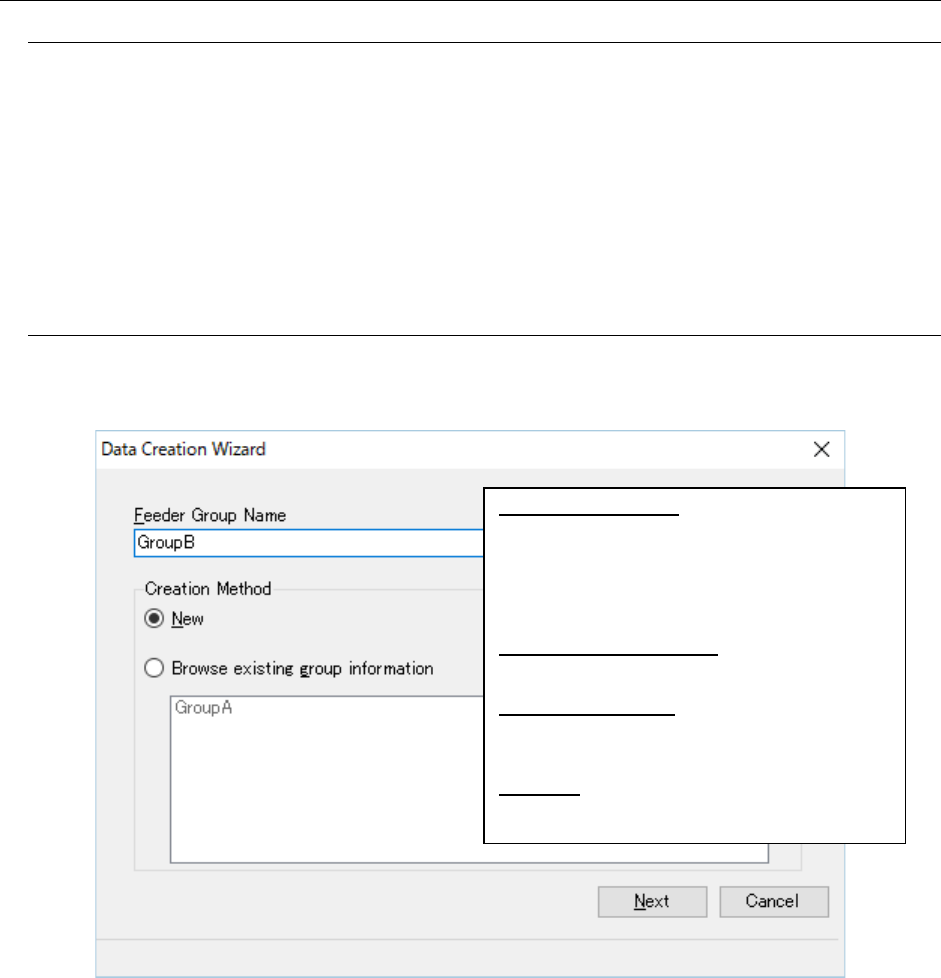
Specify a name of a feeder group to be created and the group creation method on the following
screen.
Figure 10.3-1 “Data Creation Wizard” 1 (for creating a feeder group)
Set Group Name (F): Enter a name of a feeder
group to be created. You can enter up to 20
half-width alphanumeric characters (“NULL” is
not available) as the name. This field is blank in
the initial state. If you do not enter any char-
acter in this field, you cannot select the <Next>
button.
Select a creation method: Select either the
“New (N)” radio button or the “Existing Groups
(G)” radio button.
Existing Groups (G): Creates a new feeder
group whose bank, number of the fixing holes
and feeder assignment are the same as those
of the feeder group selected from the list.
Next (N): Validates your setting and goes to the
“Data Creation Wizard” 2 (for setting a bank)
screen.