JANETS_INM.pdf - 第462页
J aN et s Instr ucti on M anua l 10 . Feed er S et D at a ba se 10 -6 Data Creati on Wizar d 3 (for addin g fee der set data) 10.3.4 Add f eeder s et dat a to a f eed er g roup on thi s sc reen . Figur e 10.3 -3 “Data Cr…
JaNets Instruction Manual 10. Feeder Set Database
10-5
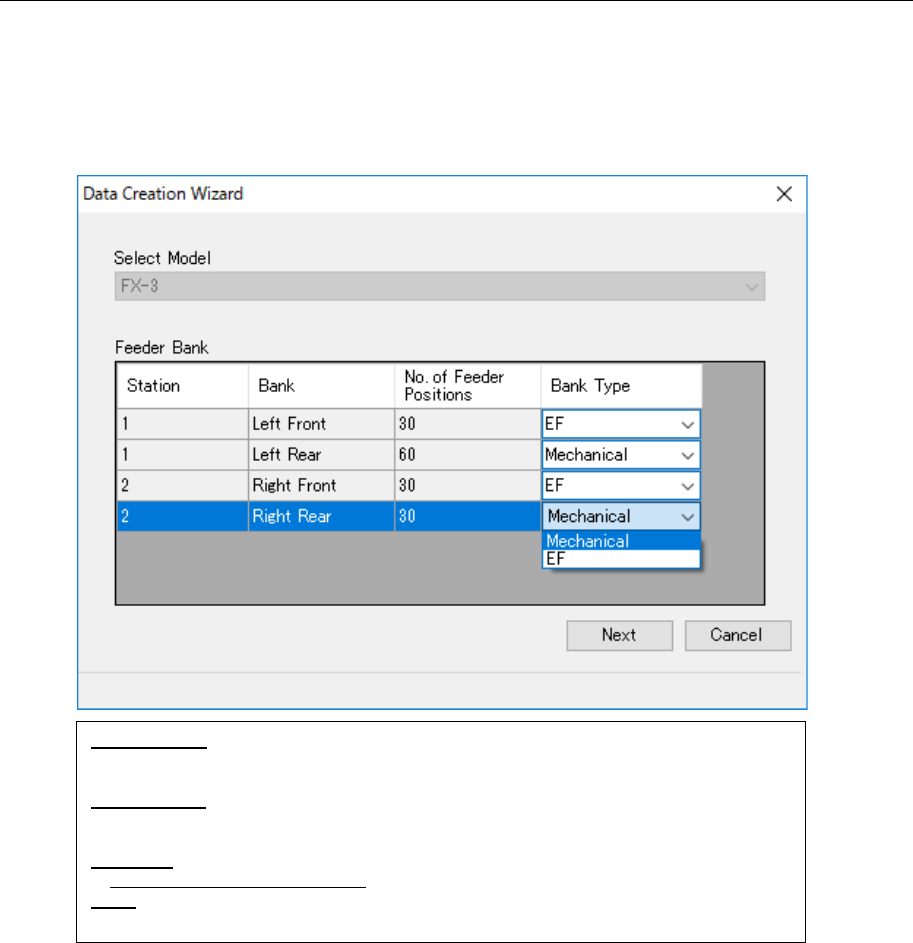
Data Creation Wizard 2 (for setting a bank) 10.3.3
Set a bank that decides the attachment area of a feeder group on this screen.
When you select a machine type in the “Select Model” field, the bank assignment (such as
Front and Rear) and the number of fixing holes that are the same as those of the selected
machine type are set for the feeder group to be created. (You can add feeder set data in the
range you set here.)
Figure 10.3-2 “Data Creation Wizard” 2 (for setting a bank)
*1 When you select the radio button “Existing Groups” on the “Data Creation Wizard” 1 (for
creating a feeder group) screen, the same machine type as that of the selected group is
set. You cannot switch this machine type to another one.
However, “Bank Type” can be changed.
*2 For the machine that can work with both of the driving methods, you can change it by se-
lecting a method from the combo box. If there is no choice, the “Bank Type” cell is dis-
played in gray.
If “Feeder Set Data” has already been assigned to the feeder bank when you change
“Bank Type”, the added “Feeder Set Data” is cleared after displaying a confirmation mes-
sage.
Select Model: Select a machine type to browse the bank information. The bank condi-
tion of the machine type you select here is set for the feeder group to be created.
(*1)
Feeder Bank: The bank information of the machine type you selected in the “Select
Model” field is displayed here. The menu items “Station,” “Bank,” “No. of Feeder Posi-
tions” and “Bank Type” are displayed. (*2)
Previous: Cancels your setting and goes back to the “Data Creation Wizard” 1 (for
creating a feeder group) screen.
Next: Validates your setting and goes to the “Data Creation Wizard” 3 (for adding feeder
set data) screen.
JaNets Instruction Manual 10. Feeder Set Database
10-6
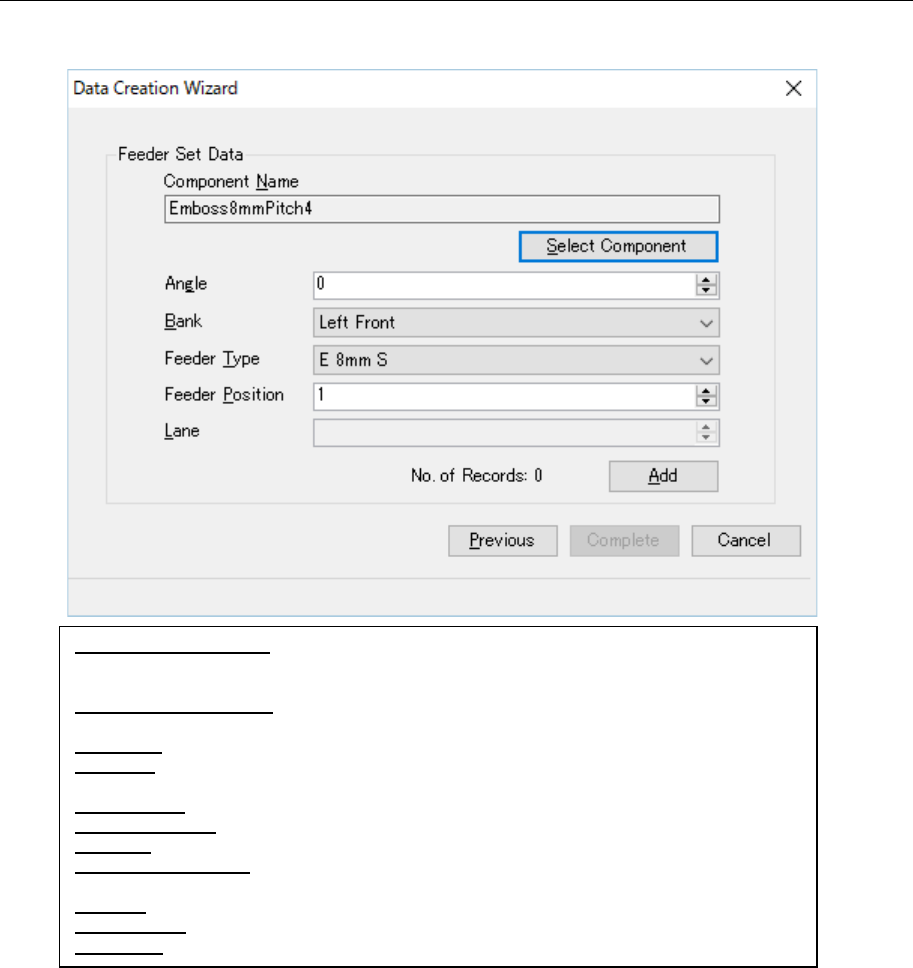
Data Creation Wizard 3 (for adding feeder set data) 10.3.4
Add feeder set data to a feeder group on this screen.
Figure 10.3-3 “Data Creation Wizard” 3 (for adding feeder set data)
*1 No data is registered in the database unless you select the <Complete> button.
*2 When you change the machine type or the bank type on the “Data Creation Wizard” 2 (for
setting a bank) screen, the added feeder set data is cleared.
Component Name (N): A component name to be set in feeder set data is displayed here.
The component name selected on the screen for selecting a component is displayed
here, and you cannot edit it directly.
Select Component (S): Displays the screen shown in Figure 10.3.4.1 “Screen for selecting
a component.”
Angle (G): Enter a component pick-up angle.
Bank (B): Select the component supply position from the bank information set to the feeder
group that is to be created.
Feeder Type: Select a feeder type that can be set to the feeder position.
Feeder Position: Enter the pick position number to set the feeder.
Lane (L): Enter the lane number of the component pick-up position.
No. of data records: The number of feeder set data records added to the feeder group is
displayed here.
Add (A): Adds the feeder set data you have set to the feeder group. (*1)
Previous (P): Goes back to the “Data Creation Wizard” 2 (for setting a bank) screen. (*2)
Complete: Registers the feeder group, and closes this screen.
JaNets Instruction Manual 10. Feeder Set Database
10-7
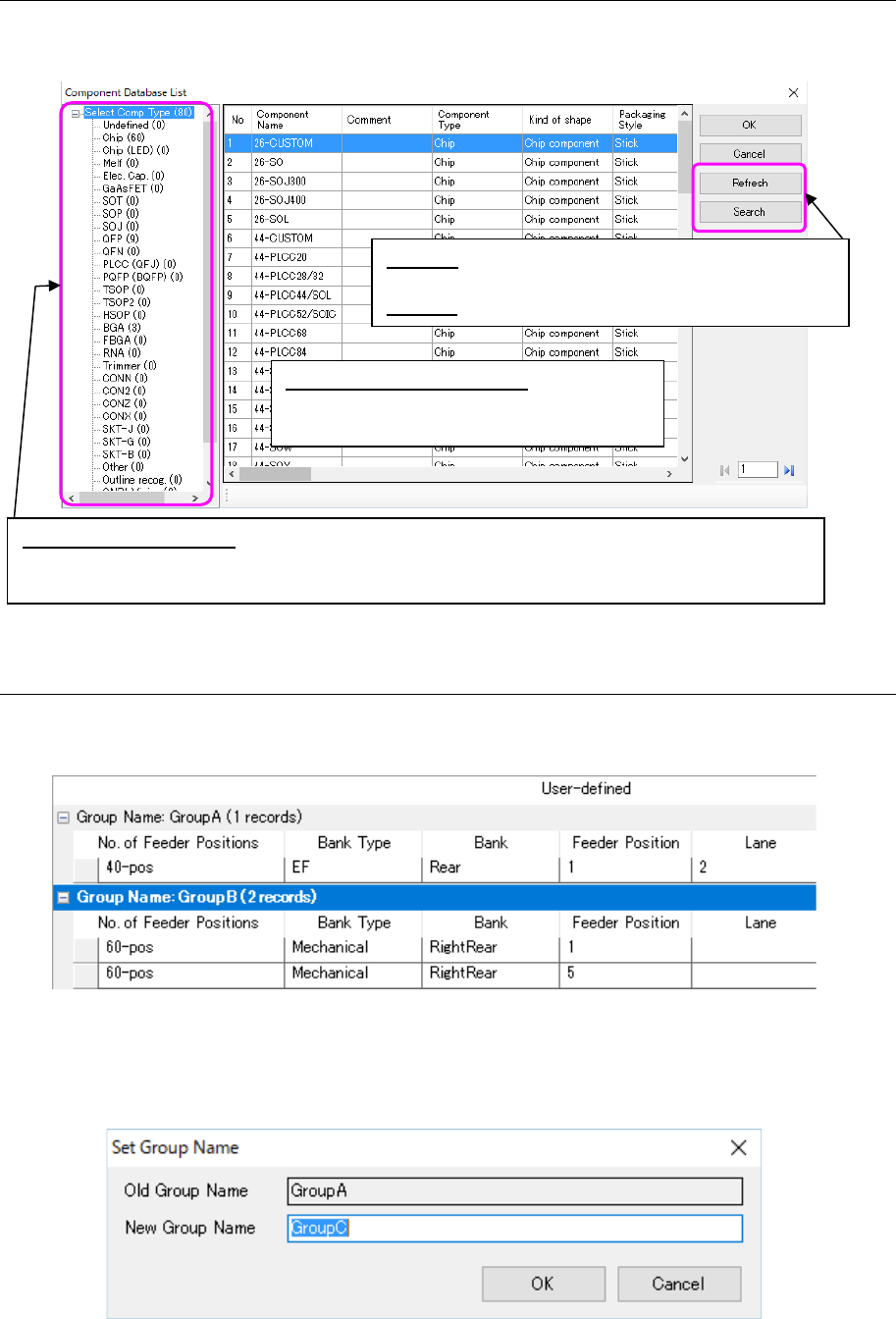
10.3.4.1 Screen for selecting a component
The list of components registered in the component database is displayed on the screen for
selecting a component.
Figure 10.3-4 Screen for selecting a component
Changing a name of a feeder group 10.3.5
You can change a name of a controlled feeder group. First, select a group whose name you
want to change from the “User-defined” feeder list.
Figure 10.3-5 Selecting a feeder group
When you select the [Edit] command from the menu bar, and then the [Rename Group] com-
mand from the “Edit” menu, the “Set Group Name” screen appears, and you can change a
group name.
Figure 10.3-6 “Set Group Name” screen
Component data list screen: Displays the list
of the component data whose type is se-
lected from the tree on the left side.
“Select Comp Type” tree: Displays all component types. When you select “Select Comp Type,” all
component types are displayed in the form of a list. When you select each component type,
Component data of the selected type is displayed on the list on the left side.
Refresh:
Obtains information on all components from the
database again to update the displayed data.
Search: Displays the screen for searching a component.