JANETS_INM.pdf - 第466页
J aN et s Instr ucti on M anua l 10 . Feed er S et D at a ba se 10 - 10 Deleting a feeder grou p 10.3.7 This s ecti on des cr ib es how to del ete a contr oll ed f eeder gr oup from the datab ase . There are tw o m ethod…
JaNets Instruction Manual 10. Feeder Set Database
10-9
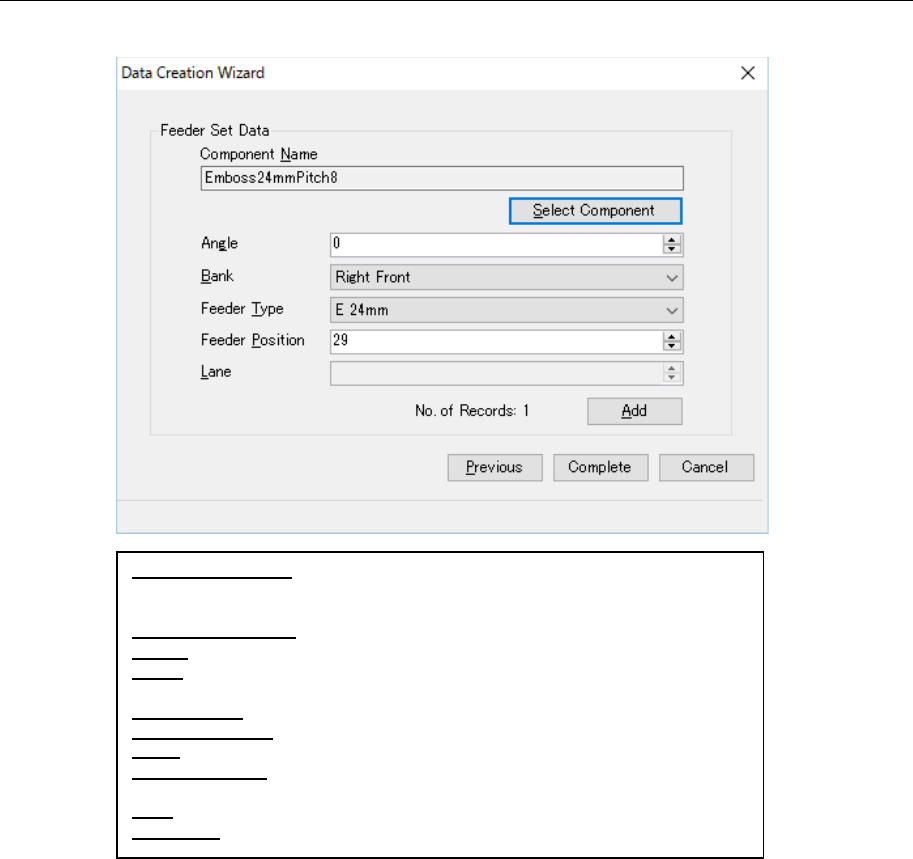
10.3.6.2 Data Change Wizard 2 (for adding feeder set data)
Add feeder set data to a feeder set group on this screen.
Figure 10.3-9 “Data Change Wizard” 2 (for adding feeder set data)
*1 It includes the number of the existing feeder set data records in the same feeder set group.
*2 The added data is not saved in the database until you click the “Complete” button.
*3 The “Complete” button is disabled when “No. of Records” is 0 (zero). (If you change the
bank type, “No. of Records” becomes 0.)
Component Name: A component name to be set in feeder set data is dis-
played here. The component name selected on the screen for selecting a
component is displayed here, and you cannot edit it directly.
Select Component: Displays the screen for selecting a component.”
Angle: Enter a component pick-up angle.
Bank: Select the component supply position from the bank information set to
the feeder group that is to be created.
Feeder Type: Select a feeder type that can be set to the feeder position.
Feeder Position: Enter the pick position number to set the feeder.
Lane: Enter the lane number of the component pick-up position.
No. of Records: The number of feeder set data records added to the feeder
group is displayed here. (*1)
Add: Adds the feeder set data you have set to the feeder group. (*2)
Complete: Registers the feeder group, and closes this screen. (*3)
JaNets Instruction Manual 10. Feeder Set Database
10-10
Deleting a feeder group 10.3.7
This section describes how to delete a controlled feeder group from the database.
There are two methods for deleting a feeder group.
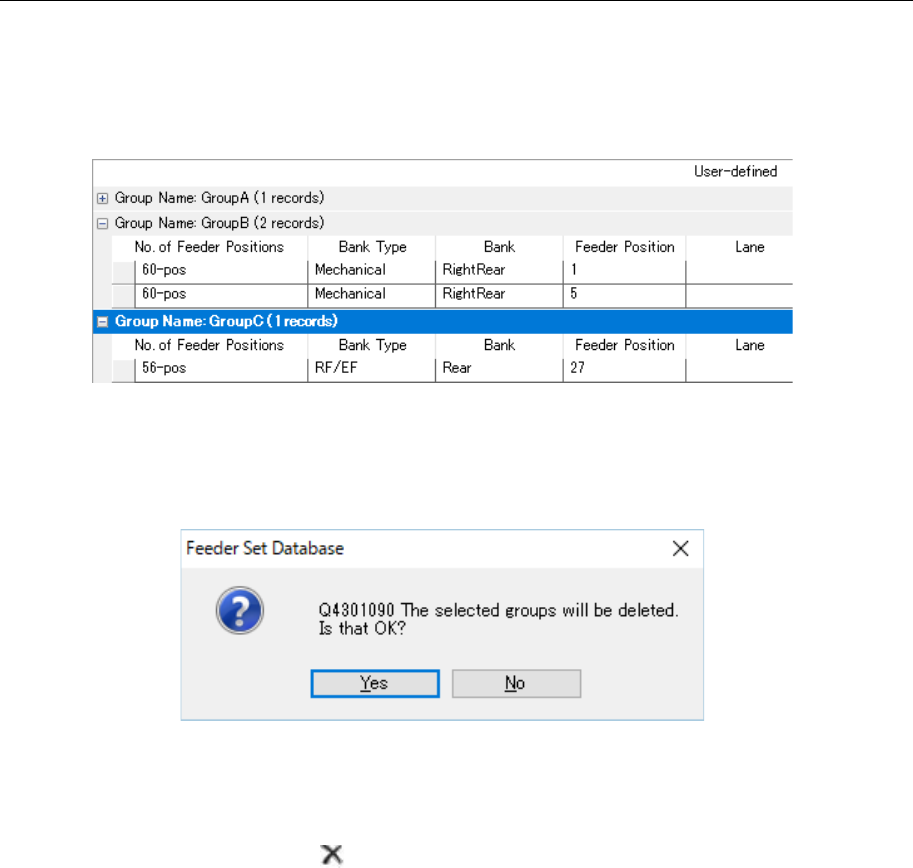
1. Select a group to be deleted from the “User-defined” feeder list (you can select two or
more groups).
Figure 10.3-10 Selecting a feeder group
Select the [Edit] command from the menu bar, and then the [Delete] command on the “Edit”
menu. The confirmation message for the delete operation appears on the screen.
Figure 10.3-11 Confirmation message for deleting a feeder group
2. Select a group to be deleted from the “User-defined” feeder list (you can select two or
more feeder groups).
Press the “Delete” button ( ) of the toolbar. The confirmation message for the delete op-
eration appears on the screen.
JaNets Instruction Manual 10. Feeder Set Database
10-11
Adding feeder set data 10.3.8
You can add feeder set data to a created feeder group.
To add feeder set data, perform one of the following two operations.
1. Select the [Edit] command from the menu bar, and then the [Add] command on the “Edit”
menu. The screen for adding feeder set data appears.
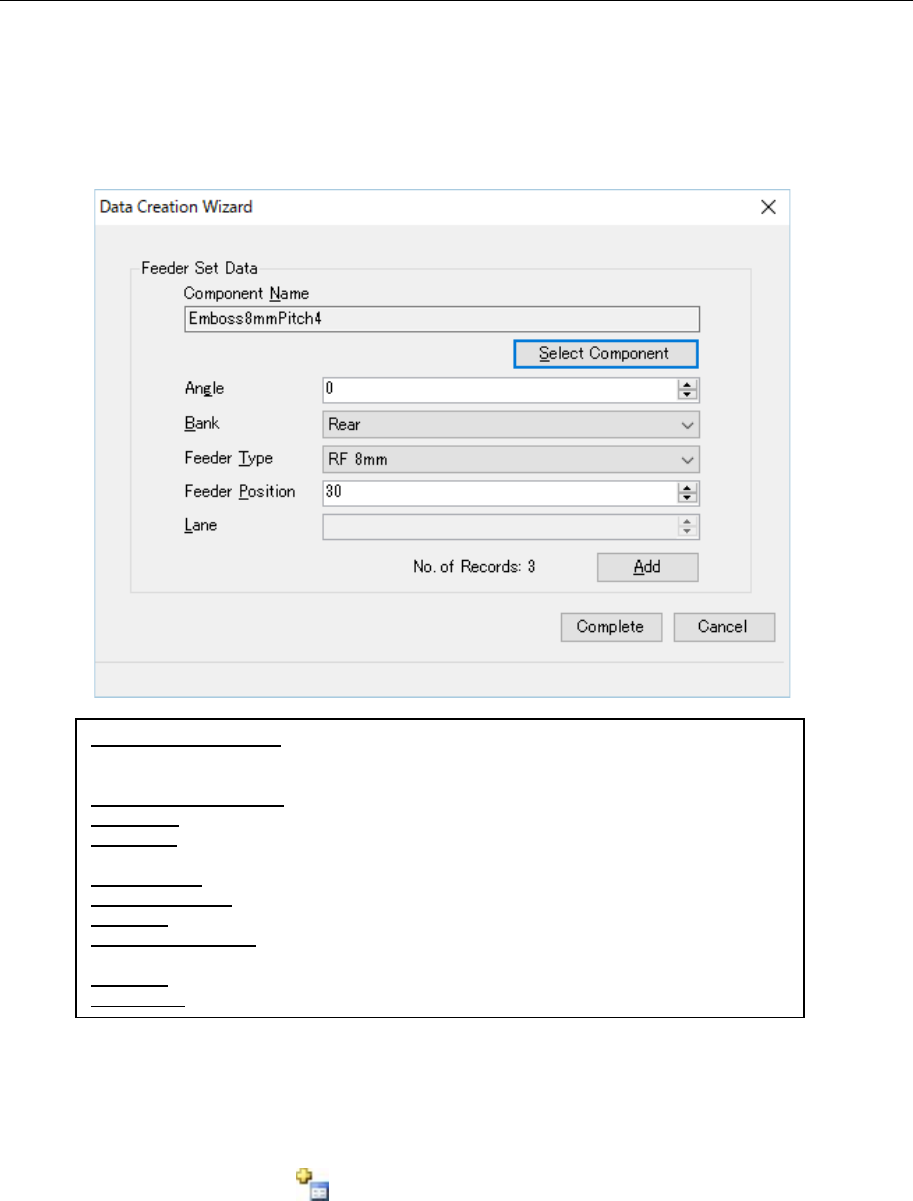
Set and add feeder set data on the displayed screen for adding feeder set data.
Figure 10.3-12 Screen for adding feeder set data
*1 This number also includes the number of feeder set data records already registered.
*2 Unless you select the <Complete> button, no data is registered in the database.
2. Press the “Add” button ( ) of the toolbar.
Since the screen for adding feeder set data appears, set the feeder set data to add it.
Component Name (N): Displays a name of a component to be set in the feeder set
data. The component name you selected on the screen for selecting a component is
displayed here, and you cannot edit it directly.
Select Component (S): Displays the screen for selecting a component.
Angle (G): Enter a component pick-up angle.
Bank (B): Select the component supply position from the bank information set to the
feeder group to be created.
Feeder Type: Select a feeder type that can be set to the feeder position.
Feeder Position: Enter the pick position number to set the feeder.
Lane (L): Enter the lane number of the component pick-up position.
No of data records: The number of feeder set data records added to the feeder group
is displayed here. (*1)
Add (A): Adds the feeder set data you have set to the feeder group. (*2)
Complete: Registers the feeder group, and closes this screen.