JANETS_INM.pdf - 第475页
J aN et s Inst ructi on M anual 11. Mark Database 11 -2 11.1.1 Startin g Up the M ar k Database when th e Sy stem I s Conn ected to a Serv er If you start up the Mar k D atabase w hen t he system i s set to be c onnected…
JaNets Instruction Manual 11. Mark Database
11-1
11. Mark Database
What is the Mark Database?
The mark data controlled by database can be registered, updated or checked. Obtain the
teaching data on a BOC mark and an area fiducial mark from the production program in which
the corresponding teaching data is stored, and then register it in the database.
Controlled mark data is displayed on the list for each machine type, and you can change a
mark name and/or a mark ID.
Up to 10,000 BOC marks can be recorded, and up to 10,000 area fiducial marks can be
recorded too.
* Teaching data on the user-defined template is not controlled with the database.
11.1 Starting Up or Quitting the Mark Database
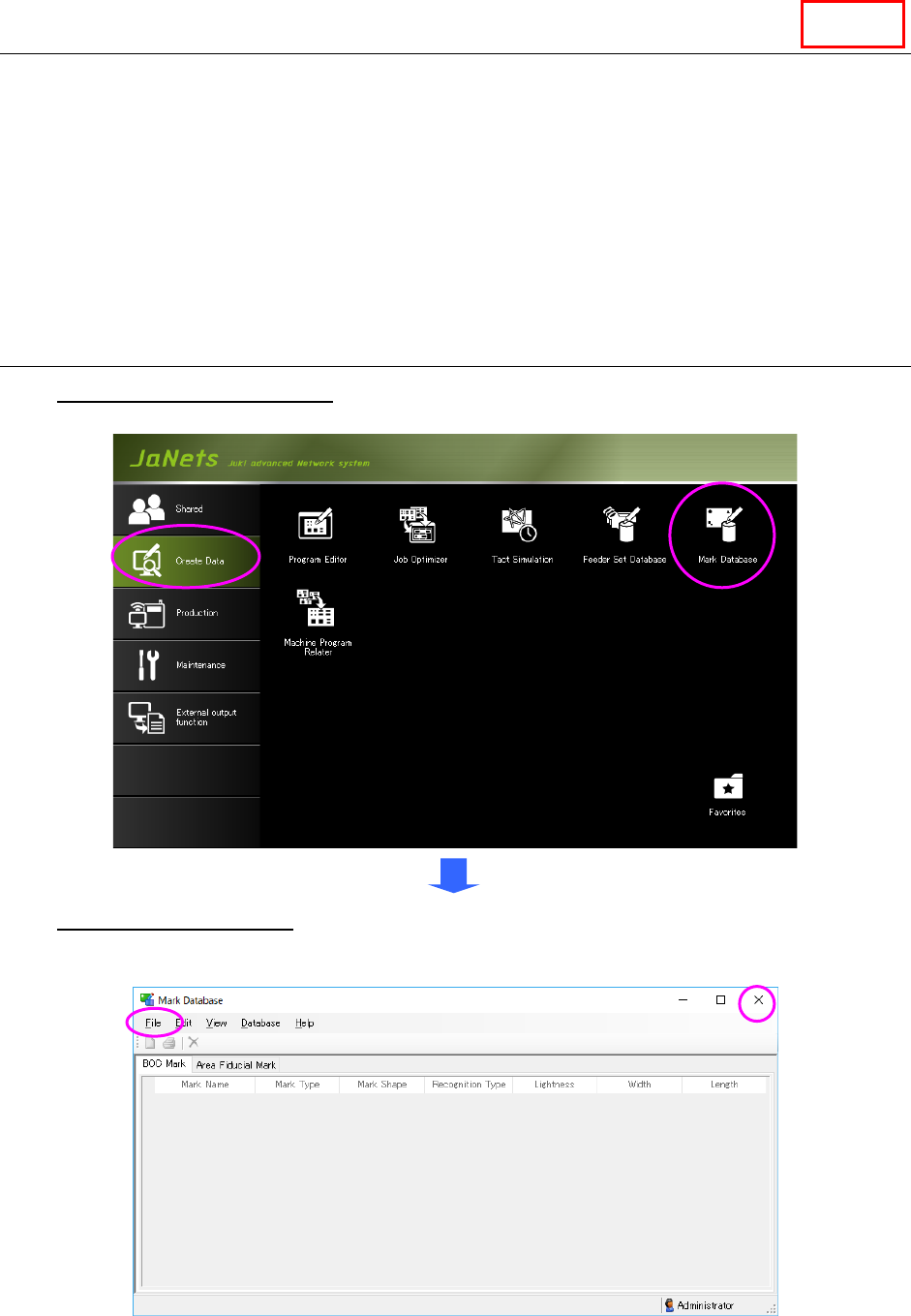
To start up the Mark Database: Double-click the “Create Data” tab from the JaNets Launcher,
and then the “Mark Database” icon.
To quit the Mark Database, select the [File] command from the menu bar, and then the [Exit
Mark Database] command on the “File” menu, or select the close (×) button located at the
upper right corner of the title bar.
Figure 11.1-1 “Mark Database” screen
(displayed when the Mark Database starts up for the first time)
Line

JaNets Instruction Manual 11. Mark Database
11-2
11.1.1 Starting Up the Mark Database
when the System Is Connected to a Server
If you start up the Mark Database when the system is set to be connected to a server, the
system regards the database as a server to obtain data from it.
When you select the [New] menu command or the [Open] menu command from this point, you
can switch a database to a database of .mdb files.
The [Switch to connection to the server] menu command allows you to switch the database to
the database of a server again also.
Data Manager
JaNets Instruction Manual 11. Mark Database
11-3
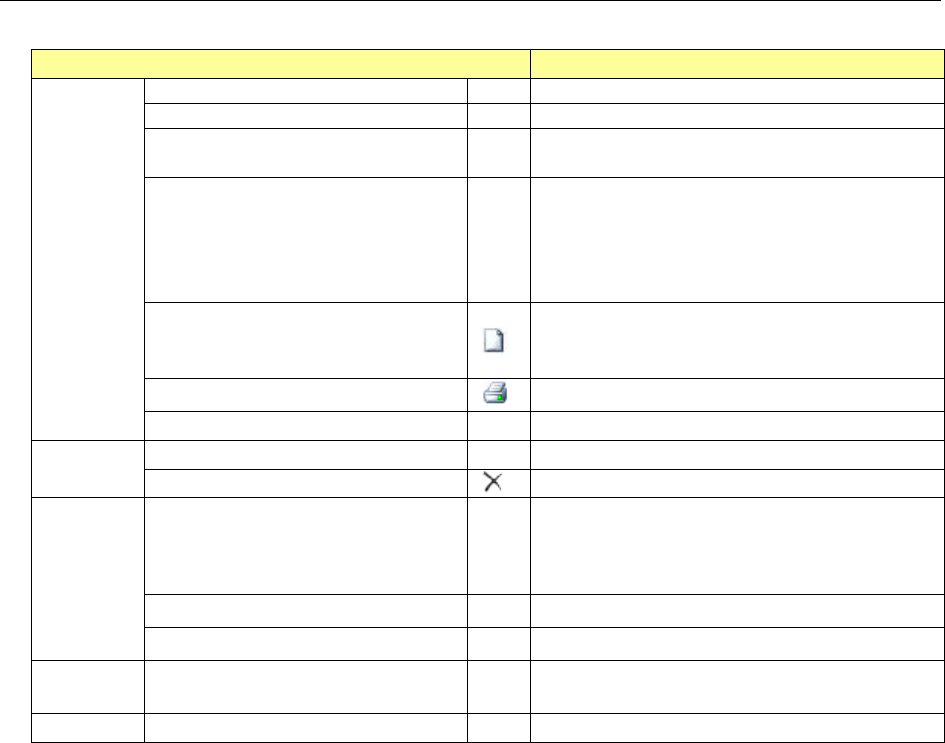
11.2 Mark Data Menu
Table 11.2-1 Menu items
Menu item
Description
File (F)
New (N)
Ctrl+N
An empty MDB file is created.
Open (O)
Ctrl+O
The created MDB file is opened.
Save as (A)
Ctrl+A
The opened MDB file is saved with a different
name.
Switch to connection to
the server (S) *1
Switches a database to a database of a server.
When you select the [New] menu command or
the [Open] menu command again, you can
switch the database to a database of .mdb
files.
Import Data (I) ... Ctrl+I
Reads the specified production program data
and obtains the data whose teaching operation
has been done successfully.
Print (P) ...
Ctrl+P
Prints mark data.
Exit Mark Database (X)
Quits the Mark Database.
Edit (E)
Rename (R)
Crl+M
Displays the “Rename” dialog box.
Delete (D)
Ctrl+D
Deletes mark data
View (V)
Program Explorer (E) *1
Displays or hides the Program Explorer.
You can select one of the following tabs of the
Program Explorer: “Manage,” “Production
Program” and “Reservation File.”
Toolbar (T)
Displays/hides the toolbar.
Status Bar (B)
Displays/hides the status bar.
Database
(D)
Refresh View (I)
Obtains the latest information from the data-
base again to display the list again.
Help (H)
About (A)
Displays the version information.
*1 You can use these commands when you add a Data Manager option to the system.