JANETS_INM.pdf - 第478页
J aN et s Inst ructi on M anual 11. Mark Database 11 -5 11.4 “ Ar ea Fiducial Mark” Data Scr een Figure 11 . 4 -1 “Area Fi duci al M ark” data screen * “ Mar k ID ,” “M ark Nam e 1,” “ Mar k Nam e 2” and “ Mar k N am e 3…
JaNets Instruction Manual 11. Mark Database
11-4
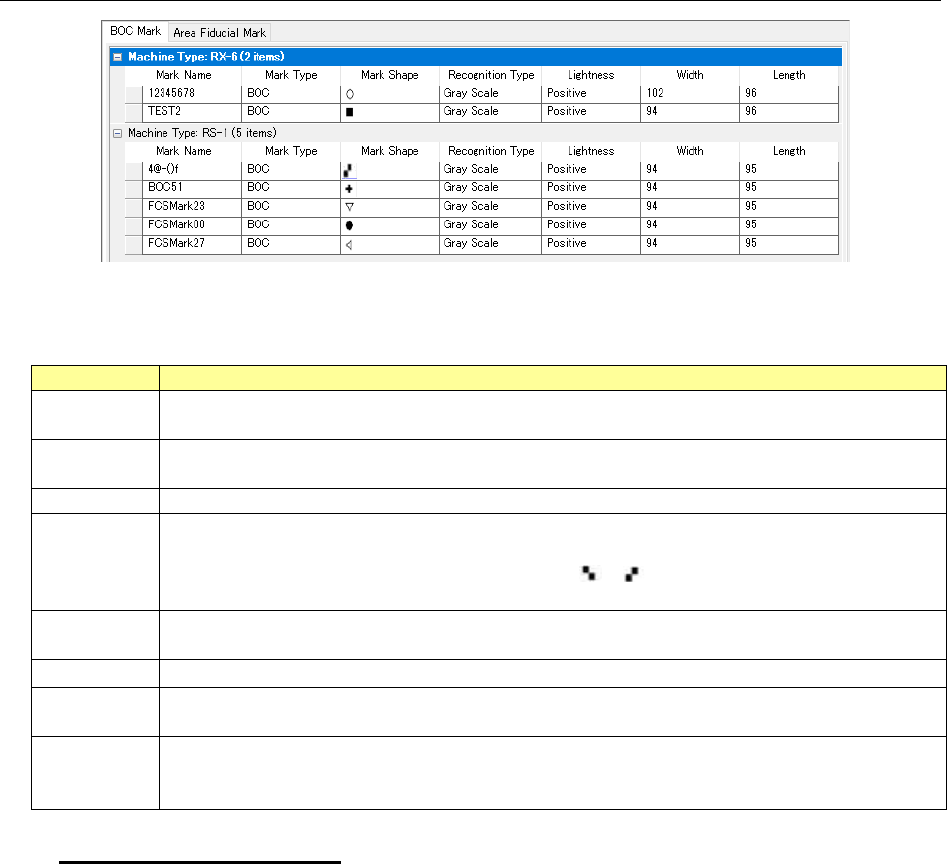
11.3 Example of the “BOC Mark” Data Screen
Figure 11.3-1 “Mark Data” screen
Table 11.3-2 Mark data items
Item
Description
Machine
Type
Displays the machine type and the number of data records. They are displayed only, and you
cannot edit them.
Mark Name
Displays the mark name. You can edit it. (Note1)
You can enter up to 8 half-width alphanumeric characters and/or symbols.
Mark Type
Displays the mark type. It is displayed only, and you cannot edit it
Mark
Shape
Displays the following mark shapes. They are displayed only, and you cannot edit any of
them.
[●], [○], [■], [□], [◆], [◇], [▲], [△], [▼], [▽], [+], [ ], [ ]
Displays a blank when a recognition type is a "binary.”
Recogni-
tion Type
Displays the recognition type (Gray Scale/Binary Scale) of the standard mark recognition
condition. It is displayed only, and you cannot edit it.
Lightness
Displays the lightness (Positive/Negative). It is displayed only, and you cannot edit it.
Breadth
Displays the size of the breadth of a mark. It is displayed only, and you cannot edit it.
Displays a blank when a recognition type is a "binary.”
Length
Displays the size of the length of a mark is displayed. It is displayed only, and you cannot edit
it.
Displays a blank when a recognition type is a "binary.”
Mark Name (You can edit it): You can enter up to 8 half-width alphanumeric characters
and/or symbols (You cannot enter a “#”). You cannot enter data to any menu item
other than this “Mark Name” menu item.
Note 1: Edit the name not directly on the cell but by the “Rename” operation.
JaNets Instruction Manual 11. Mark Database
11-5
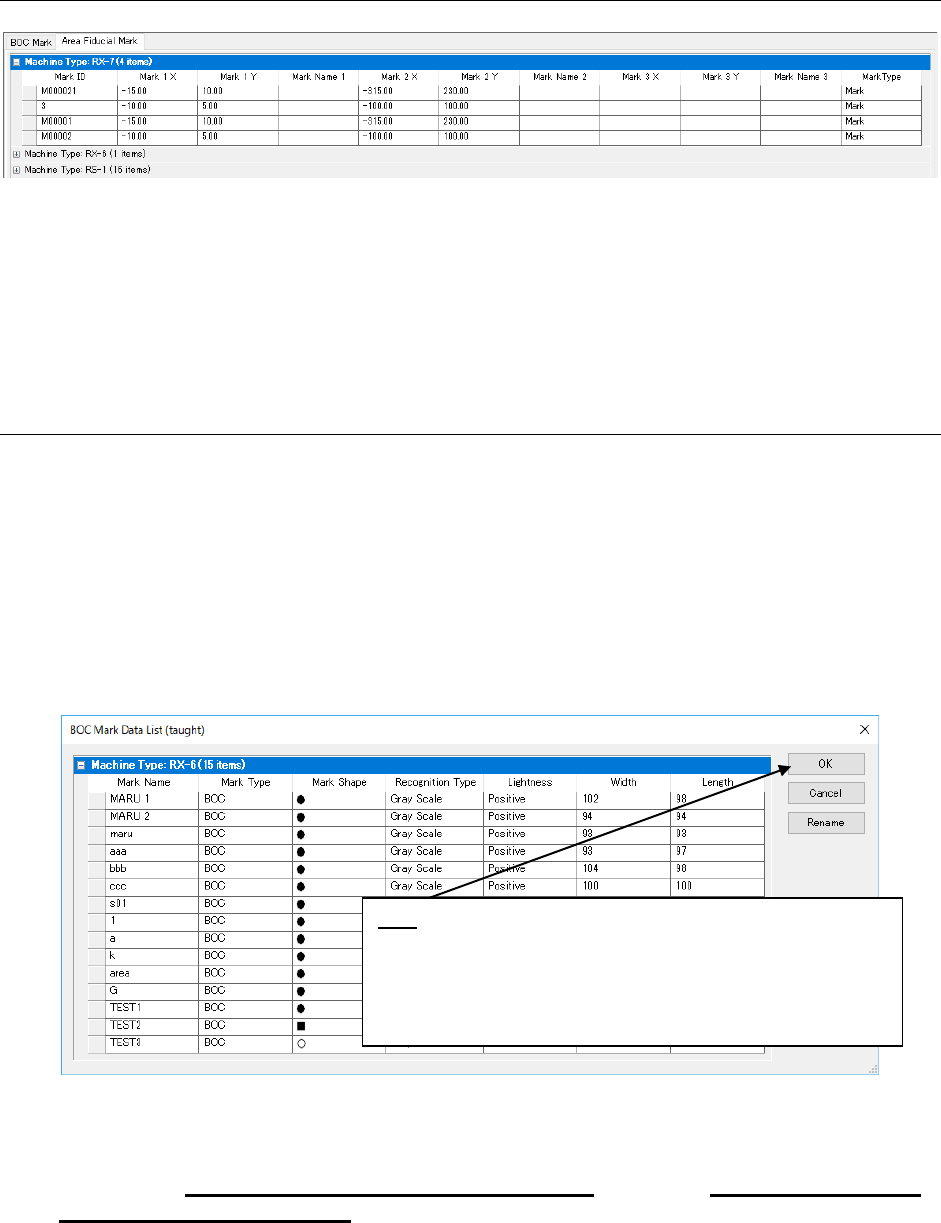
11.4 “Area Fiducial Mark” Data Screen
Figure 11.4-1 “Area Fiducial Mark” data screen
* “Mark ID,” “Mark Name 1,” “Mark Name 2” and “Mark Name 3”: You can edit these cells, and
enter up to eight half-width alphanumeric characters and/or symbols (Note 1)
* “Machine Type,” “Mark X” and “Mark Y”: You cannot edit these cells.
Note 1: Edit the name not directly on the cell but by the “Rename” operation.
11.5 Obtaining (Importing) External Data
You can load the specified production program data and then register it in the database. First,
import BOC mark data, and then area fiducial mark data.
To import external data, perform one of the following three operations.
1. Select the [File] command from the menu bar, and then the [Import Data] command on
the “File” menu.
The “Open” dialog box appears on the screen. Select a production program to be added
(you cannot select two or more programs), and select the <Open> button. The screen
for importing mark data appears.
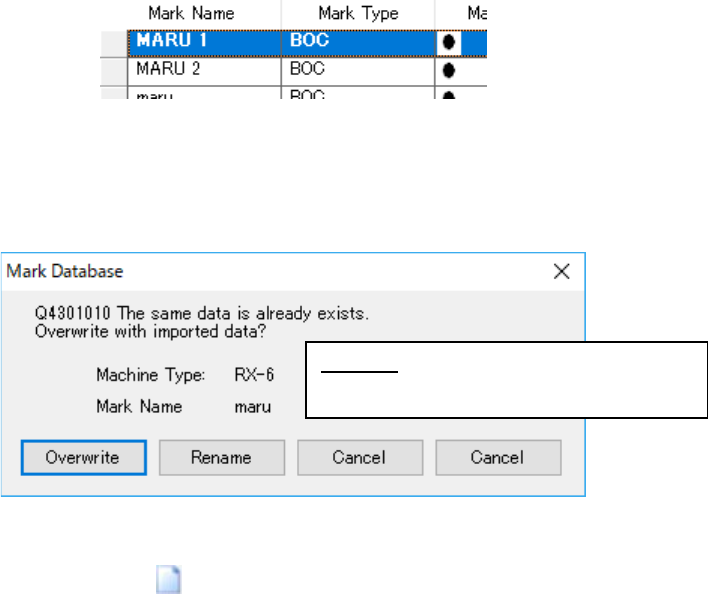
Figure 11.5-1 Screen for importing mark data (BOC mark)
The list of mark information to be registered is displayed on the screen above.
(See Section 11.5.1 “List of BOC marks to be imported” or Section 11.5.2
“List of area fi-
ducial marks to be imported” for the details of the list above.)
* If there is not any data to be imported in the loaded file, the screen for the corresponding
mark does not appear.
OK: Registers the selected information in the database. (*)
* When you press the <OK> button to import area fiducial
mark data, the screen for selecting the registered machine
type appears (see Figure 11.5-3 Confirmation dialog box for
overwriting data).
JaNets Instruction Manual 11. Mark Database
11-6
Select the mark information to be registered in the database on the list screen.
Figure 11.5-2 Selecting data to be imported
If the name of mark data to be imported is the same as any one already registered in the da-
tabase, the confirmation dialog box for overwriting data appears on the screen.
Figure 11.5-3 Confirmation dialog box for overwriting data
2. Press the “Import Data” (
) button of the toolbar.
The “Open” dialog box appears on the screen. Select a production program to be added
(you cannot select two or more programs), and select the <Open> button. The screen
for importing mark data appears. Select information to be imported, and then register it in
the database. (Operate in the same manner as you do at 1 above.)
3. Select a production program from the Program Explorer, and drop and drag it onto the
mark list screen. The system performs the process for obtaining a file controlled with the
database. (A file you drag and drop is to be loaded.) The screen for importing mark data
appears. Select information to be imported, and then register it in the database. (Operate
in the same manner as you do at 1 above.)
Rename: Renames data (see Section 11.6
“Changing a Mark Data Name”).