JANETS_INM.pdf - 第496页
JaNets Instr ucti on Man ual 12 . Machine Program R elater 12 - 14 Setting the envi ronment Before re lating an old pro ductio n line to a new o ne manua lly , make the settin g for display ing the back - up confirma ti …
JaNets Instruction Manual 12. Machine Program Relater
12-13
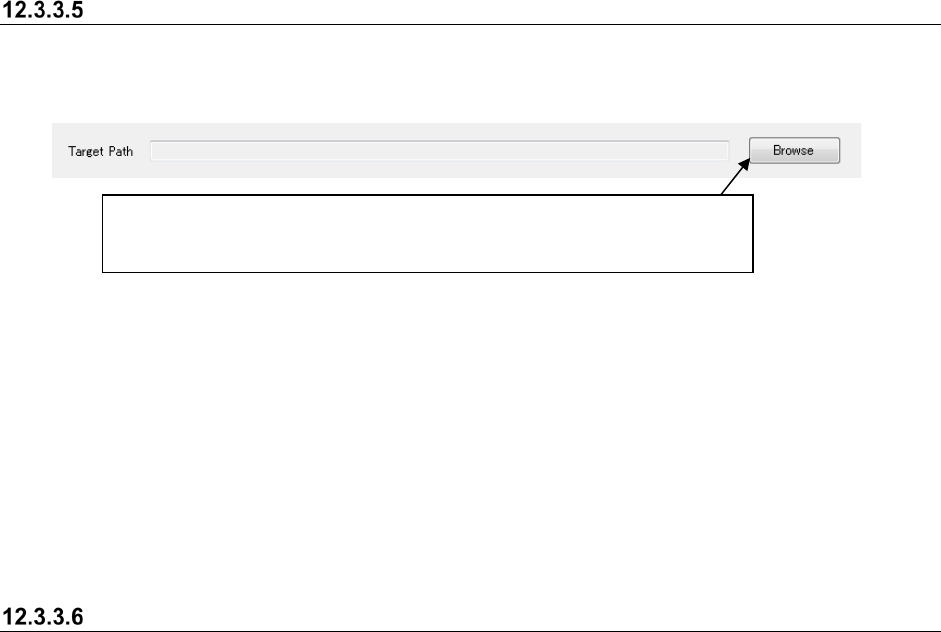
Specifying the target data path
Specify the target path of a production program to be related with the batch process on the “Batch”
relating screen.
Figure 12.3-15 Specifying the target data path
The "Batch" relating function updates a production program already created for an old line in order
to assign the same program to a new line at a time. The new line needs to contain the same
machines as the old line.
For “Target path”, specify a folder that has a production program and the divided files that you
want to relate. (If there is no divided file, a program for the “PWB Pass-through mode” is
assigned.); However, the sub folder of the specified target path is not related.
You also can specify a path that you specified on the old line. In that case, the production program
specified on the old line is related as well.
Executing a batch relation
Click the <Relate> button on the “Batch” relating screen. When you execute the relation process,
the system automatically backs up the specified file to the destination specified in section 12.3.4
“Setting the environment,” and executes the overwrite process for production programs that match
the configuration of the old production line of all production programs that exist on the target data
path.
* Production programs for Idle mode are automatically generated for machines of a new
production line not related to an old production line.
The Batch relation is not executed under the conditions as follows:
● When the transport direction differs between the old line and the new line;
● When the divided files corresponding to the target path is incomplete;
● When the transport direction differs between the new line and the production program
corresponding to the target path.
● The same name files, one’s extension is iss and another’s extension is mic, are located on the
target data path.
When you click the <Browse> button, the “Open” dialog box appears on the
screen. Specify a file and click the <Open> button on this dialog box. Note that
you can specify a production program whose extension is “*.iss” or “*.mic” only.
JaNets Instruction Manual 12. Machine Program Relater
12-14
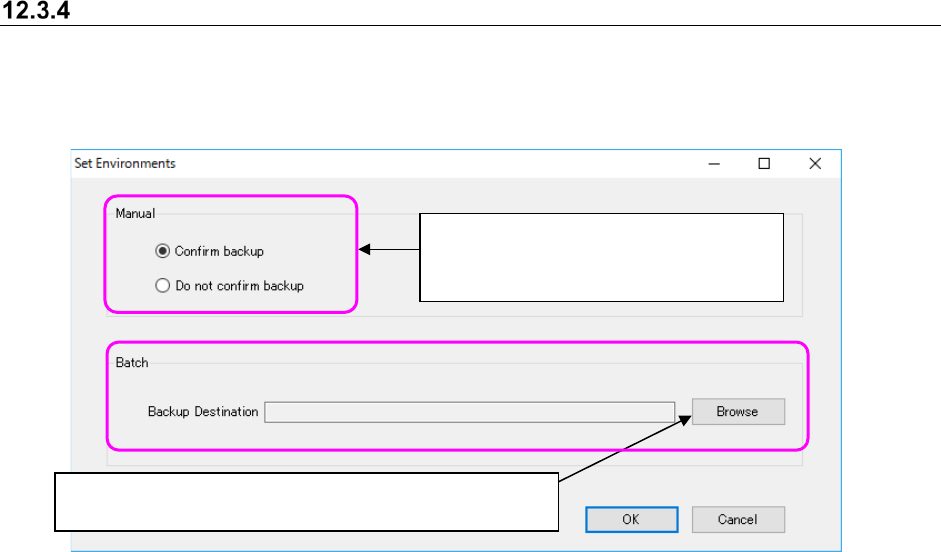
Setting the environment
Before relating an old production line to a new one manually, make the setting for displaying the
back-up confirmation message of files in the JaNets format with the corresponding radio button.
Specify where to back up files automatically during batch relation also.
Figure 12.3-16 “Set Environments” screen
Click the <Browse> button to specify whether to back up files
automatically when the system performs batch relation.
Specify whether to display the back-up
confirmation message when the system
relates the production lines manually.
JaNets Instruction Manual 13. Program Downloader
13-1
13. Program Downloader
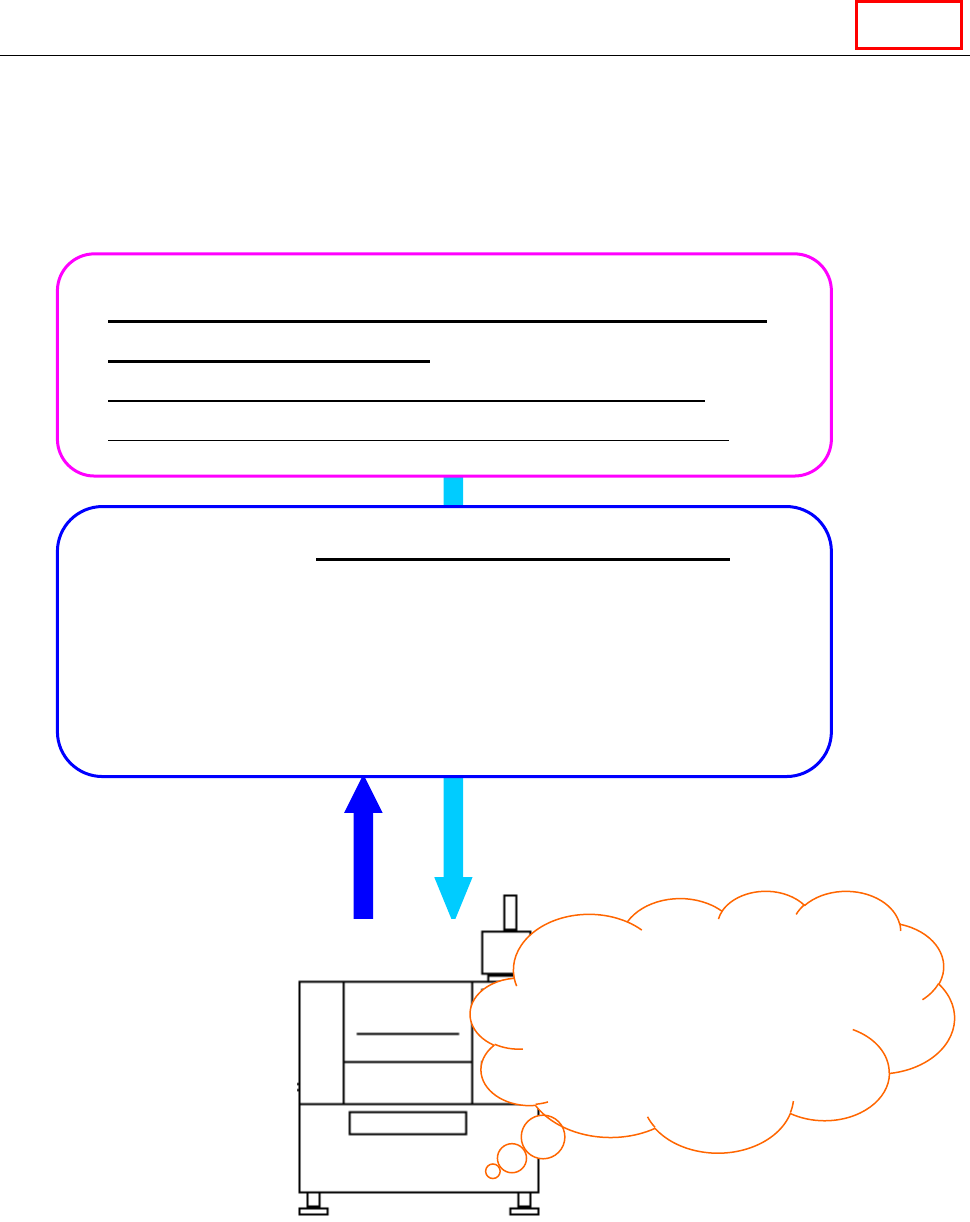
What is the Program Downloader?
The Program Downloader transfers (downloads) a production program to a machine via the Local
Area Network (LAN), produces PWBs and then receives (uploads) the program from the machine
after PWB production finishes.
It also displays the graphics during PWB production.
* Change a setup of Windows not to be in a screen saver screen and a standby state during
start-up of the Program Downloader.
Created and optimized production program (*.iss)
or reservation file (*.rsv)
Production program: Optimization by “7. Program editor”
Reservation file: “Cluster optimization by “8. Job optimizer”
Production – “13. Production Downloader”
When the Program Downloader transfers (downloads) the files described
above to a machine, and then you press the “Start” button of the
machine, the PWB starts. Next, it receives (uploads) the production
program whose production has finished, and stores the production
results. In addition, the Program Downloader monitors the PWB
production conditions of the selected production lines and machines
during PWB production.
When you press the
“Start” button,
PWB production
starts.
Downloading of files
Uploading of files
after PWB production
finishes
Line