JANETS_INM.pdf - 第508页
JaNets Instr ucti on Man ual 13 . Program D ownloa der 13 - 12 13.5.4.4 Di splaying the floor map Select the [ Floor Map] co mmand f rom the “Li ne Monitor ” menu inv oked from the [ Vie w] comma nd or the “Line Mo nitor…
JaNets Instruction Manual 13. Program Downloader
13-11
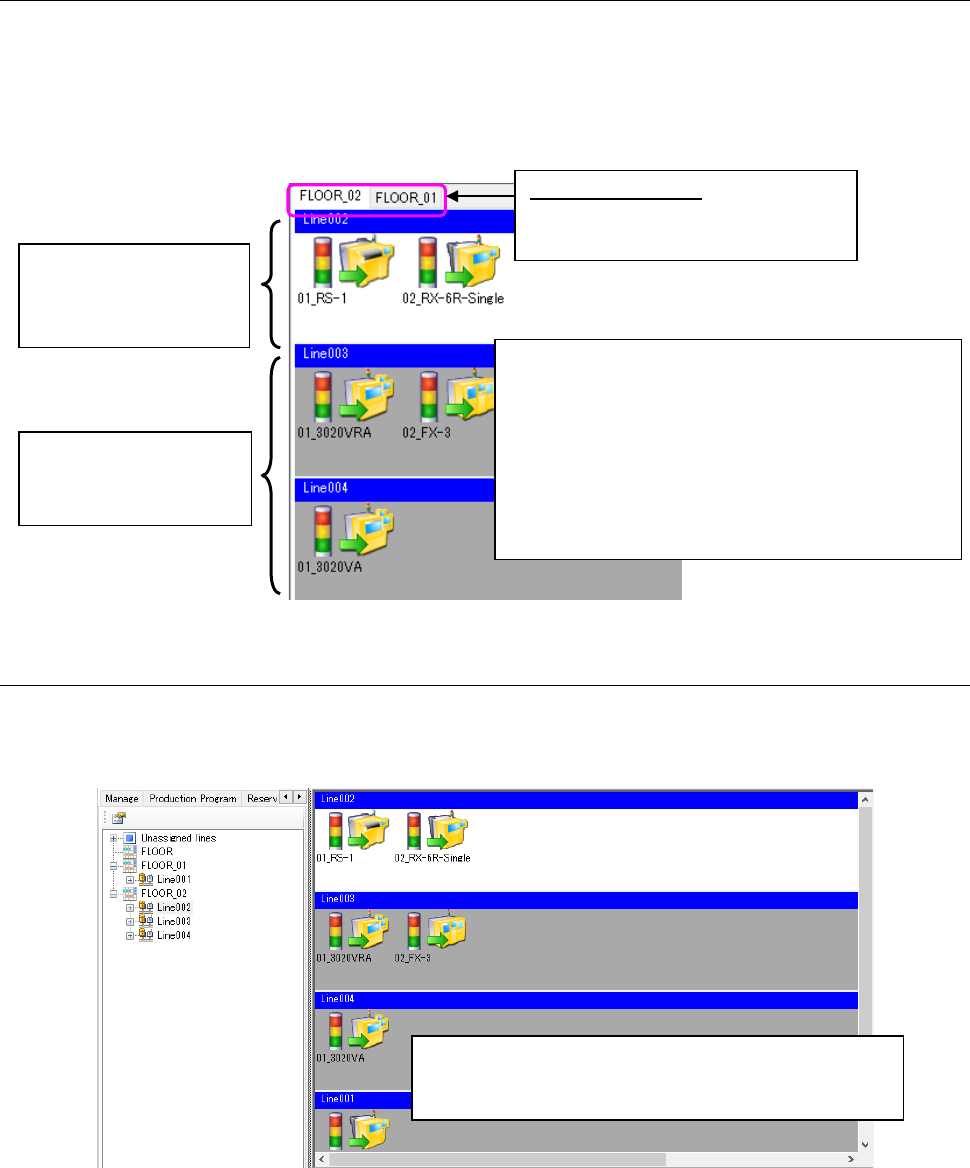
13.5.4.2 Displaying each floor
Select the [Floor] command from the “Line Monitor” menu that is invoked from the [View]
command or the “Line Monitor” icon of the tool bar. Or, select the desired floor from the “floor
configuration” of the Program Explorer. You can switch the screen by selecting the desired
production line or machine from the “production line configuration” of the Program Explorer also.
When you select a machine, the production line to which the selected machine is assigned is
displayed on the screen.
Figure 13.5-9 Line Monitor (for each floor)
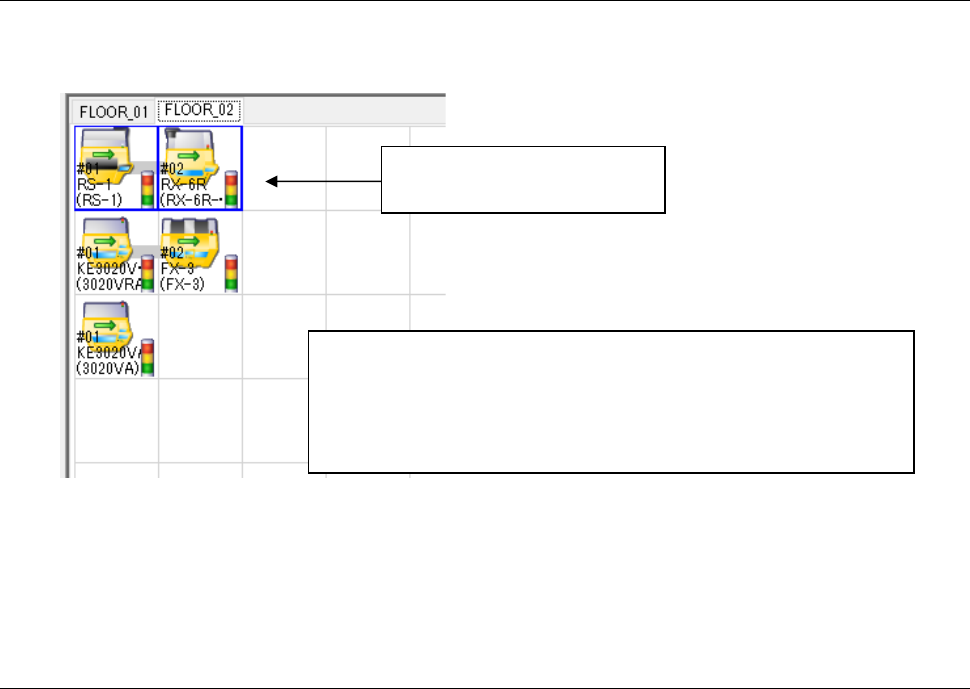
13.5.4.3 Displaying all production lines
Select the [All Lines] command from the “Line Monitor” menu invoked from the [View] command or
the “Line Monitor” icon of the tool bar. When you select a machine, the screen is switched to the
production line to which the selected machine is assigned.
Figure 13.5-10 Line Monitor (for all production lines)
Inactive display line
(The background color is
gray.)
Active display production
line
(The background color is
white.)
Each production line is called “a production line panel.”
Click the desired production line panel to make it active
or inactive.
There is only one active display production line on one
floor.
* Even though you select a floor, production line or
machine not assigned or any of these not registered
in the production line to be monitored, the screen is
not switched to the corresponding screen.
Active display floor: You can switch
the active floor to another by
selecting the corresponding tab.
The active display production line, production line
information and production status are the same as those
described in Section 13.5.4.2 “Displaying each floor.”
JaNets Instruction Manual 13. Program Downloader
13-12
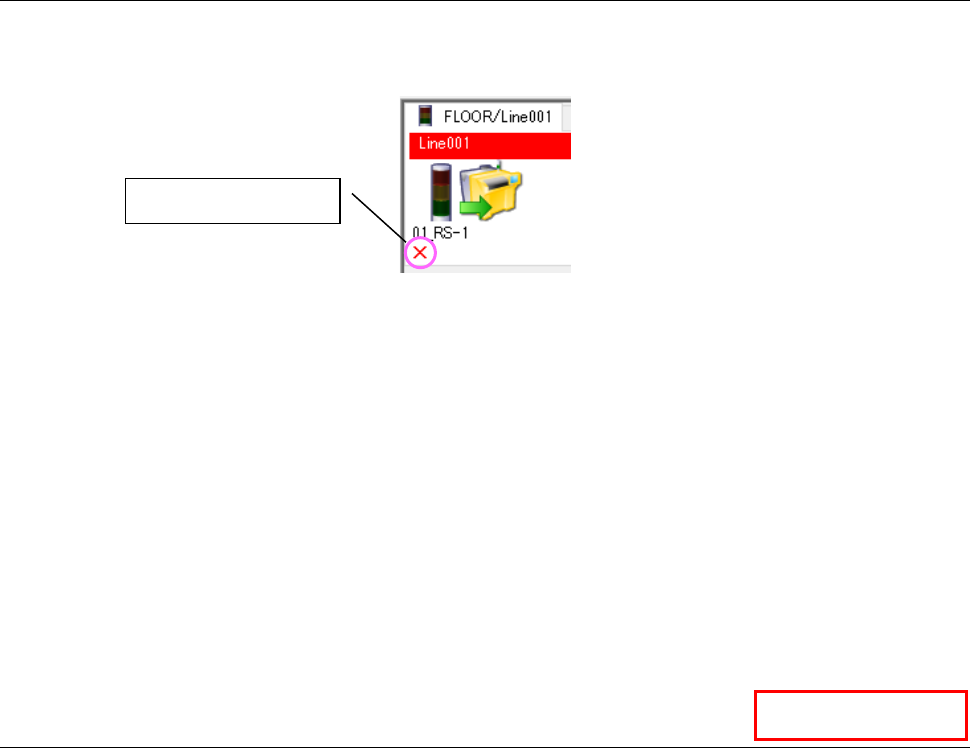
13.5.4.4 Displaying the floor map
Select the [Floor Map] command from the “Line Monitor” menu invoked from the [View] command
or the “Line Monitor” icon of the tool bar.
Figure 13.5-11 Line Monitor (for the floor map)
* You cannot use the Program Downloader to perform any editing operation of the production
line configuration such as creation of a production line that is supposed to be performed with
the Shopfloor Setup.
13.6 Line Explorer
The Program Explorer displays the line configurations. The Program Explorer displays the list of
information on settings of a floor or production line too.
When you select a mounter, the production line including the selected
mounter is displayed as the active production line.
You cannot select any mounter that is not used on the floor.
The production line information and the production status are the same
as those described in Section 13.5.4.2 “Displaying each floor.”
The blue frame indicates the
active display production line.
JaNets Instruction Manual 13. Program Downloader
13-13
13.7 If the planned number of PWBs to be produced specified in a
production program does not match that of the machine
If the planned number of PWBs to be produced specified in a production program does not match
that of the machine, the background of the production line name is displayed in red. An
inconsistency mark is displayed on the corresponding machine also.
Figure 13.7-1 Line monitor displayed if the planned number of PWBs to be produced specified
in a production program does not match that of the machine
To dissolve this inconsistency state, use the function for changing the planned number of PWBs
(see Section 13.9.8) to notify the machine of change of the planned number of PWBs to be
produced or change this number with the machine manually (*).
If the number specified in the production program is inconsistent with that of any machine, the
automatic upload operation is not performed even after the machine finishes producing the
planned number of PWBs. Use the function for finishing production forcibly (see Section 13.9.5)
to perform upload operation.
* When you use an RX-7 series machine, the number displayed with the Line monitor is not
updated even after you change the planned number of PWBs to be produced with the machine
manually.
13.8 Program Explorer
A list of reservation files, production program files and line configuration that are managed with the
Data Manager is displayed on the screen. See Section 13.9.1.2 “Specifying a program
registered in a server” for how to select a file and/or how to produce a PWB. A list of the setting
information of a floor and a production line is displayed also.
Data Manager
Inconsistency mark