JANETS_INM.pdf - 第509页
JaNets Instr ucti on Man ual 13 . Program D ownloa der 13 - 13 13.7 I f the pl anned number of PWBs to be produ ced specifi ed in a produc tion progr am does no t match tha t of the machine If t he planned number of PWBs…
JaNets Instruction Manual 13. Program Downloader
13-12
13.5.4.4 Displaying the floor map
Select the [Floor Map] command from the “Line Monitor” menu invoked from the [View] command
or the “Line Monitor” icon of the tool bar.
Figure 13.5-11 Line Monitor (for the floor map)
* You cannot use the Program Downloader to perform any editing operation of the production
line configuration such as creation of a production line that is supposed to be performed with
the Shopfloor Setup.
13.6 Line Explorer
The Program Explorer displays the line configurations. The Program Explorer displays the list of
information on settings of a floor or production line too.
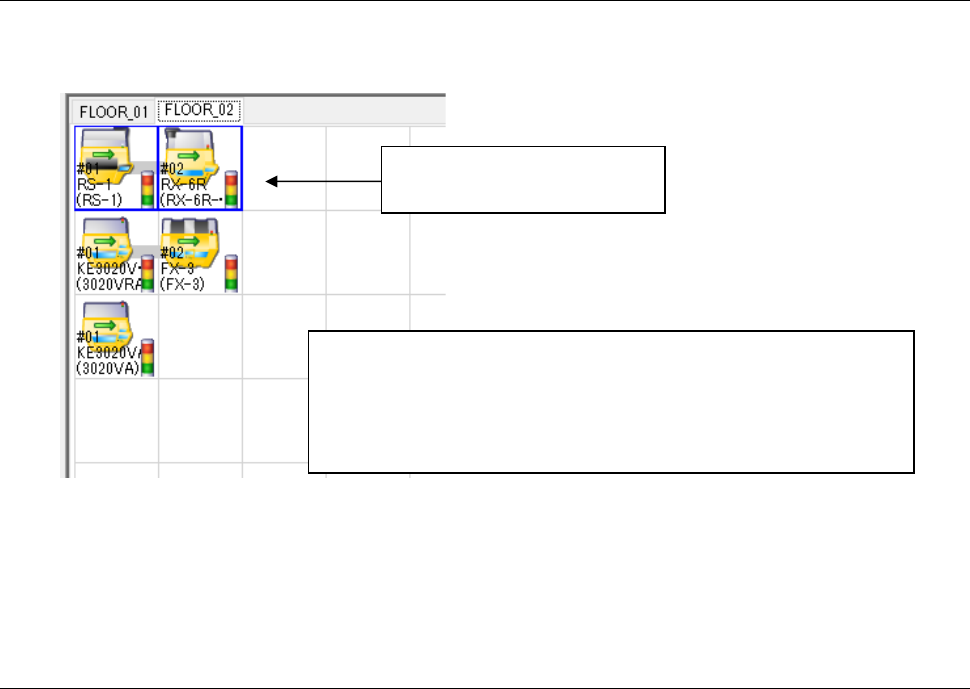
When you select a mounter, the production line including the selected
mounter is displayed as the active production line.
You cannot select any mounter that is not used on the floor.
The production line information and the production status are the same
as those described in Section 13.5.4.2 “Displaying each floor.”
The blue frame indicates the
active display production line.
JaNets Instruction Manual 13. Program Downloader
13-13
13.7 If the planned number of PWBs to be produced specified in a
production program does not match that of the machine
If the planned number of PWBs to be produced specified in a production program does not match
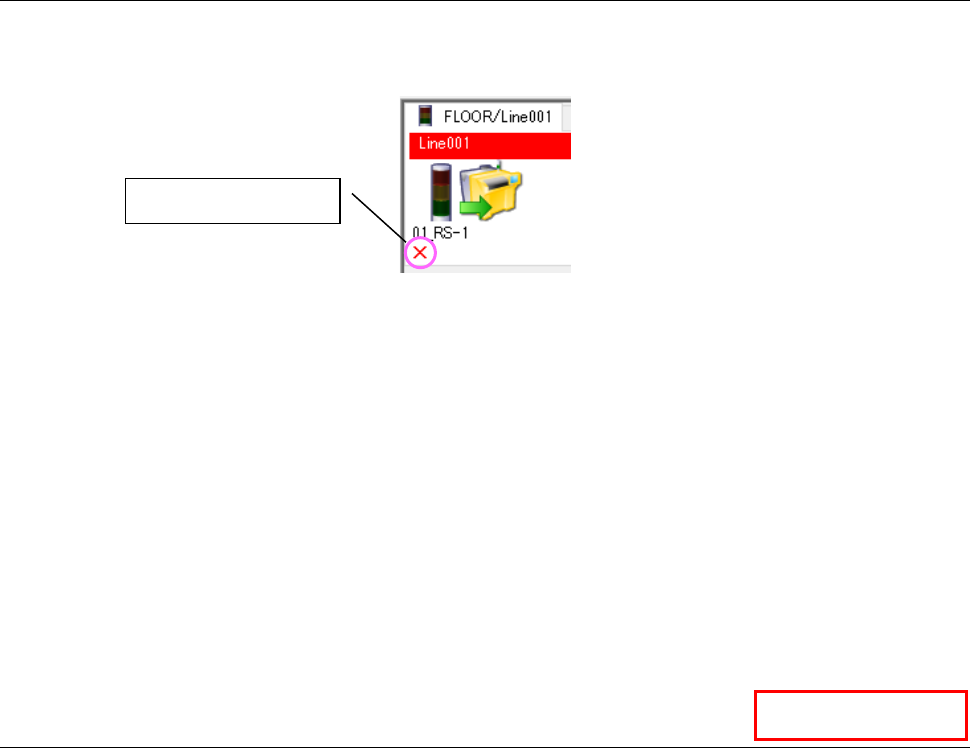
that of the machine, the background of the production line name is displayed in red. An
inconsistency mark is displayed on the corresponding machine also.
Figure 13.7-1 Line monitor displayed if the planned number of PWBs to be produced specified
in a production program does not match that of the machine
To dissolve this inconsistency state, use the function for changing the planned number of PWBs
(see Section 13.9.8) to notify the machine of change of the planned number of PWBs to be
produced or change this number with the machine manually (*).
If the number specified in the production program is inconsistent with that of any machine, the
automatic upload operation is not performed even after the machine finishes producing the
planned number of PWBs. Use the function for finishing production forcibly (see Section 13.9.5)
to perform upload operation.
* When you use an RX-7 series machine, the number displayed with the Line monitor is not
updated even after you change the planned number of PWBs to be produced with the machine
manually.
13.8 Program Explorer
A list of reservation files, production program files and line configuration that are managed with the
Data Manager is displayed on the screen. See Section 13.9.1.2 “Specifying a program
registered in a server” for how to select a file and/or how to produce a PWB. A list of the setting
information of a floor and a production line is displayed also.
Data Manager
Inconsistency mark
JaNets Instruction Manual 13. Program Downloader
13-14
13.9 How to Produce PWBs
Specify a production program and download (transfer) it onto a machine of the specified
production line.
After PWB production finishes, upload (receive) the production program from each machine of the
production line.
<Precautions>
1. The production by program downloader is intended for a line registered by the monitor line in
the shop floor setup. Multi-line production can be performed by registering multiple monitor
lines.
2. For production, all the machines on the line must be able to perform communication with
JaNets.
3. The operations to terminate program downloading and production forcibly are performed for
the line of active display.
4. When you upgrade JaNets from the version older than 1.12.00A to the version 1.1200A or
higher, loading of production programs and reservation files is canceled (the contents of these
programs and files are still saved). When you start up the updated JaNets, be sure to open
these programs and files again.
13.9.1 Specifying a Program to Be Used to Produce a PWB
13.9.1.1 Specifying a local file
From File (F) of the menu bar, select Open (O), and then specify the optimized production program
created by the reservation file created by job optimizer or program editor.
13.9.1.2 Specifying a program registered in a server
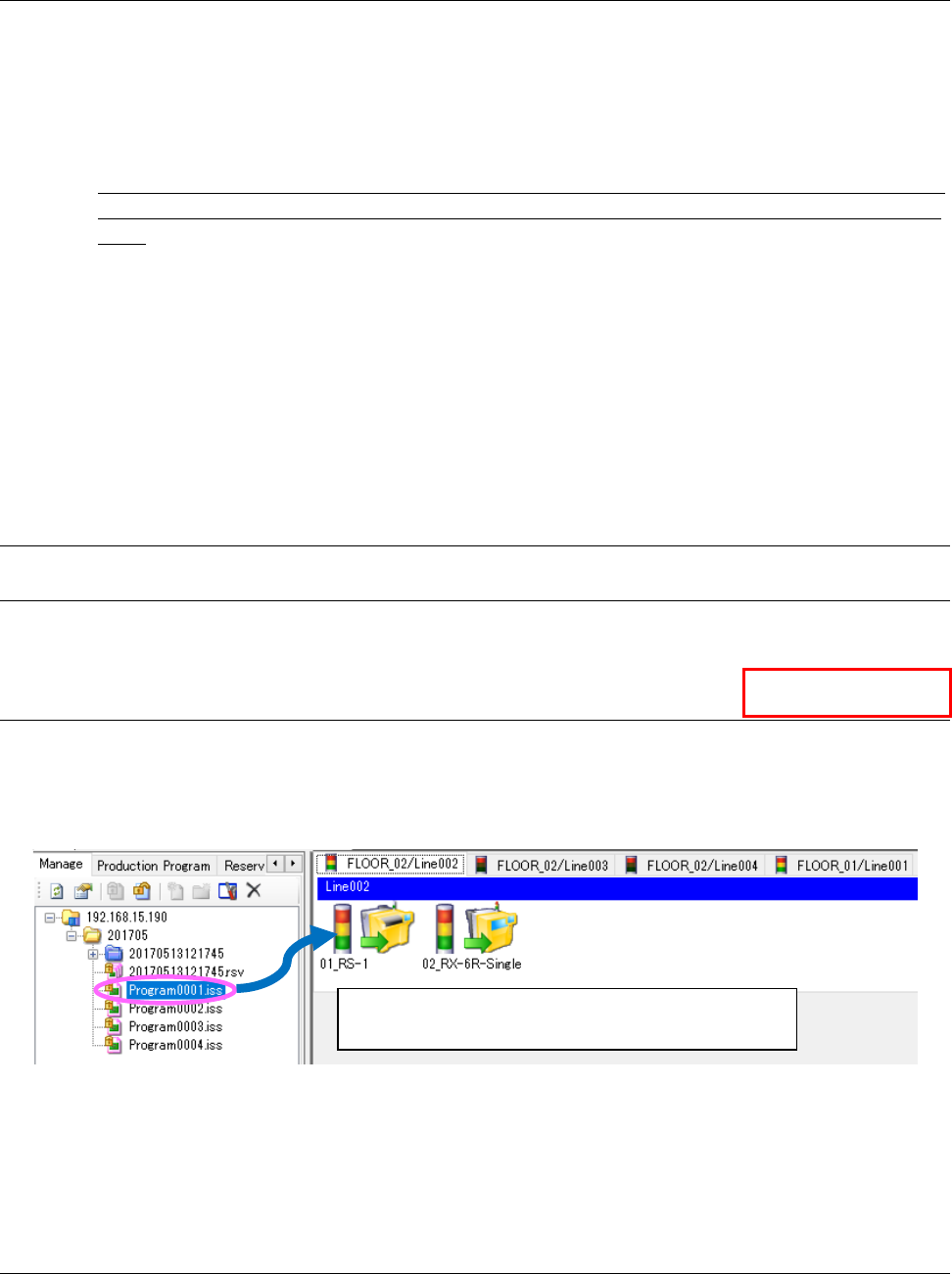
Make active a production line to be used for PWB production.
Drag and drop an optimized reservation file or production program that is registered in the
Program Explorer to the Line Monitor.
Figure 13.9-1 Specifying a production program registered in a server
* The screen above shows the case in which the [Line] command is selected from the “Line
Monitor” menu. Follow the same procedure above also when you select the command [Floor],
[All Lines] or [Floor Map].
13.9.1.3 Specifying a production program by reading a serial code
By reading a serial code with a code reader, a production program associated with a serial code
can be specified. See Section 13.10 “Managing a Production Program with a Serial Code” for
details.
Drag and drop a program you want to use for PWB
production to the active production line.
Data Manager