JANETS_INM.pdf - 第511页
JaNets Instr ucti on Man ual 13 . Program D ownloa der 13 - 15 13.9.2 Check after a prod uct ion f ile is sp ecif ied When you spec ify a progr am to be used for PWB producti on, the f ollowing dia log for specify ing th…
JaNets Instruction Manual 13. Program Downloader
13-14
13.9 How to Produce PWBs
Specify a production program and download (transfer) it onto a machine of the specified
production line.
After PWB production finishes, upload (receive) the production program from each machine of the
production line.
<Precautions>
1. The production by program downloader is intended for a line registered by the monitor line in
the shop floor setup. Multi-line production can be performed by registering multiple monitor
lines.
2. For production, all the machines on the line must be able to perform communication with
JaNets.
3. The operations to terminate program downloading and production forcibly are performed for
the line of active display.
4. When you upgrade JaNets from the version older than 1.12.00A to the version 1.1200A or
higher, loading of production programs and reservation files is canceled (the contents of these
programs and files are still saved). When you start up the updated JaNets, be sure to open
these programs and files again.
13.9.1 Specifying a Program to Be Used to Produce a PWB
13.9.1.1 Specifying a local file
From File (F) of the menu bar, select Open (O), and then specify the optimized production program
created by the reservation file created by job optimizer or program editor.
13.9.1.2 Specifying a program registered in a server
Make active a production line to be used for PWB production.
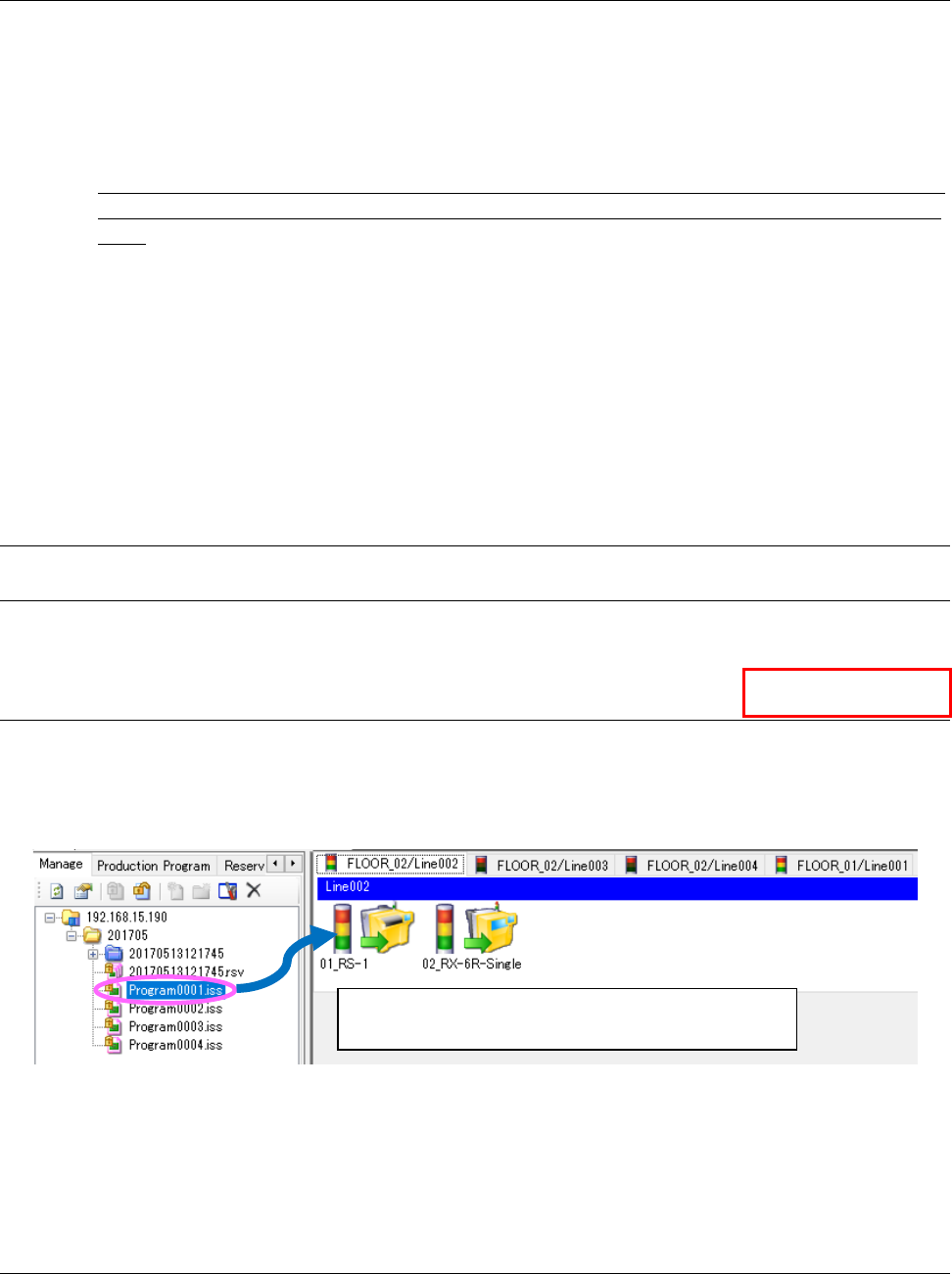
Drag and drop an optimized reservation file or production program that is registered in the
Program Explorer to the Line Monitor.
Figure 13.9-1 Specifying a production program registered in a server
* The screen above shows the case in which the [Line] command is selected from the “Line
Monitor” menu. Follow the same procedure above also when you select the command [Floor],
[All Lines] or [Floor Map].
13.9.1.3 Specifying a production program by reading a serial code
By reading a serial code with a code reader, a production program associated with a serial code
can be specified. See Section 13.10 “Managing a Production Program with a Serial Code” for
details.
Drag and drop a program you want to use for PWB
production to the active production line.
Data Manager
JaNets Instruction Manual 13. Program Downloader
13-15
13.9.2 Check after a production file is specified
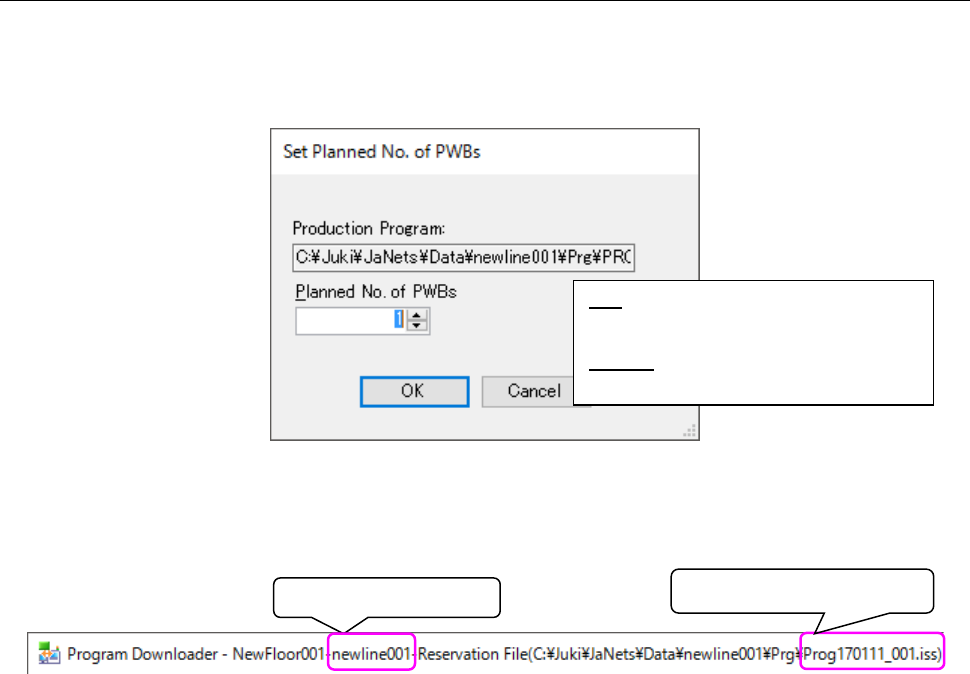
When you specify a program to be used for PWB production, the following dialog for specifying the
number of PWBs to be produced appears on the screen.
Create the reservation file in which only the specified production file was registered, in the form of
pd_ + specified production file name.
Figure 13.9-2 “Set Planned No. of PWBs” dialog box
As your confirmation after a production program is specified correctly, the title bar is displayed as
shown below:
Figure 13.9-3 Title bar displayed after a production program is specified
* Data on the active production line is displayed on the screen, and you can use the “Download”
command on the “Production” menu or the “Download” tool button of the toolbar.
* The specified production program is loaded, and the production status of the specified
production program is displayed on the “Production Status” screen of the Line Monitor.
Production line name
Specified production program
OK:
Sets the planned number of PWBs to be
produced.
Cancel:
Cancels a specified production program.

JaNets Instruction Manual 13. Program Downloader
13-16
13.9.3 Teaching the component pick-up coordinates in a cluster (in production
according to a reservation file)
This is a function that allows you to download data for teaching in a reservation file to the main unit
of the machine, teach the component pick-up coordinates and then upload the data so that the
taught pick-up coordinates are taken over to a production program in a cluster.
<Notes>
* If there is no data for teaching in a reservation file, this function cannot be used. To use this
function, enable the “Creation of data for teaching” check box on the “Cluster Options” tab when
the Job Optimizer performs optimization to optimize a reservation file (see Section 8.3.22.1
“Creating data for teaching” of Chapter 8 “Job Optimizer” for details).
* To enable this function, select the “Yes” radio button for the menu item “Cluster teaching” on the
“Production” screen invoked from the “Set Environments” screen (see Section 13.14.2.1) of the
Program Downloader. Note that the menu item “Inherit Pick Position” is enabled forcibly when
you select the “Yes” radio button for the menu item “Cluster teaching.”
* If the cluster number of the next production program that is to be downloaded is different from that
of the production program being used for the current production when this function is enabled, the
system does not download any production program automatically.
* If the cluster number of a production program to be downloaded is not the same among machines
on the production line when this function is enabled, the system cannot download the production
program. Disable this function, and then download the production program.
* A machine that does not support the component pick-up coordinates takeover function is not
covered with this function. Note that this function cannot be used if there is no machine
supporting the component pick-up coordinates takeover function on a production line used for
production.
13.9.3.1 Downloading data for teaching
When you select [Production] – [Download data for teaching] from the menu, the system loads
data for teaching, and then downloads it to the machine.
* If the cluster number of a production program to be downloaded is not the same among
machines on the production line, the system cannot download the production program.