JANETS_INM.pdf - 第515页
JaNets Instr ucti on Man ual 13 . Program D ownloa der 13 - 19 13.9.4.3 Not es on production with a production line including an inspection machine/printer If there is not any inform ation on a progr am to be us ed for p…
JaNets Instruction Manual 13. Program Downloader
13-18
13.9.4 Starting/finishing production
13.9.4.1 Download
After specifying a production program, download the production program to each machine
assigned to the specified production line. When you select the “Production” command from the
menu bar, and then the “Download” command from the “Production” menu (or click the “Download”
tool button of the toolbar), the confirmation dialog box for downloading appears on the screen.
When you select the “Yes” button, the dialog box closes and the system starts downloading the
production program.
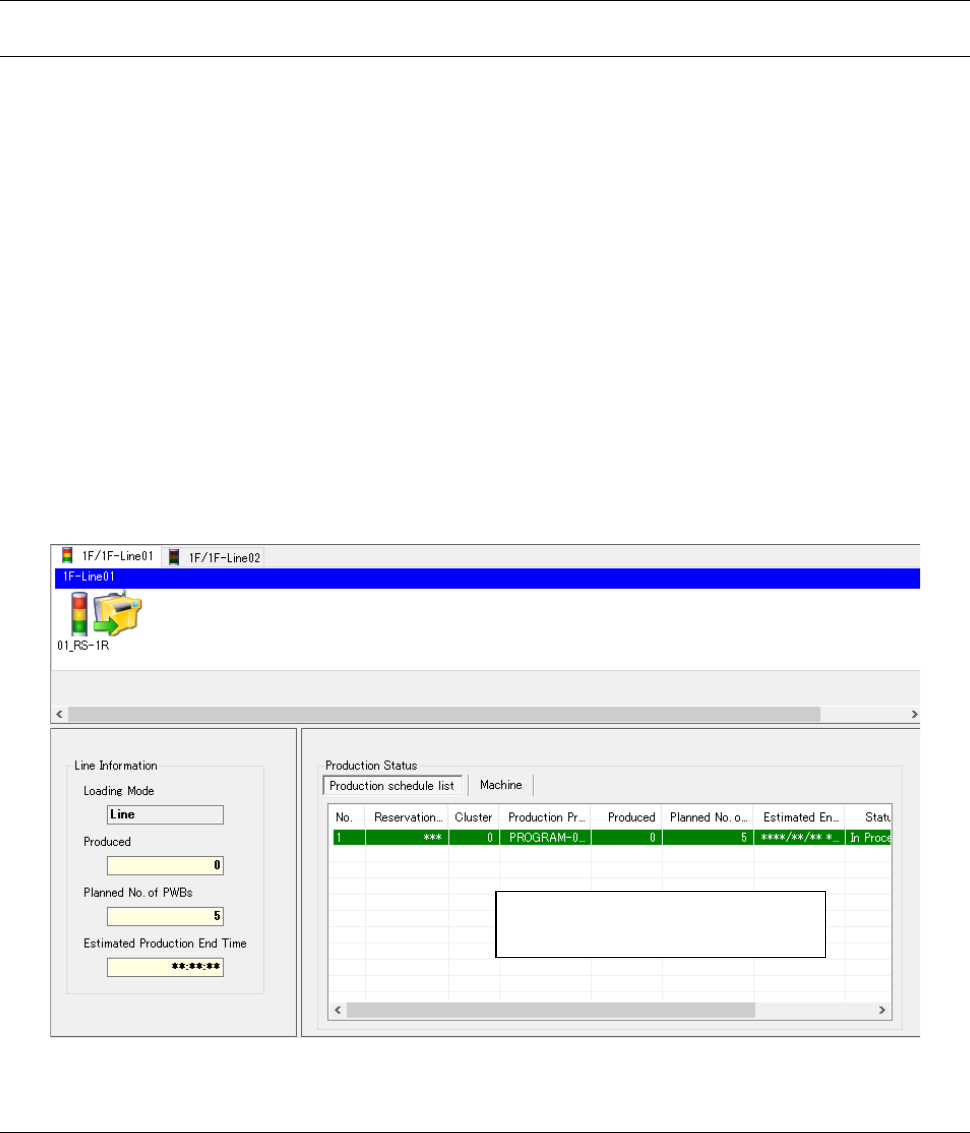
When a production program is downloaded to each machine normally, the downloading conditions
are displayed on the Line Monitor.
* When the license of the External Output function is effective and the check box “Check to see if
the External Output Monitor has started up” is checked off of the menu item “Set confirmation
message” described in Section 13.14.2.3 “Confirmation message setting,” the system checks
to see if the External Output Monitor has started up after closing the confirmation dialog box.
If the External Output Monitor does not start up yet, the confirmation dialog box for downloading
the production program appears on the screen again. To download the production program,
click the <Yes> button. The dialog box closes, and then the system starts downloading the
program.
Figure 13.9-5 Data displayed on the Line Monitor after production programs are downloaded
13.9.4.2 Upload
When the system finishes producing PWBs according to the downloaded production program, it
automatically starts uploading the production program.
* When you do not check the check box “Automatically upload finished programs” of the “Upload”
menu item on the “Set Environments” screen described in the Section 13.14.2.1, no production
program is uploaded.
Press the “Start” button of each
machine to start producing PWBs.
JaNets Instruction Manual 13. Program Downloader
13-19
13.9.4.3 Notes on production with a production line including an inspection
machine/printer
If there is not any information on a program to be used for production with an inspection
machine/printer in a production program to be downloaded, the system does not download any
data to the corresponding machine. Automatic uploading is performed according to the
requirements shown in Table 13.9-2.
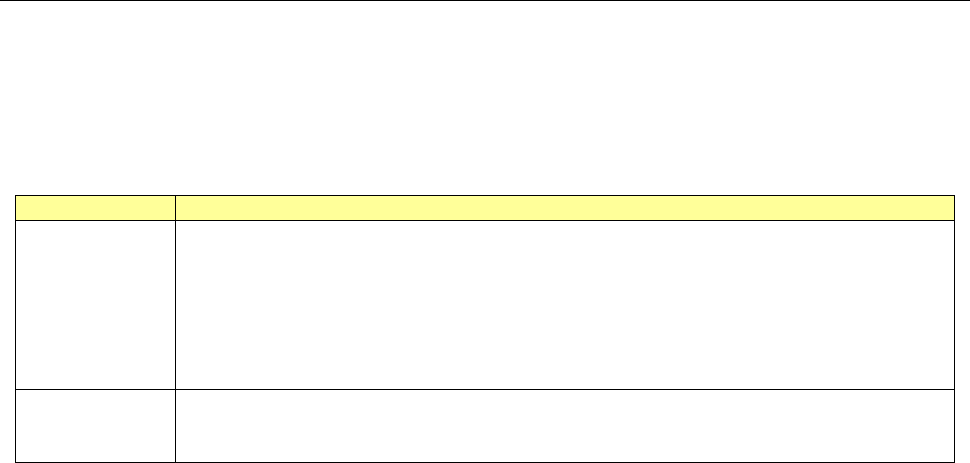
Table 13.9-2 Requirements for automatic uploading
if there is no program information to be used with a machine
Loading mode
Whether automatic uploading can be performed or not
Line
The system uploads data unless the last machine of a production line is an inspection machine.
When the last machine is an inspection machine, the system uploads data only if program
information to be used for production with the machine is located in a production program.
If there is no information, the system does not upload data. Open the “Terminate Production”
dialog box described in Section “Forced termination of production” (13.9.5), and then check the
“Change status to over” radio button and the “Download next production program reserved”
check box, and upload data.
Machine
The system does not upload data. Open the “Machine Direct Download/Upload” dialog box as
described in Section “Machine individual download/upload” (13.9.6), and then upload data in the
production completed state.
JaNets Instruction Manual 13. Program Downloader
13-20
13.9.5 Forced termination of production
The “Termination Production” command terminates PWB production of the active production line
even though the number of produced PWBs does not reach the planned number of PWBs to be
produced set in a downloaded production program. Note that this operation is available only if all
machines of the production line are put in the “production waiting state.”
Select the “Production” command from the menu bar, and then the “Termination Production”
command from the “Production” menu (or click the “ ” tool button of the toolbar), the following
dialog box appears on the screen.
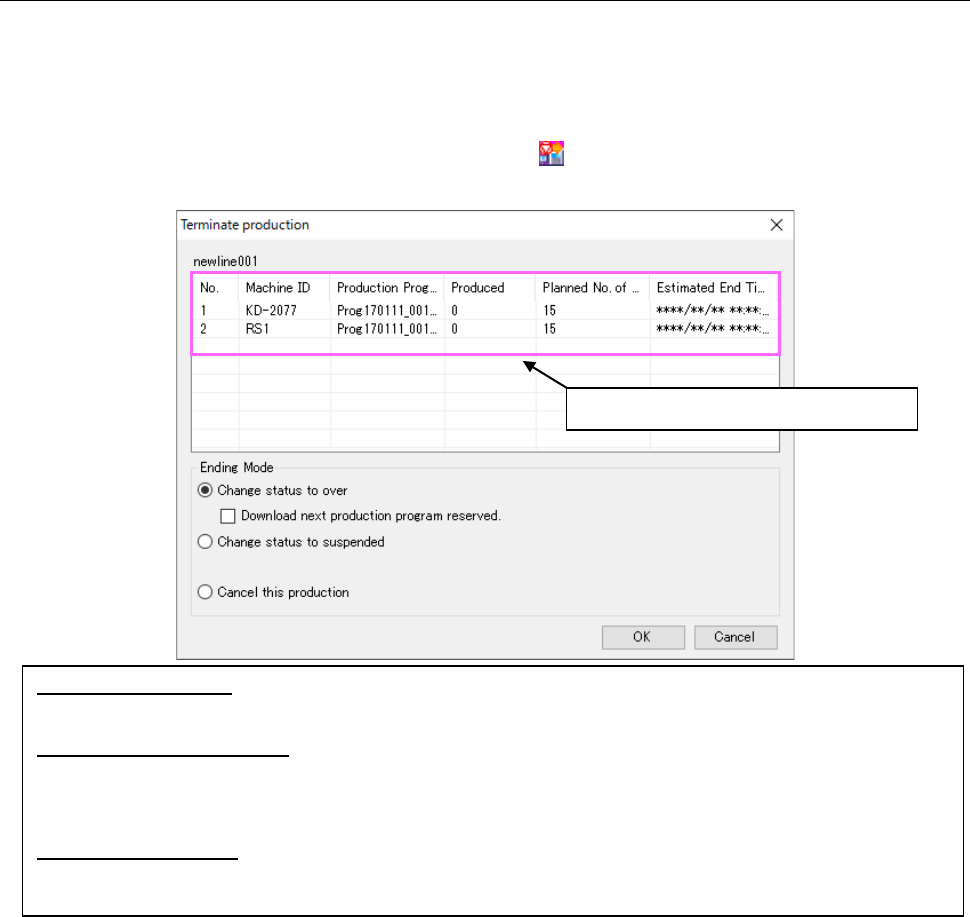
Figure 13.9-6 “Terminate production” dialog box
In “Production status”, the items other than “Status” in “13.5.3.3 Machine production status” of the
machine production status are displayed. The contents of the settings in “13.15.2 Production
status of machine” of the display item setting are not incorporated.
* When you select the radio button either “Change status to over” or “Change status to
suspended,” the system uploads a production program from each machine of the production
line.
* When the production program that was uploaded in the status of “Terminate in the status on the
way of production” is downloaded again, this production program will not be downloaded into
RX-7 series. The download processing checks whether RX-7 series can continue online
production. Therefore, to produce PWBs on the way of production in succession, do not cancel
the production program on the RX-7 series side or do not set another production program.
Otherwise, production cannot be continued.
* If all machines of a production line do not produce PWBs according to the same production
program when production is set to be performed according to a production program, the check
box “Download next production program reserved.” is disabled. When all machines of a
production line do not produce PWBs according to the same reservation file when production is
Change status to over:
Terminates the PWB production by supposing that it is finished (the production result is saved too). * You cannot
select this radio button during PWB production.
Change status to suspended:
Terminates the PWB production by saving the result of production quit in the middle. When you download the
production program again, you can start the production from the state prior to uploading. You can also forcibly
change the status of the production to “Over”.
* You cannot select this radio button during PWB production.
Cancel this production:
Restores the PWB production condition to the state prior to uploading of the production program, and cancels the
production. Uploading operation is not supposed to be performed (the production result is not saved either).
“Production status” is displayed here.