JANETS_INM.pdf - 第518页
JaNets Instr ucti on Man ual 13 . Program D ownloa der 13 - 22 13.9.7 Changing the planned number of PWBs to be produce d (from the menu) Form the men u, it is poss ible to chang e the planne d number of PWBs b y select …
JaNets Instruction Manual 13. Program Downloader
13-21
set to be performed according to a reservation file, the check box “Download next production
program reserved.” is disabled
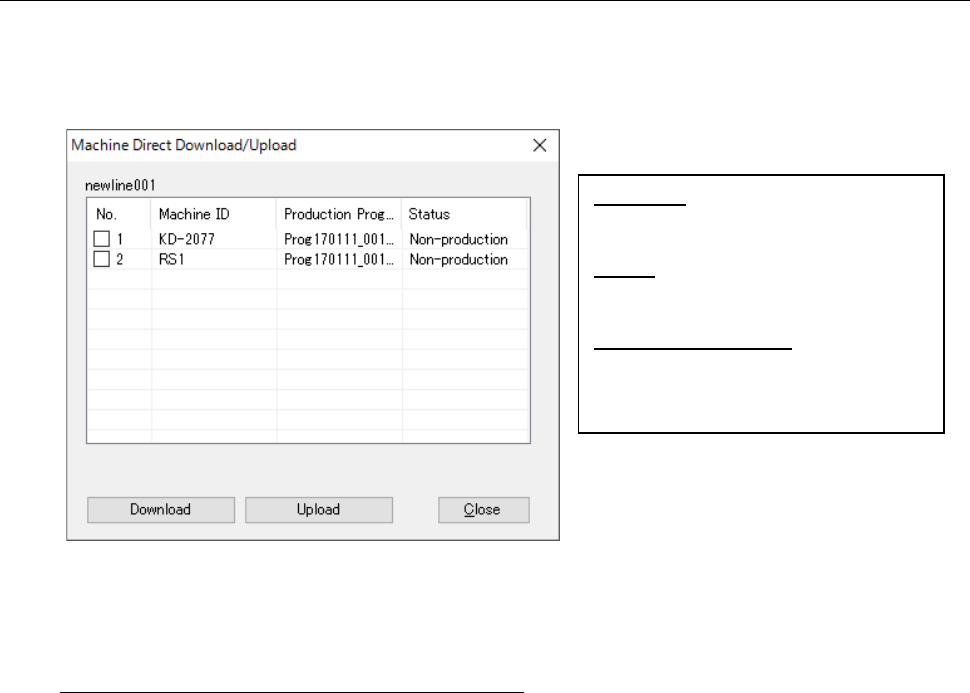
13.9.6 Machine individual download/upload
Specify a machine of the active production line to download or upload each production program
downloaded to the machine. When you select the “Production” command from the menu bar, and
then the “Individual Machine” command from the “Production” menu, the following dialog box
appears on the screen.
Figure 13.9-7 “Machine Direct Download/Upload” dialog box
* Individual download cannot be performed to an RX-7 series.
Force-termination function for individual uploading
To force the machine that has not produced the planned number of PWBs by itself to switch a
production program with another one, put a checkmark in the “Change status to over” check box,
and then click the <Upload> button. If a production program is already uploaded or if all lines have
finished using the production program, the system executes the combination process for the
production programs. If the successive machine does not finish using the production program, the
system waits for the successive machine to finish using the production program, and then
combines the production programs. When the system finishes combining the production programs,
it disables the <Download> button and <Upload> button, and then closes the dialog box shown
above. Next, the system downloads the next production program to the selected machine. (If the
machine finishes using the last production program, the system terminates PWB production.)
* The “Change status to over” check box is displayed only when the “Machine” radio button is
selected as the “Loading Mode.” It is not displayed when the “Line” radio button is selected.
* To update the production status of a reservation file when the system closes the dialog box, the
system disables these two buttons, <Download> button and <Upload> button when it finishes
executing the process for terminating production of an individual machine forcibly.
Download:
Downloads a production program to the
selected machine.
Upload:
Uploads a production program from the
selected machine.
Change status to over
:
Uploads a production program to the
selected machine, and then puts the
machine in a production completed state.
JaNets Instruction Manual 13. Program Downloader
13-22
13.9.7 Changing the planned number of PWBs to be produced (from the menu)
Form the menu, it is possible to change the planned number of PWBs by selecting “File” –
“Change of planned number of PWBs” only when production is performed by selecting production
program.
You cannot execute this process for the production line that is producing PWBs.
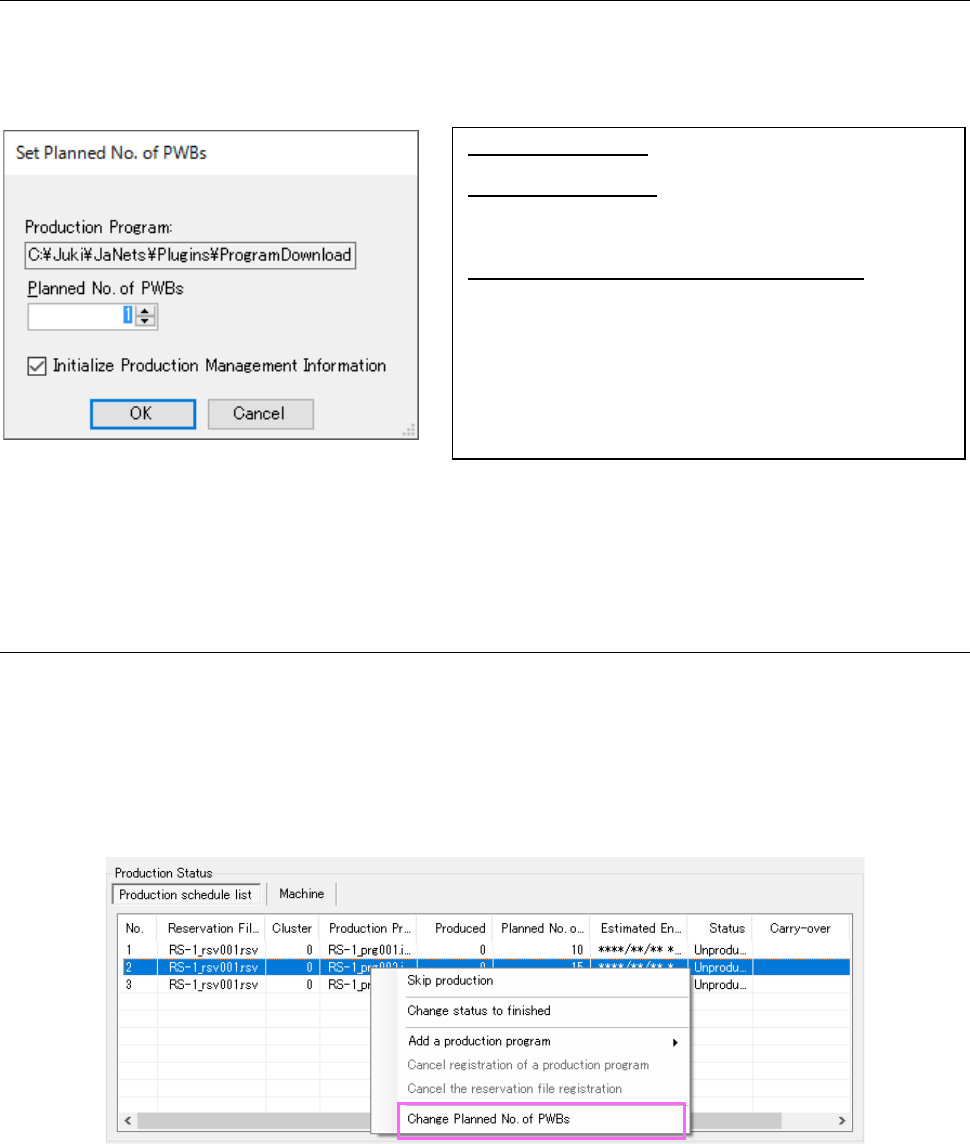
Figure 13.9-8 “Set Planned No. of PWBs” dialog box
* The planned number of PWBs cannot be changed for the line in which an RX-7series exists.
13.9.8 Changing the planned number of PWBs to be produced (Production
schedule list)
Changing the planned number of PWBs to be produced (from the Production schedule list)
Select the menu command [Change Planned No. of PWBs] from the menu displayed when you
select a production program in the “Production schedule list” and then click the mouse right button.
* This function for changing the planned number of PWBs to be produced is supported with the
following machine models only: RS-1 series, RX-6 series, RX-7 series, KE-3000 series and
JM-100.
Figure 13.9-9 [Change Planned No. of PWBs] menu command
<Notes>
[1] When you select two or more production programs, the [Change Planned No. of PWBs] menu
command is disactivated, and you cannot select it.
[2] If any of the following headers are not displayed in the “Production schedule list”: “Production
program,” “Produced,” “Planned no. of” and “Status,” the [Change Planned No. of PWBs]
menu command is disactivated, and you cannot select it.
Production Program:
Name of a production program to be downloaded.
Planned No. of PWBs:
Enter the number of PWBs you want to produce. You
cannot set any value smaller than the current number of
PWBs already produced.
Initialize Production Management Information:
When this check box is checked, the production status is
changed to “Unproduced” after you press the “OK” button.
When you do not check this check box, the production
status is changed to “Suspended” after you press the “OK”
button. However, when the number of PWBs already
produced is “0,” the production status becomes
“Unproduced” even though you press the “OK” button when
this check box is not checked.
JaNets Instruction Manual 13. Program Downloader
13-23
[3] If “Suspended” is displayed in the “Status” column and there is a machine that finished
production as the production result, the [Change Planned No. of PWBs] menu command is
disactivated, and you cannot select it.
[4] If “In Process” is displayed in the “Status” column and there is a machine model that does not
support change of the number of PWBs to be produced during production, the [Change
Planned No. of PWBs] menu command is disactivated, and you cannot select it.
[5] If “In Process” is displayed in the “Status” column and the total of the value of the menu item
“Planned No. of PWBs” and that of the menu item “Threshold value for the minimum number
of PWBs you can specify” exceeds the value of the menu item “Produced,” the [Change
Planned No. of PWBs] menu command is disactivated, and you cannot select it.
13.9.8.1 Executing the [Change Planned No. of PWBs] command
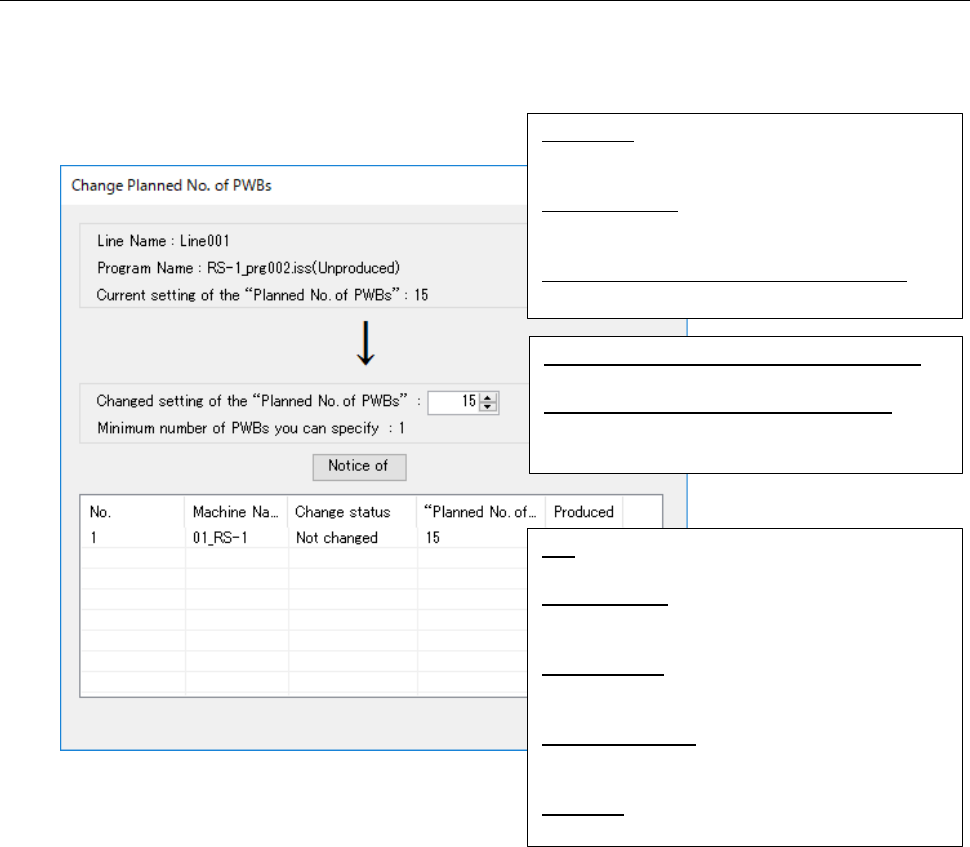
When you specify the number of PWBs you plan to produce in the “Change setting of the ‘Planned
No. of PWBs’” field, and then click the < Notice of> button, the number you specified is notified to
the machine, and you can update the number of PWBs to be produced.
Figure 13.9-10 “Change Planned No. of PWBs”
screen
<Notes>
[1] When “In Process” is displayed in the “Status” column, the following items are automatically
updated: “Minimum number of PWBs you can specify,” “Planned No. of…” and “Planned…”
[2] When the planned number of PWBs to be produced is changed by the machine successfully,
the value displayed in the “Planned No. of…” column is not updated automatically.
[3] If “In Progress” is displayed in the “Status” column, and the total of the value of the menu item
“Planned No. of PWBs” and that of the menu item “Threshold value for the minimum number
of PWBs you can specify” exceeds the value of the menu item “Produced,” the <Notify of>
button is disactivated and you cannot change the planned number of PWBs to be produced.
Line Name:
Line name whose planned number of PWBs is
to be changed
Program Name:
Name of a production program whose planned
number of PWBs is to be changed
Current setting of the “Planned No. of PWBs”:
Current setting of the planned number of PWBs
Changed setting of the “Planned No. of PWBs”:
Planned number of PWBs you change to
Minimum number of PWBs you can specify:
Minimum number of PWBs to be produced you
can specify
No.:
Number counted from the first machine
Machine Name:
Name of a machine that exists in the selected
production line
Change status:
Change status of the planned number of PWBs
to be produced
“Planned No. of…”:
Planned number of PWBs to be produced by
the machine
Produced:
Number of PWBs already produced