JANETS_INM.pdf - 第534页
JaNets Instr ucti on Man ual 13 . Program D ownloa der 13 - 38 13.9.11.6 Displaying the Program schedule list after adding a program A program spec ified t o be added is a dded to t he selected po sition. “***” is displa…
JaNets Instruction Manual 13. Program Downloader
13-37
If this message appears on the screen, switch the current active production line to a
production line for a program to be added as an active display production line, and then
perform the program addition operation again.
<Check of the line configuration>
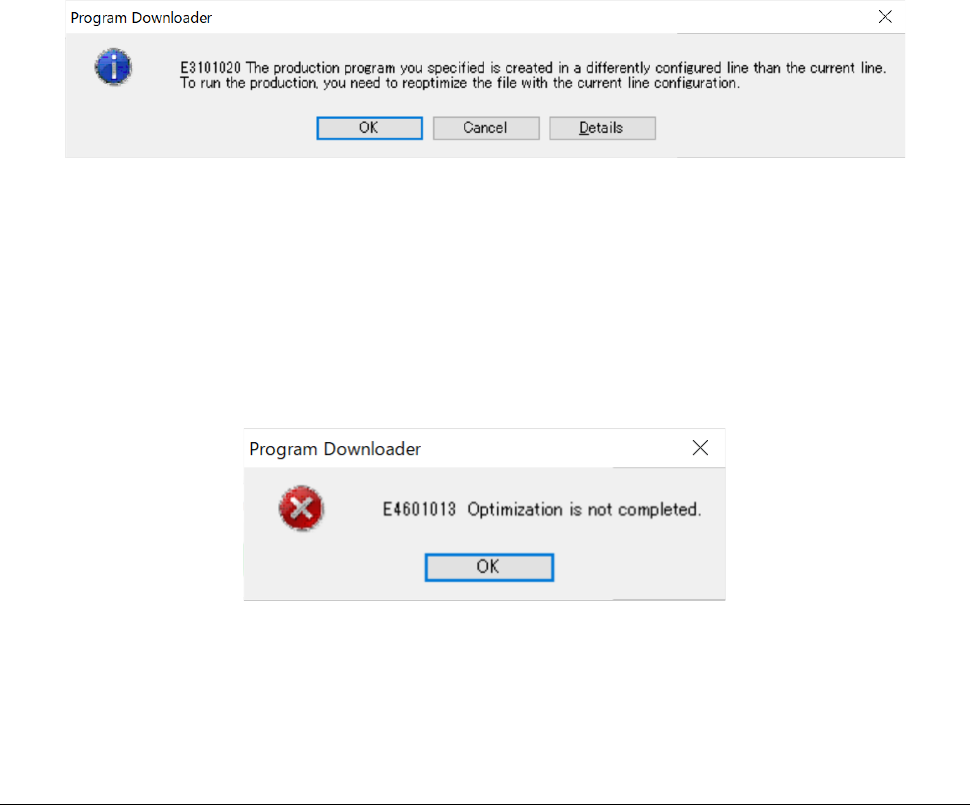
If the name of a production line for the selected production program is the same as that of the
current production line, but their configurations (such as the number of machines and a
machine type) are different from each other, the message shown below appears on the
screen.
Figure 13.9-33 If the production line configuration is different
If this message appears on the screen, optimize the program to be added, and then perform a
program adding operation again.
<Check to see if the selected production program is optimized>
If the selected production program is not optimized, the error message shown below appears
on the screen.
Figure 13.9-34 If the selected production program is not optimized
If this message appears on the screen, optimize a program to be added, and then perform the
program addition operation again.
13.9.11.5 Setting of the planned number of PWBs to be produced
Specify the number of PWBs to be produced. You can specify a value between 1 and 99999.
JaNets Instruction Manual 13. Program Downloader
13-38
13.9.11.6 Displaying the Program schedule list after adding a program
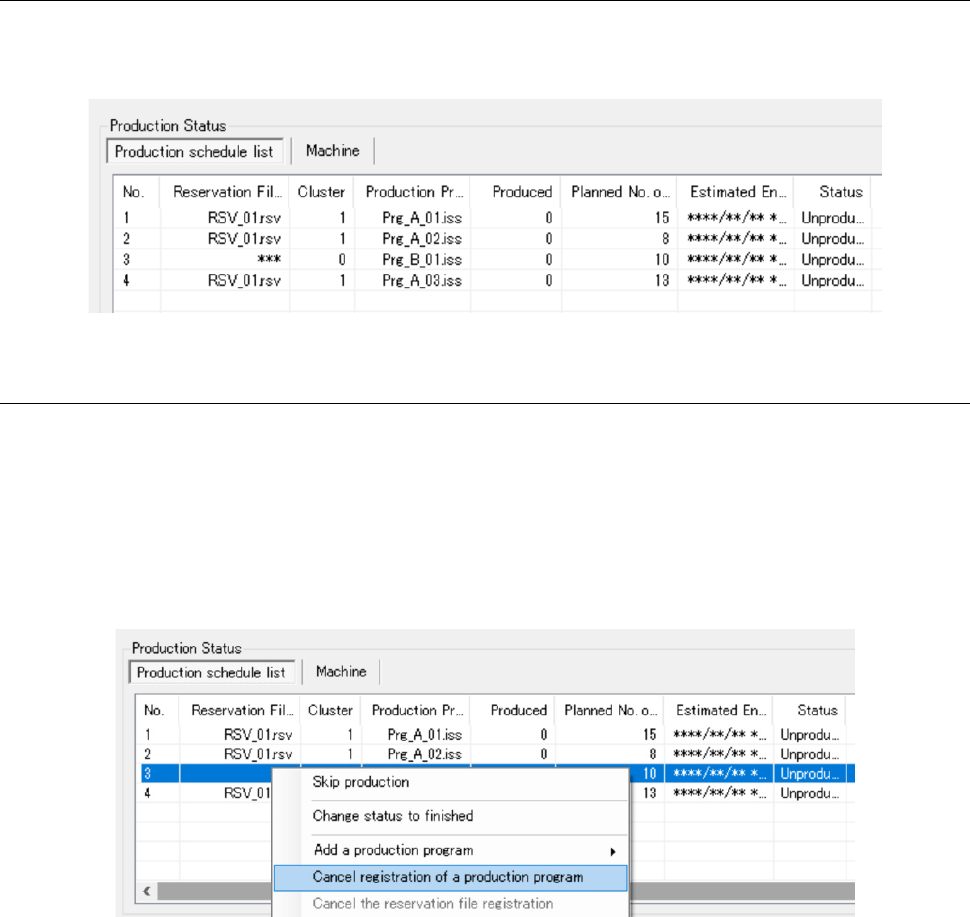
A program specified to be added is added to the selected position. “***” is displayed in the
“Reservation File” column fixedly, and “0” is displayed in the “Cluster” column fixedly.
Figure 13.9-35 Production schedule list displayed after a program is added
13.9.11.7 Canceling addition of a program
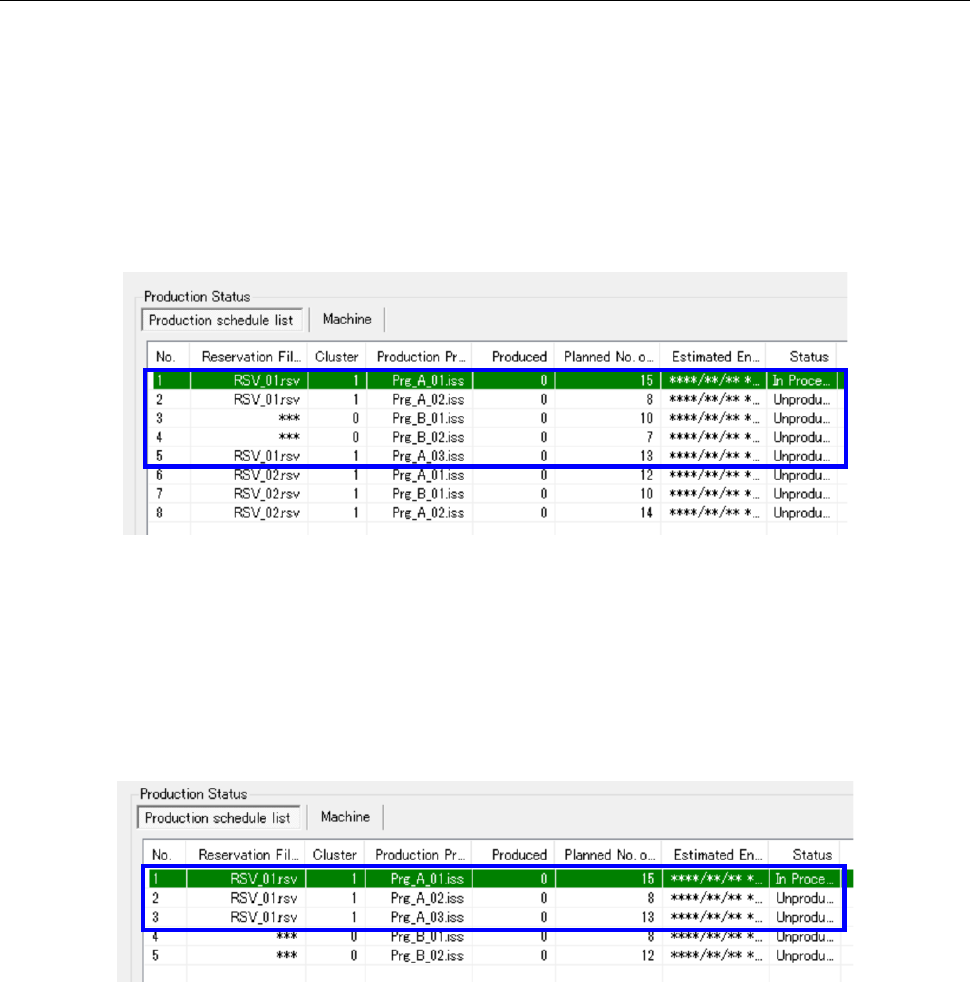
When you click a program whose addition you want to cancel with the mouse right button, and
then click the menu command [Cancel registration of a production program] on the displayed
menu, the selected program is deleted from the Production schedule list. You cannot cancel
addition of any production program contained in a reservation file (program whose corresponding
reservation file name is displayed in the “Reservation File” column of the Production schedule list).
In addition, you cannot cancel addition of a program whose production status is not “Unproduced”
either.
Figure 13.9-36 Canceling addition of a production program
JaNets Instruction Manual 13. Program Downloader
13-39
13.9.11.8 Switching a machine model to another one when an added program exists
See Section 13.9.10.8 “Requirements for switching production to the next reservation file” also.
If a program is added to a reservation file
When a production program is added to a reservation file (RSV_01.rsv) as shown in Figure
13.9-37, the system switches the current production to production that is to be performed
according to the next reservation file (RSV_02.rsv) only if production specified with all
production programs contained in the reservation file and production specified with those
added to the reservation file (indicated with the blue frame in the figure) finished.
Figure 13.9-37 When a program is added to a reservation file
When a program is added not to a reservation file
When a production program is added below the last program of a reservation file as shown in
Figure 13.9-38, the system switch the current production to production that is to be performed
according to the added program (Prg_B_01.iss) only if production with all production
programs of a reservation file (indicated with the blue frame in the figure) finished.
Figure 13.9-38 When a program is added below the last program of a reservation file
When a production program is added below the last program of a reservation file as shown in
Figure 13.9-39, and then a reservation file is registered, the system switches the current
production to production that is to be performed according to the next reservation file only if
production with all programs added between the reservation file and the next reservation file
(indicated with the blue frame in the figure) finished.