JANETS_INM.pdf - 第538页
JaNets Instr ucti on Man ual 13 . Program D ownloa der 13 - 42 13.10.1.2 Code format that can b e used as a se rial code All code for mats sup ported with a c ode re ader can be use d. 13.10.1.3 Character types that can …
JaNets Instruction Manual 13. Program Downloader
13-41
13.9.12 Clearing the production schedule list
When you select the [File] command from the menu, and then the [Clear the production schedule
list] command, information on a file registered in the active line can be cleared.
13.9.13 Notes on production with a production line including an RX-7 series
machine
13.9.13.1 Skip processing of a reservation file during production
When PWB production is performed with a reservation file, the “production skip” function allows
you to set the setting item “Skip production” of a production program to ON to skip the production
program. However, note that the production status of the skipped program is changed depending
on the conditions described below after the next program to be used for production is downloaded.
If the number of PWBs produced with any of the machines of the production line is “1” or a larger
number
The production status is changed from “Suspended” to “Production Finish.”
If the number of PWBs produced with all machines of the production line is “0” (zero)
The production status is changed from “Suspended” to “Unproduced.”
13.9.13.2 Re-downloading processing of a reservation file during production
When you download another production program after selecting the “Change status to suspended”
radio button on the “Termination production” screen, and then uploading one production program,
the status of the uploaded program whose production is not completed yet is changed depending
on the conditions described below.
If the number of PWBs produced with any of the machines of the production line is “1” or a larger
number
The production status is changed from “Suspended” to “Production Finish.”
If the number of PWBs produced with all machines of the production line is “0” (zero)
The production status is changed from “Suspended” to “Unproduced.”
13.10 Managing a Production Program with a Seral Code
This is a function for managing a production program with associating it with a serial code. By
reading a serial code with a code reader, you can open a production program associated with the
read serial code.
* To use this function, you have to check the “Use a serial code to load a production program”
check box on the screen displayed by selecting [Set Environments] – [Management of a
production program] of the Program Downloader (see Section 13.14.2.7).
13.10.1 Notes
13.10.1.1 Code reader you can use
The system supports a code reader to be connected via a USB connector.
JaNets Instruction Manual 13. Program Downloader
13-42
13.10.1.2 Code format that can be used as a serial code
All code formats supported with a code reader can be used.
13.10.1.3 Character types that can be used as a serial code
One-byte alphanumeric characters can be used as a serial code. None of double-byte
characters, binary data and control characters can be used.
Up to 250 characters can be used as a serial code.
13.10.2 Procedure for associating a serial code with a production program (local)
To associate a production program saved locally with a serial code, you have to select the “Local”
radio button for the menu item “Search” of the setting item “Management of production program”
on the “Set Environments” screen of the Program Downloader (see Section 13.14.2.7).
13.10.2.1 Calling the “Association of a serial code” screen
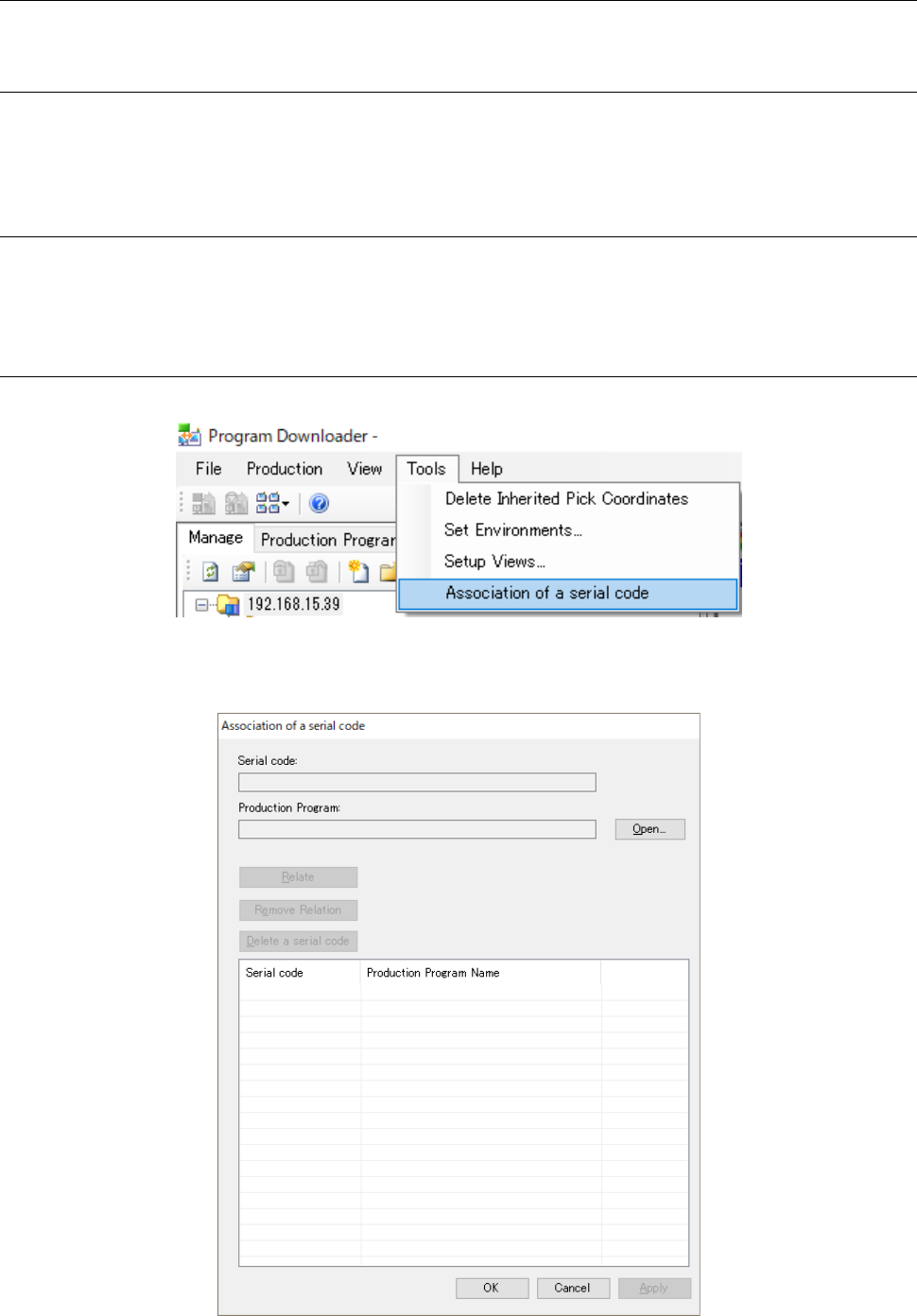
Select the menu commands: [Tools] – [Association of a serial code] from the menu bar.
Figure 13.10-1 [Association of a serial code] menu command
The “Association of a serial code” screen appears.
Figure 13.10-2 “Association of a serial code” screen (local)
JaNets Instruction Manual 13. Program Downloader
13-43
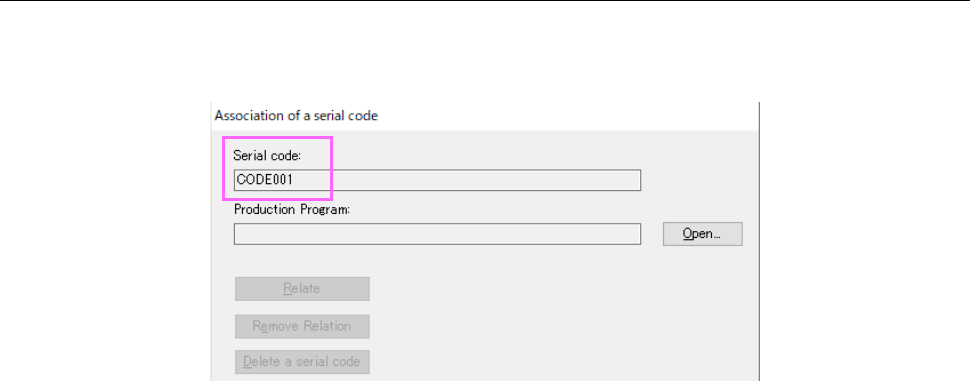
13.10.2.2 Reading a serial code
Read a serial code to be used for association with a production program with a code reader. The
read code is displayed on the “Association of a serial code” screen.
Figure 13.10-3 Screen displayed after a serial code is read