JANETS_INM.pdf - 第548页
JaNets Instr ucti on Man ual 13 . Program D ownloa der 13 - 52 13.11.4 Full - level repl enishm ent The residual n umber is equalize d to the “I nitial va lue.” Select lines of t he component for sett ing change (m ultip…
JaNets Instruction Manual 13. Program Downloader
13-51
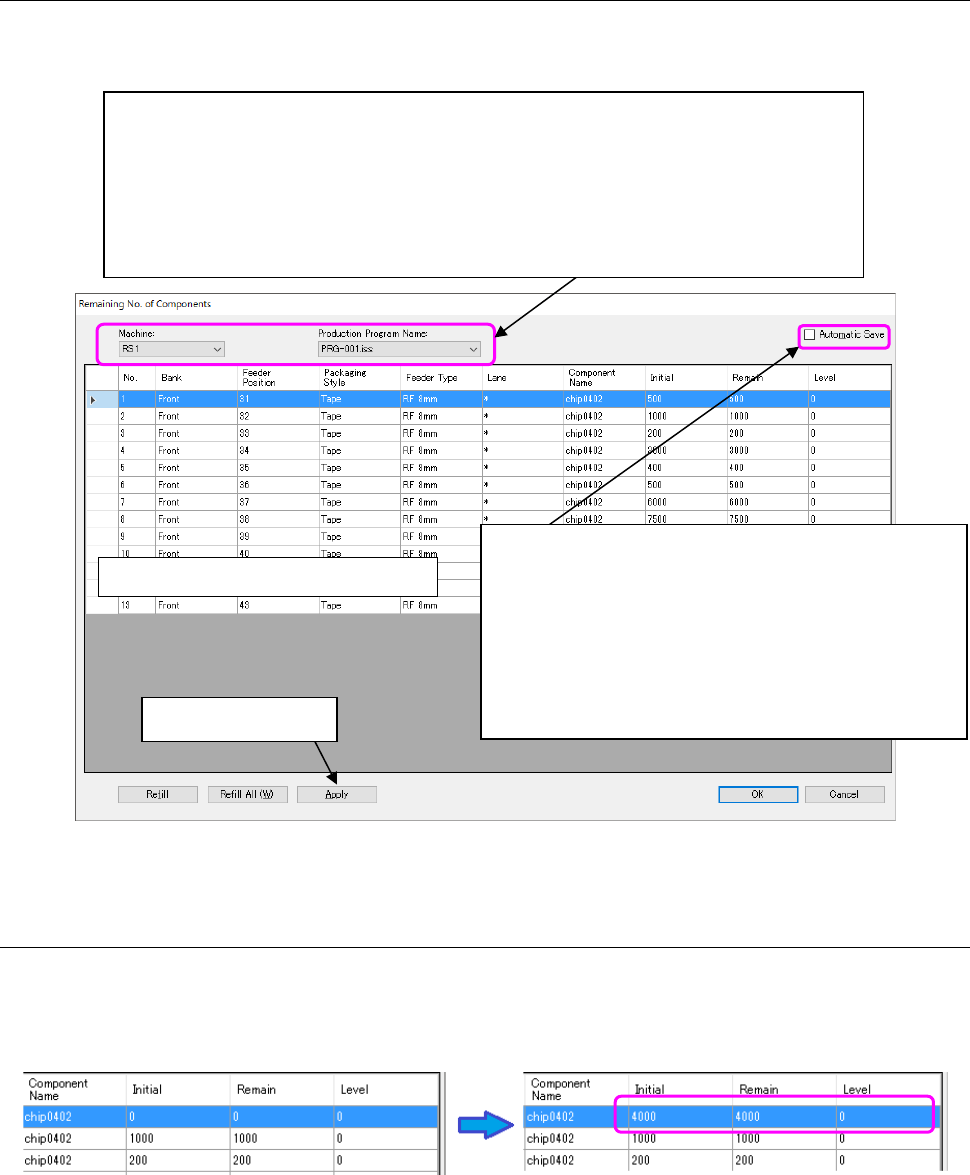
13.11.2 Number-of-components setting
If downloading is not yet performed, it is possible to change only the initial value, residual number
and the level setting for each production program.
Figure 13.11-2 Selection of machine or production program
13.11.3 Change of the initial value/residual number/level
Enter a numeric value directly by clicking the “Initial value” cell. After the initial value is changed,
this initial value is incorporated into the residual number. Likewise, the “Residual number” and
“Level” cells can be changed.
Figure 13.11-3 Change of initial value
Area of number-of-components data
Select a machine displayed by the “Machine” combo box and select a production program
for setting the number of components in the table of reserved production programs that is
displayed by the “Production program” combo box.
After this selection, the data on the selected machine and production program is displayed
in the area of “Number-of-components” data.
Select each cell of the line of the component whose setting is to be changed, and then save
the contents by “Application” after entering each value.
Auto saving:
This function saves the number-of-components setting
automatically when the machine or production program is
changed over to another on the number-of-components
display screen. Unless this item is checked off, a dada
updating check message is displayed when the machine
or production program is changed over.
“Application” button
JaNets Instruction Manual 13. Program Downloader
13-52
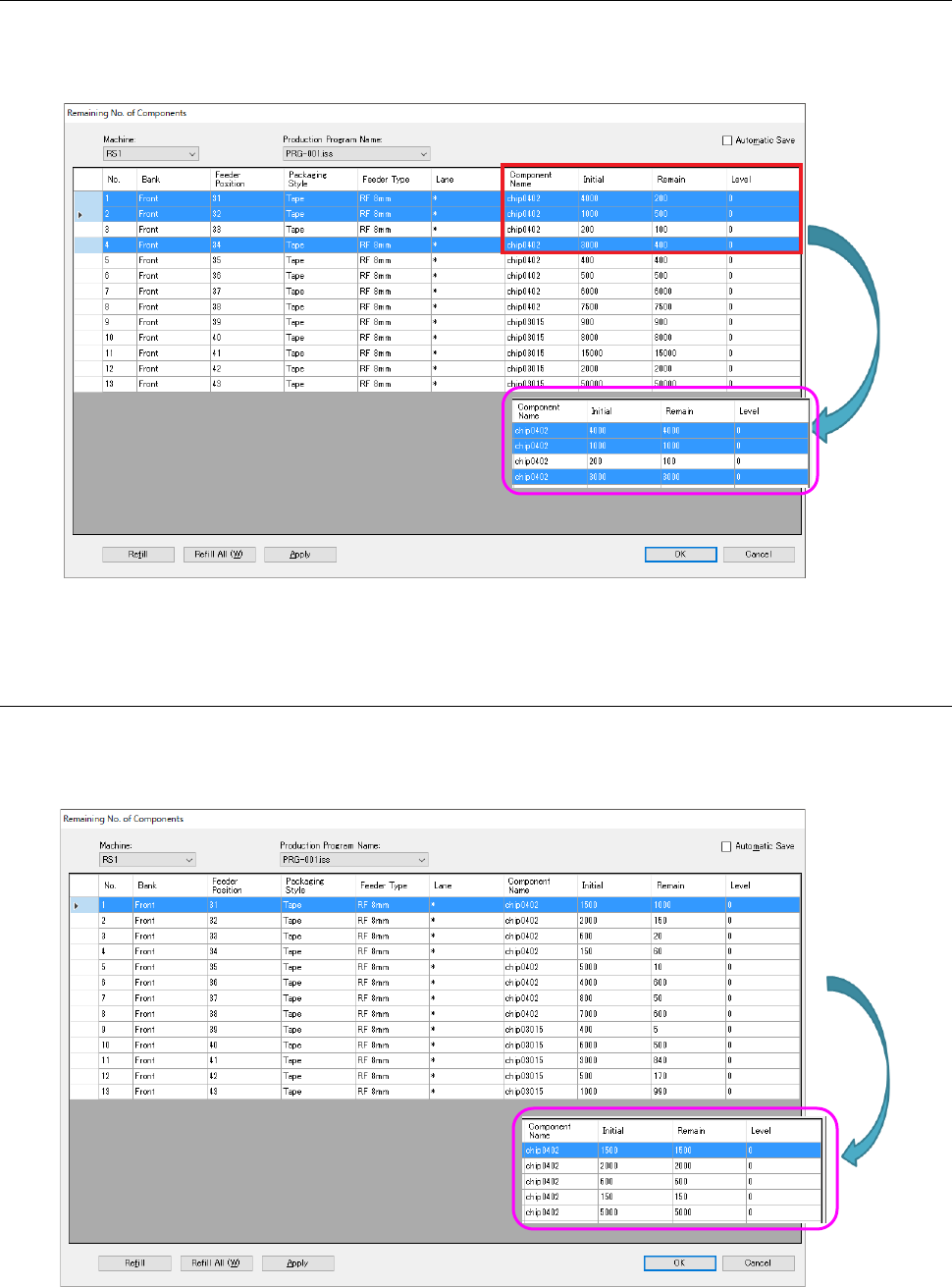
13.11.4 Full-level replenishment
The residual number is equalized to the “Initial value.” Select lines of the component for setting
change (multiple lines are selectable). Then, the residual number of components selected by
“Full-level replenishment” are replenished by initial value. The level is not changed.
Figure 13.11-4 Full-level replenishment
13.11.5 All full-level replenishment
All the components are replenished up to the full level by “All full-level replenishment” button
without selecting any component.
Even if any component has been selected, all the components are replenished.
Figure 13.11-5 All full-level replenishment
JaNets Instruction Manual 13. Program Downloader
13-53
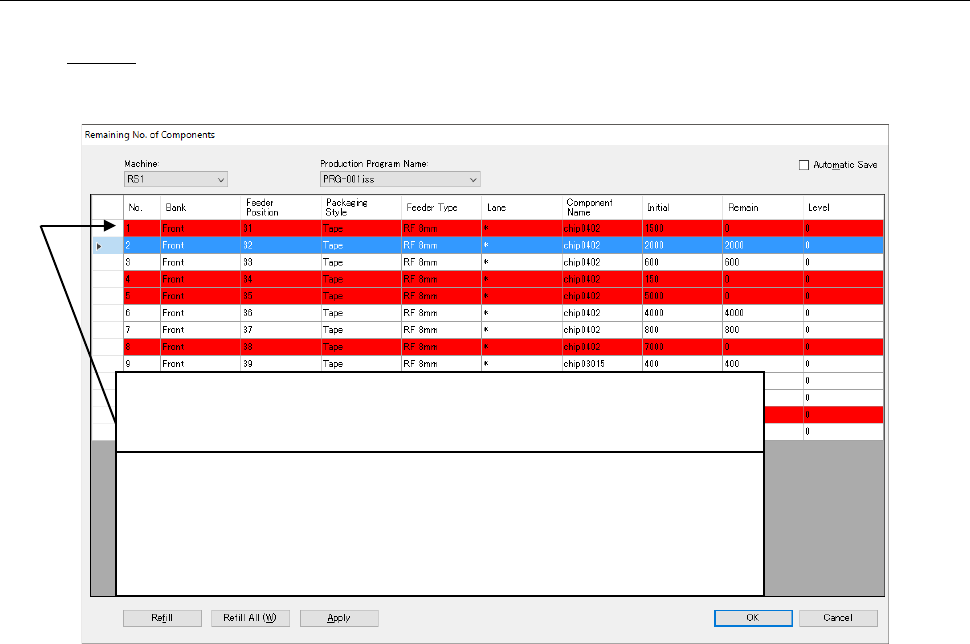
13.12 Automatic Display of a Component Run-Out Error
When you check the check box “Show component run out information automatically” for the
“Display” menu item of the “Set Environments” screen, the screen shown below is automatically
displayed when components run out at a machine.
Figure 13.12-1 “Remaining No. of components” dialog box
(when a component run-out error occurs)
* When you select the “Close” button, this screen closes, but if a new
component run-out error occurs when components of any other type already
run out, this screen automatically appears.
* Only the components that ran out are displayed.
* If the initial value is not “0” but the residual number is “0”, the column is
indicated in red.
A machine at which components run out is displayed on the screen by default.
If components run out at two or more machines, the machine at which
components run out first is displayed on the screen.