JANETS_INM.pdf - 第549页
JaNets Instr ucti on Man ual 13 . Program D ownloa der 13 - 53 13.12 Au tomatic Dis play of a Component Run - Out Er ror When you ch eck the ch eck box “Sh ow comp onent r un out inform ation a ut omat ical ly” for the “…
JaNets Instruction Manual 13. Program Downloader
13-52
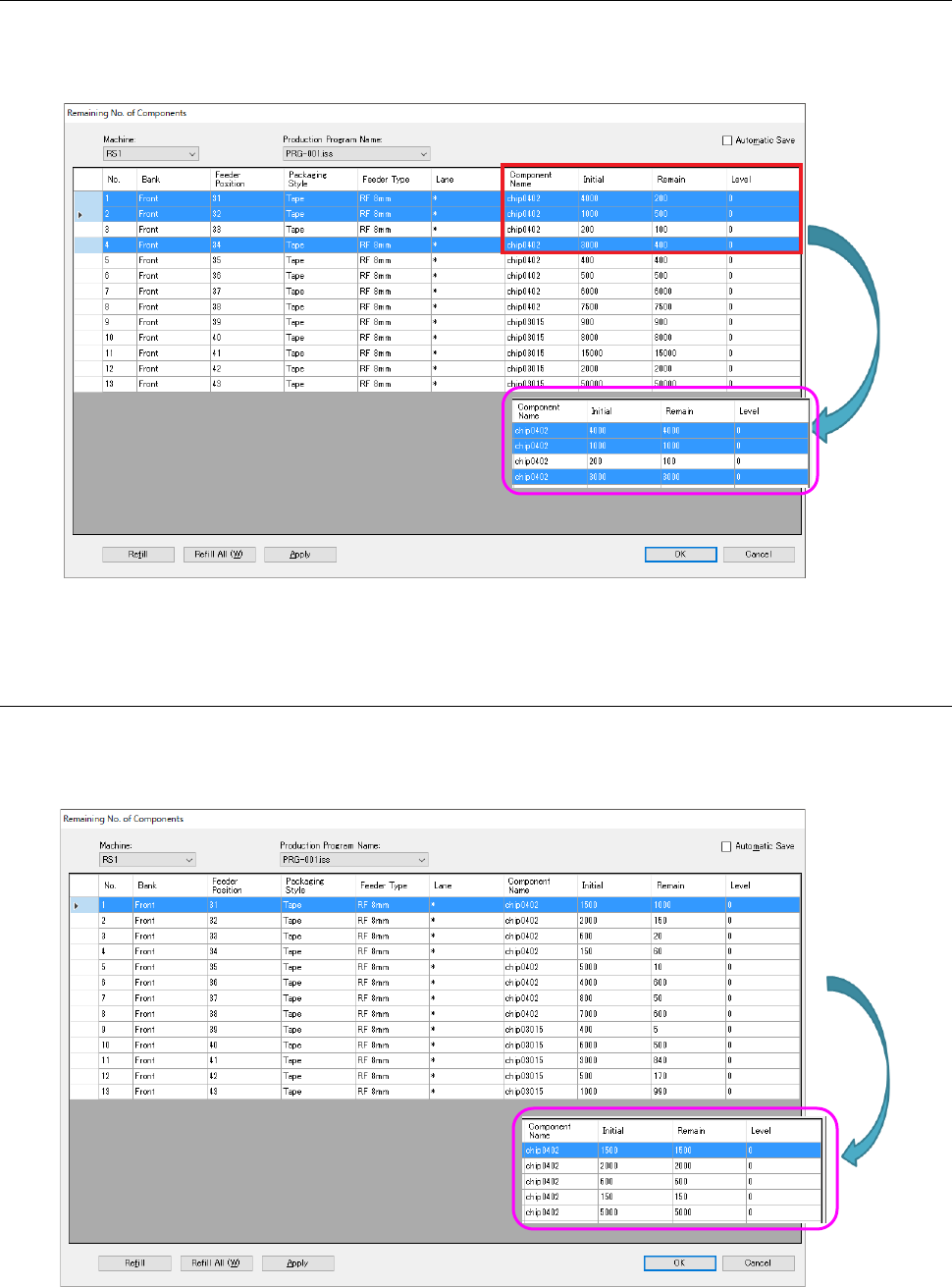
13.11.4 Full-level replenishment
The residual number is equalized to the “Initial value.” Select lines of the component for setting
change (multiple lines are selectable). Then, the residual number of components selected by
“Full-level replenishment” are replenished by initial value. The level is not changed.
Figure 13.11-4 Full-level replenishment
13.11.5 All full-level replenishment
All the components are replenished up to the full level by “All full-level replenishment” button
without selecting any component.
Even if any component has been selected, all the components are replenished.
Figure 13.11-5 All full-level replenishment
JaNets Instruction Manual 13. Program Downloader
13-53
13.12 Automatic Display of a Component Run-Out Error
When you check the check box “Show component run out information automatically” for the
“Display” menu item of the “Set Environments” screen, the screen shown below is automatically
displayed when components run out at a machine.
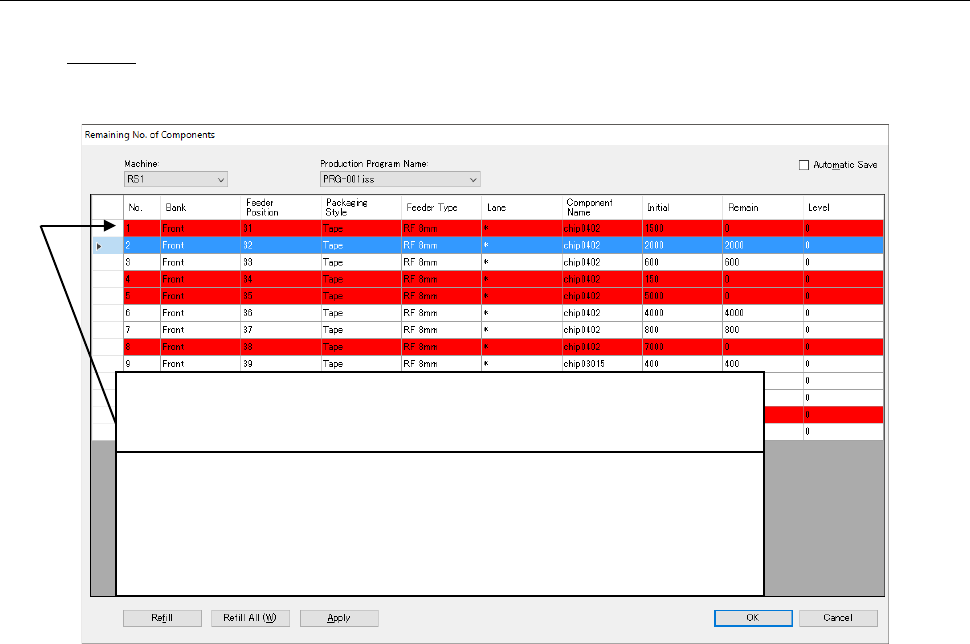
Figure 13.12-1 “Remaining No. of components” dialog box
(when a component run-out error occurs)
* When you select the “Close” button, this screen closes, but if a new
component run-out error occurs when components of any other type already
run out, this screen automatically appears.
* Only the components that ran out are displayed.
* If the initial value is not “0” but the residual number is “0”, the column is
indicated in red.
A machine at which components run out is displayed on the screen by default.
If components run out at two or more machines, the machine at which
components run out first is displayed on the screen.
JaNets Instruction Manual 13. Program Downloader
13-54
13.13 Information on the Supervised Condition
When you select the “View” command from the menu bar, and then the “Supervising Condition”
command from the “View” menu, the system displays various types of information such as the
production management information of a machine that is producing PWBs and the machine
management information.
Note that this menu command cannot be selected unless any production program is downloaded
to the active production line
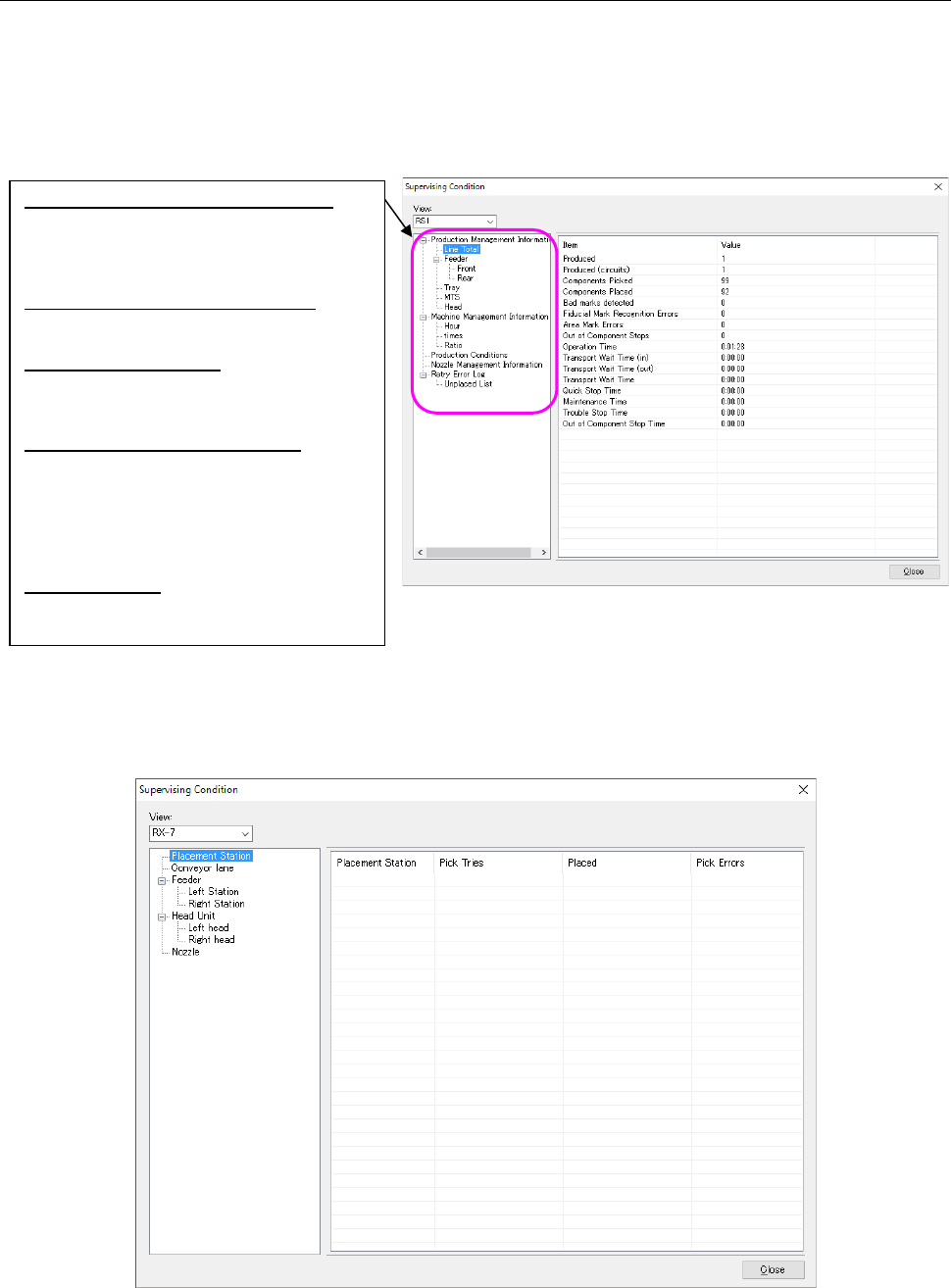
Figure 13.13-1 “Supervising Condition” dialog box
When an RX-7 series is a candidate for a display, machine management information, a production
condition, nozzle management information, and a retry error log are not displayed. Only the
information on placement of components for production is displayed. Moreover, the data currently
displayed is reset when production finishes.
Figure 13.13-2 “Supervising Condition” dialog box (RX-7/RX-7R)
Production Management Information:
Displays information on component
placement operations of PWB production.
This information is reset when the current
PWB production finishes.
Machine Management Information:
Displays information obtained when a
machine is operating. Data is accumulated.
Production Conditions:
Displays the conditions for producing
PWBs with the production program
downloaded at the present.
Nozzle Management Information:
Displays the number of times nozzles
were replaced, the number of component
pick-up operations that have been
performed and the number of component
mounting operations that have been
performed.
Retry Error Log:
Displays a log of errors that have occurred
at a machine.