JANETS_INM.pdf - 第584页
J aN et s Inst ructi on Manual 14 . Snapshot Tool 14 -5 14.3 Collecting files The system c oll ects f iles on the li st of ob jec ts to be c oll ected, g r oups them and c om p ress es i t in the f older sp eci fi ed in …
JaNets Instruction Manual 14. Snapshot Tool
14-4
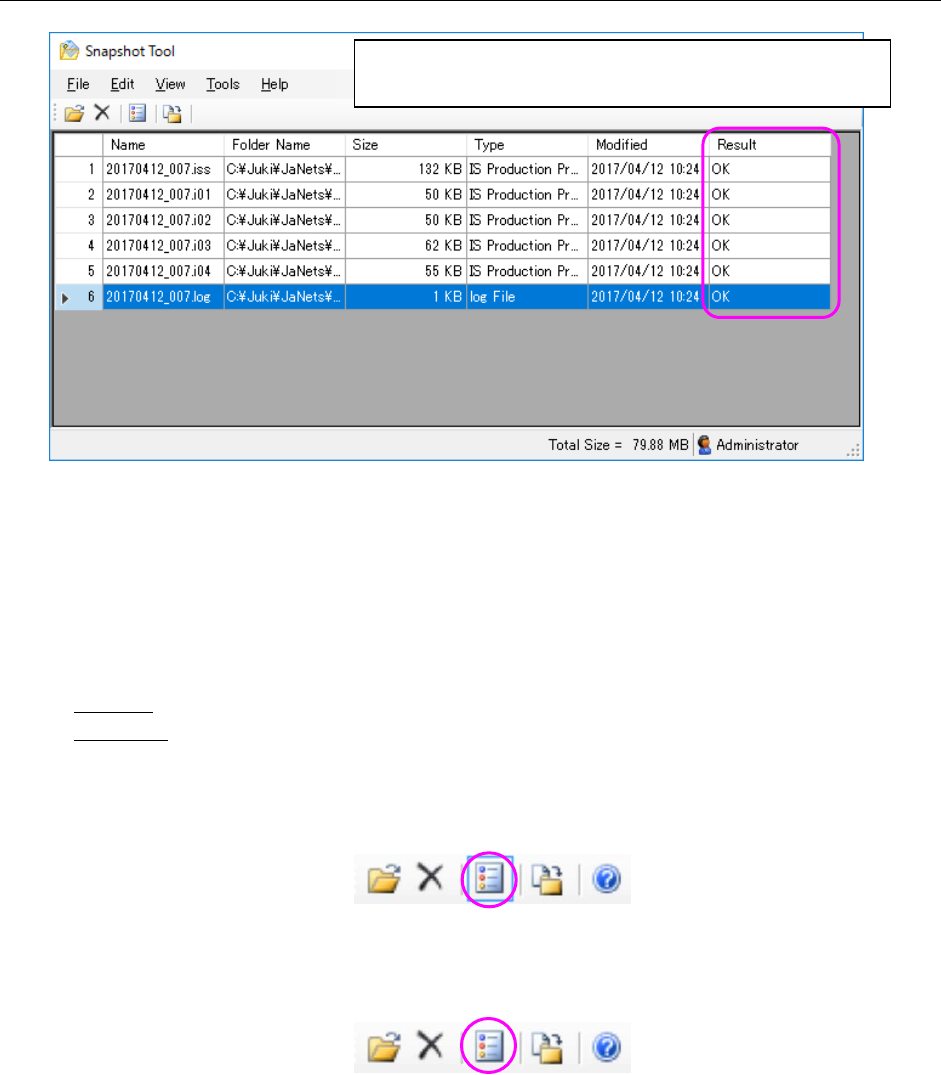
14.2.2.1 Display area of the list of objects to be collected
Figure 14.2-3 List of objects to be collected
W
hen the Snapshot Tool starts up, it automatically searches files to be collected and displays
them.
<
Supplementary description of the function for displaying the entire list of objects to be collected
or part of it>
Show all : Displays all collected files on the list.
Show part : Displays files other than JaNets environment files (whose
extension is specified to be collected on the “Set Environments” dialog box).
W
hen you select the [Show all] command, the icon is displayed as shown below.
Figure 14.2-4 Icon displayed when you select the [Show all] command
W
hen you select the [Show part] command, the icon is displayed as shown below.
Figure 14.2-5 Icon displayed when you select the [Show part] command
* A
s items displayed for each file on the screen, the system displays a file name (“Name”),
a
folder name under which the file is stored (“Folder Name”), the file size (“Size”), the file type
(“T
ype”), the update date and time (“Modified”) and the result (“Result”). The “Result” indicates
whether a file is collected successfully or not (OK/NG) when it is collected and compressed.
This field becomes blank for a file that is not collected yet or one added to the list after t
he
sy
stem collects files.
After collecting data, the system indicates whether it succeeds
in collecting data or not by displaying “OK” or “NG” here.
JaNets Instruction Manual 14. Snapshot Tool
14-5
14.3 Collecting files
The system collects files on the list of objects to be collected, groups them and compresses it in
the folder specified in the “Compressed File Destination Folder” combo box.
14.3.1 Starting collecting files
When you select the [Collect] command or the “Collect” tool ( ) of the toolbar, the system starts
collecting files. When it starts collecting files, it displays the message box. When you select the
<Yes> button on this message box, it starts collecting files actually, and displays the “Save as”
dialog box for specifying a file in which compressed files are stored.
<About an error check to be performed while the system is collecting files>
(1) If a file listed on the list does not exist (or it cannot be copied)
After the corresponding error message appears on the screen, your selection of
the <OK> button causes the system to continue collecting files from the next one.
(2) When a disk used for collecting files is full (* Disk used for collecting
files: disk on
which the “snapshot” folder is located)
After the corresponding error message appears on the screen, your selection of
the <OK> button causes the system to stop collecting files and return to the
“Snapshot Tool” screen.
* The “disk” described here means all types of media to which files are copied
(Example: floppy disk and hard disk).
14.3.1.1 Specifying where to compress files
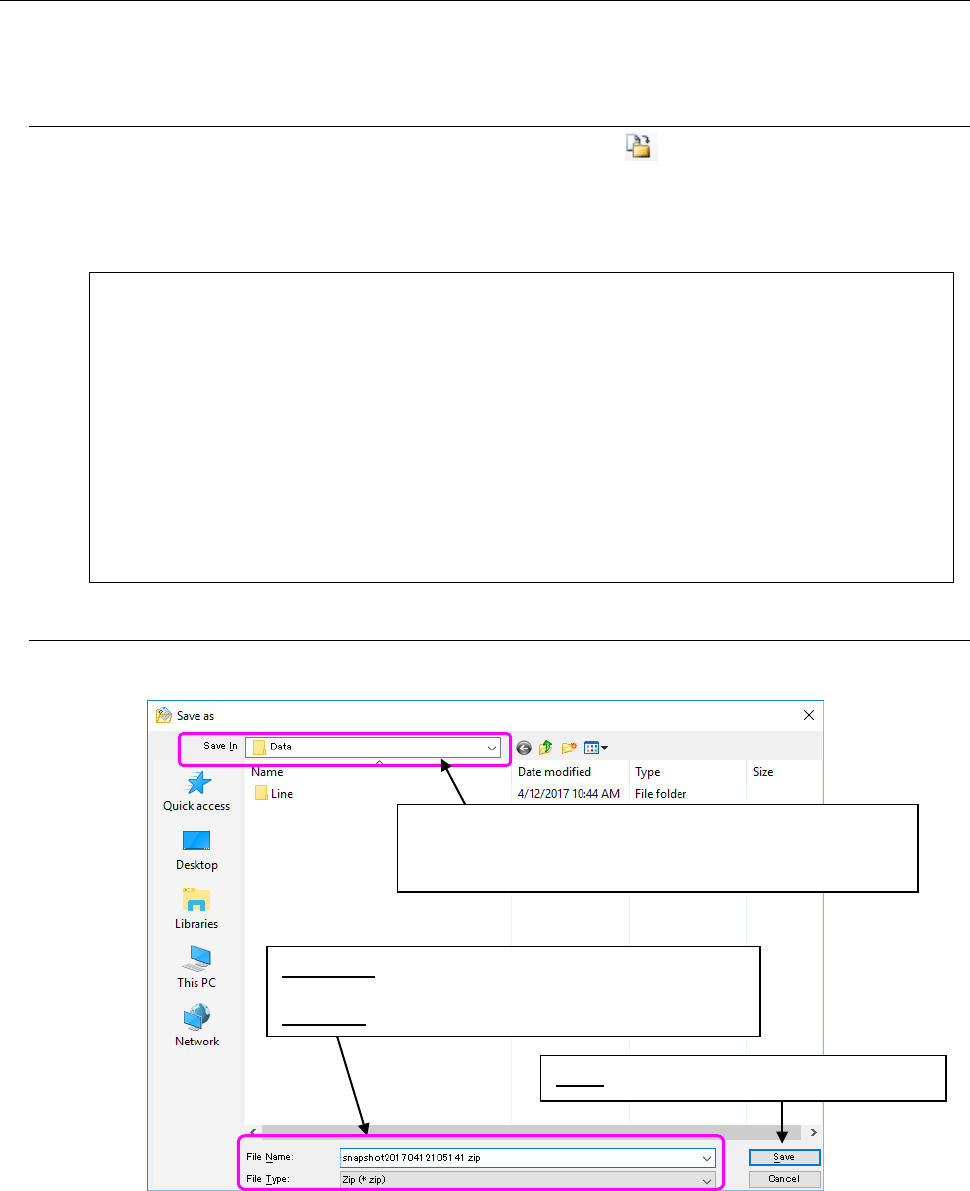
When the system finishes collecting files, the following dialog box appears on the screen.
Figure 14.3-1 Dialog box for specifying where to output the compressed files
When the system finishes compressing files, the message box “Collection complete” appears on
the screen. When you select the <OK> button, the main dialog box reappears on the screen.
* Whether a file is collected successfully or not is displayed in the “Result” field of each file on
the list of objects to be collected.
Specify a folder to which files are output.
* Folder set as a place to which compressed files are to be
output on the “Set Environments” dialog box (default)
File Name: Enter a desired file name here.
*snapshot(year month day hour minute second) (default)
File Type:
*.Zip format (compressed)
Save: Starts compressing the collected files.
JaNets Instruction Manual 14. Snapshot Tool
14-6
14.3.1.2 Dividing a compressed file
When the size of a compressed file becomes larger than a value set in the “Compressed File
Split Size” combo box, the system displays the message asking you whether to divide the file.
When you select the <Yes> button, the system starts dividing the file. When the system finishes
dividing the file, the message box “Collection complete” appears on the screen. When you select
the <OK> button, the “Snapshot Tool” screen reappears.
Divided files are named as “compressed file name.1, 2, 3, ...” A batch file for combining divided
files is generated in the same folder. The name of this batch file is “compressed file name.bat.”
14.3.2 Adding a file to/from the list of objects to be collected
You can add a file to the list of objects to be collected or delete one from this list.
There are two ways for adding a file to the list, ① and ②.
① Select a file on the Windows Explorer, and drag and drop it to the list of objects to be
collected. (You can select two or more files at the same time).
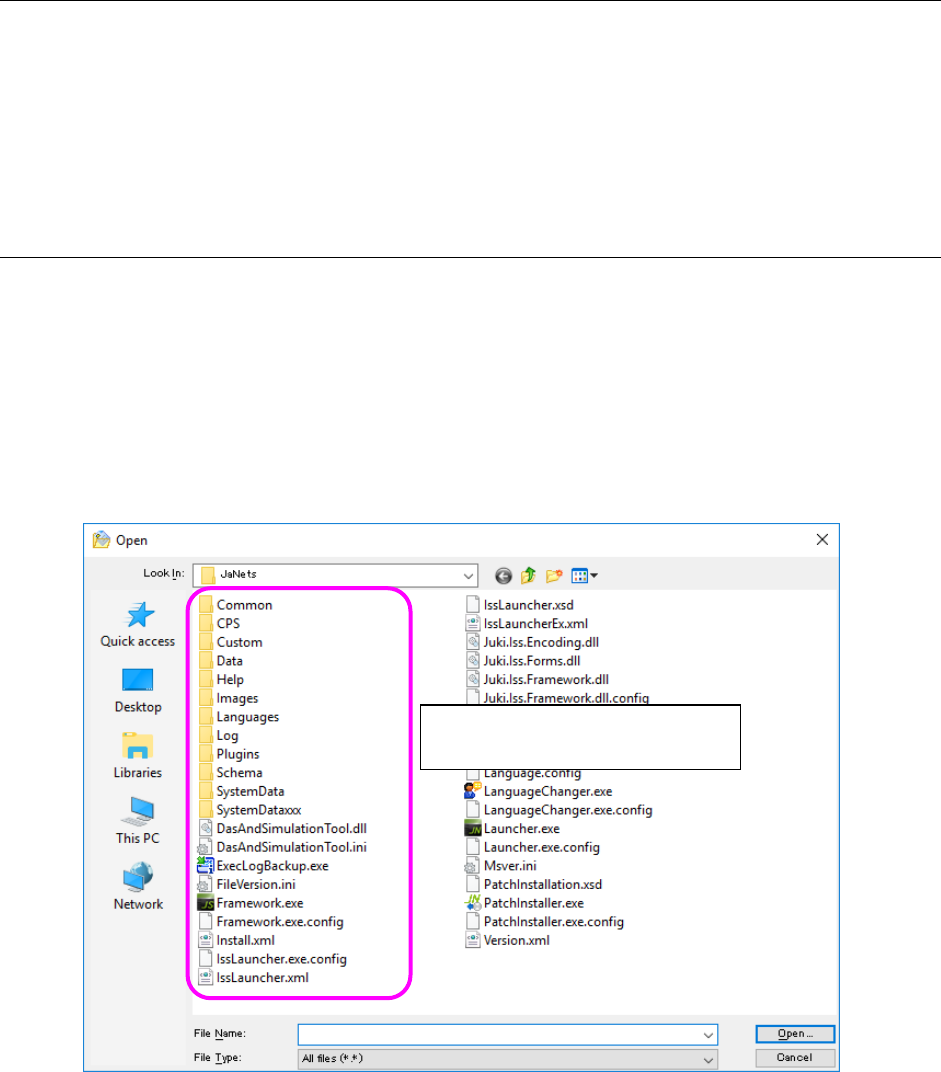
② Add a file on the “Open” dialog box.
Select the “add” tool from the toolbar to start up the “Open” dialog box (see the screen shown
below).
Figure 14.3-2 Dialog box for adding an output file
For the instruction ②, there is another way for starting up the “Open” dialog box.
− Select the [Edit] command from the menu bar, and then the [Add] command on the “Edit”
menu.
− Click the right button of a mouse on the list of objects to be collected to display the pop-up
menu. Then, select the [Add] command on this pop-up menu.
Select a file to be added (you can
select two or more files).