JANETS_INM.pdf - 第587页
J aN et s Inst ructi on Manual 15 . Log Control Tool 15 -1 15. Log Cont rol Tool Wh at I s the Log Con tr ol T ool? This t ool sup p orts al l JaN ets app li cati ons, and out puts thei r l ogs als o. 15.1 O perati ons 1…
JaNets Instruction Manual 14. Snapshot Tool
14-7
14.3.3 Deleting a file from the list of objects to be collected
Select a file (or files) to be deleted from the list of objects to be collected. Select the “Delete”
tool from the toolbar. The confirmation message appears on the screen. When you select the
<OK> button, the system deletes the selected file(s) from the list.
There are other ways for deleting a file from the list of objects to be collected:
After selecting a file to be deleted,
− Select the [Edit] command from the menu bar, and then the [Delete] command on the “Edit”
menu.
− Click the right button of a mouse on the list of objects to be collected to display the pop-up
menu. Then, select the [Delete] command on this pop-up menu.
14.4 Setting the environment
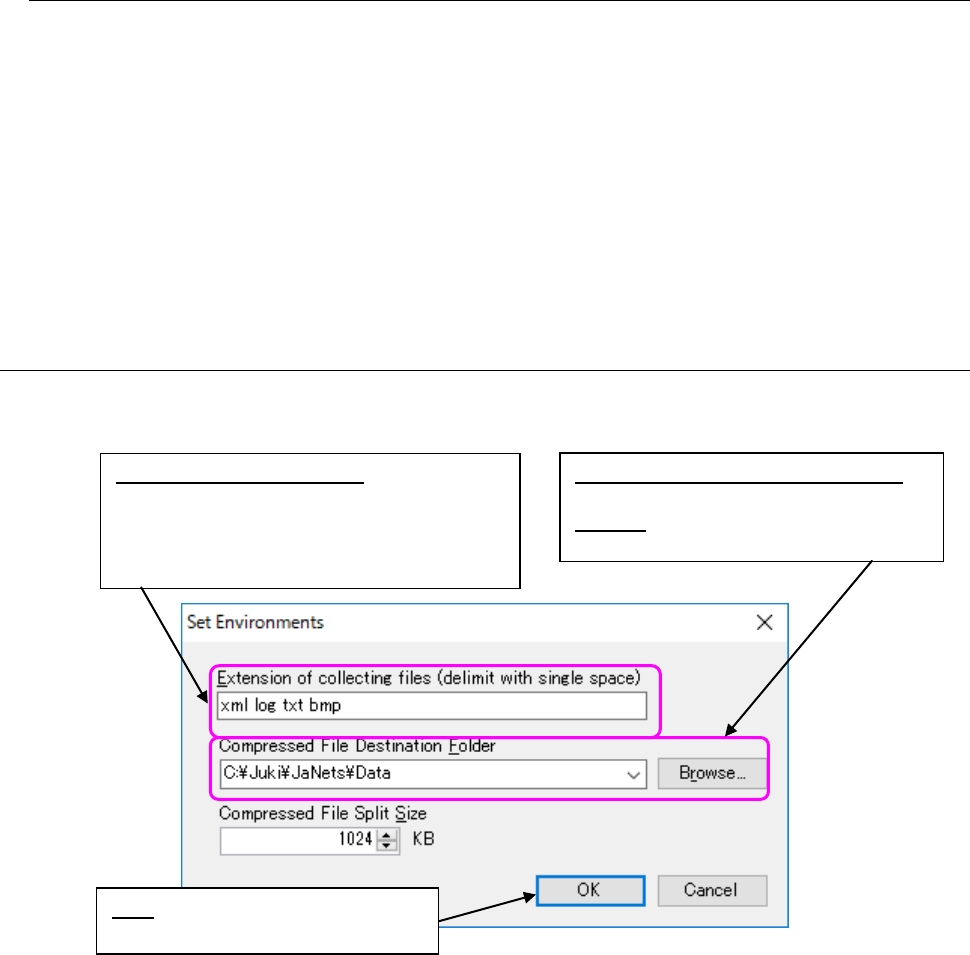
On the “Set Environments” dialog box, you can change the settings for collection of files. When
you select the [Set Environments] command, the following dialog box starts up.
Figure 14.4-1 “Set Environments” dialog box
* When you change the type of files to be collected, the system searches files to be displayed on
the list of objects to be collected again, and displays the searched files. (All “Result” columns
are cleared on the list of objects to be collected.)
* When you select the <Make New Folder> button on the “Browse” dialog box, you can create a
new folder also.
When you enter a new folder name in the edit box on the “Set Environments” dialog box, and
select the <OK> button, you can create a new folder too.
* The default size of a compressed and divided file is set to 1,024 KB (1 MB). The input range
is from 100 KB to 102,400 KB (100 MB). If you enter a value beyond this range, it is reset to
the minimum value when it is less than the allowable minimum value, or to the maximum
value when it is larger than the allowable maximum value.
OK: Saves your settings and quits
the “Set Environments” dialog box.
Extension of collecting files:
Enter characters indicating only the
extension without entering a “.” (period).
The system does not distinguish the lower
cases from the upper cases.
Compressed File Destination Folder:
Set with the “install directory \Data.”
Browse: This button allows you to specify
a folder on the “Browse” dialog box.
JaNets Instruction Manual 15. Log Control Tool
15-1
15. Log Control Tool
What Is the Log Control Tool?
This tool supports all JaNets applications, and outputs their logs also.
15.1 Operations
15.1.1 Starting up and quitting the Log Control Tool
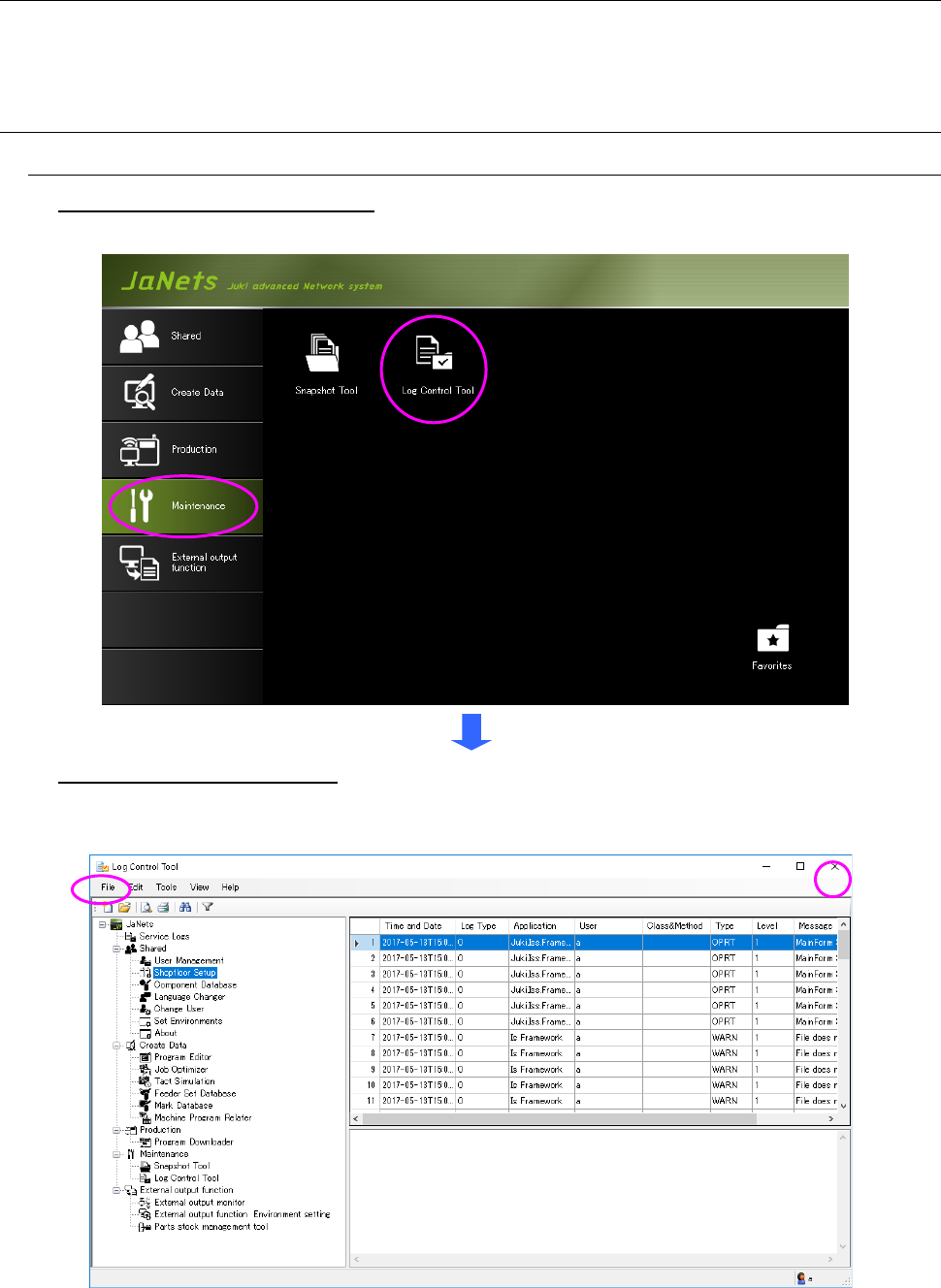
To start up the Log Control Tool: Double-click the “Maintenance” tab from the MI Line
Optimizer Launcher, and then the “Log Control Tool” icon.
To quit the Log Control Tool: Select the [File] command from the menu bar, and then the [Exit]
command on the “File” menu. Or, select the close (×) button located at the upper right corner of
the title bar.
Figure 15.1-1 Procedure for starting up/quitting the Log Control Tool
JaNets Instruction Manual 15. Log Control Tool
15-2
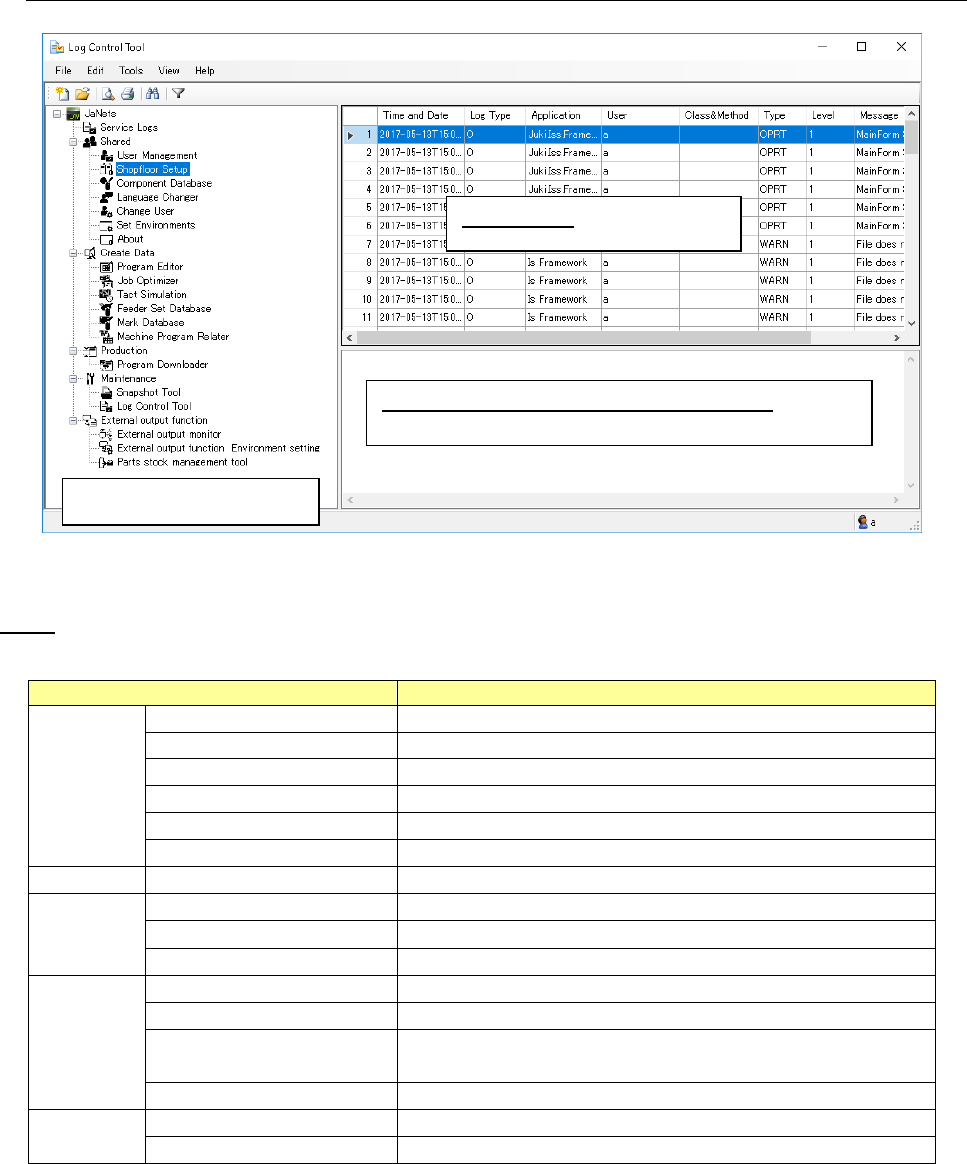
15.1.2 Configuration of the “Log Control Tool” screen
Figure 15.1-2 “Log Control Tool” screen
Menu
Table 15.1-1 Description of each menu item
Menu Item
Description
File (F)
View New Log File (N)
Starts up the dialog box for selecting a new log file.
Add Log File (A)
Starts up the dialog box for adding a log file.
Preview (V)
Starts up the “Print Preview” dialog box.
Print (P) Ctrl + P
Starts up the “Print” dialog box.
Save as Text (T)
Starts up the “Save as Text” dialog box.
End (X)
Quits the Log Control Tool.
Edit (E)
Search (F) Ctrl + F
Starts up the “Search Strings” dialog box.
Tools (T)
Filter (F)
Starts up the “Filter Setup” dialog box.
Log Setup (S)
Starts up the “Log Setup” dialog box.
Environment Settings(E) …
Starts up the “Environment Settings” dialog box.
View (V)
Tree View (T)
Displays/hides the Tree View for an application.
Information View (E)
Displays/hides the Information View.
Refresh (R) F5
Reads the log file being displayed at the present into the Viewer
again to display it again.
Erase current view (S)
Erases the log file currently being displayed on the viewer.
Help (H)
Help (H) F1
Refers to the help file.
About (A)
Displays the version information on this tool.
Tree View for applications
Log Viewer: log display area
Information View (detailed information view):
Displays the details of a log selected in the log display