JANETS_INM.pdf - 第593页
J aN et s Inst ructi on Manual 15 . Log Control Tool 15 -7 15.1.4.2 Dis playi ng/hi ding the Log Vi ewer item s Figure 15.1 -9 Displa y ing/hiding the log it em 15.1.4.3 Dis playi ng/hi ding the det ailed i nformati on o…
JaNets Instruction Manual 15. Log Control Tool
15-6
15.1.4 Configuration of the Log Viewer
The Log Viewer consists of two screens: the log display area and the detailed information view
(Information View).
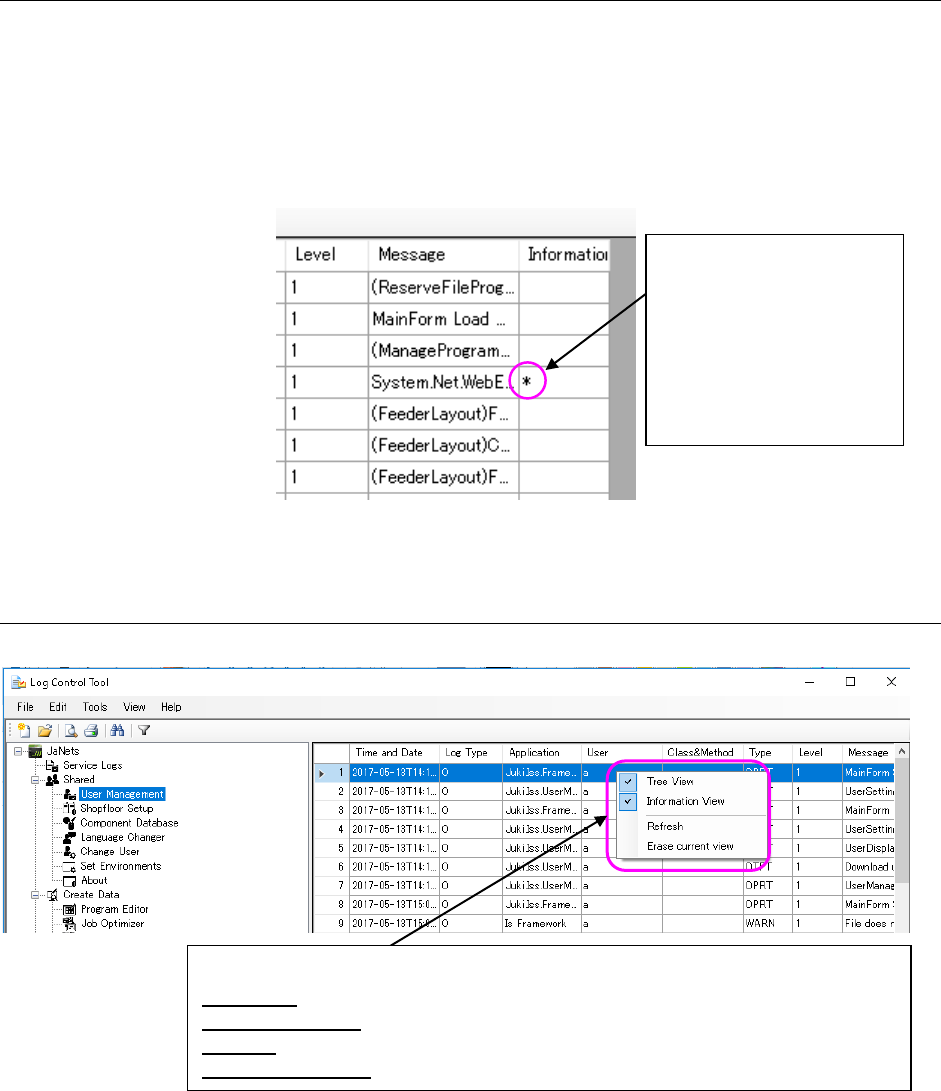
* When you select a log without the detailed information, the “Information” column becomes
blank.
<Checking whether there is any detailed information or not>
Figure 15.1-7 Displaying the detailed information
15.1.4.1 Menu displayed when you click the right button of a mouse on the Log Viewer
Figure 15.1-8 Menu displayed when you click the right button of
a mouse on the Log Viewer
An asterisk mark (*) is
displayed in the
“Information” column of a
log having the detailed
information, so you can
check whether each log has
its detailed information or
not.
<Menu items displayed on the pop-up menu>
Tree View: Displays/hides the Tree View for applications.
Information View: Displays/hides the Information View of logs.
Refresh: Reads a log file being displayed in the Log Viewer again to display it again.
Erase current view: Erases the log file currently being displayed on the viewer.
JaNets Instruction Manual 15. Log Control Tool
15-7
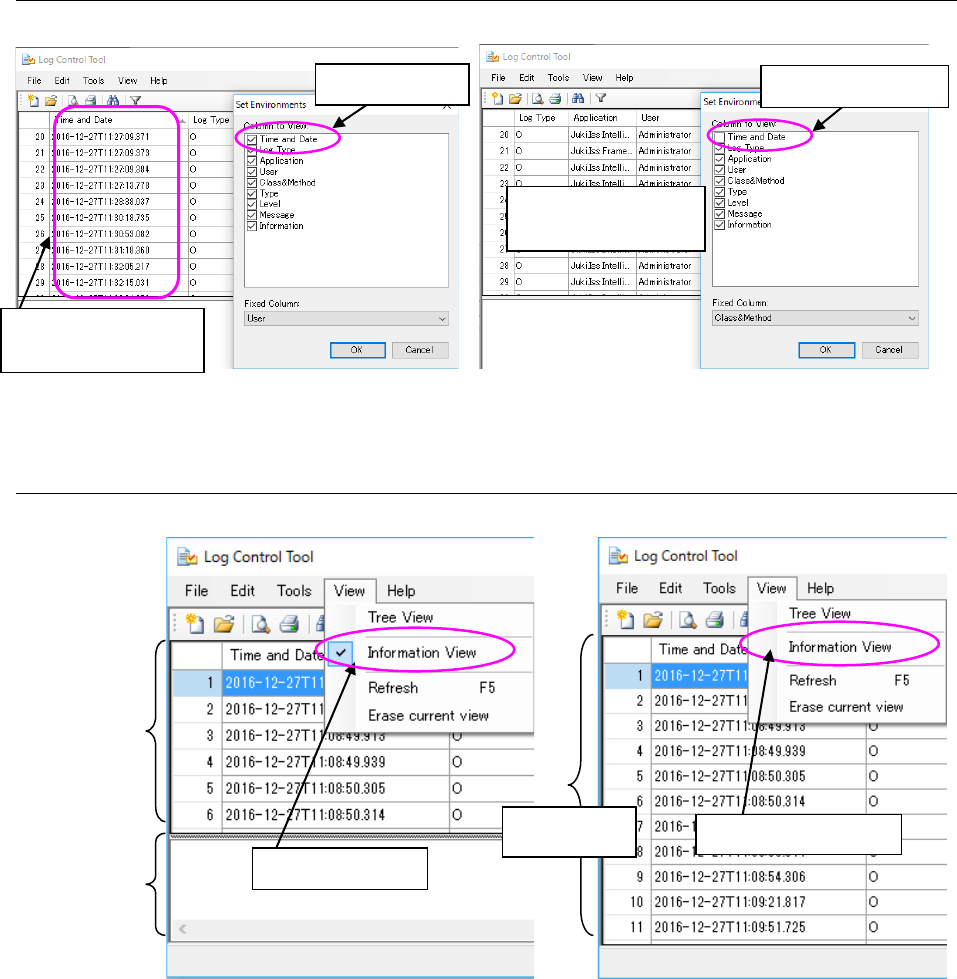
15.1.4.2 Displaying/hiding the Log Viewer items
Figure 15.1-9 Displaying/hiding the log item
15.1.4.3 Displaying/hiding the detailed information of logs
Figure 15.1-10 Displaying/hiding the detailed information
When checked
The “Time and Date”
column is displayed.
When not checked
The “Time and Date”
column is hidden.
Log display
area
When checked
Detailed
information
display area
Log display
area
When not checked
JaNets Instruction Manual 15. Log Control Tool
15-8
15.2 Operations
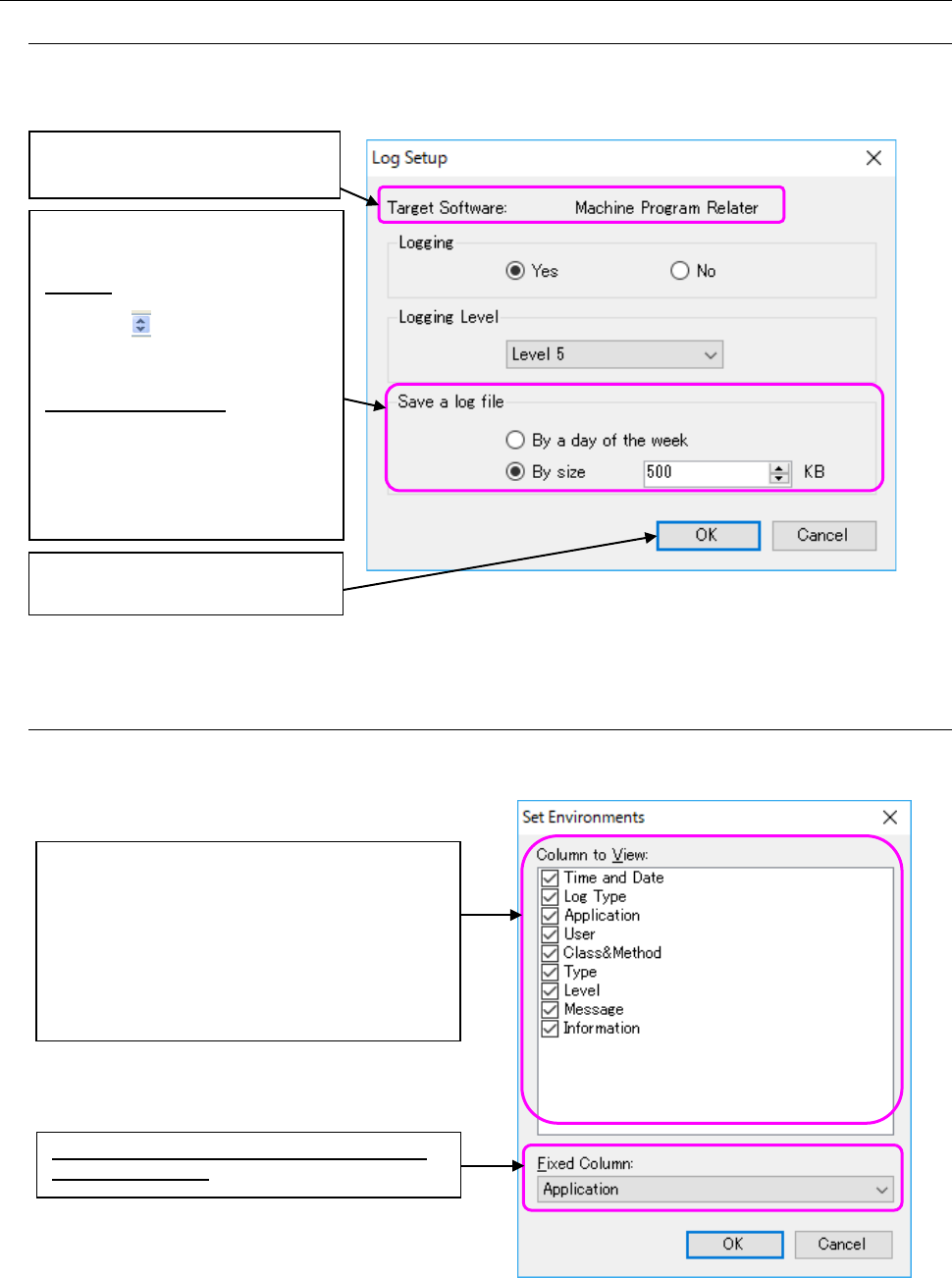
15.2.1 Setting up output of a log
After selecting an item from the Tree View for applications, select the [Tools] command from the
menu bar, and then the [Log Setup] command from the “Tools” menu.
Figure 15.2-1 “Log Setup” dialog box
15.2.2 Set Environments
Select the [Set Environments] command from the “Tools” menu.
Figure 15.2-2 “Set Environments” dialog box
Select the log saving unit, “By a
day of the week” or “By size.”
By size: You can set the size from
500 KB to 10000 KB. When you
click the
button, the displayed
size increments/decrements by
500 KB.
By a day of the week: This radio
button saves a log everyday from
Monday to Sunday. Up to seven
files can be saved, and the
previous logs are backed up and
saved.
The target software whose log is to
be output is displayed here.
This button saves the changed
value(s),
Specify the items to display on the log viewer.
An item having a check mark is displayed as a
column heading in the log viewer.
* <Class & Method>:
The log viewer displays Class&Method, but the
communication log displays the machine name.
Specify a column to remain fixed while you are
scrolling the viewer.