JANETS_INM.pdf - 第596页
J aN et s Inst ructi on Manual 15 . Log Control Tool 15 - 10 15.2.4 Displaying a log add itionally One of the op erati ons ① to ④ b el ow disp l ays a new log . Figure 15.2 -5 Displa y ing a log file a dditiona lly ( by …
JaNets Instruction Manual 15. Log Control Tool
15-9
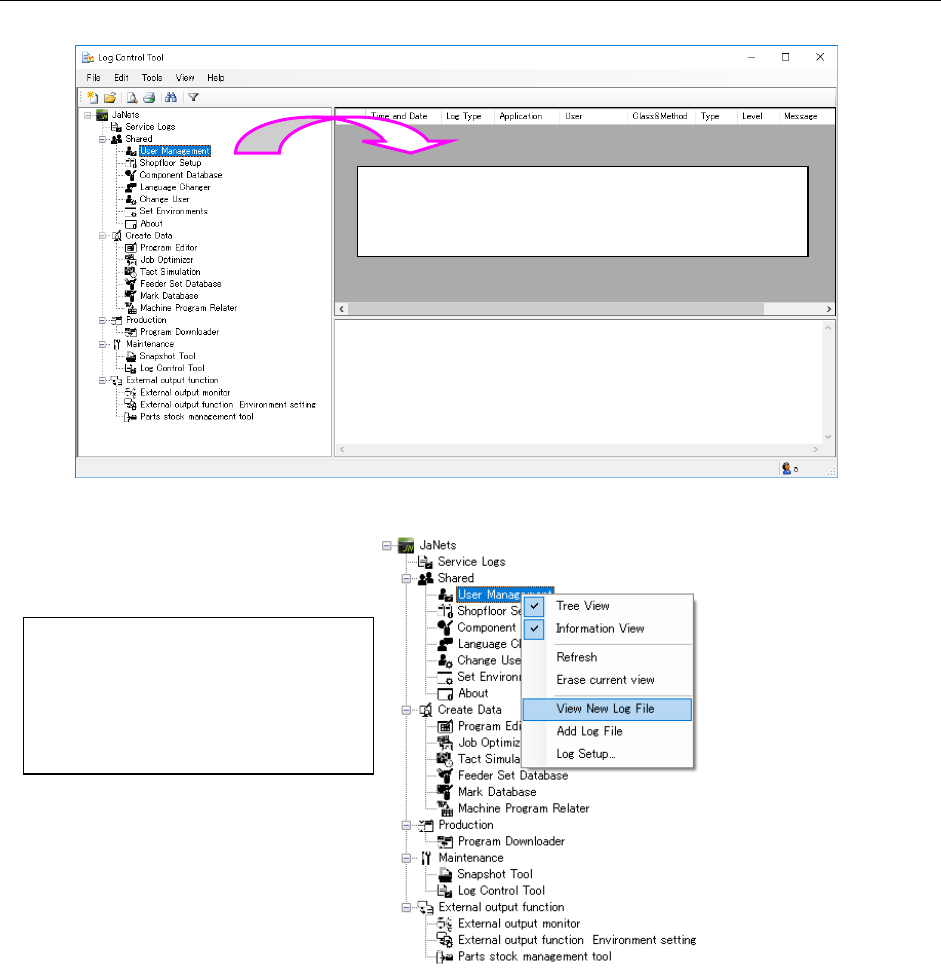
15.2.3 Displaying a new log
One of the operations ① to ④ below displays a new log.
Figure 15.2-3 Displaying a new log file (by dragging and dropping)
Figure 15.2-4 Displaying a new log file
(by displaying the pop-up menu with your click of the right button of a mouse)
③ Select a log file from the Windows Explorer directly, and drag and drop it.
④ Select the [File] command from the menu bar, and then the [View New Log File] command
from the “File” menu.
* When you drag and drop a log file newly while another log file is being displayed on the viewer, a
dialog message appears asking you whether you want to erase the current log file or not; clicking
<Yes> on the dialog box, only the new log file is displayed; clicking <No>, the new log file is
displayed with the current log file.
* If you select the [View New Log File] command when a log is displayed on the Viewer, the system
displays the dialog message asking you whether to clear the log being displayed currently. When
you select the <OK> button, it displays a log newly.
* You can operate two or more files at a time by dragging and dropping them.
* The system cannot read any log file other than those created with the MI Line Optimizer
applications.
②
Select an item from the Tree View
for applications, and click the right
button of a mouse to display the
pop-up menu. Then, select the
[View New Log File] command from
the pop-up menu.
①
Select an item from the Tree View for
applications, and drag and drop it to the Log
Viewer where no log is displayed.
JaNets Instruction Manual 15. Log Control Tool
15-10
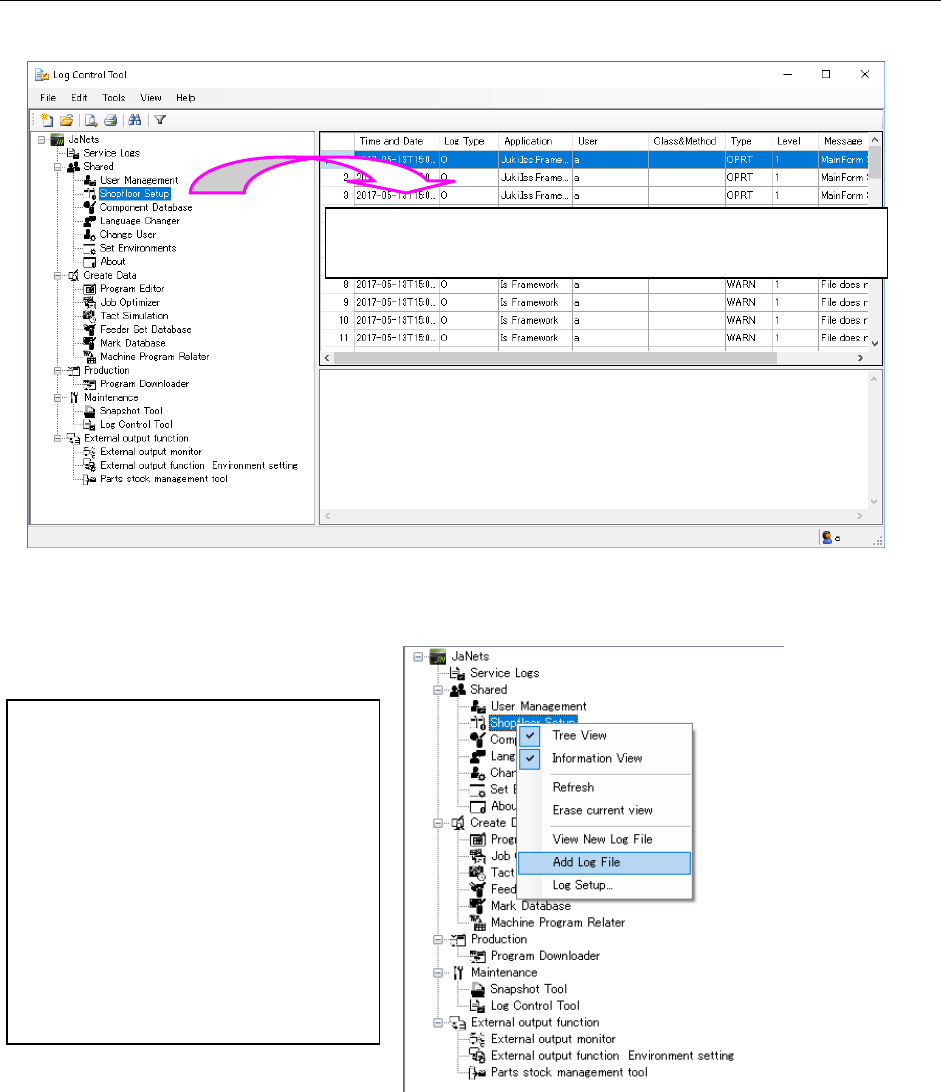
15.2.4 Displaying a log additionally
One of the operations ① to ④ below displays a new log.
Figure 15.2-5 Displaying a log file additionally (by dragging and dropping)
Figure 15.2-6 Displaying a log file additionally
(by selecting the command on the pop-up menu displayed when you click the right button)
③ Drag and drop a log file from the Windows Explorer directly.
④ Select the [File] command from the menu bar, and then the [Add Log File] command on the
“File” menu to display the dialog box for selecting a log file.
②
Select an item of the Tree View for
applications with clicking the right
button of a mouse to display the
pop-up menu. Select the [Add Log
File] command on this pop-up menu to
display the latest log file of the
selected item additionally.
(The logs are sorted in chronological
order. When the date and time of each
of two or more logs is the same as
one another, the added one is
displayed below those displayed in
advance.)
①
Drag and drop a log you want to add from the Tree View for
application to the Log Viewer where a log is being displayed.
JaNets Instruction Manual 15. Log Control Tool
15-11
15.2.5 Refreshing the view
When you select the [View] command from the menu bar, and then the [Refresh] command from
the “View” menu, the system reads a log file(s) being displayed again, and displays it (them)
again.
(When you select the [Refresh] command from the pop-up menu displayed when you click the
right button of a mouse, the system performs the same operation.)
15.2.6 Erasing the view
Select the [View] command from the menu bar, and then the [Erase current view] command from
the “View” menu, the system erases a log file(s) currently being displayed.
(When you select the [Erase current view] command from the pop-up menu displayed when you
click the right button of a mouse, the system performs the same operation.)
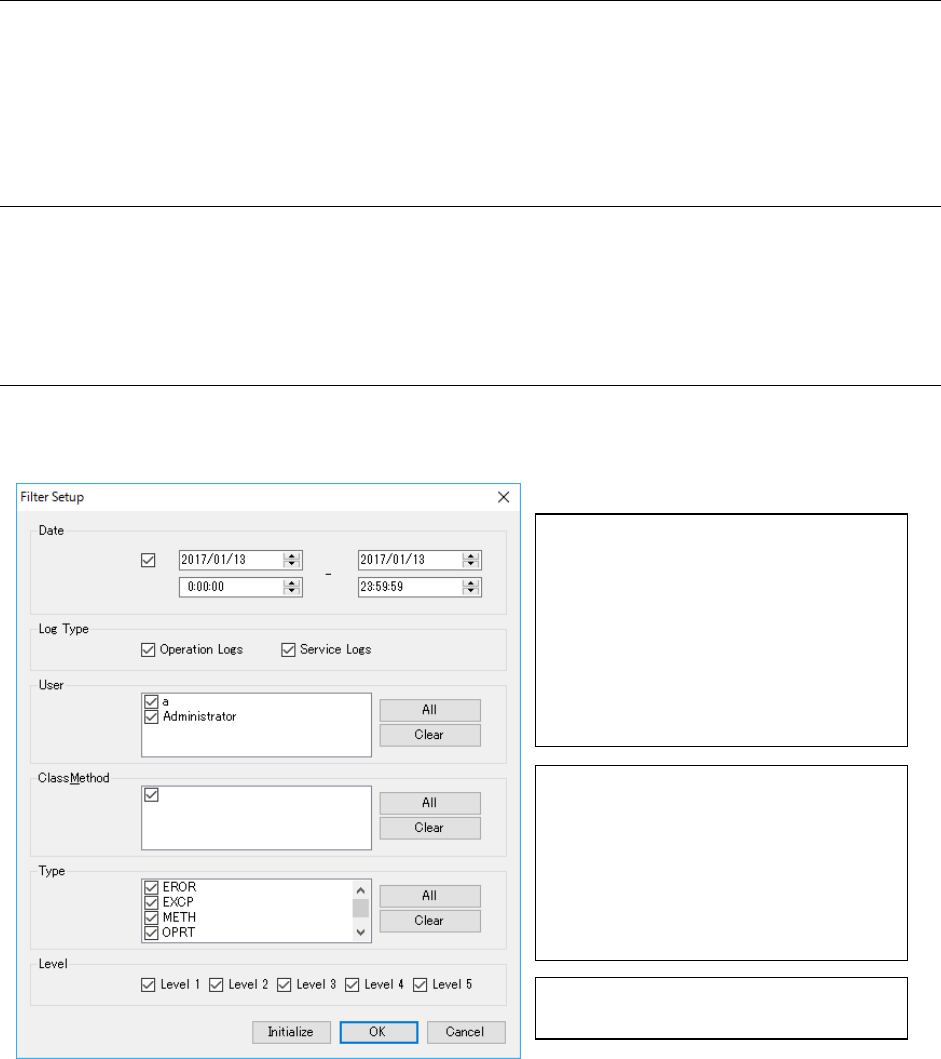
15.2.7 Setting the filter to display each item
When you select the [Tools] command from the menu bar, and then the [Filter Setup] command
from the “Tools” menu, the “Filter Setup” dialog box starts up.
Figure 15.2-7 “Filter Setup” dialog box
* The condition(s) specified on this “Filter Setup” dialog box is (are) effective for not only logs
being displayed in the Log Viewer at the present but also for a log(s) to be displayed newly.
* The settings of the filters on this dialog box will be effective until you quit the Log Control Tool.
Only the logs that satisfy the condition(s)
indicated with the selected check box(es)
are displayed, and all items shown on the
left side are to be filtered under the same
condition(s).
(The logs to be displayed under the
condition specified with the “Date” are to
be selected further under those indicated
with the “Log Type” check boxes.)
* See Section 15.3 “Logs” for the
description of each item.
Select the check box corresponding to the
item to be filtered.
* When you select two or more check
boxes, the system displays all the logs
that satisfy at least one of the
conditions indicated with the selected
check boxes.