JANETS_INM.pdf - 第598页
J aN et s Inst ructi on Manual 15 . Log Control Tool 15 - 12 15.2.8 Settin g th e “ Date ” Y ou can enter the date dir ect ly in thi s f iel d. If you do not enter any date as the ti m e per i od, the <OK > b utton…
JaNets Instruction Manual 15. Log Control Tool
15-11
15.2.5 Refreshing the view
When you select the [View] command from the menu bar, and then the [Refresh] command from
the “View” menu, the system reads a log file(s) being displayed again, and displays it (them)
again.
(When you select the [Refresh] command from the pop-up menu displayed when you click the
right button of a mouse, the system performs the same operation.)
15.2.6 Erasing the view
Select the [View] command from the menu bar, and then the [Erase current view] command from
the “View” menu, the system erases a log file(s) currently being displayed.
(When you select the [Erase current view] command from the pop-up menu displayed when you
click the right button of a mouse, the system performs the same operation.)
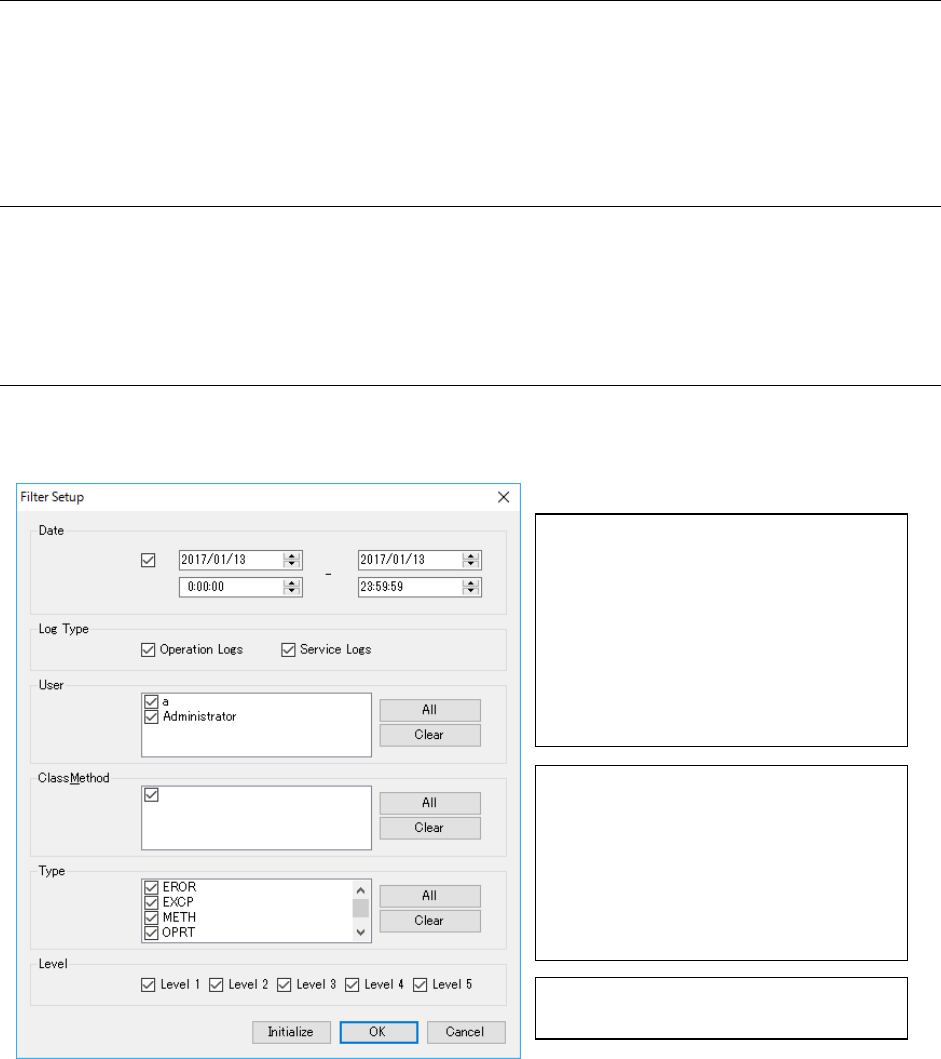
15.2.7 Setting the filter to display each item
When you select the [Tools] command from the menu bar, and then the [Filter Setup] command
from the “Tools” menu, the “Filter Setup” dialog box starts up.
Figure 15.2-7 “Filter Setup” dialog box
* The condition(s) specified on this “Filter Setup” dialog box is (are) effective for not only logs
being displayed in the Log Viewer at the present but also for a log(s) to be displayed newly.
* The settings of the filters on this dialog box will be effective until you quit the Log Control Tool.
Only the logs that satisfy the condition(s)
indicated with the selected check box(es)
are displayed, and all items shown on the
left side are to be filtered under the same
condition(s).
(The logs to be displayed under the
condition specified with the “Date” are to
be selected further under those indicated
with the “Log Type” check boxes.)
* See Section 15.3 “Logs” for the
description of each item.
Select the check box corresponding to the
item to be filtered.
* When you select two or more check
boxes, the system displays all the logs
that satisfy at least one of the
conditions indicated with the selected
check boxes.
JaNets Instruction Manual 15. Log Control Tool
15-12
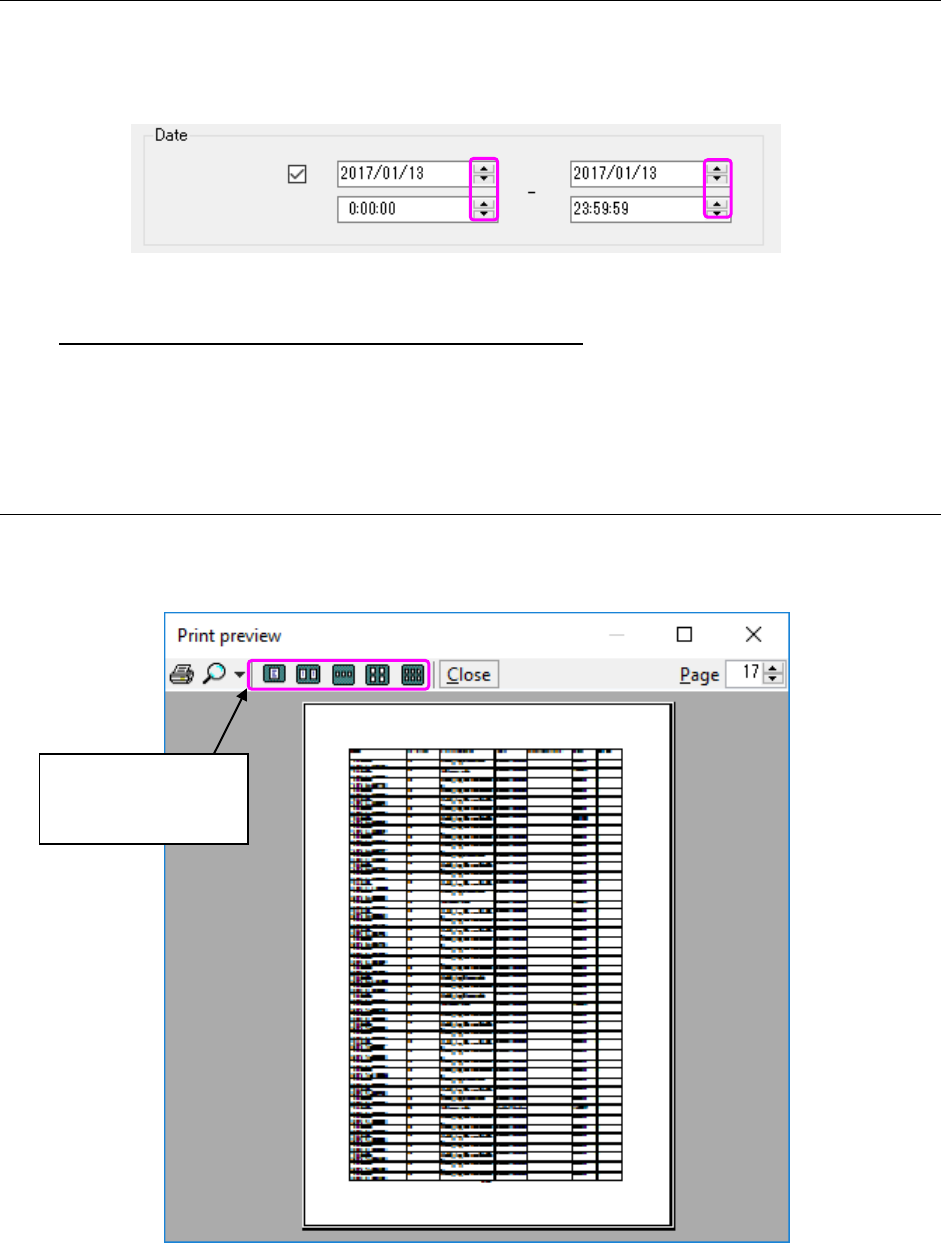
15.2.8 Setting the “Date”
You can enter the date directly in this field. If you do not enter any date as the time period, the
<OK> button is not enabled on the “Filter Setup” dialog box. Note that you can enter a value in the
time field also.
Figure 15.2-8 Setting the “date” from the calendar
* About the filter items, “User,” “Client” and “ClassMethod”
When you change the data displayed in the Log Viewer by adding a new log, the system
recreates the list for selecting filter items. Unless you quit the Log Control Tool, or unless
you select the [View New Log File] command, the items selected on the list are maintained.
15.2.9 Previewing how log(s) are printed
Select the [File] command from the menu bar, and then the [Preview] command from the “File”
menu.
Figure 15.2-9 “Print preview” dialog box
Select the number of
pages to be displayed
at a time.
JaNets Instruction Manual 15. Log Control Tool
15-13
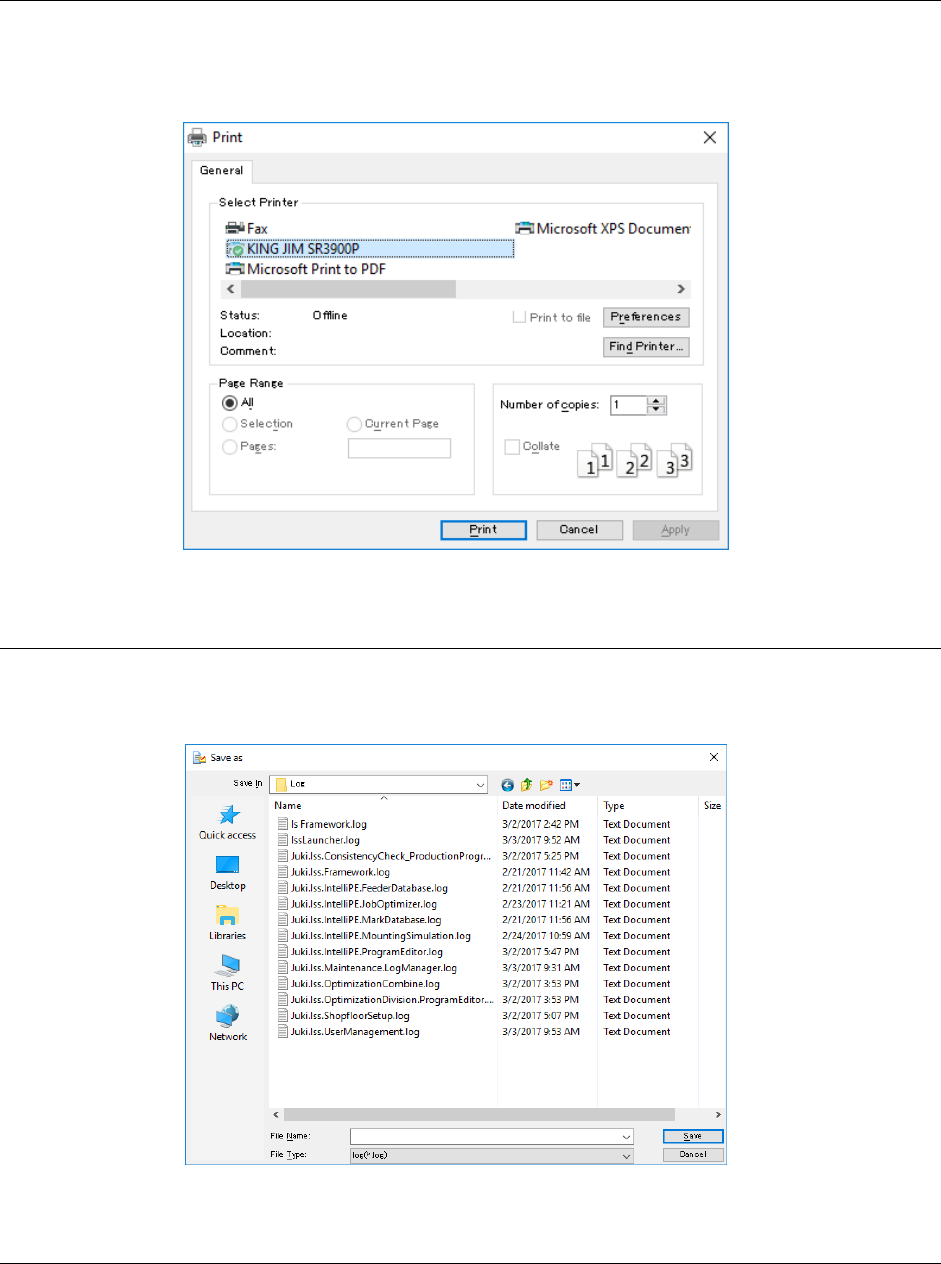
15.2.10 Printing
Select the [File] command from the menu bar, and then the [Print] command from the “File” menu.
The “Print” dialog box appears on the screen. After you make settings for printing a log(s), the
system starts printing it (them). You can print only a log(s) being displayed in the Viewer. (Logs
not displayed under the conditions specified with the filter will not be printed.)
Figure 15.2-10 “Print” dialog box
15.2.11 Outputting a log as text
Select the [File] command from the menu bar, and then the [Save as Text] command from the
“File” menu. You can output only a log(s) being displayed in the Viewer. (Logs not displayed under
the conditions specified with the filter will not be output.)
Figure 15.2-11 Dialog box for outputting a log as text
15.2.12 Searching a character string
When you select the [Edit] command from the menu bar, and then the [Search] command from
the “Edit” menu, the dialog box for searching a character string appears on the screen, and you
can search the desired character string.
After you execute this search function, the cursor jumps to the line of the character string that was
searched in the Viewer.