JANETS_INM.pdf - 第601页
JaNets In structio n Manual 16 Component D ataba se 16 -1 16. Component D atabase What is the component database ? Component data and adhes ion data rec orded in t he databas e can b e read, re vised and c ancele d . S t…
JaNets Instruction Manual 15. Log Control Tool
15-14
15.3 Logs
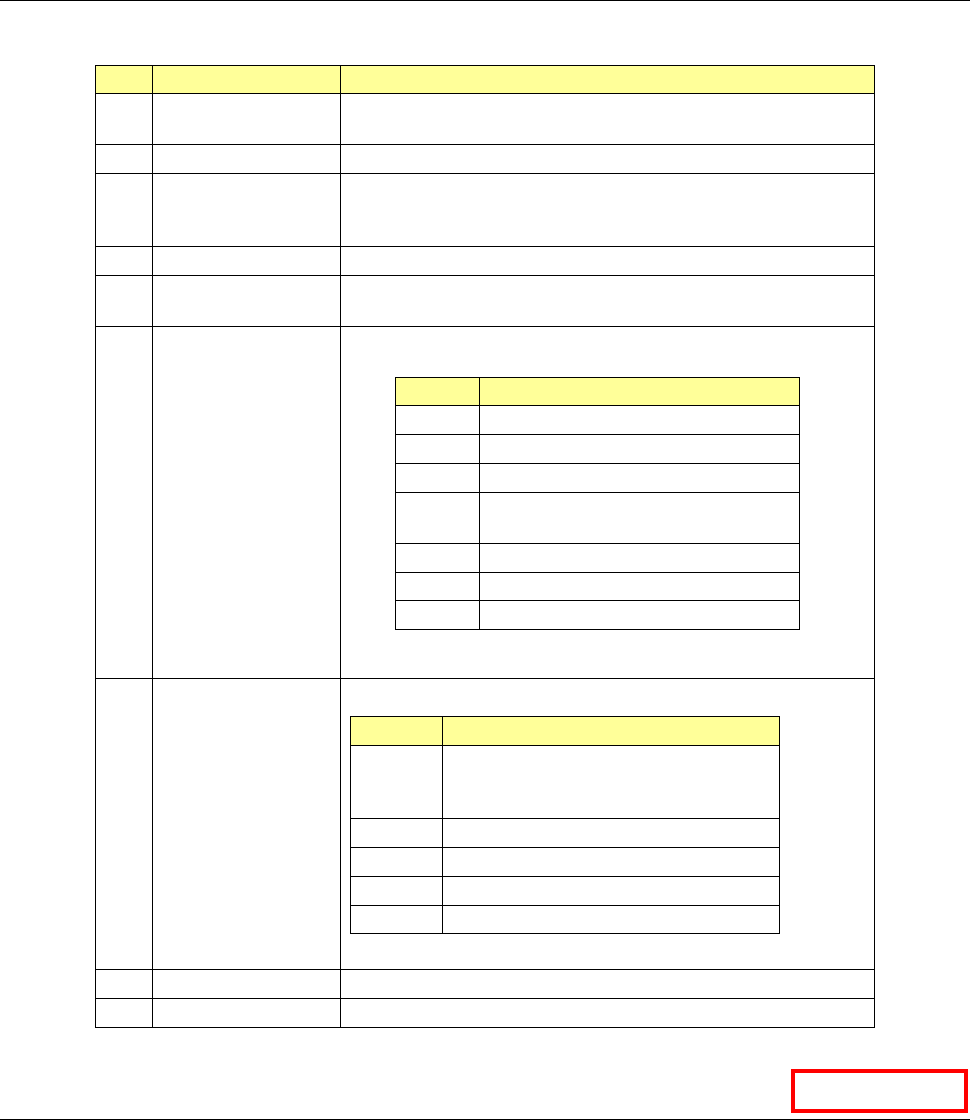
Table 15.3-1 Description of each log display item
No.
Log display item
Description
① Date Displays the time when the corresponding log was output.
(That is, the time indicated with the PC that output the log.)
②
Log Type
” “O”: Operation logs “S”: Service logs
③ Application Displays which application’s log is displayed on the screen.
(In case of a service log, the system displays the name of an
application that invoked the service.)
④
User
Displays the login name.
⑤ Class & Method Displays which program was executed to generate the
corresponding log.
⑥ Type Displays the output data type (such as an operation and an
error).
Item
Description
OPRT
Operations
EROR
Error
WARN
Details of a warning
EXCP Details of the circumstance under
which an exception occurred
PROC
Method invoke port
METH
Method IN/OUT port
DBUG
Debug message for development
⑦ Level Displays the following data by each number.
Level
Description
1 Operation, process, error, or details of
the circumstance under which an
exception occurred
2
Input/output data
3
Method invoke port
4
Method IN/OUT port
5
Debug message for development
⑧
Message
Displays the log output message.
⑨
Information
Displays the detailed information on the message.
15.4 Service Log
You can manage a service log when the system is set to be connected to a server.
Although the operation is the same as that of a log for other application programs, you cannot
execute the [Log Setup] command.
Data Manager
JaNets Instruction Manual 16 Component Database
16-1
16. Component Database
What is the component database?
Component data and adhesion data recorded in the database can be read, revised and canceled.
Starting and closing the component database
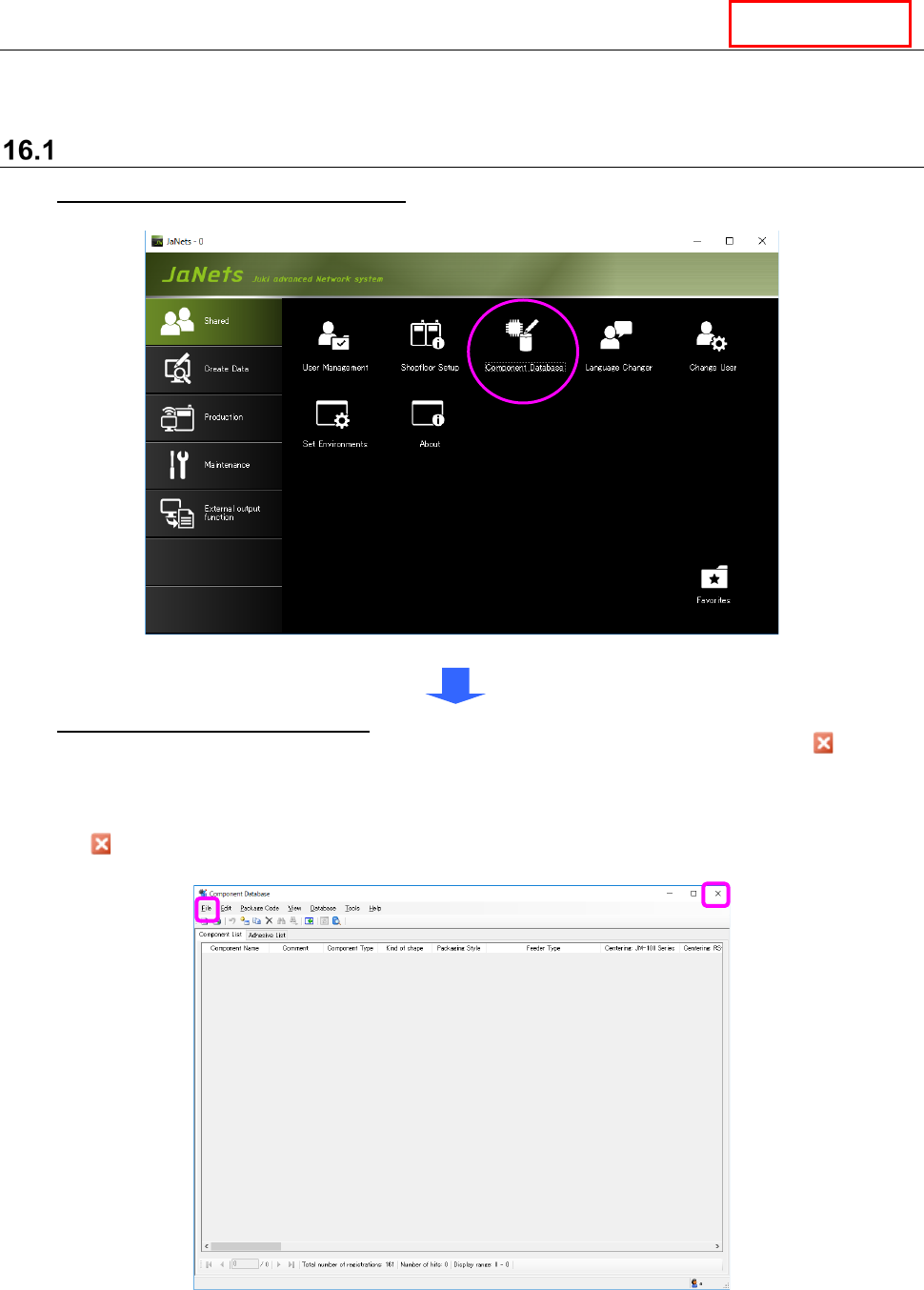
To start up the Component Database: Go to JaNets Launcher [Shared] - [Component
Database] and double click.
Figure 16.1-1 JaNets launcher screen
To quit the Component Database: Select the [File] command from the menu bar, and then
the [Close component database] command from the “File” menu, or select the Close ( ) button
displayed on the title bar at the upper right corner of the screen.
* The “Search through Component Database” screen is displayed when the database is started
up for the first time. Therefore, select the <Cancel> button on this screen or select the Close
( ) button displayed on the title bar at the upper right corner of the screen, then perform the
operation described above.
Figure 16.1-2 Initial start screen
The search screen for a component database appears when the component database starts or by
selecting the “Database” – “Research” commands.”
DataManager
JaNets Instruction Manual 16 Component Database
16-2
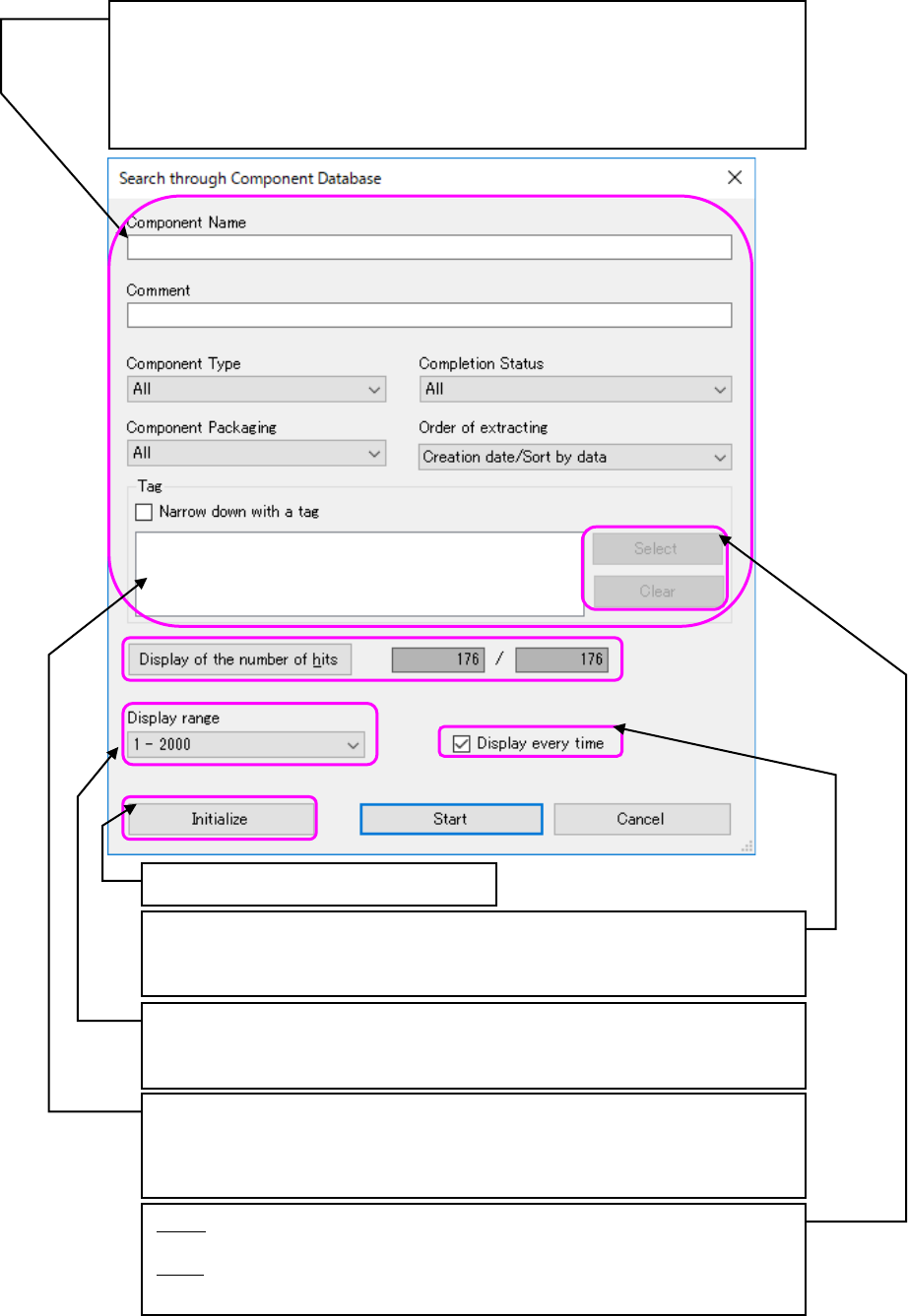
Figure 16.1-3 “Search through Component Database” screen
Set the conditions for narrowing down and displaying the component data displayed
on a component list screen. When component name and a comment are blank, all the
data is applicable.
When you uncheck the “Narrow down with a tag” check box, or when there is not any
selected tag in the list even though you check off this check box, the system does not
narrow down any data with a tag.
A search condition is initialized.
Displays the number of component that is applied to the conditions of search
narrowed down and the total registration number of component data. When
conditions are changed, the hit number is re-acquired and is displayed by
pressing the hit number display button.
Specifies whether to display a search screen when a component database starts.
When it is not checked, component data is narrowed down and displayed under
the last search condition.
Specifies the display range of the component data displayed on a component list
screen from the component data hit by search narrowed down. The maximum
number of the display range is specified in the environment setting.
Select: Displays the dialog box for selecting a tag to be added to the conditions
for narrowing down data (Figure 16.1-4).
Clear: Selects an unnecessary tag(s) from the tags added to the conditions for
narrowing down data (the list on the left) to clear it (them).