JANETS_INM.pdf - 第603页
JaNets In structio n Manual 16 Component D ataba se 16 -3 Figure 16.1 -4 “ Select a t ag” scre en See Sections 16.24 “ Sett ing a T ag ” and 16 .5 “ Impor ting extern al data” als o for assoc iation of Component data wit…
JaNets Instruction Manual 16 Component Database
16-2
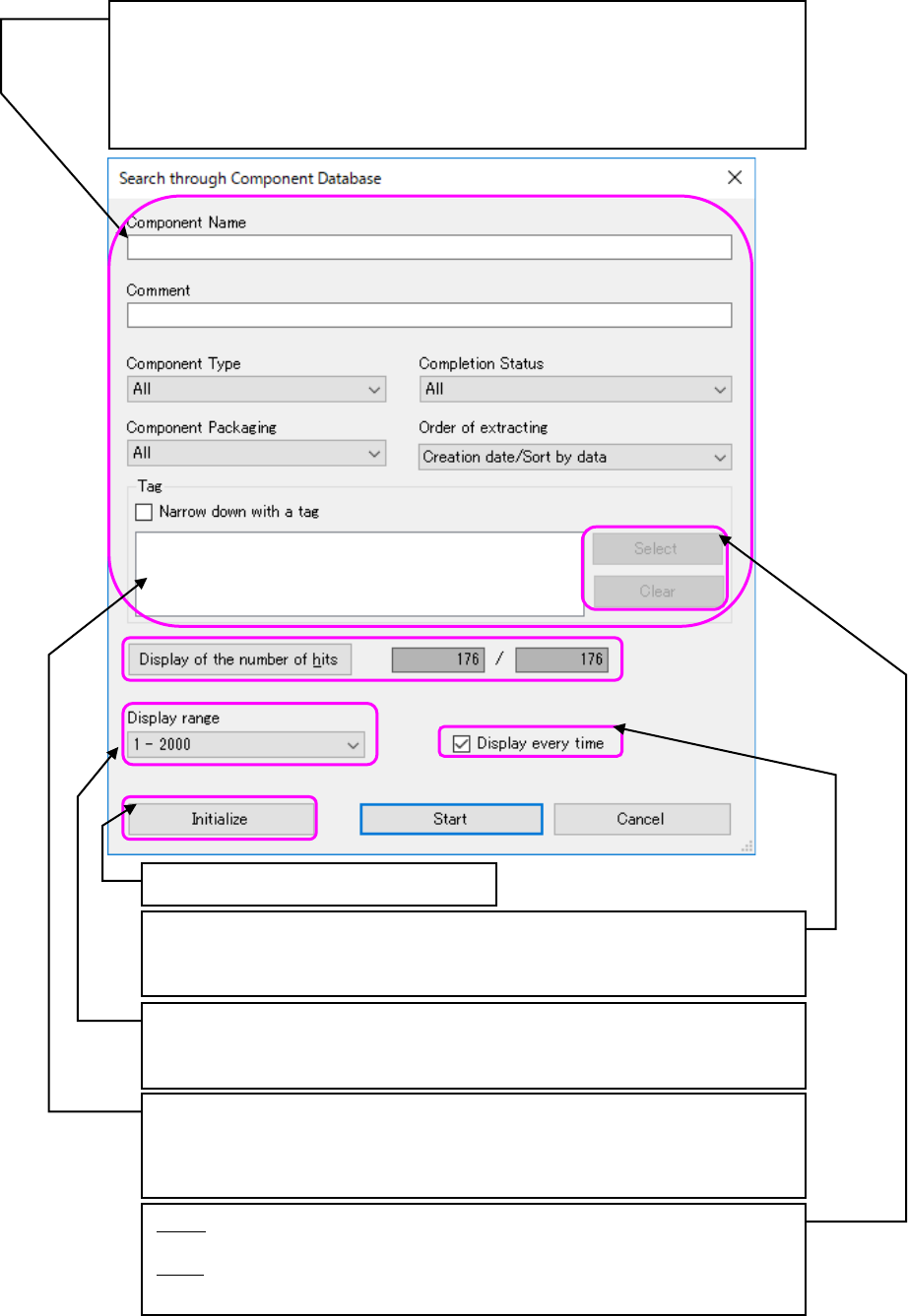
Figure 16.1-3 “Search through Component Database” screen
Set the conditions for narrowing down and displaying the component data displayed
on a component list screen. When component name and a comment are blank, all the
data is applicable.
When you uncheck the “Narrow down with a tag” check box, or when there is not any
selected tag in the list even though you check off this check box, the system does not
narrow down any data with a tag.
A search condition is initialized.
Displays the number of component that is applied to the conditions of search
narrowed down and the total registration number of component data. When
conditions are changed, the hit number is re-acquired and is displayed by
pressing the hit number display button.
Specifies whether to display a search screen when a component database starts.
When it is not checked, component data is narrowed down and displayed under
the last search condition.
Specifies the display range of the component data displayed on a component list
screen from the component data hit by search narrowed down. The maximum
number of the display range is specified in the environment setting.
Select: Displays the dialog box for selecting a tag to be added to the conditions
for narrowing down data (Figure 16.1-4).
Clear: Selects an unnecessary tag(s) from the tags added to the conditions for
narrowing down data (the list on the left) to clear it (them).
JaNets Instruction Manual 16 Component Database
16-3
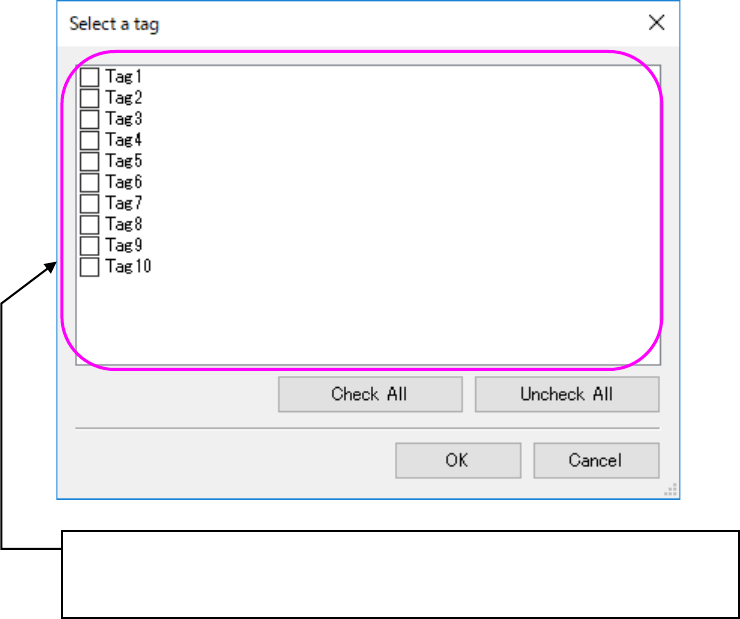
Figure 16.1-4 “Select a tag” screen
See Sections 16.24 “Setting a Tag” and 16.5 “Importing external data” also for association of
Component data with tag data.
Displays the list of the current tags.
Tags whose corresponding check boxes are checked off are to be added to the
conditions for narrowing down Component data.
JaNets Instruction Manual 16 Component Database
16-4
Menu Layout
Menu items
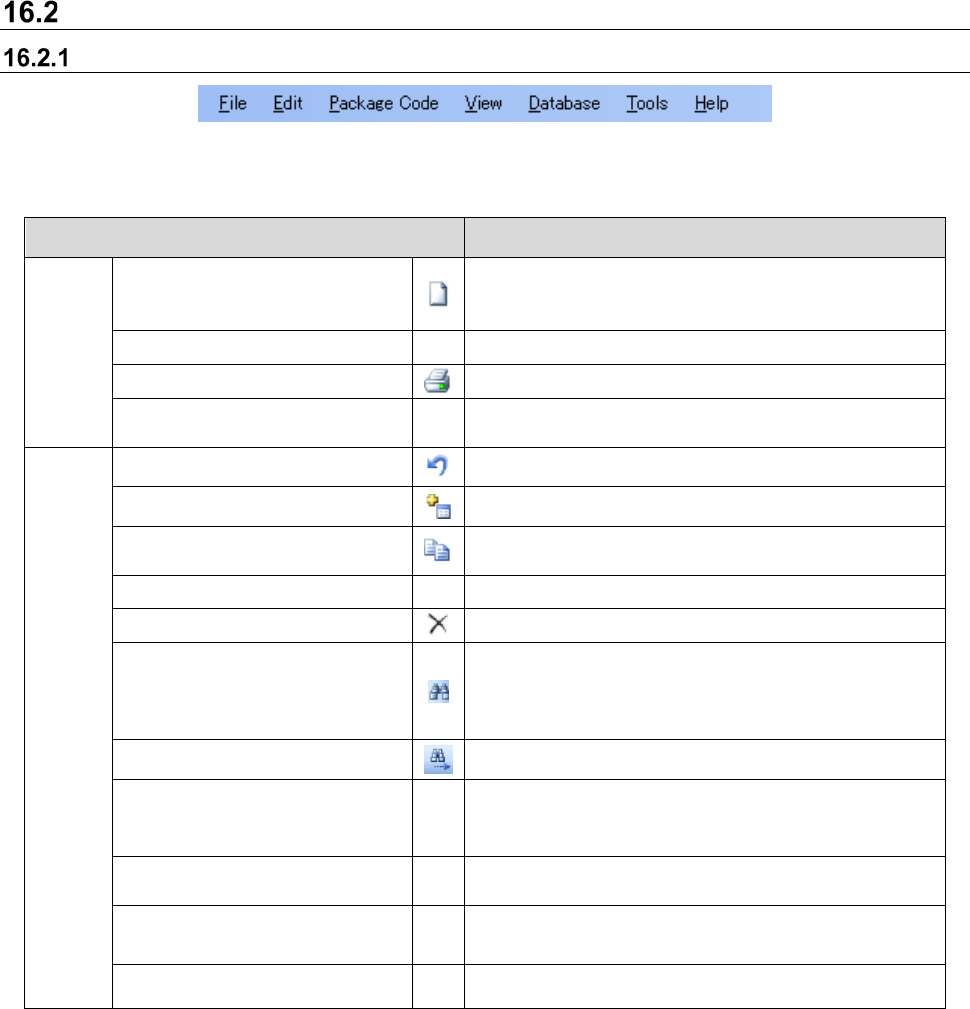
Figure 16.2-1 Component data menu
Table 16.2-1 Component data menu items
Menu item Description
File (F)
Import Data…
Downloads component data from production programs
and other component libraries as well as those supplied
by third parties and records them in the database
Ctrl+I
Export (E)
Exports component data and adhesion data
Print & Save to file...
Ctrl+P
Prints component data
Close component
database (X)
Closes component database
Edit (E)
Go back (Z)
Ctrl+Z
Goes back to the nearest previous input
Add (A)...
Ctrl+A
Adds to list data
Copy (C) ...
Ctrl+C
Copies component data displayed on the grid. Can only
be selected when the component data tab is displayed.
Change (E) Ctrl+E
Changes currently selected data in each list
Delete (D)
Ctrl+D
Deletes component data displayed on the grid
Find (F)...
Ctrl+F
When the component data tab is displayed, a dialog is
displayed to find the designated [Component name]. If
other tabs are displayed, a dialog is displayed to find
characters within the list.
Find next (N) F3
Finds next data
Replace (R)...
Ctrl+R
Replaces all set items of component data at once. Can
only be selected when the component data list is
displayed.
Change component
name (H)...
Ctrl+H
Changes component names. Can only be selected when
the component data list is selected.
Change adhesion
pattern name (B)...
Ctrl+B
Changes the names of adhesion patterns. Can only be
selected when the adhesive data list is selected.
Tag assignment (T)
Ctrl+T
Registers a tag and assigns it to Component data.