JANETS_INM.pdf - 第609页
JaNets In structio n Manual 16 Component D ataba se 16 -9 Basic sett ing screen Th e e dits bas ic data co ncern ing comp onents. T his screen is display ed by se lecting o ne correspond ing ite m from the co mpone nt da…
JaNets Instruction Manual 16 Component Database
16-8
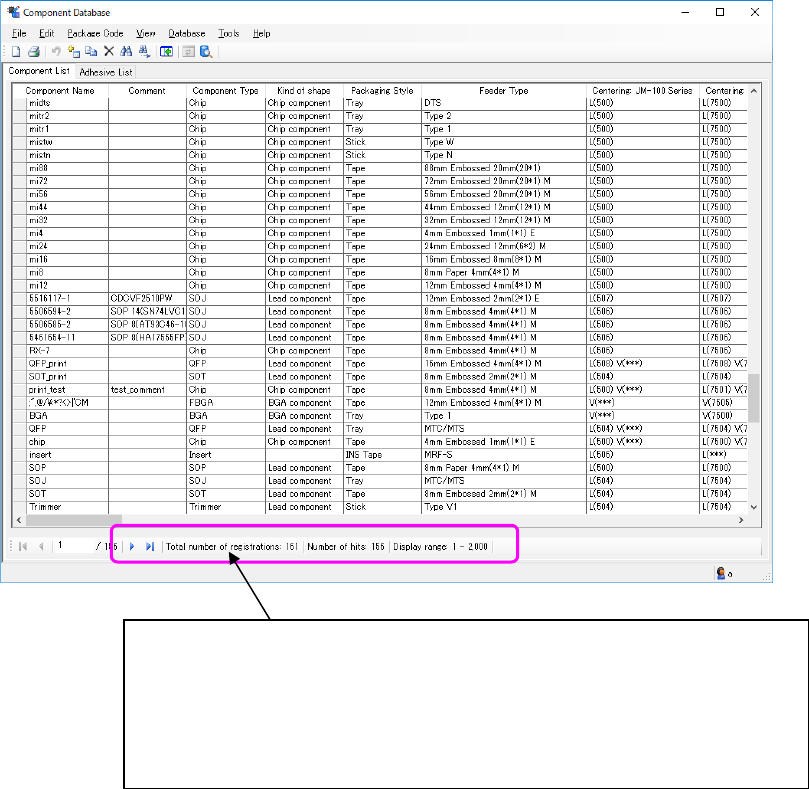
If data is registered in the Component Database only, data that matches with the search items set
on the “Search through Component Database” screen is displayed on the grid as shown below.
Figure 16.3-2 Component Database overview (with data)
Total number: Total number of component data records registered in the
Component Database
Number of hits: Number of component data records that match with the search
items in the Component Database
Display range: Display range of matched component data records in the list
JaNets Instruction Manual 16 Component Database
16-9
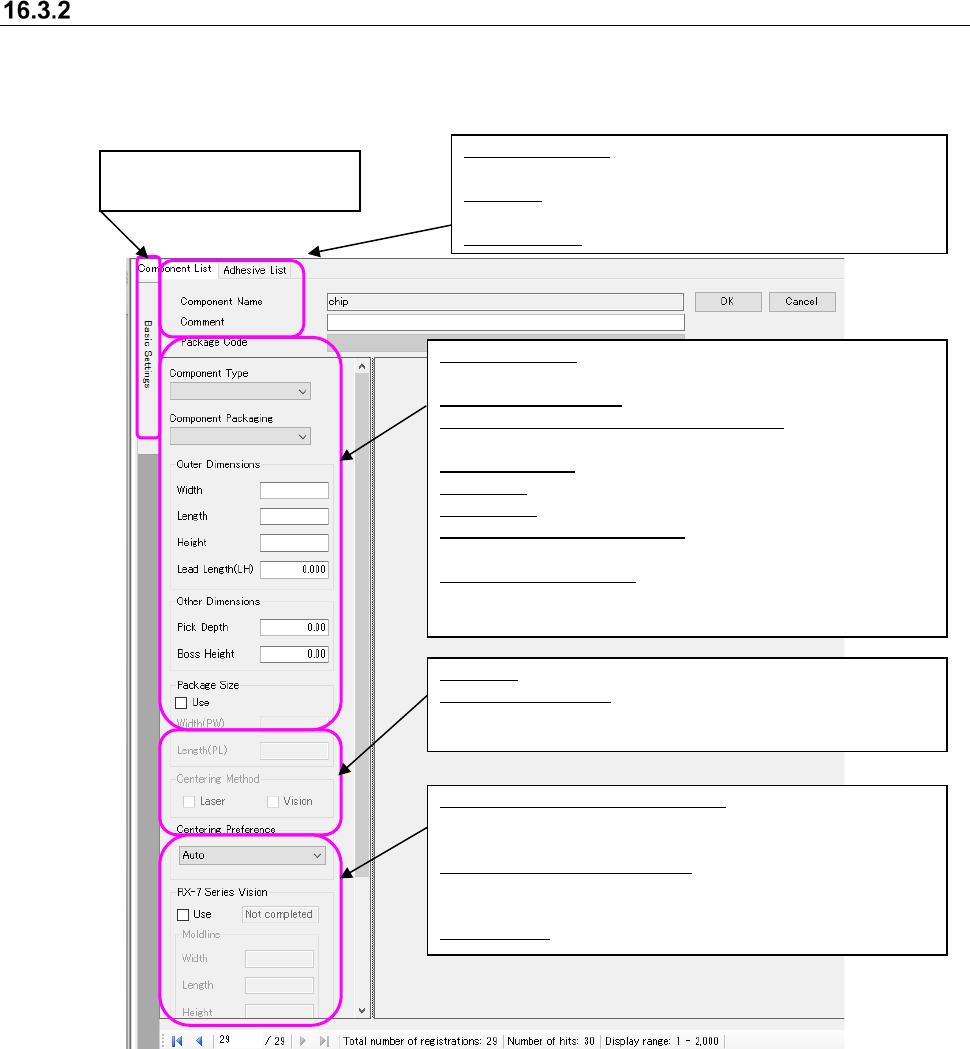
Basic setting screen
The edits basic data concerning components. This screen is displayed by selecting one
corresponding item from the component database screen and selecting [Edit] - [Change] or by
double clicking on the grid of the overview screen.
Figure 16.3-3 Basic setting screen
Component Name: Holds up to 60 alphanumeric
characters
Comment: Holds up to 127 alphanumeric
characters
Package Code: Selects the registered package code
Click on this tab to turn the
screen display ON/OFF.
Centering: Selects “Laser” or “Vision”
Centering Preference: Determines priority in centering when
multiple choices have been made in
centering above.
Component Type: The image displayed changes with
the selection of component type
Component Packaging: Selects type of packaging
Outer Dimensions (Length / Width / Height):
Inputs in mm units
Lead Length(LH): Inputs in mm units
Pick Depth: Inputs in mm units
Boss Height: Inputs in mm units
Package Size “Use” check box:
Check off this box to use the package size.
Width (PW)/Length (PL):
Enter the width and length of the package in
millimeters.
RX-7 Series Vision “Use” check box:
Check off this box for a component to be used
with an RX-7 series.
Mold line (Width/Length/Height):
Enter the width, length and height of a mold
part in millimeters.
Kind of shape: Select the shape type
JaNets Instruction Manual 16 Component Database
16-10
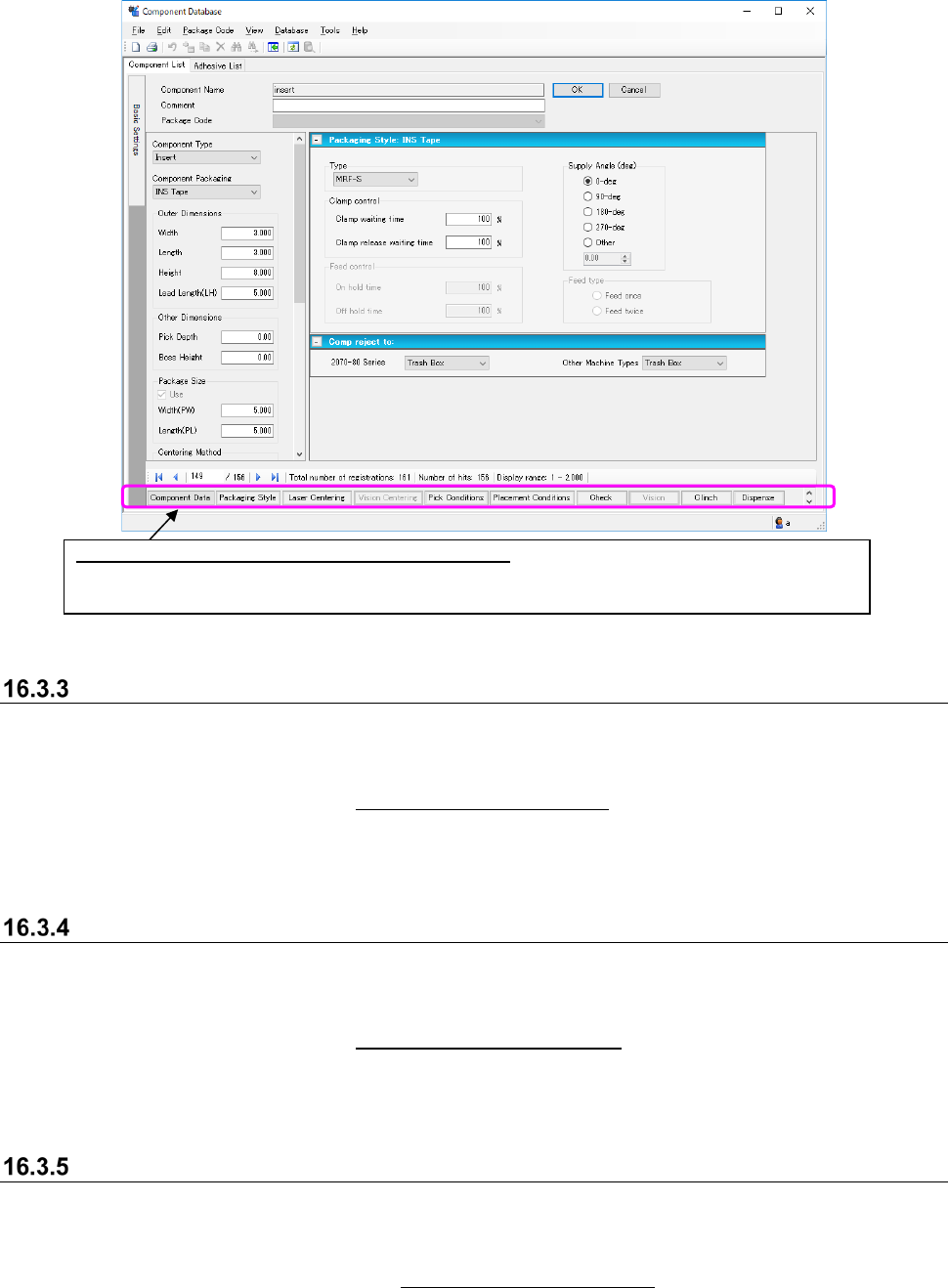
Figure 16.3-4 Basic setting screen (Item buttons in the component data edit screen)
“Packaging Style” setting window
The “Packaging Style” setting window allows you to specify packaging style information to be used
with the corresponding component.
When you click the <Packaging Style> button of the item buttons displayed on the component data
edit screen described in Section 16.3.2 “Basic setting screen,” this “Packaging Style” setting
window appears.
See Section 7.4.3.3 “Packaging Style” window of the “Component Data” screen” of Chapter 7 for
how to edit data on this window.
“Laser Centering” setting window
The “Laser Centering” setting window allows you to specify laser centering information to be used
with the corresponding component.
When you click the <Laser Centering> button of the item buttons displayed on the component data
edit screen described in Section 16.3.2 “Basic setting screen,” this “Laser Centering” setting
window appears.
See Section 7.4.3.4 “Laser Centering General Setting screen” of Chapter 7 for how to edit data on
this window.
“Vision Centering” setting window
The “Vision Centering” setting window allows you to specify vision centering information to be
used with the corresponding component.
When you click the <Vision Centering> button of the item buttons displayed on the component
data edit screen described in Section 16.3.2 “Basic setting screen,” this “Vision Centering” setting
window appears.
See Section 7.4.3.5 “Vision Centering General Setting screen” of Chapter 7 for how to edit data on
this window.
How to move between the component data edit screens:
You can select item buttons to move between the desired edit screens. The item buttons are
displayed on the component database overview screen.