JANETS_INM.pdf - 第61页
JaNets Instr ucti on Man ual 2. Install ation 2- 33 (6) When the scre en for c hang ing the acc ount set ting ap pears, s elect t he item “ Create a password.” Figure 2.5 -6 Screen for changing the a ccount setting (wi t…
JaNets Instruction Manual 2. Installation
2-32
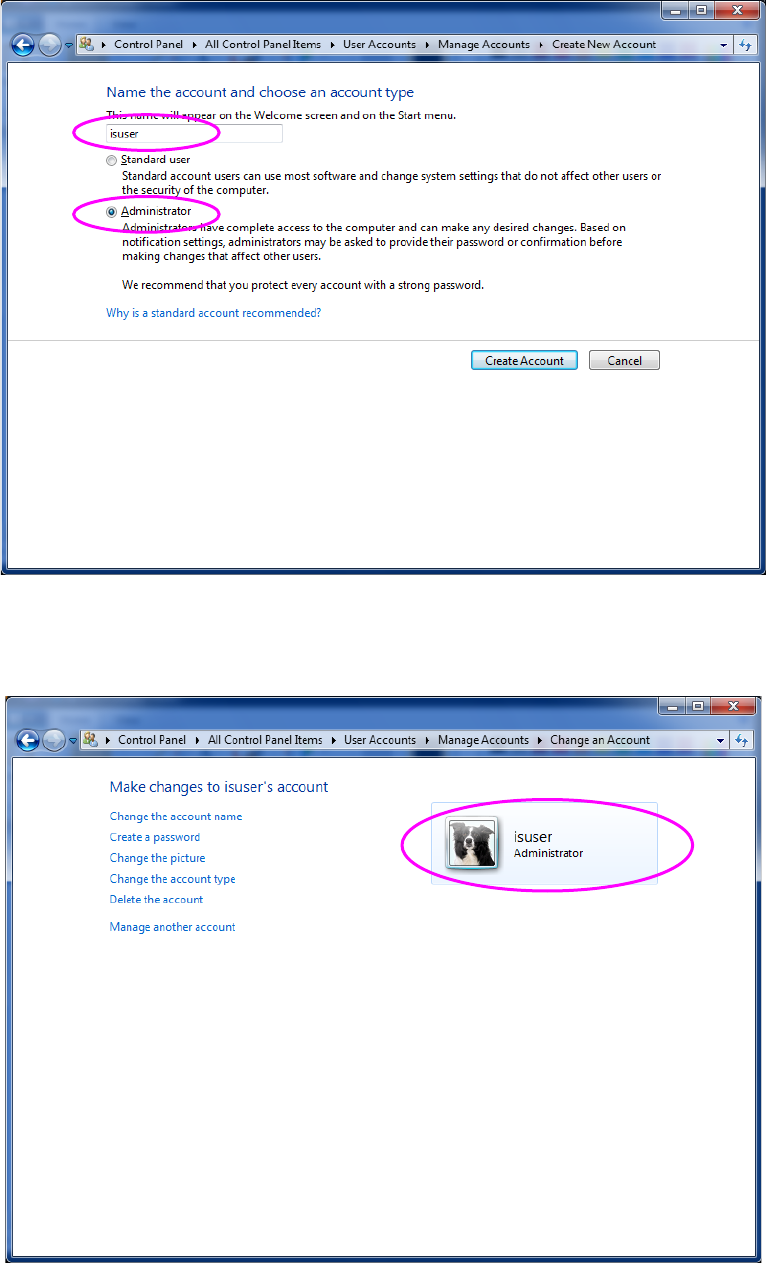
(4) When the “Create New Account” dialog box appears on the screen, enter the user account
name, and then select the “Administrator” radio button. Next, select the <Create Account>
button. The name of an account to be created is “isuser.”
Figure 2.5-4 “Create New Account” dialog box (with a machine)
(5) The “Manage Accounts” dialog box reappears on the screen, and the new account is added
on this dialog box. Select the created user account.
Figure 2.5-5 “Manage Accounts” dialog box (displayed with a machine)
JaNets Instruction Manual 2. Installation
2-33
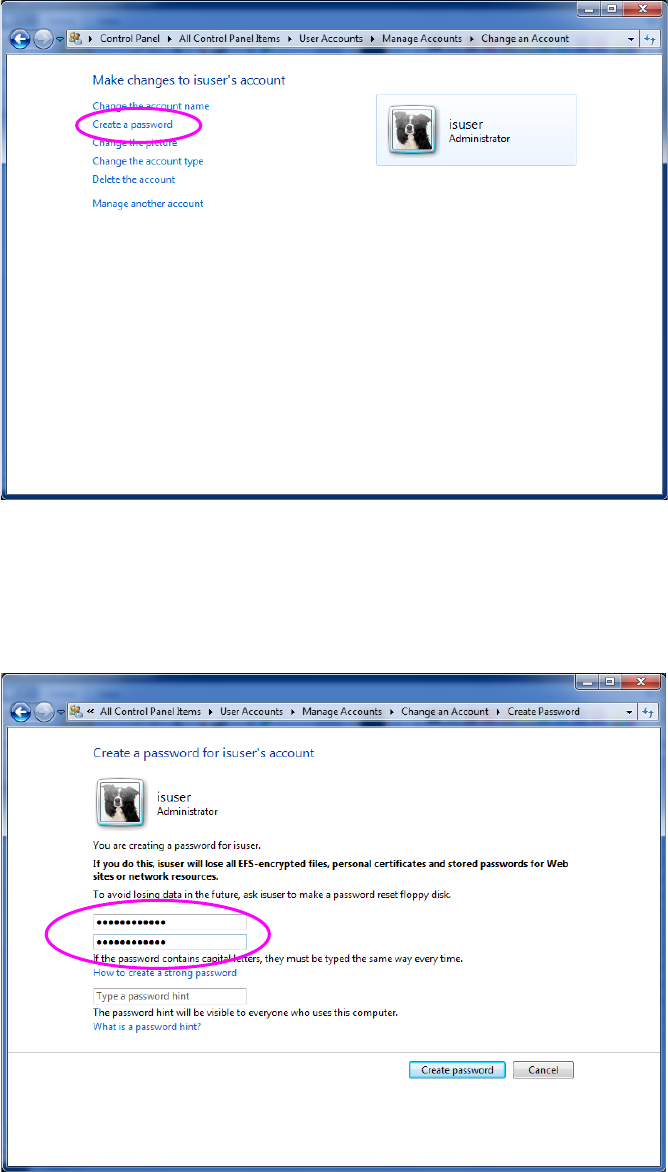
(6) When the screen for changing the account setting appears, select the item “Create a
password.”
Figure 2.5-6 Screen for changing the account setting (with a machine)
(7) When the “Create Password” dialog box appears on the screen, enter the same password
twice to set a new password and to confirm it, and then enter a password hint (arbitrarily).
Next, select the <Create Password> button. The password you have to enter is
“is_user_2008.”
Figure 2.5-7 Screen for creating a password (with a machine)
JaNets Instruction Manual 2. Installation
2-34
You have finished creating a user account at this point.
- The cautions after account creation
The drive C becomes used as a ROM by using EWF (Enhanced Write Filter) for protecting the
OS in the machine. Since the contents written in drive C is deleted at the time of a restart of PC,
perform updating operation according to the Section "2.5.1.4 Updating the Drive C" when you
change the information on the OS.