JANETS_INM.pdf - 第625页
JaNets In structio n Manual 16 Component D ataba se 16 - 25 When you ex port data in t he main un it Compon ent database f ormat, you can also e xport associat ion with pa ckage codes. After you spe cify the n ame of an …
JaNets Instruction Manual 16 Component Database
16-24
Exporting data
This function allows you to export component data and adhesion data to main unit Component
database format file.
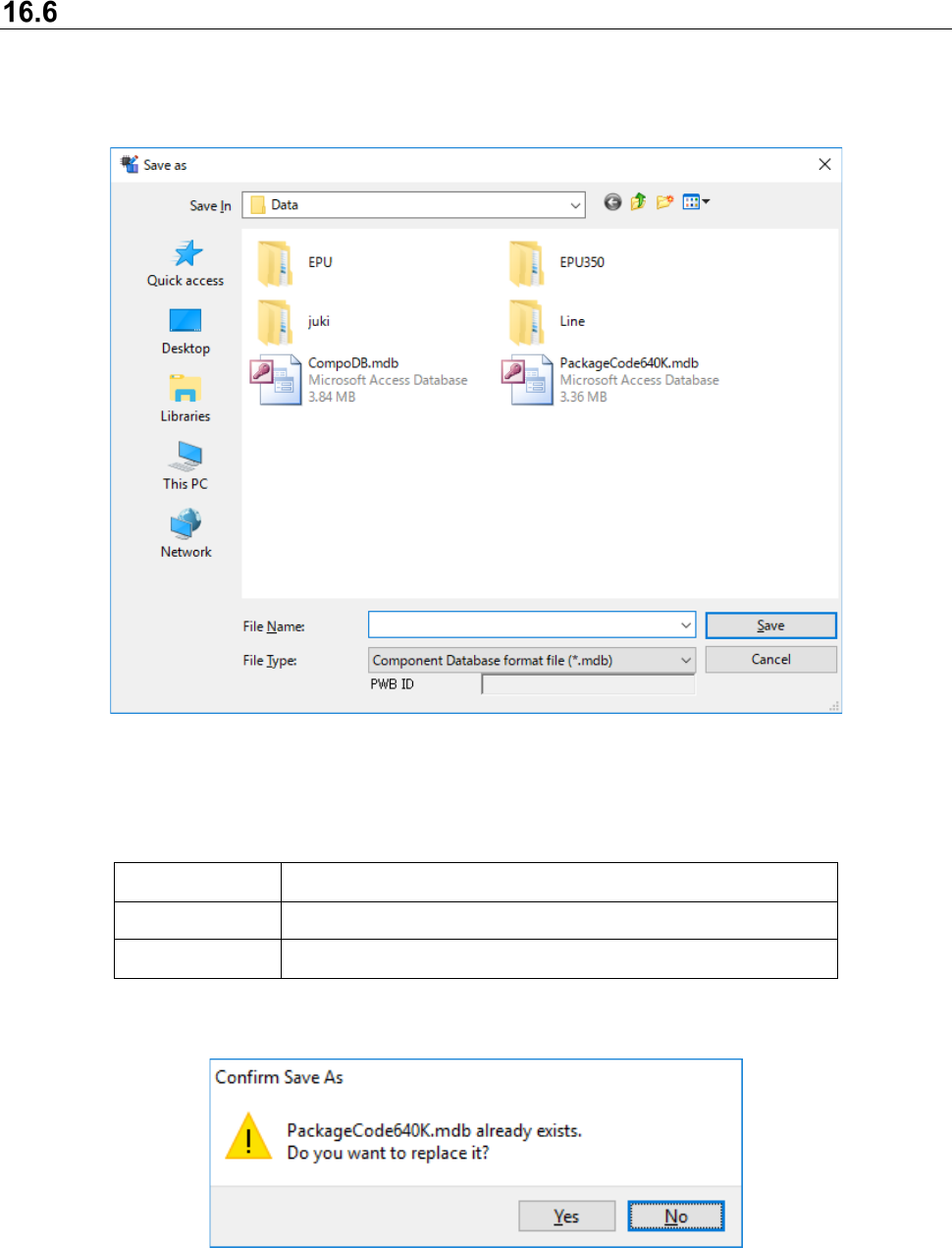
By selecting the [File] - [Export] command, the following file selection screen appears to specify
the file name to be exported.
Figure 16.6-1 Save As dialog box
Format that can be exported is shown as follows:
Table 16.6-1 Format that can be exported
Extension File format
MDB Main unit Component DB format
FLX Main unit Component DB Package code file
When existing file is specified, a confirmation message asking you whether to be replaced
appears.
Figure 16.6-2 Confirmation message asking you whether to be replaced
[Yes] : Replaces the file
[No] : Returns to Save As dialog
JaNets Instruction Manual 16 Component Database
16-25
When you export data in the main unit Component database format, you can also export
association with package codes.
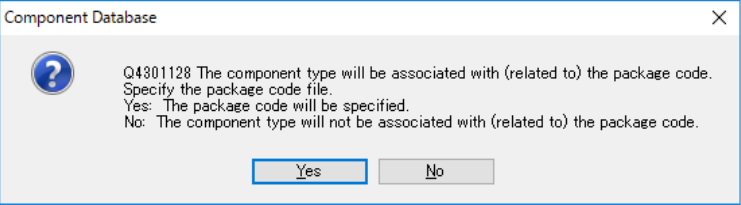
After you specify the name of an MDB file to be exported, the following message appears on the
screen.
Figure 16.6-3 Package code association confirmation message
When you select the <Yes (Y)> button, the “File” dialog box appears on the screen. Specify a
package code file (*.pkg) that is to be used with the main unit Component Database.
When you select the <No (N)> button, the system exports only registered data without associating
it with any package code.
However, a package code file specified when you export an MDB file is used to check association
of component data with package codes (to obtain a package code name). Since the system does
not export any package code, export a package code(s) before exporting an MDB file. If a package
code file already exists, you do not have to export it.
JaNets Instruction Manual 16 Component Database
16-26
Add
This makes additions to component data and adhesion data when the overview screen of each list
is displayed.
Adding to component data
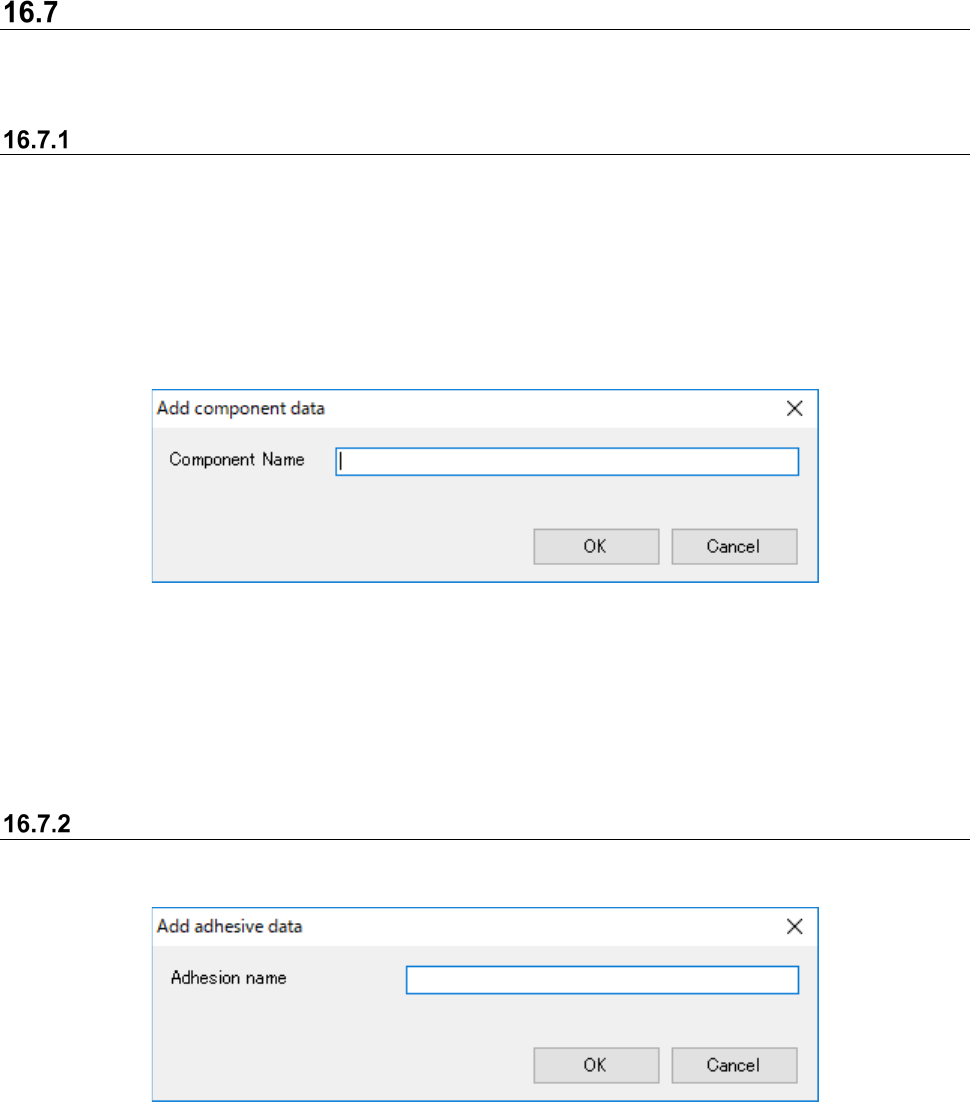
When adding to component data, the component name input screen is displayed. Input
component names in the component name overview screen.
Selection can only be made when the component name overview screen is displayed.
Go to the basic setting screen [Edit] - [Add] and the component input screen is displayed.
Component names input in the component name input screen are set.
Always use Add in the last row.
Additions cannot be made within component data.
Figure 16.7-1 Component name input screen
Component name : Holds up to 60 alphanumeric characters.
OK : Sets the input component name into the component name in the
component data overview screen
Adding to adhesion data
When adding to adhesion data, the adhesion pattern input screen is displayed.
Figure 16.7-2 Adhesion pattern name input screen
Adhesion pattern name : Holds up to 8 alphanumeric characters is possible.
OK : Sets the input adhesion pattern name into the adhesion pattern
name in the adhesion data overview screen.