JANETS_INM.pdf - 第627页
JaNets In structio n Manual 16 Component D ataba se 16 - 27 C hange Component data changes Select data t o be ch anged from the com ponent d ata base o vervie w screen, t hen selec t ① the [Edit] - [Change] comma nd or d…
JaNets Instruction Manual 16 Component Database
16-26
Add
This makes additions to component data and adhesion data when the overview screen of each list
is displayed.
Adding to component data
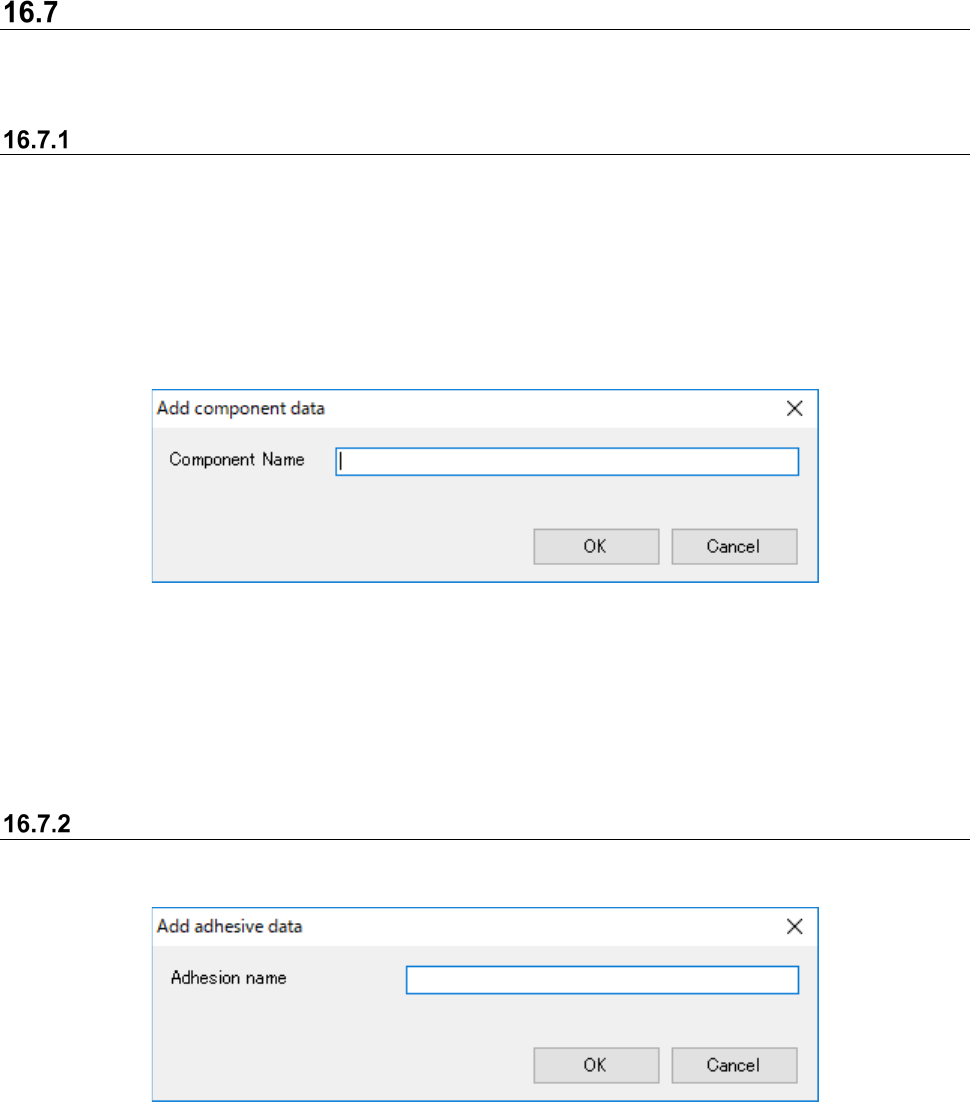
When adding to component data, the component name input screen is displayed. Input
component names in the component name overview screen.
Selection can only be made when the component name overview screen is displayed.
Go to the basic setting screen [Edit] - [Add] and the component input screen is displayed.
Component names input in the component name input screen are set.
Always use Add in the last row.
Additions cannot be made within component data.
Figure 16.7-1 Component name input screen
Component name : Holds up to 60 alphanumeric characters.
OK : Sets the input component name into the component name in the
component data overview screen
Adding to adhesion data
When adding to adhesion data, the adhesion pattern input screen is displayed.
Figure 16.7-2 Adhesion pattern name input screen
Adhesion pattern name : Holds up to 8 alphanumeric characters is possible.
OK : Sets the input adhesion pattern name into the adhesion pattern
name in the adhesion data overview screen.
JaNets Instruction Manual 16 Component Database
16-27
Change
Component data changes
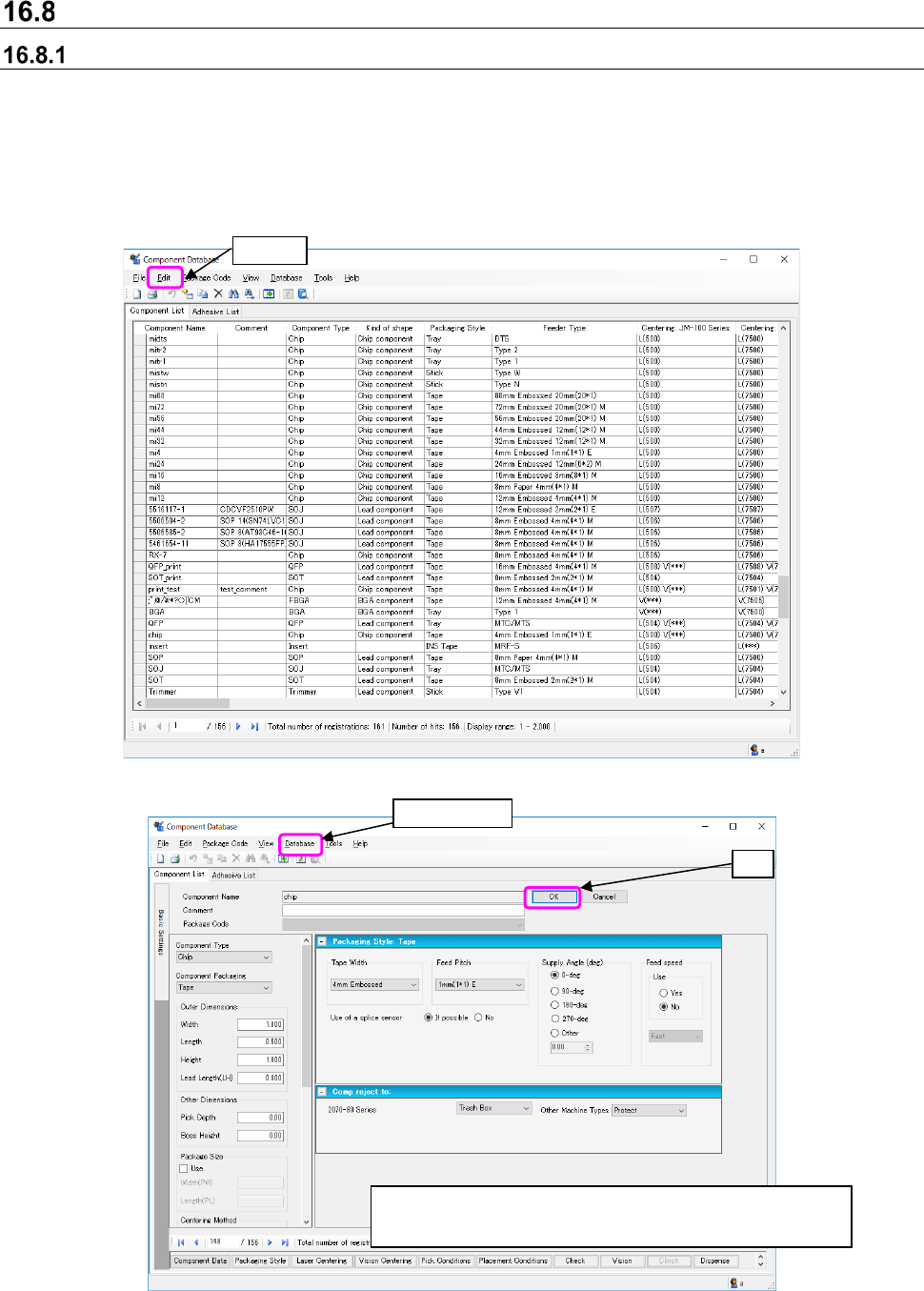
Select data to be changed from the component database overview screen, then select① the [Edit]
- [Change] command or double click and the screen switches to basic settings where data can be
changed.
You can change information registered in the Component Database only. If the corresponding
data is used with a permanent feeder or a production program, it is not changed. Therefore,
change the data with each application program in the same manner.
Figure 16.8-1 Component database overview screen
Figure 16.8-2 Basic setting screen - Component data changes
A database is updated by selecting (
②
) the "database" -
"updating," or (③) the "OK" after contents change.
②
Database
①
Edit
③
JaNets Instruction Manual 16 Component Database
16-28
Adhesion data changes
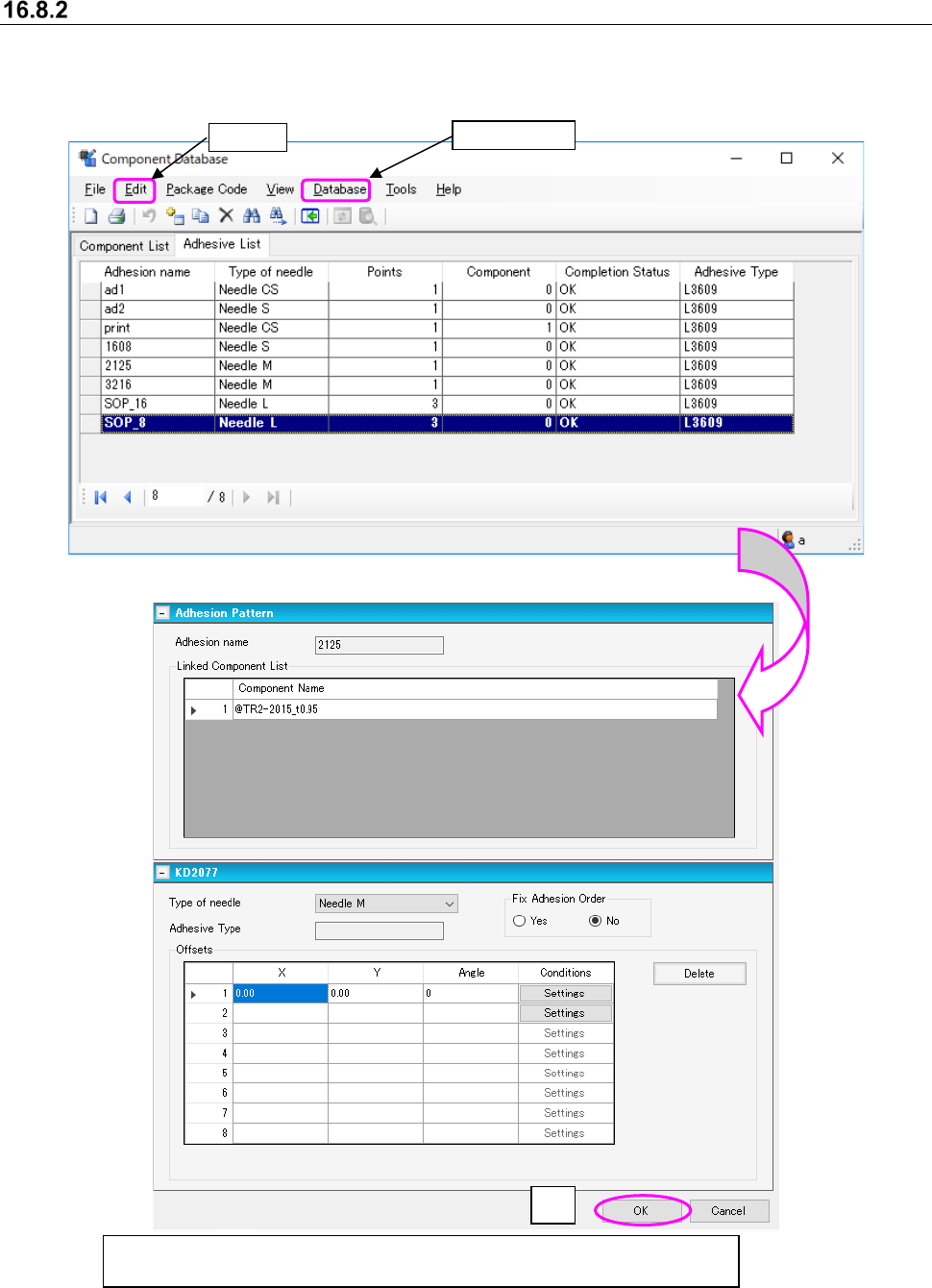
Select data to be changed from the adhesion database overview screen, then select① [Edit] -
[Change] or double click and the screen switches to basic settings where data can be changed.
Figure 16.8-3 Component database overview screen
Figure 16.8-4 Basic setting screen - Adhesive data changes
③
After making changes, select
②
[Database] - [Update] or use
③
[OK] to make
the update to the database.
①
Edit
②
Database