JANETS_INM.pdf - 第628页
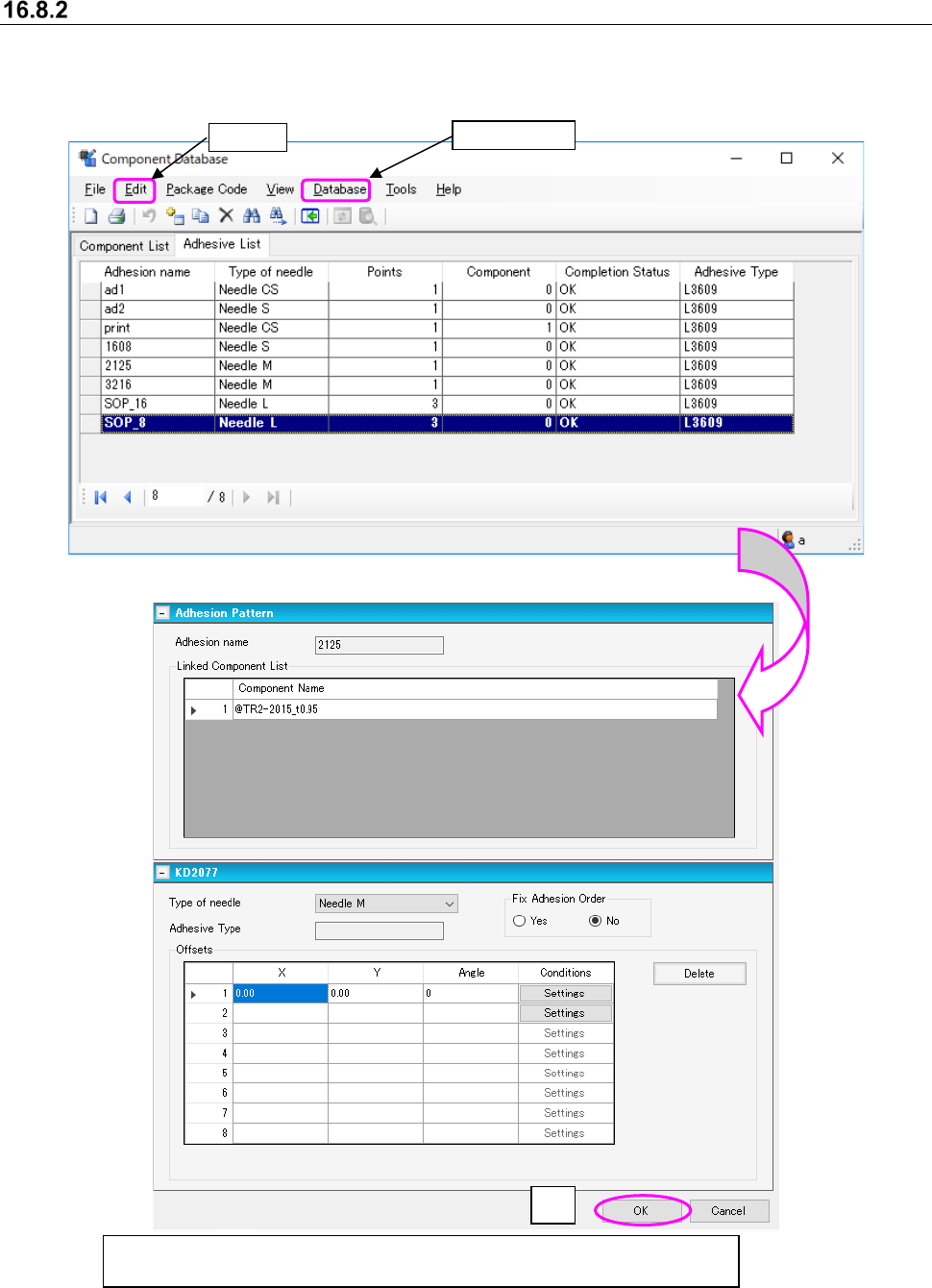
JaNets In structio n Manual 16 Component D ataba se 16 - 28 Adhesion da ta changes Select data t o be chang ed from the adhes ion dat abase o ver view scr een, t hen select ① [Ed it] - [Change] or double cl ick and the s…
JaNets Instruction Manual 16 Component Database
16-27
Change
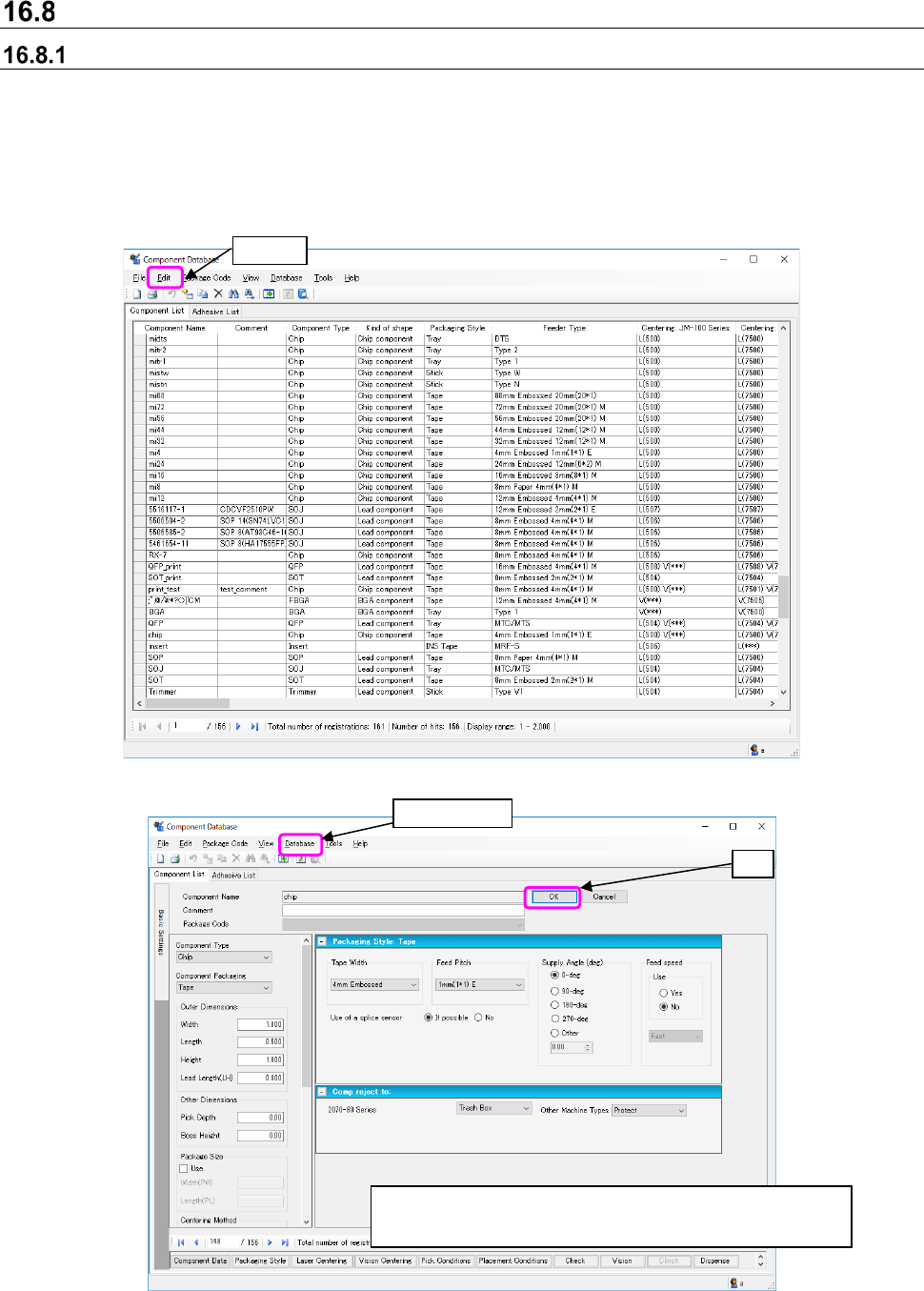
Component data changes
Select data to be changed from the component database overview screen, then select① the [Edit]
- [Change] command or double click and the screen switches to basic settings where data can be
changed.
You can change information registered in the Component Database only. If the corresponding
data is used with a permanent feeder or a production program, it is not changed. Therefore,
change the data with each application program in the same manner.
Figure 16.8-1 Component database overview screen
Figure 16.8-2 Basic setting screen - Component data changes
A database is updated by selecting (
②
) the "database" -
"updating," or (③) the "OK" after contents change.
②
Database
①
Edit
③
JaNets Instruction Manual 16 Component Database
16-28
Adhesion data changes
Select data to be changed from the adhesion database overview screen, then select① [Edit] -
[Change] or double click and the screen switches to basic settings where data can be changed.
Figure 16.8-3 Component database overview screen
Figure 16.8-4 Basic setting screen - Adhesive data changes
③
After making changes, select
②
[Database] - [Update] or use
③
[OK] to make
the update to the database.
①
Edit
②
Database
JaNets Instruction Manual 16 Component Database
16-29
Restoring component data
In the component database overview screen go to [Edit] - [Restore] and use the component data
input form input to return to the most recent previous contents. However, data spread on the
screen cannot be restored.
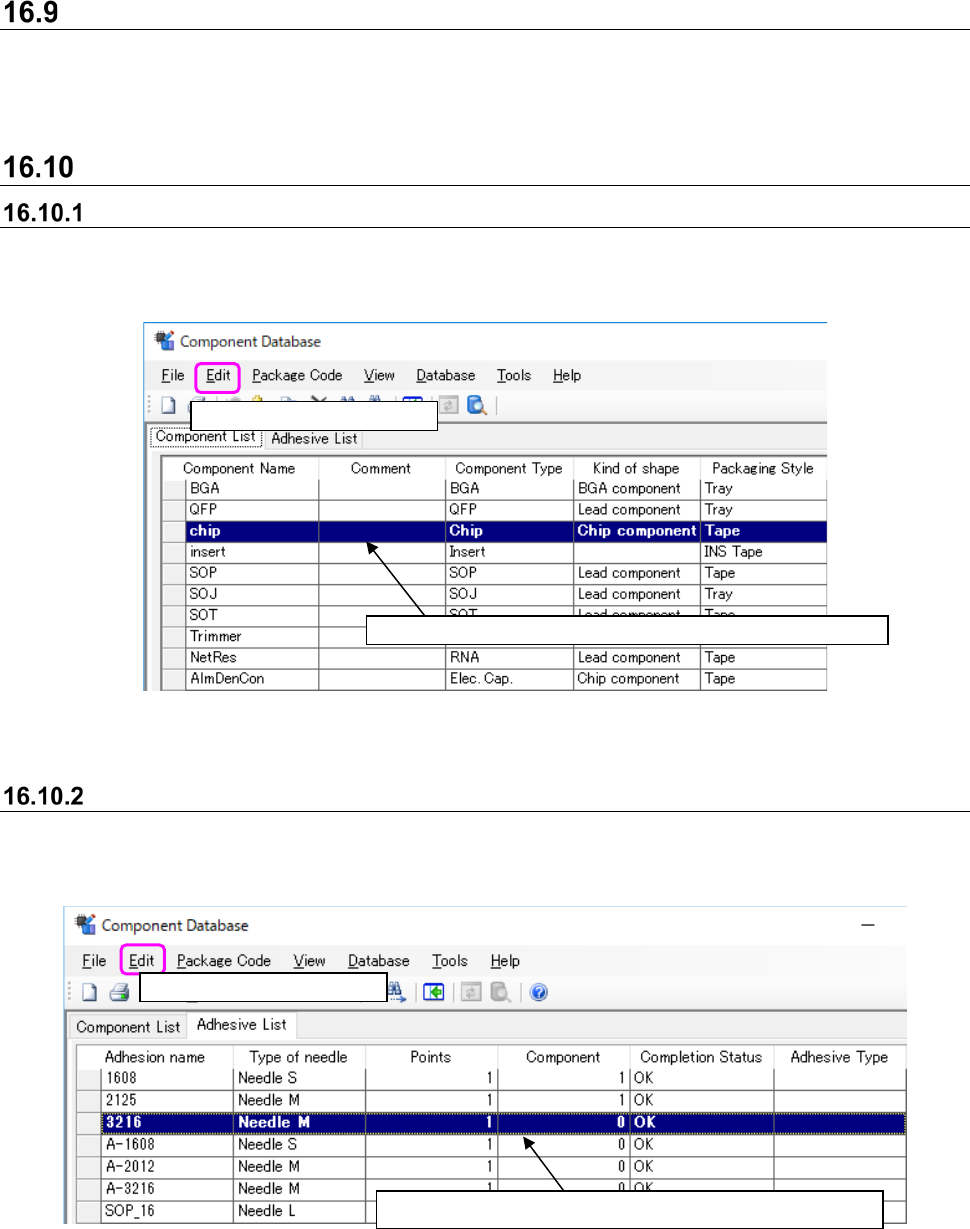
Delete
Deleting component data
Use ① and ② to operate or select the row to delete and press the Del key at the top of the
keyboard.
Figure 16.10-1 Component data deletion
Deleting adhesion data
Use ① and ② to operate or select the row to delete and press the Del key at the top of the
keyboard.
Figure 16.10-2 Adhesion data deletion
Select
②
[Edit] - [Delete].
Select
①
the row to delete. You can make multiple choices.
Select
②
[Edit] - [Delete].
Select
①
the line to delete. You can make multiple choices.