JANETS_INM.pdf - 第630页
JaNets In structio n Manual 16 Component D ataba se 16 - 30 C opy Copying com ponen t data This works f rom the t op of the compon ent datab ase ove rvie w screen. The r ows copi ed are adde d to the final ro w . Figure …
JaNets Instruction Manual 16 Component Database
16-29
Restoring component data
In the component database overview screen go to [Edit] - [Restore] and use the component data
input form input to return to the most recent previous contents. However, data spread on the
screen cannot be restored.
Delete
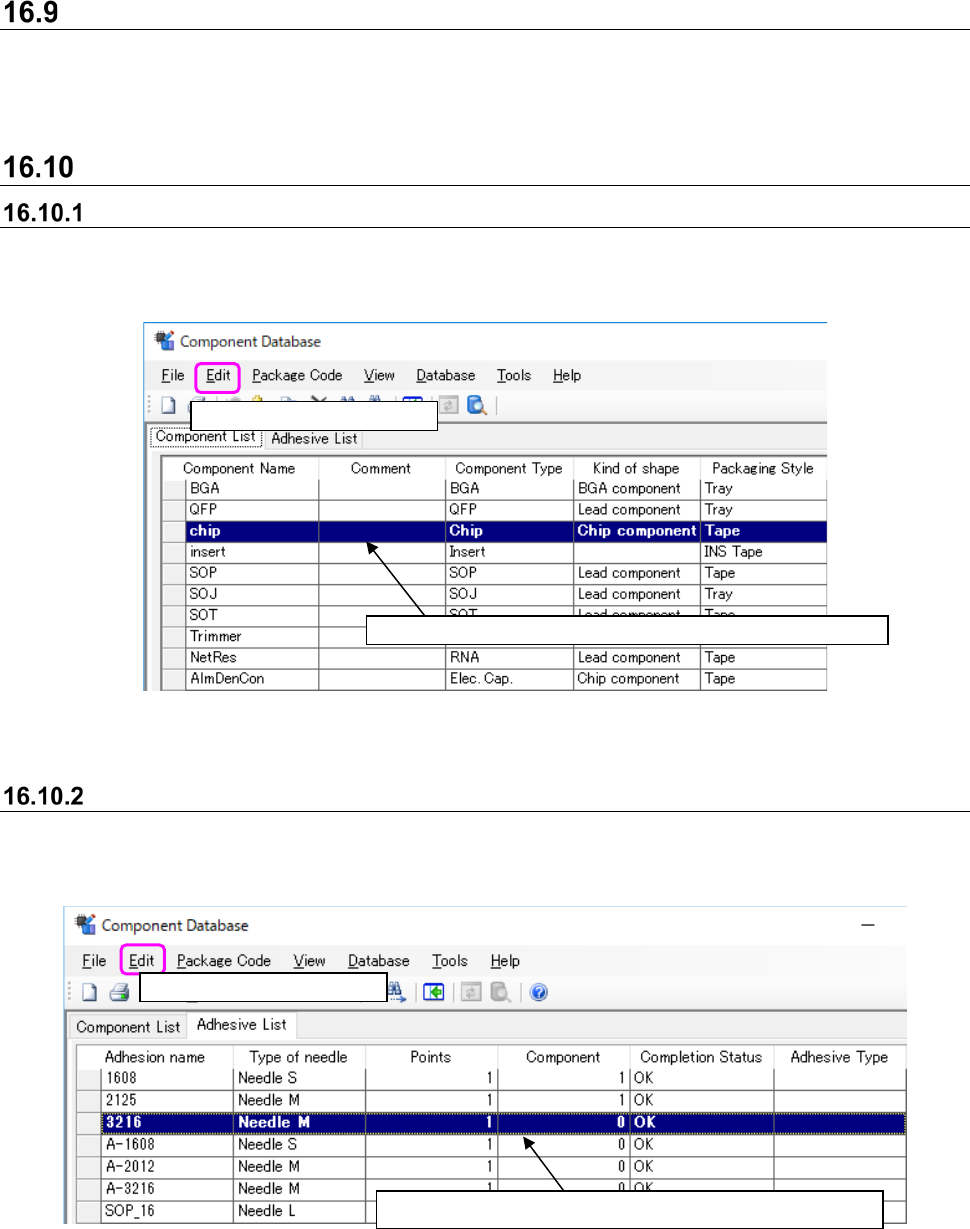
Deleting component data
Use ① and ② to operate or select the row to delete and press the Del key at the top of the
keyboard.
Figure 16.10-1 Component data deletion
Deleting adhesion data
Use ① and ② to operate or select the row to delete and press the Del key at the top of the
keyboard.
Figure 16.10-2 Adhesion data deletion
Select
②
[Edit] - [Delete].
Select
①
the row to delete. You can make multiple choices.
Select
②
[Edit] - [Delete].
Select
①
the line to delete. You can make multiple choices.
JaNets Instruction Manual 16 Component Database
16-30
Copy
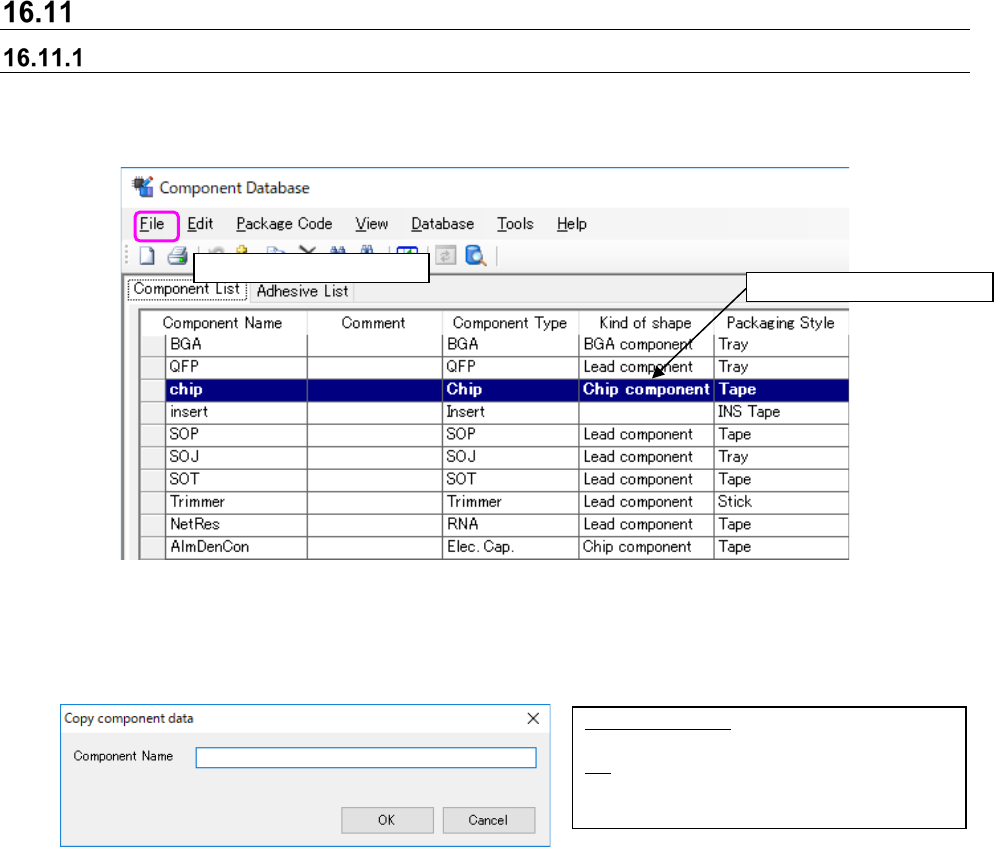
Copying component data
This works from the top of the component database overview screen. The rows copied are added
to the final row.
Figure 16.11-1 Component database copying
Operate ① and ② to display the screen below. Component names input into the screen below
become multiple copies of the component name.
Figure 16.11-2 Component name input screen
Select
②
[Edit] - [Copy].
Select
①
the lines to copy.
Component Name: Holds up to 60
characters of alphanumeric code.
OK: Sets the input of the component name
into the component data overview
screen.
JaNets Instruction Manual 16 Component Database
16-31
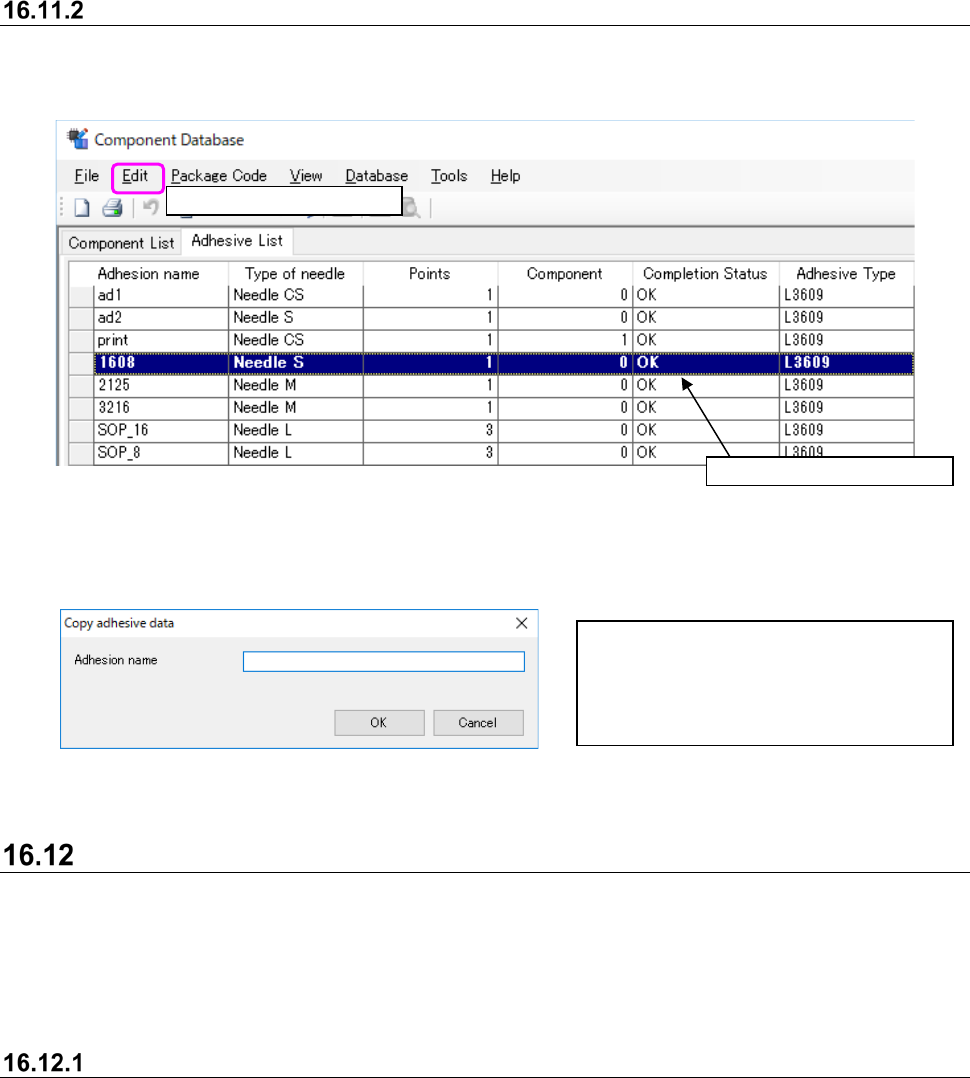
Copying adhesion data
This works from the top of the component databse overview screen. The rows copied are added to
the final row.
Figure 16.11-3 Adhesion data copying
Operate ①and ②to display the screen below. Adhesion names input into the screen below
become multiple copies of the adhesion pattern name.
Figure 16.11-4 Adhesion pattern name input screen
Find
Select the [Edit] - [Find] command and a dialog box appears to input search conditions. Input the
search conditions and press the [OK] button to move to a grid that matches the search parameters.
The same kind of operations can be used below to find component data - component name,
adhesion pattern - adhesion pattern name and others.
Find next
Select the [Edit] - [Find next] command to move to the string column of the next find object. The
search dialog [Direction] set the direction search moves in.
Select
②
[Edit] - [Copy].
Adhension Name: Holds up to 8
characters of alphanumeric code.
OK: Sets the input of the adhesion name
into the adhesion pattern data
overview screen.
Select
①
the lines to copy.