JANETS_INM.pdf - 第633页
JaNets In structio n Manual 16 Component D ataba se 16 - 33 Item Description Component T ype Select a component t ype to b e repla ced fr om the com bo bo x. Packaging S tyle Select a p ackaging style t o be replaced fro…
JaNets Instruction Manual 16 Component Database
16-32
Replacement
Component data that conform with the conditions set can replace settings with the replacement
item.
Select [Edit] – [Replacement].
Setting the replacement conditions
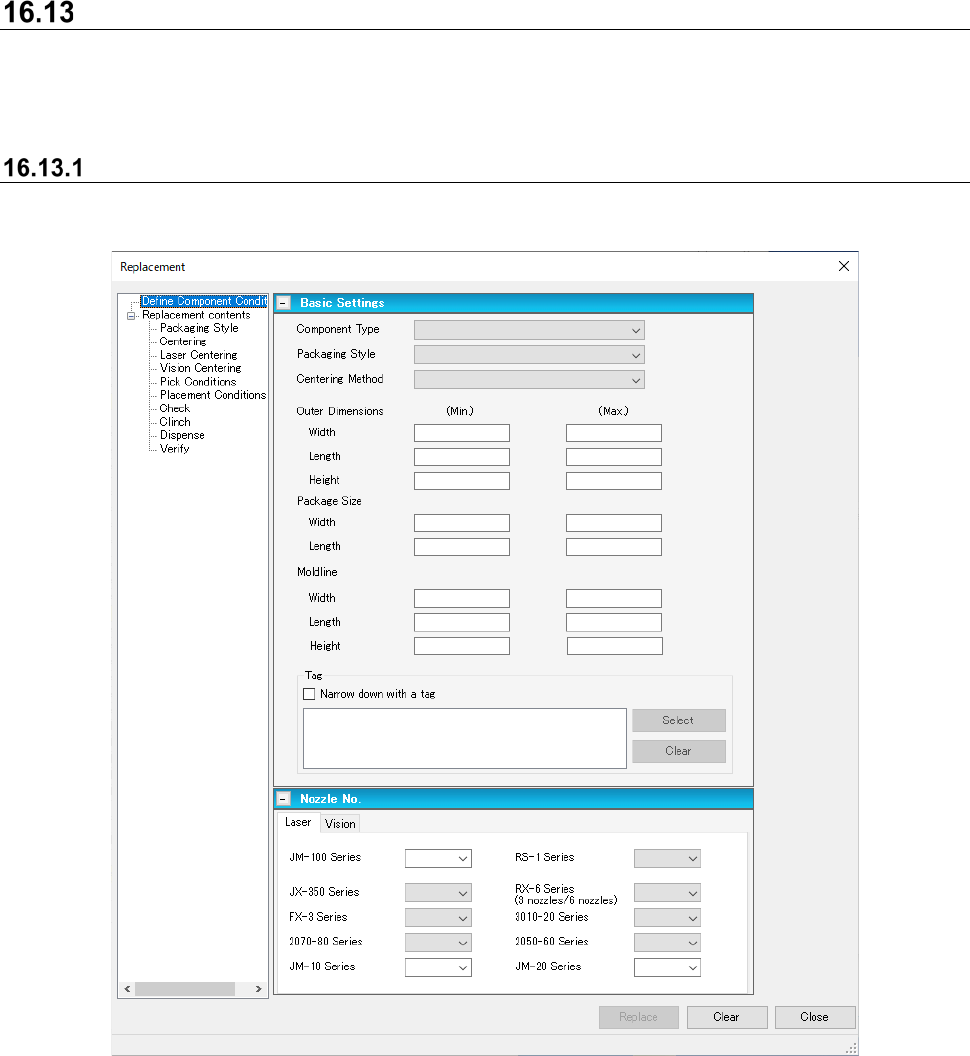
The extraction conditions of a replacement component are set in the screen as follows:
Figure 16.13-1 Define Component Conditions screen
JaNets Instruction Manual 16 Component Database
16-33
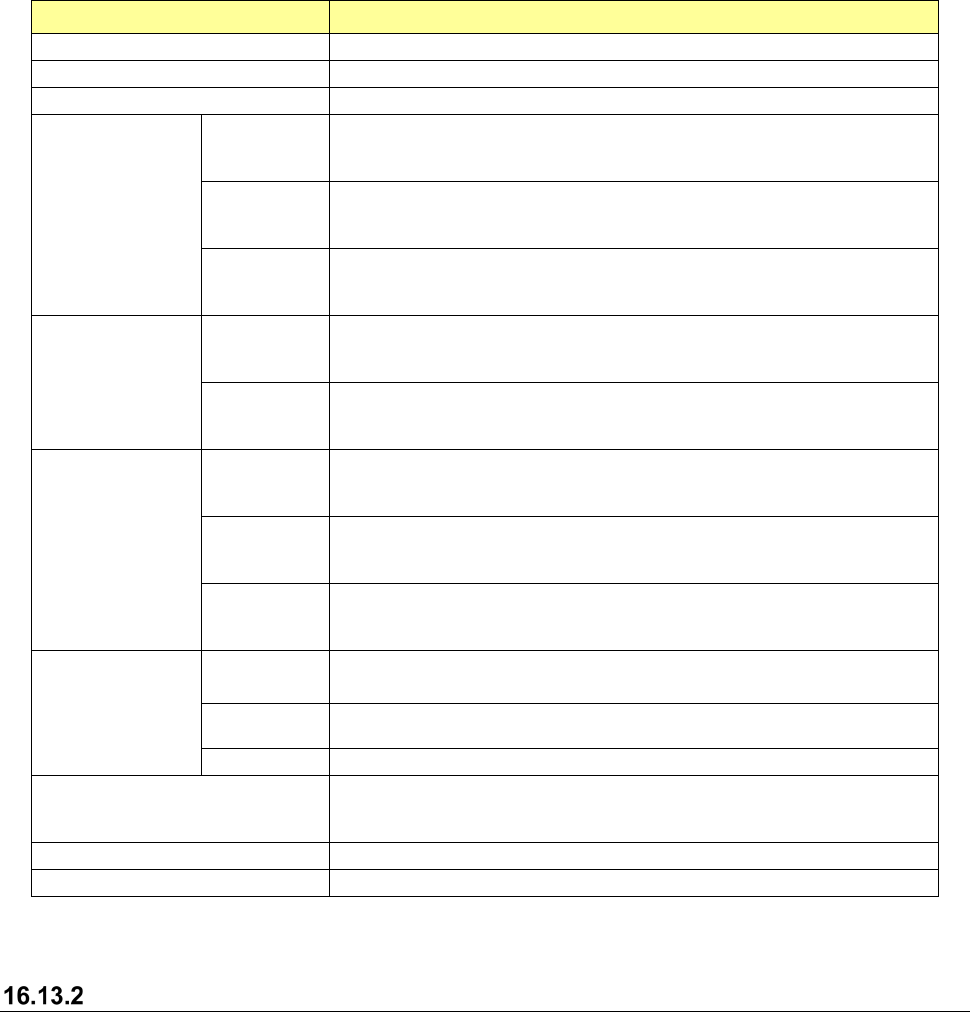
Item Description
Component Type
Select a component type to be replaced from the combo box.
Packaging Style
Select a packaging style to be replaced from the combo box.
Centering Method
Select a centering method to be replaced from the combo box.
Outer Dimensions
Width
Enter the minimum and maximum values of the width of the component to
be replaced.
The input range is from 0.001 to 180.000.
Length
Enter the minimum and maximum values of the length of the component
to be replaced.
The input range is from 0.001 to 180.000.
Height
Enter the minimum and maximum values of the height of the component
to be replaced.
The input range is from 0.000 to 999.999.
Package Size
Width
Enter the minimum and maximum values of the width of the component to
be replaced.
The input range is from 0.010 to180.000.
Length
Enter the minimum and maximum values of the length of the component
to be replaced.
The input range is from 0.010 to180.000.
Moldline
Width
Enter the minimum and maximum values of the body width of a
component to be replaced.
The input range is from 0.01 to 180.00.
Length
Enter the minimum and maximum values of the body length of a
component to be replaced.
The input range is from 0.01 to 180.00.
Height
Enter the minimum and maximum values of the body height of a
component to be replaced.
The input range is from 0.01 to 55.00.
Tag
Narrow down
with a tag
When you check off this check box, a component having the tag selected
in the tag list is to be replaced.
Select
Allows you to select a tag associated with a component that is to be
replaced from the list window.
Clear
Clears the selected tag from the tag list.
<Replace> button
Starts the replacement process.
If you do not specify any replacement item, the <Replace> button is
disabled.
<Clear> button
Clears all the displayed items.
<Close> button
Closes this “Replacement” screen.
Replacement contents
Specify data to be replaced.
See Section 7.6.2.1 “Replacing component data” of Chapter 7 for details.
JaNets Instruction Manual 16 Component Database
16-34
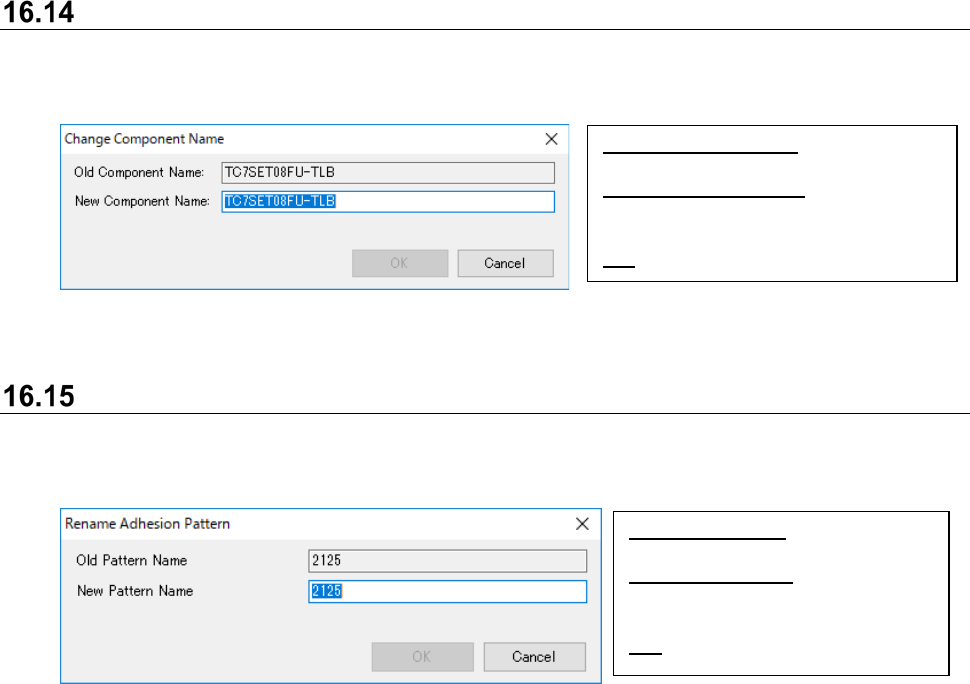
Change component name
Component name is assigned with requested name by selecting the [Edit] - [Change component
name] command.
Figure 16.14-1 Change component name
Rename adhesion pattern
Component name is assigned with requested name by selecting the [Edit] - [Change adhesion
pattern name] command.
Figure 16.15-1 Change adhesion pattern name
Old Component Name: Displays current
component name.
New Component Name: Input
requested component name. Holds up
to 60 alphanumeric characters.
OK:
Change component name.
Old Pattern Name: Displays current
pattern name.
New Pattern Name: Input requested
pattern name. Holds up to 8
alphanumeric characters.
OK: Change adhesion pattern name.